HMCL (Hello Minecraft! Launcher) is a popular, feature-rich custom launcher for Minecraft Java Edition. Before using any third-party launcher, we strongly recommend purchasing the official game directly from minecraft.net to support the developers and ensure account security.
Download and Install Java
HMCL requires Java to run on your system. Make sure you have the correct Java runtime installed depending on the Minecraft version you plan to play (Java 17 or Java 21 for recent game versions).
Download HMCL
Get the official and safe executable file from the verified source by following How to Download and Install HMCL. Save the file in a dedicated folder on your computer.
Launch HMCL and Add an Account
Double-click the downloaded executable to open the launcher. Once open, navigate to the account management section to log in securely with your legitimate Microsoft account that owns Minecraft.
Create a New Game Version Profile
Click on the profile creation tab to set up your gameversion. If you need assistance configuring specific releases, check out How to Change the Minecraft Version in HMCL.
Install Mod Loaders or Allocate RAM
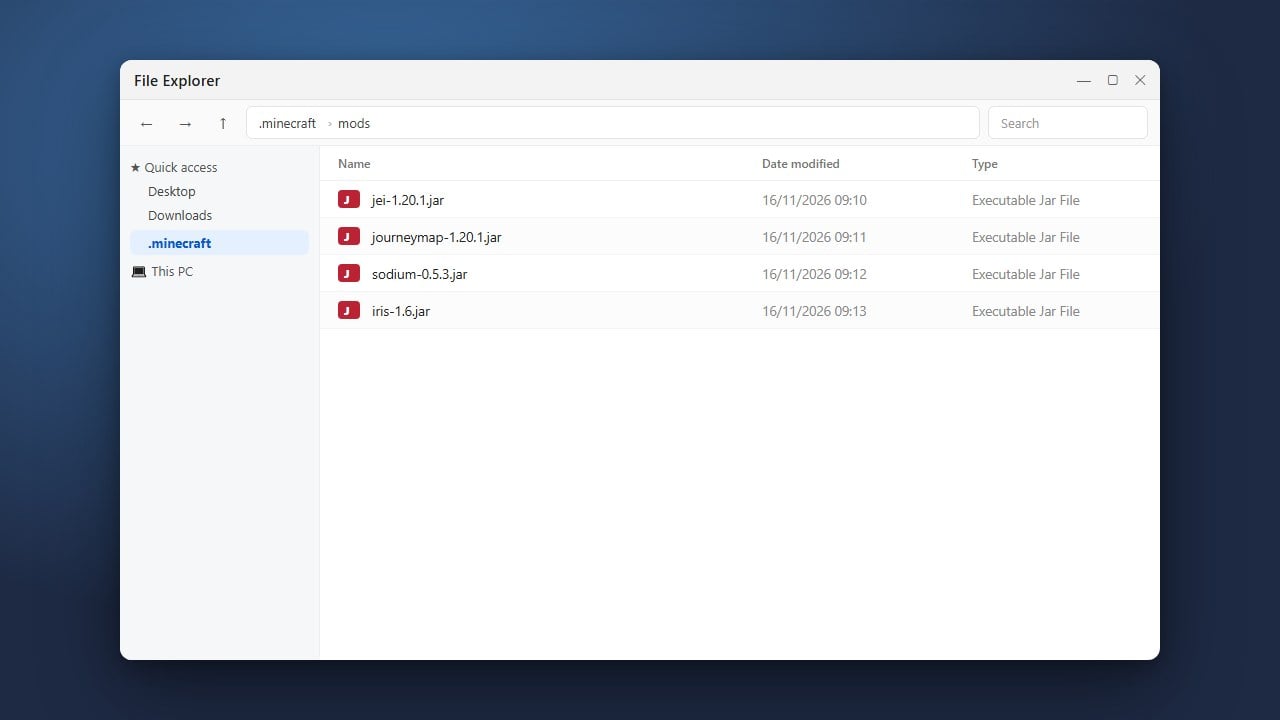
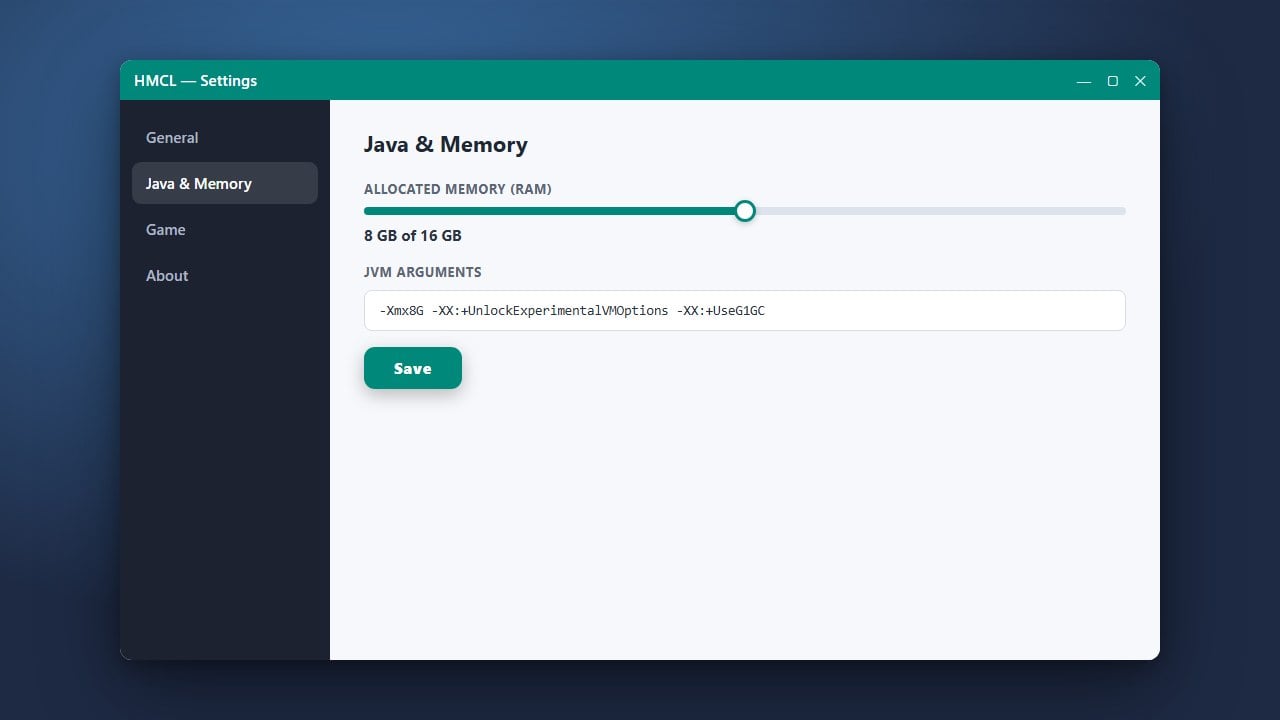
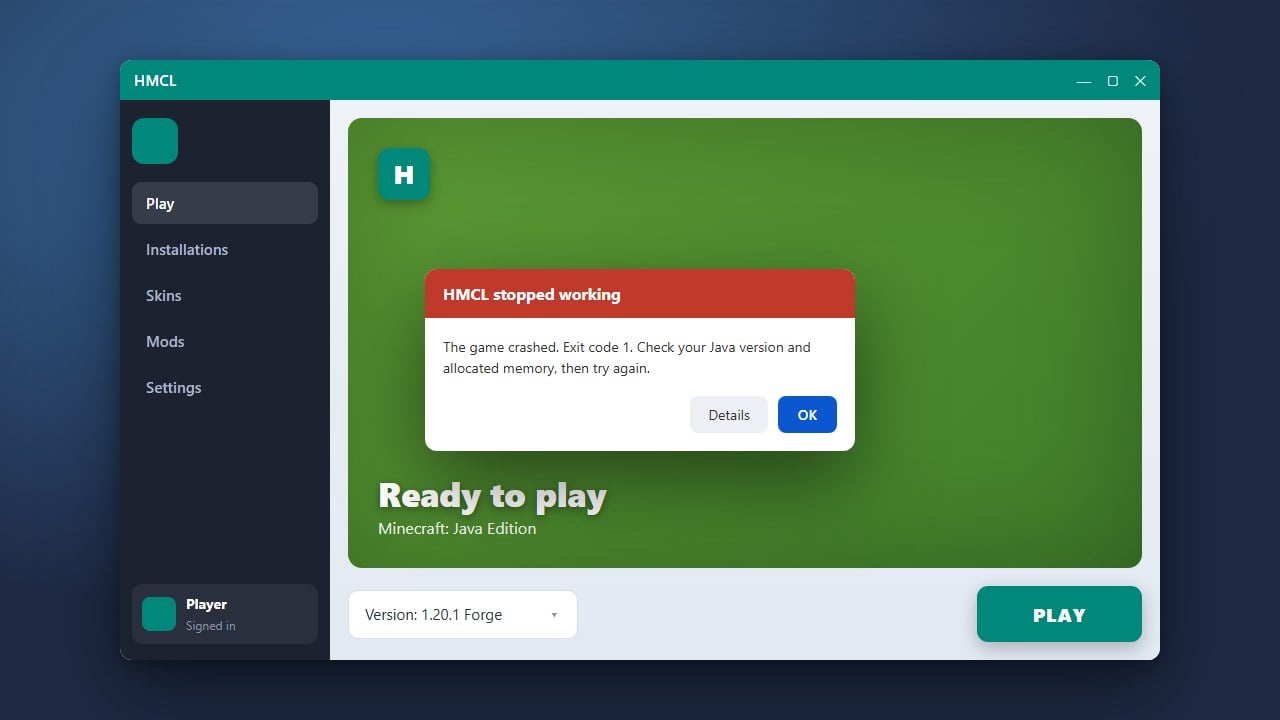
Customize your game setup by installing loaders using How to Install Forge and Fabric with HMCL. You can also improve performance by learning How to Allocate More RAM in HMCL before starting your game.
Start Playing Minecraft
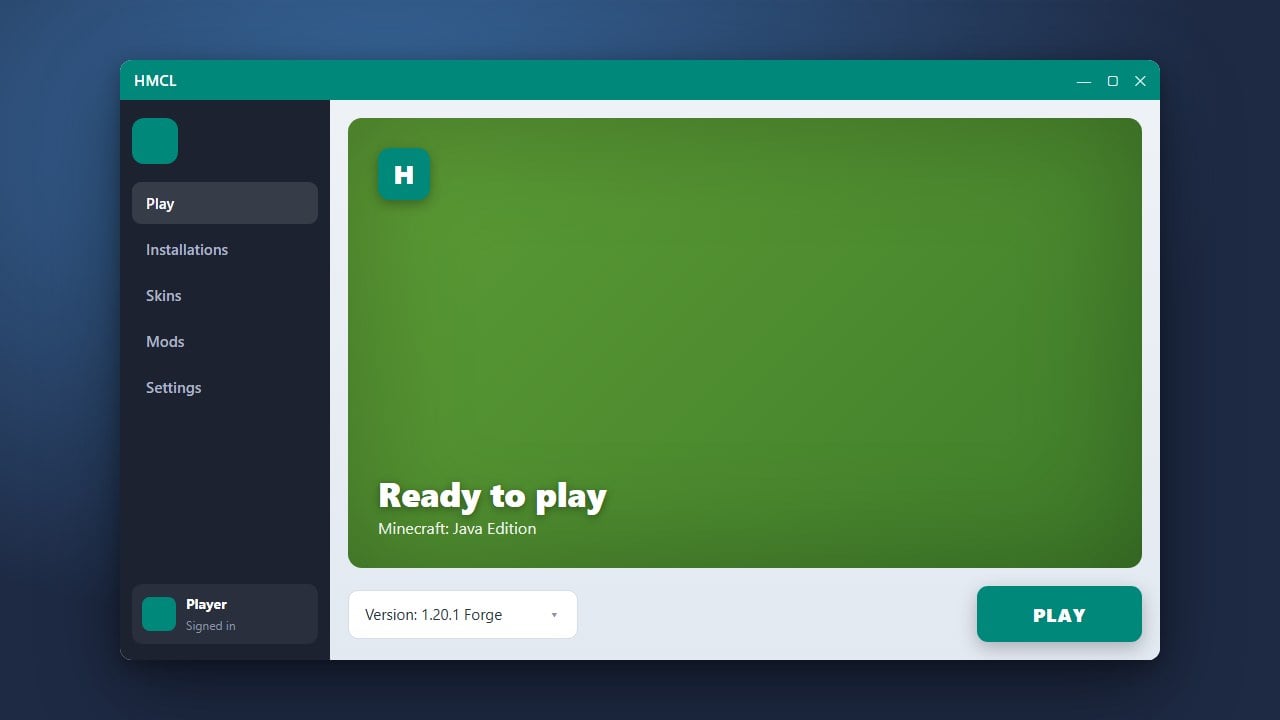
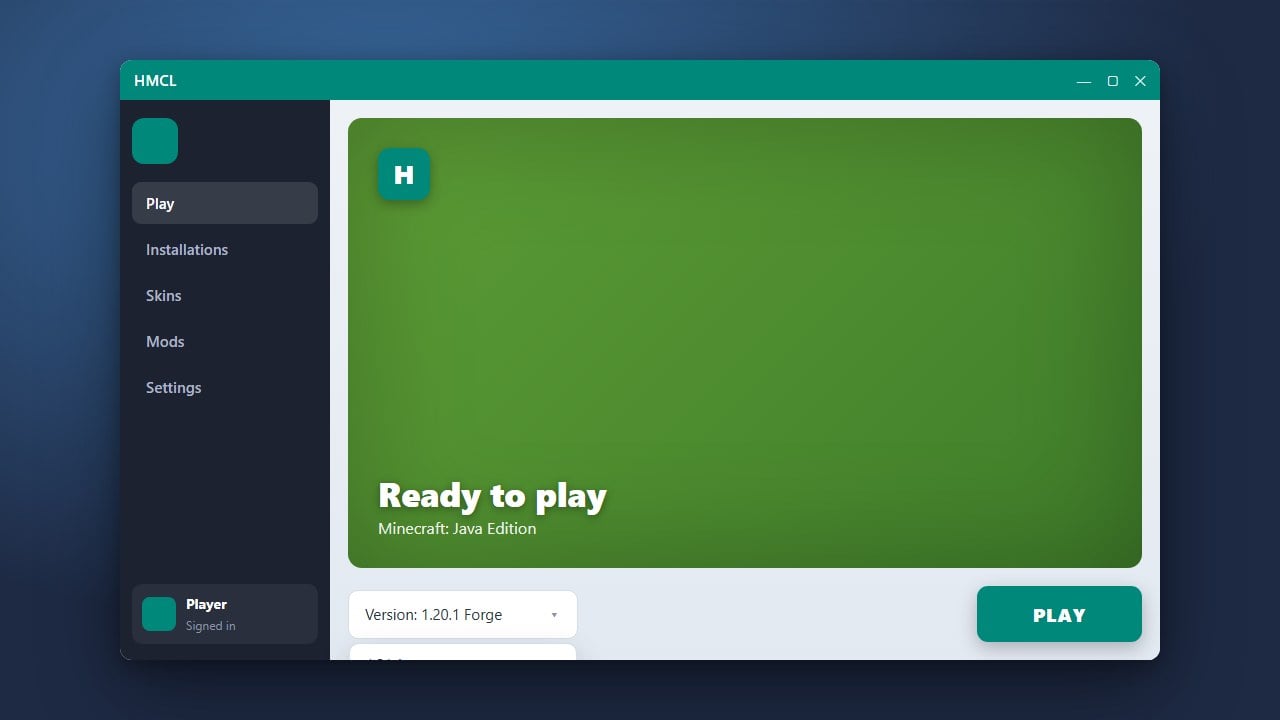
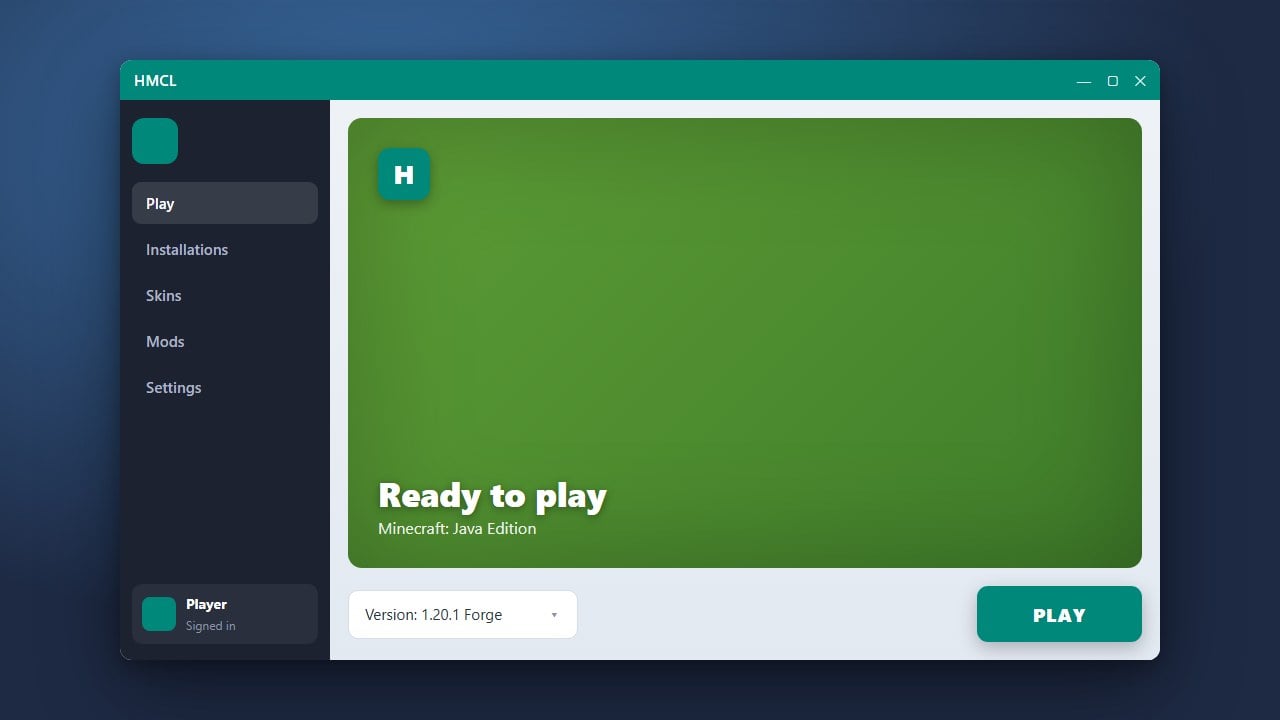
Review your settings, select your newly created profile from the main dashboard, and click the large launch button to start playing Minecraft Java Edition.
Frequently Asked Questions
Is HMCL free to use?
Yes, the launcher itself is completely free and open-source. However, you still need a paid, legitimate Minecraft Java Edition account to play online on official servers.
Can I use offline mode in HMCL?
HMCL allows offline or local accounts, but you will not be able to join online servers that require authentication through official Minecraft services.