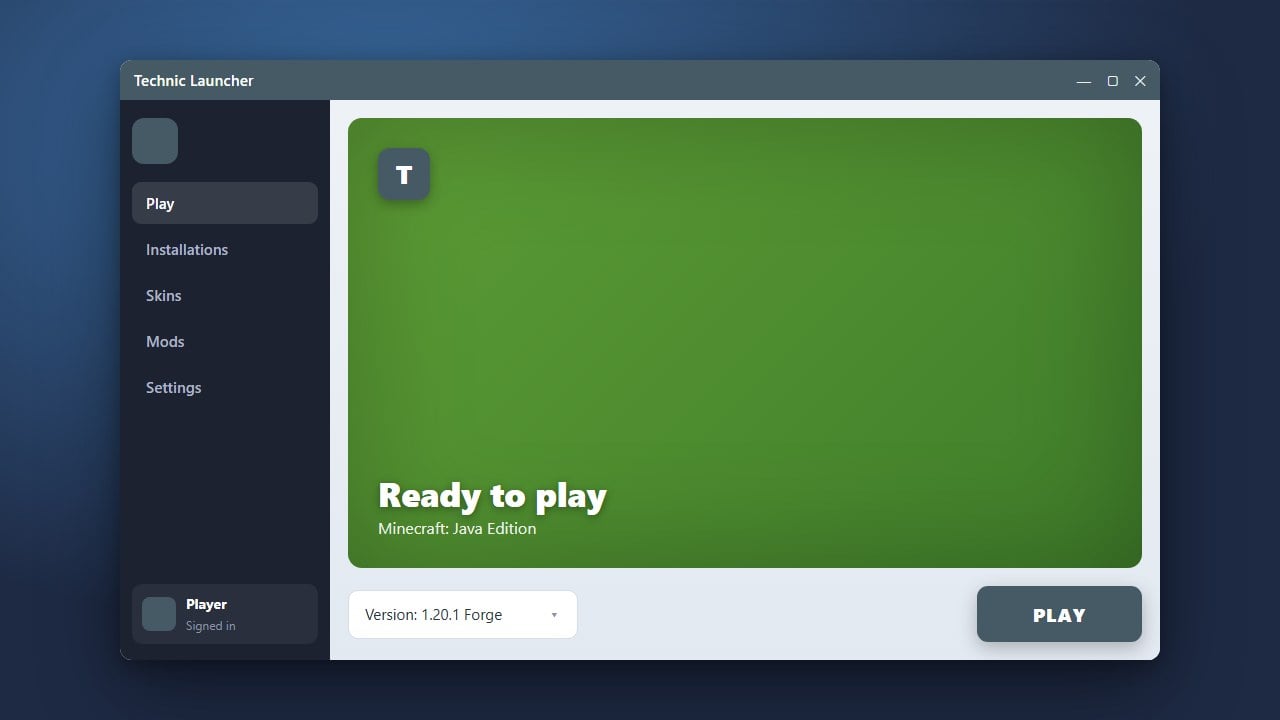
If you no longer need the Technic Launcher or want to clean up your system storage, uninstalling it is a straightforward process. Remember that third-party launchers require you to own a genuine copy of Java Edition; always buy the official game from minecraft.net to support the developers and keep your account secure. Follow this step-by-step guide to completely remove the application and its leftover directories.
Deleting the technic folder will permanently erase any single-player worlds or custom modpacks you saved inside the launcher. Make sure to back up your save files if you want to keep them!
Close the Technic Launcher
Before starting the uninstallation process, make sure the launcher is completely closed. Check your system tray in the bottom-right corner of Windows (or the menu bar on macOS) to ensure Technic is not running in the background.
If the application is frozen, open your Task Manager on Windows or Activity Monitor on Mac, select the Technic process, and click End Task to force it closed.
Uninstall the Application via System Settings
On Windows, open your Settings app, navigate to Apps, and then select Installed apps. Search for Technic in the list, click the three dots next to it, and choose Uninstall.
On macOS, open your Applications folder, find the Technic application icon, and drag it directly into the Trash. Empty your Trash bin afterward to remove the primary application files.
Locate the Hidden Technic Folder
Standard uninstallation often leaves behind heavy modpacks, configuration files, and cached data. To remove these, press Windows Key + R on Windows to open the Run dialog, type %appdata%, and press Enter.
Mac users should open Finder, press Command + Shift + G, type ~/Library/Application Support, and press Enter to open the directory containing application data.
Delete Residual Modpacks and Cache
Inside your application data folder, look for a directory named technic. This folder holds all your downloaded modpacks, resource packs, and older cache logs which can take up gigabytes of storage space.
Right-click the technic folder and select Delete (or move it to Trash on Mac) to completely purge all remaining user data from your computer.
Empty Your Trash and Restart
For the final cleanup step, open your Recycle Bin on Windows or Trash on macOS and permanently delete the items you just removed. Restart your computer to ensure all temporary processes and file paths are fully cleared.
If you ever want to explore other modding tools in the future, you can check out guides like How to Allocate More RAM in Technic Launcher or look into alternative options safely.
Frequently Asked Questions
Does uninstalling Technic Launcher delete my Minecraft account?
No. Uninstalling the launcher only removes the application and its local files from your device. Your official Minecraft Java Edition account credentials and purchases are tied directly to your Microsoft account on minecraft.net.
Why is there still storage space being used after uninstallation?
Standard uninstallers typically do not remove user-generated content like downloaded modpacks, screenshots, and world saves. You must manually delete the hidden technic folder inside your AppData or Application Support directory to reclaim that space.