If your favorite modpacks are lagging, stuttering, or crashing with out-of-memory errors, you likely need to assign more memory to the game. This guide will show you how to quickly increase your RAM allocation inside the Technic Launcher for a smoother Minecraft Java Edition experience.
Never allocate all of your computer's physical RAM to Minecraft. Always leave at least 2GB to 4GB free for your operating system and background applications to prevent system crashes.
If you cannot select more than 2GB of RAM, you likely have the 32-bit version of Java installed. You must install the 64-bit version of Java to allocate higher amounts of memory.
Open the Technic Launcher
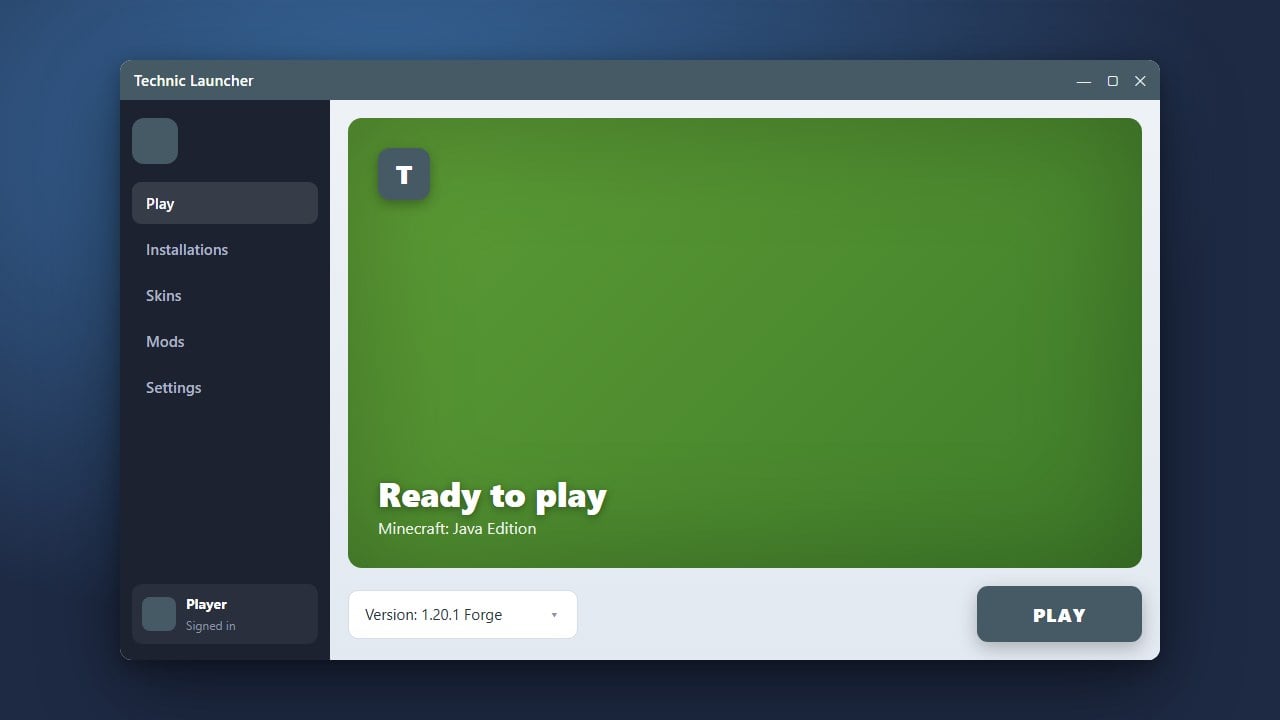
Launch the Technic Launcher on your computer and log into your account if you haven't already. Make sure you are on the main dashboard before moving to the settings menu.
Navigate to Launcher Settings
Look toward the top right corner of the Technic Launcher window and click on the Launcher Options gear icon to open the configuration panel.
Locate the Java Settings Tab
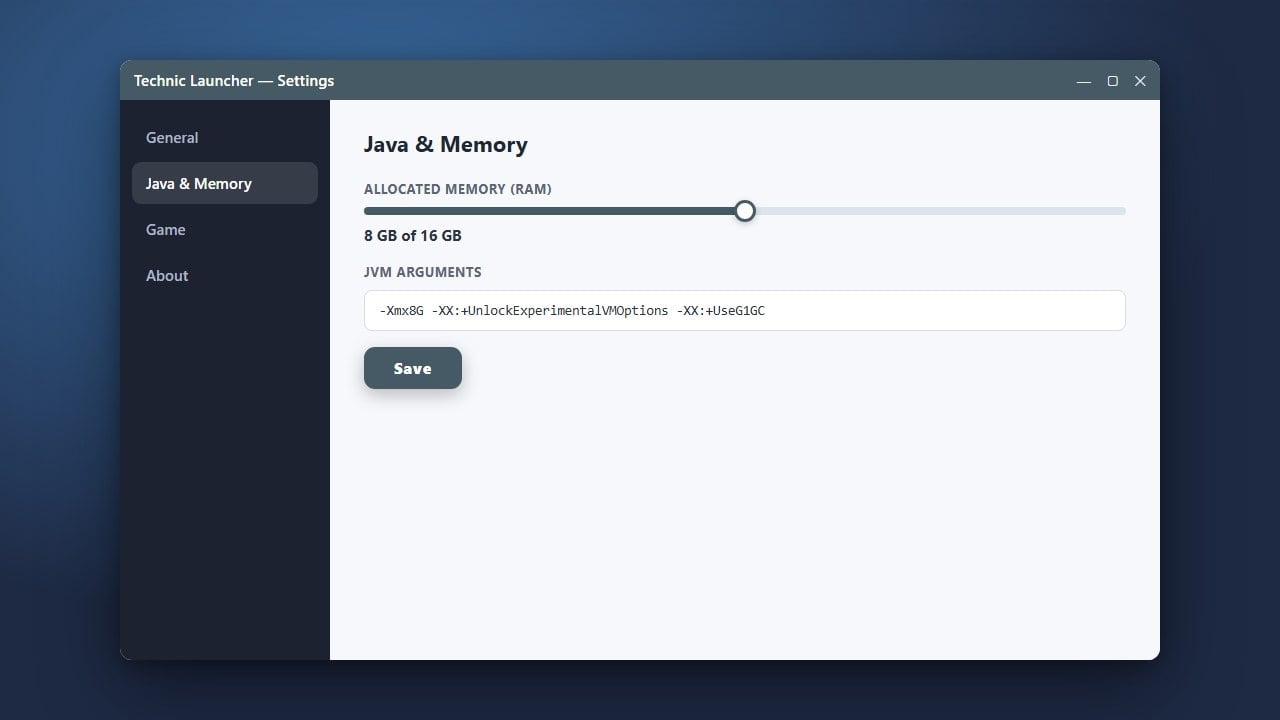
In the options window, find and click on the Java Settings tab on the left-hand menu. This is where you can adjust memory allocation and Java versions.
Select Your Desired RAM Amount
Find the dropdown menu labeled Memory / RAM. Click it and select the amount of RAM you want to give to Minecraft. For heavy modpacks, 4GB to 6GB is usually recommended, depending on how much total RAM your PC has.
Save and Launch Your Game
Close the settings panel to automatically save your changes. You can now start up your favorite modpack with your newly increased memory allocation!
Frequently Asked Questions
How much RAM should I allocate for Minecraft modpacks?
For most large modpacks in Technic Launcher, allocating 4GB to 6GB of RAM is the sweet spot. Vanilla Minecraft or very small packs only need about 2GB.
Why is my Technic Launcher crashing after changing RAM?
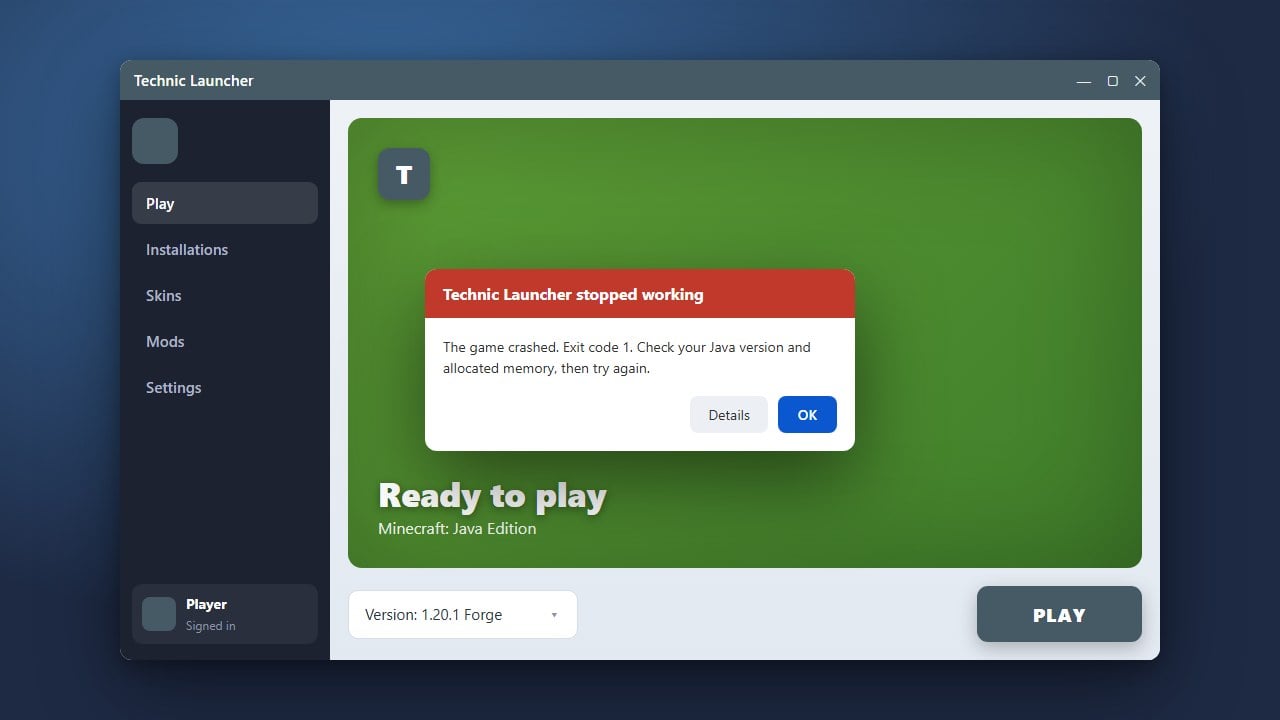
If the launcher crashes or fails to start the game, you likely allocated more RAM than your PC physically has available, or you are running 32-bit Java.