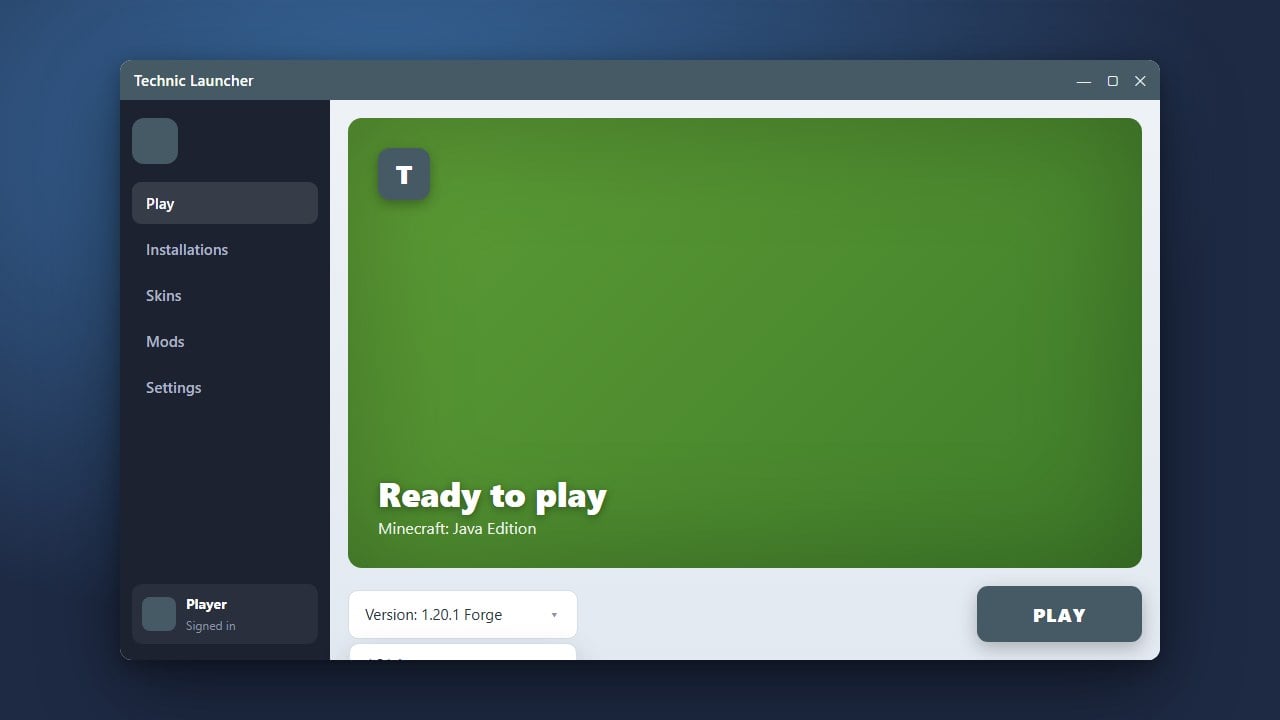
Changing your Minecraft version in the Technic Launcher is a simple process, primarily managed through modpack settings or vanilla options. Whether you want to play an older version or test a newer snapshot, this guide will show you how to do it quickly in Minecraft Java Edition.
Always back up your save files before switching versions to prevent world corruption or loss of progress.
Open Technic Launcher
Launch the Technic Launcher on your computer and log in with your Minecraft account credentials. Make sure your application is fully updated to avoid any compatibility issues.
Navigate to Modpacks
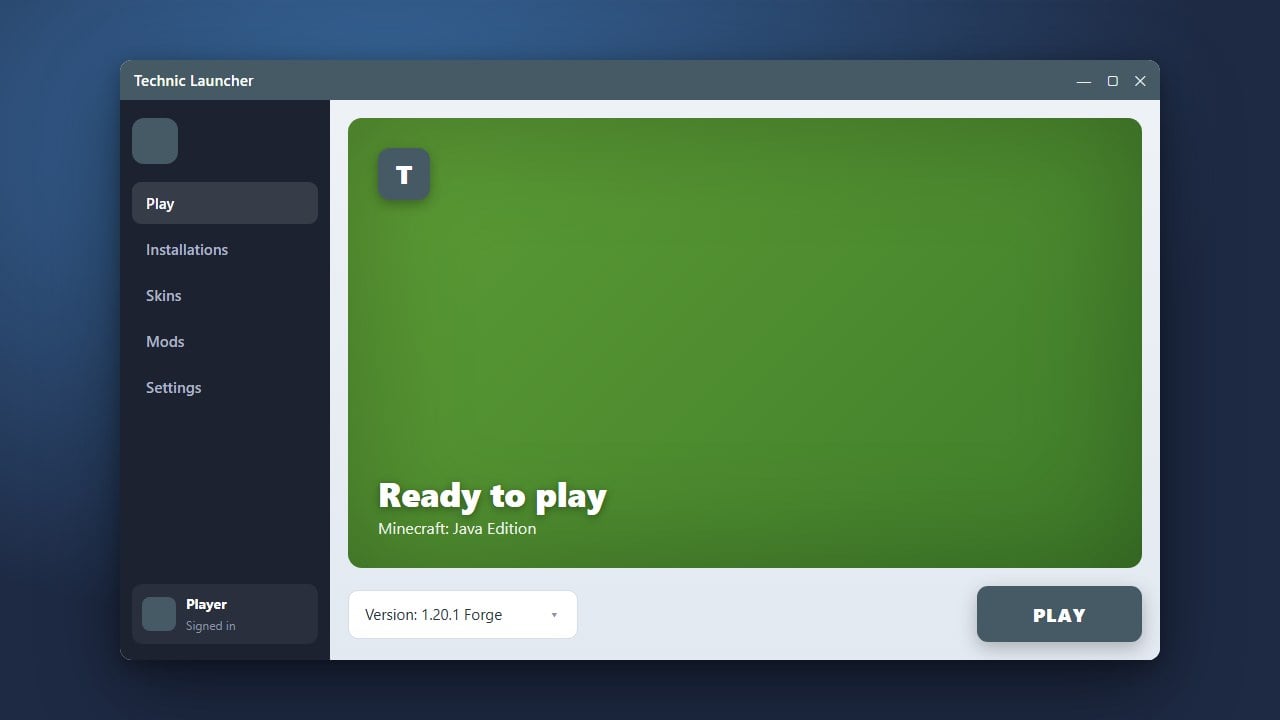
Click on the Modpacks tab at the top of the launcher window. This section displays all the modpacks you currently have installed as well as an option to browse new ones.
Select Your Pack
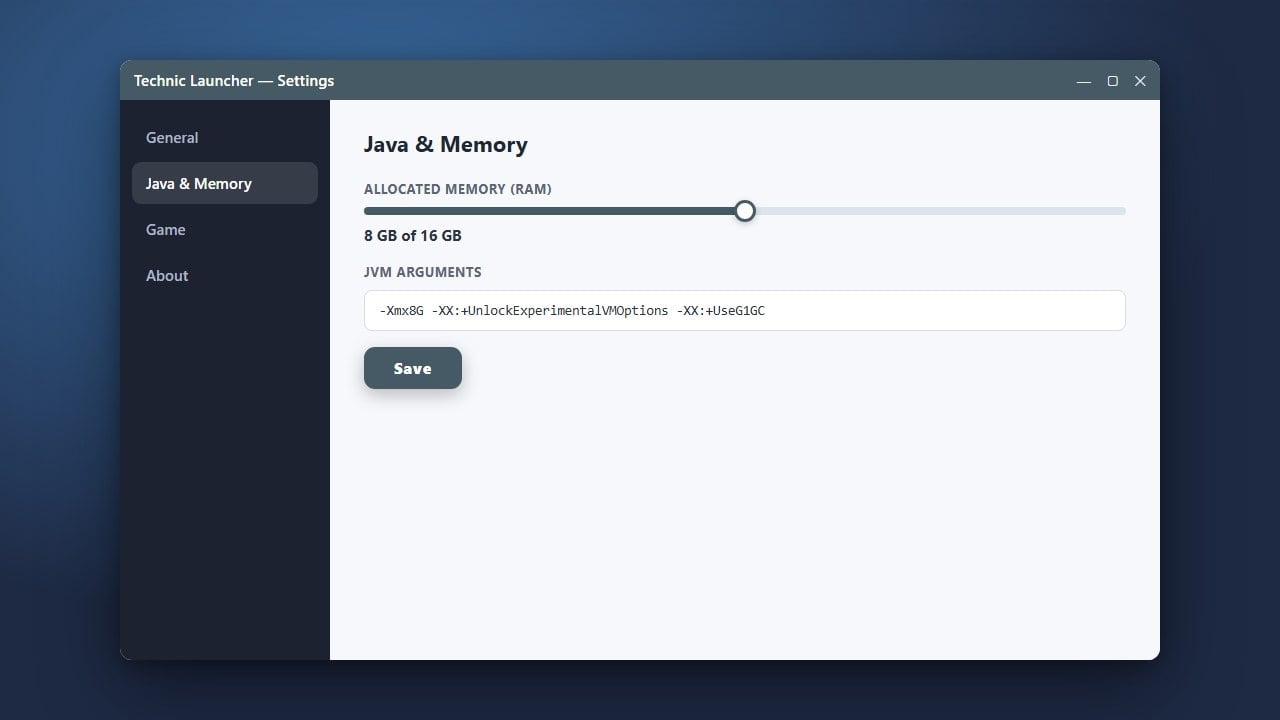
Click on the specific modpack you want to modify from your library list. If you are setting up memory allocations or checking other settings beforehand, you might also want to review How to Allocate More RAM in Technic Launcher to ensure smooth performance.
Access Launcher Options
On the modpack page, look near the top right for the Launcher Options button, which is represented by a small gear icon or text link. Click it to open the configuration menu for that specific instance.
Change the Minecraft Version
Uncheck the box that says Use Recommended Version if it is selected. A drop-down menu will appear allowing you to select a specific Minecraft version or modpack version of your choice.
Save and Play
Once you have chosen your desired version from the drop-down list, click the Save button. Technic will now download the necessary files for that version when you hit Play.
Frequently Asked Questions
Can I change the version of vanilla Minecraft in Technic Launcher?
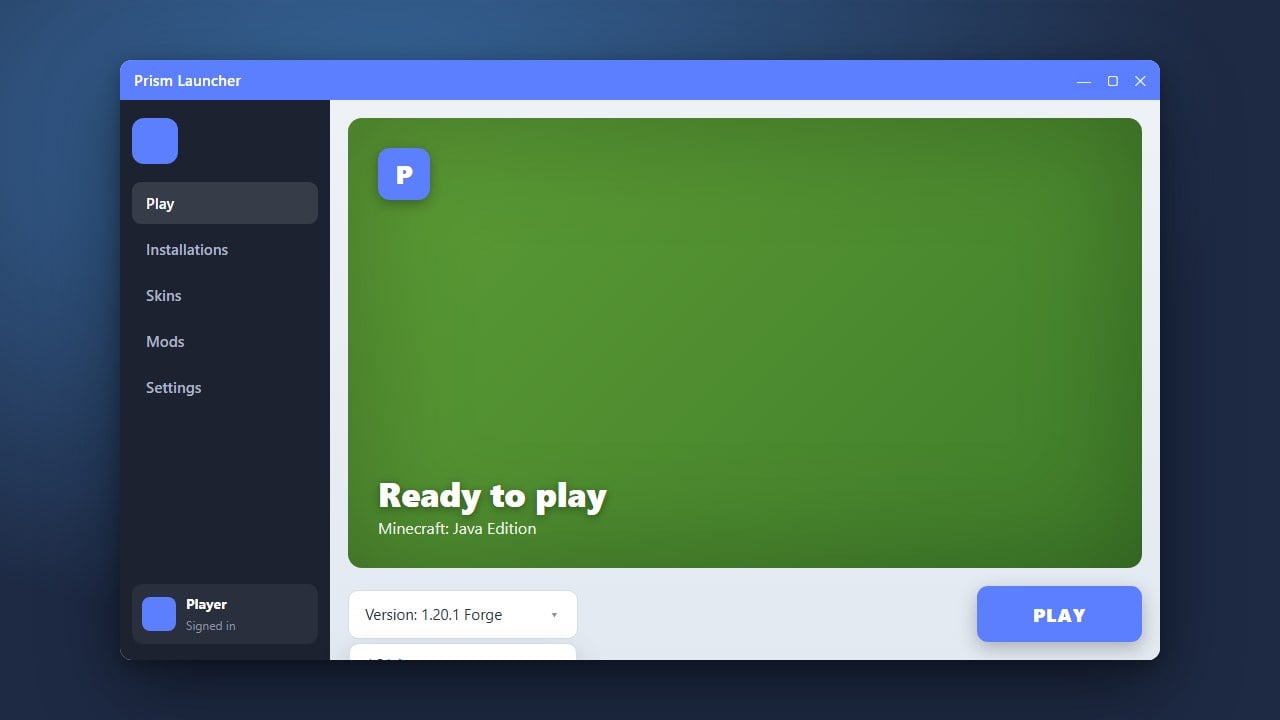
The Technic Launcher is primarily designed around modpacks. For pure vanilla Minecraft versions, it is usually easier to use the official Minecraft Launcher or alternative tools like How to Change the Minecraft Version in Prism Launcher.
Why is my preferred version missing from the list?
If a specific version does not appear, the modpack author may not have built support for that version, or your Technic Launcher needs an update.