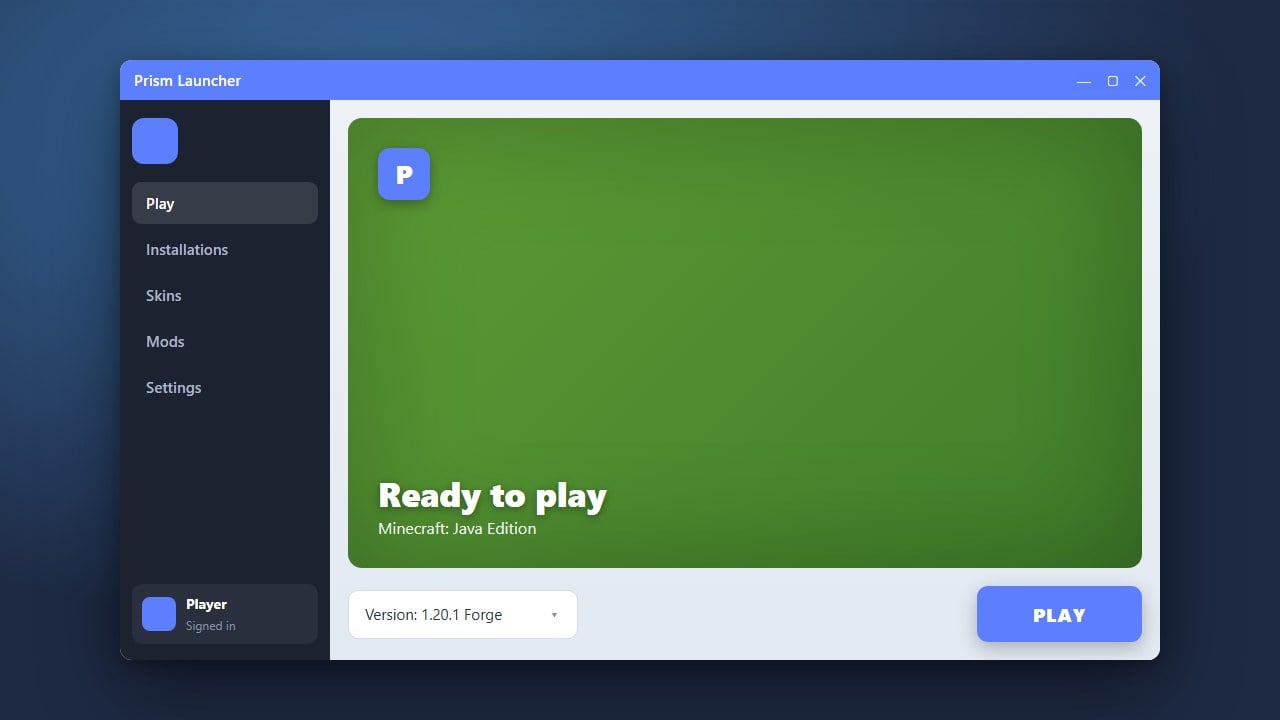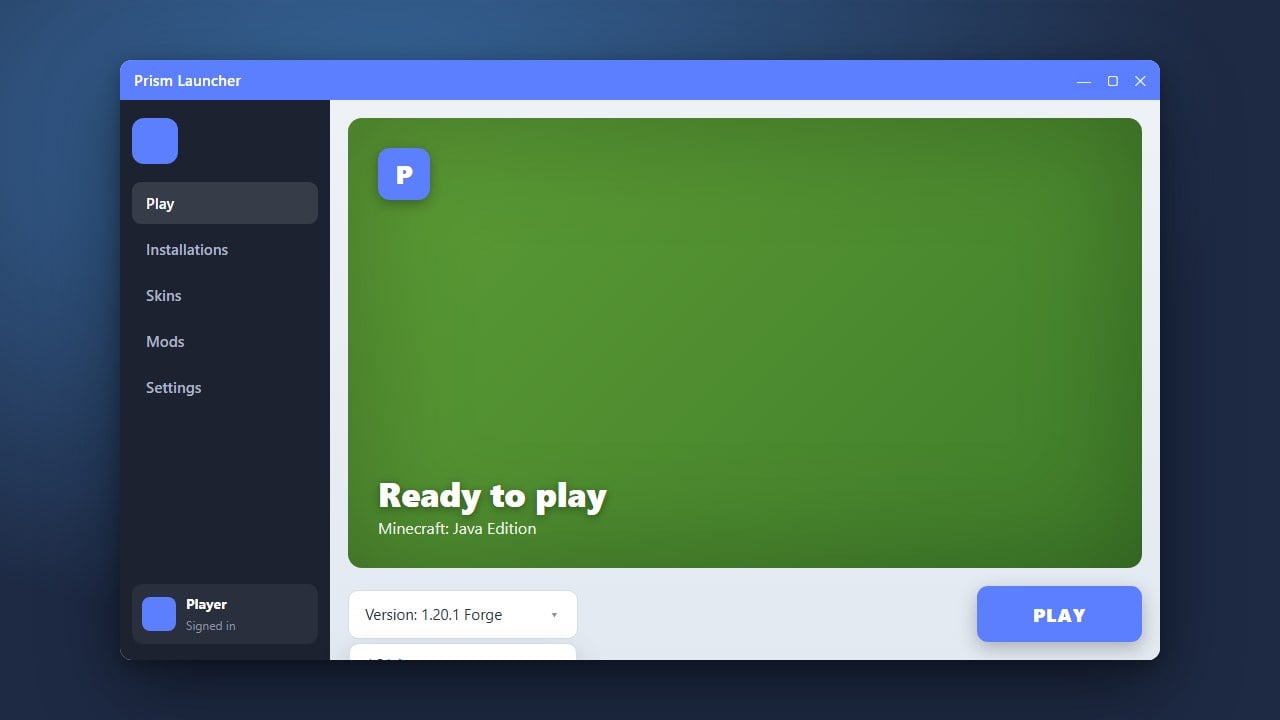
Prism Launcher makes managing multiple Minecraft versions and modpacks simple. If you want to switch your game version, you can either edit an existing instance or create a fresh one tailored to your desired update.
Changing the version of an existing instance may break incompatible mods or corrupt worlds. Always back up your saves before switching versions!
Open Prism Launcher
Launch Prism Launcher on your computer and make sure you are logged into your Minecraft account.
Select Your Instance
Find the Minecraft instance (profile) you want to update in your main dashboard. If you need a completely separate setup, you can also check out guides like How to Download and Install Prism Launcher to get started.
Open Instance Settings
Right-click your chosen instance and select Edit from the menu, or click the Edit button on the right-hand sidebar.
Change the Minecraft Version
In the new window, navigate to the Version tab on the left. Click on Change Version, select your preferred Minecraft version from the list, and click OK.
Launch the Game
Prism Launcher will automatically download any necessary files for the new version. Once finished, double-click your instance to launch Minecraft and enjoy your updated game.
Frequently Asked Questions
Can I have multiple Minecraft versions at the same time in Prism Launcher?
Yes! Prism Launcher is designed for managing multiple instances, allowing you to have different versions and modpacks installed simultaneously without interfering with each other.
Will changing my version delete my saved worlds?
Usually worlds remain in the instance folder, but drastically changing versions (such as going from 1.21 to an older version) can make existing worlds unplayable or cause data loss. Always make a manual backup first.