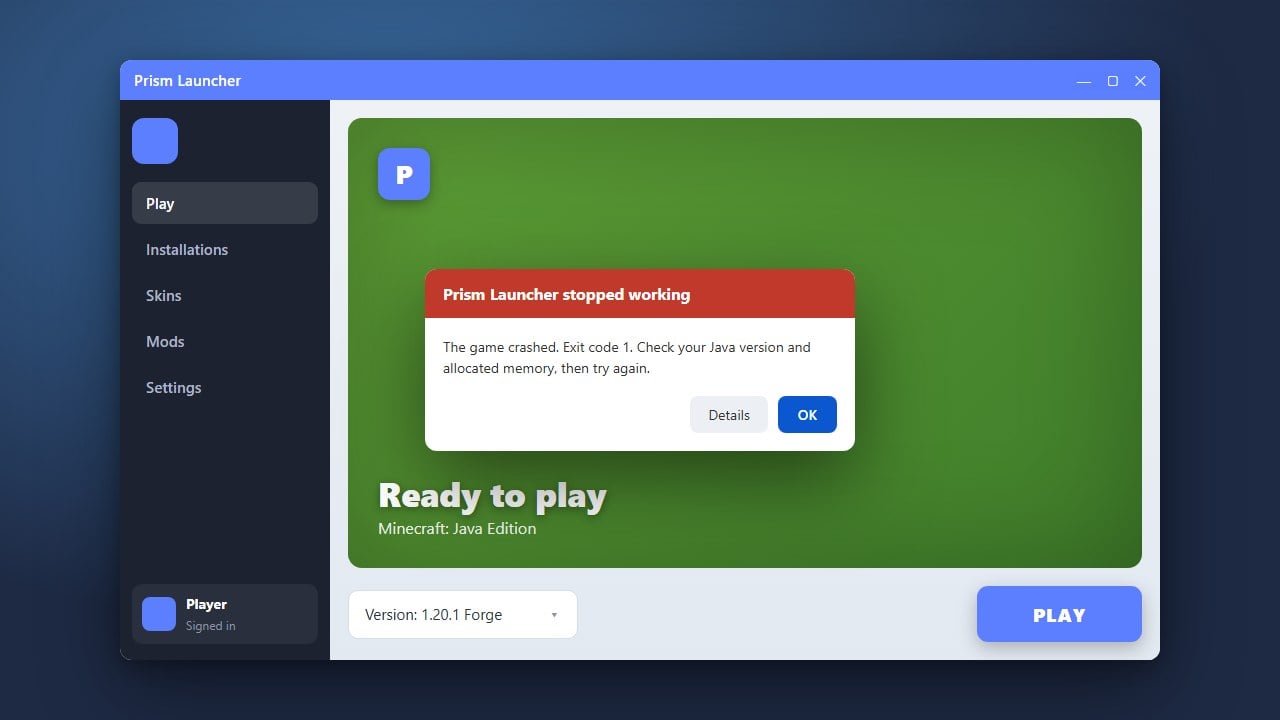
Allocating more RAM to Prism Launcher can dramatically improve your game's performance, especially if you are playing with heavy modpacks or high-resolution texture packs. Follow this quick guide to safely adjust your memory settings for Minecraft Java Edition.
Open Prism Launcher Settings
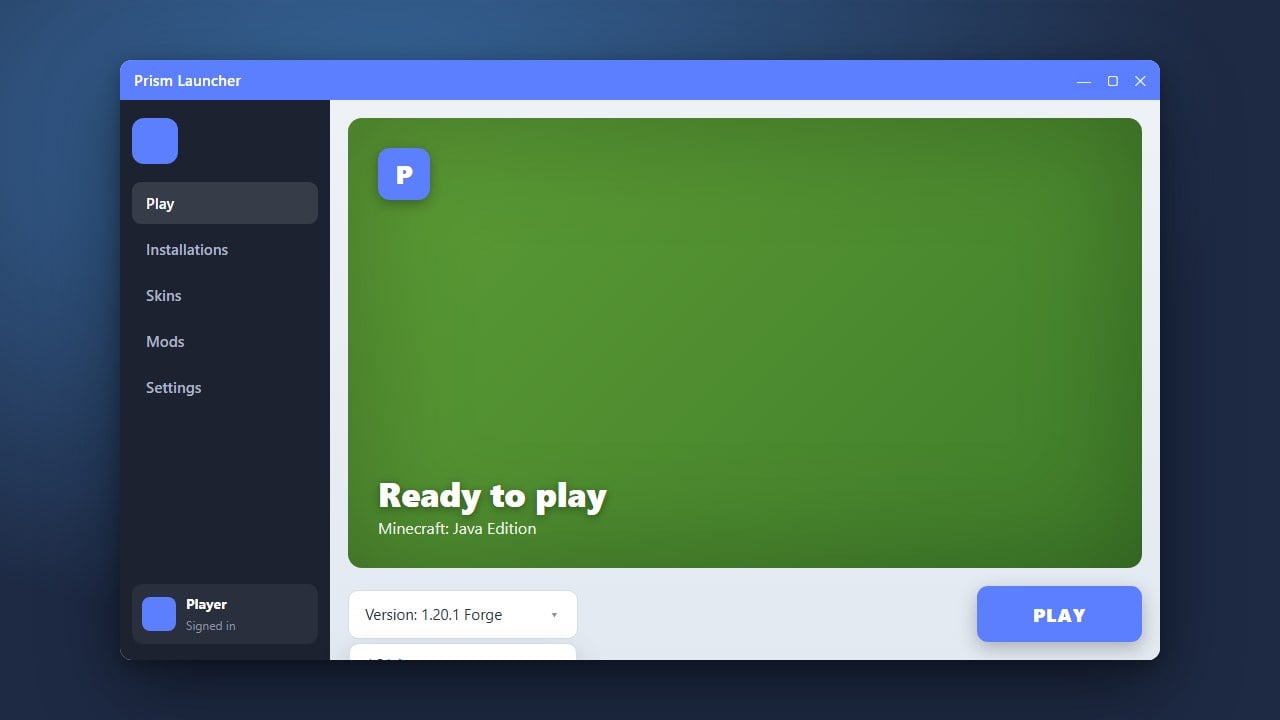
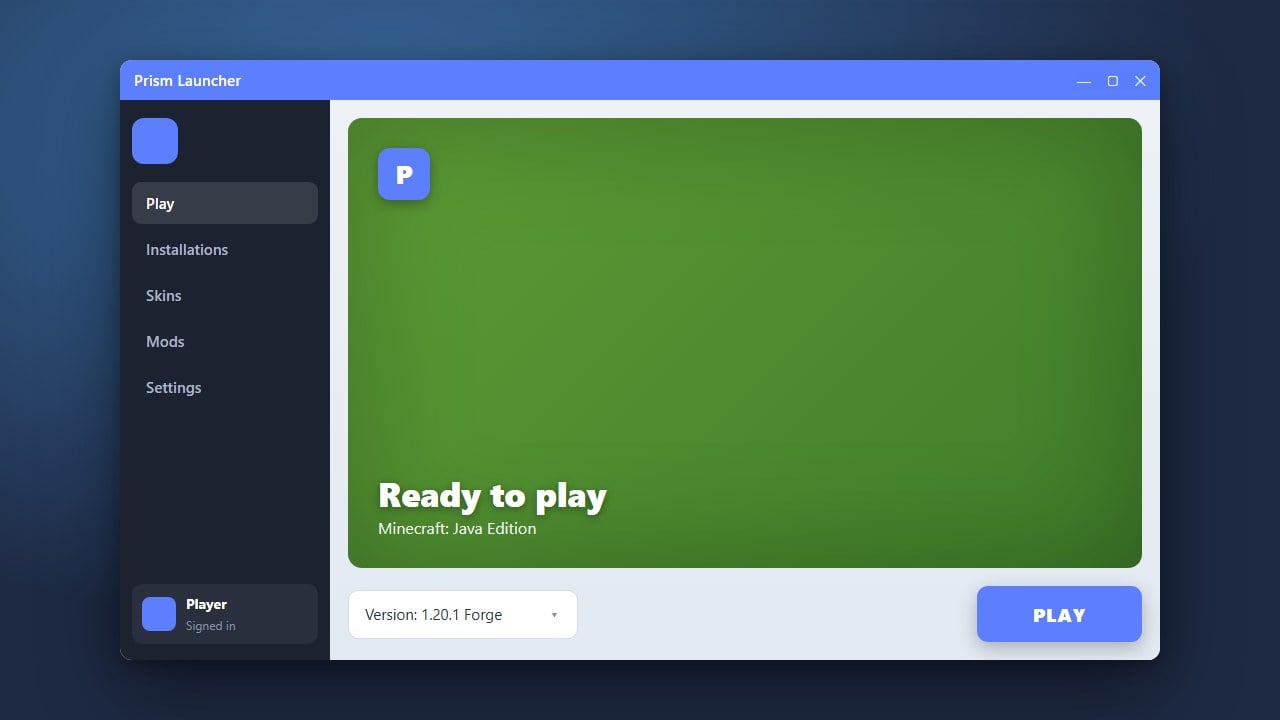
Launch Prism Launcher on your computer. Click on the Settings button located in the top-right corner of the application window to open the main configuration menu.
Navigate to the Java Tab
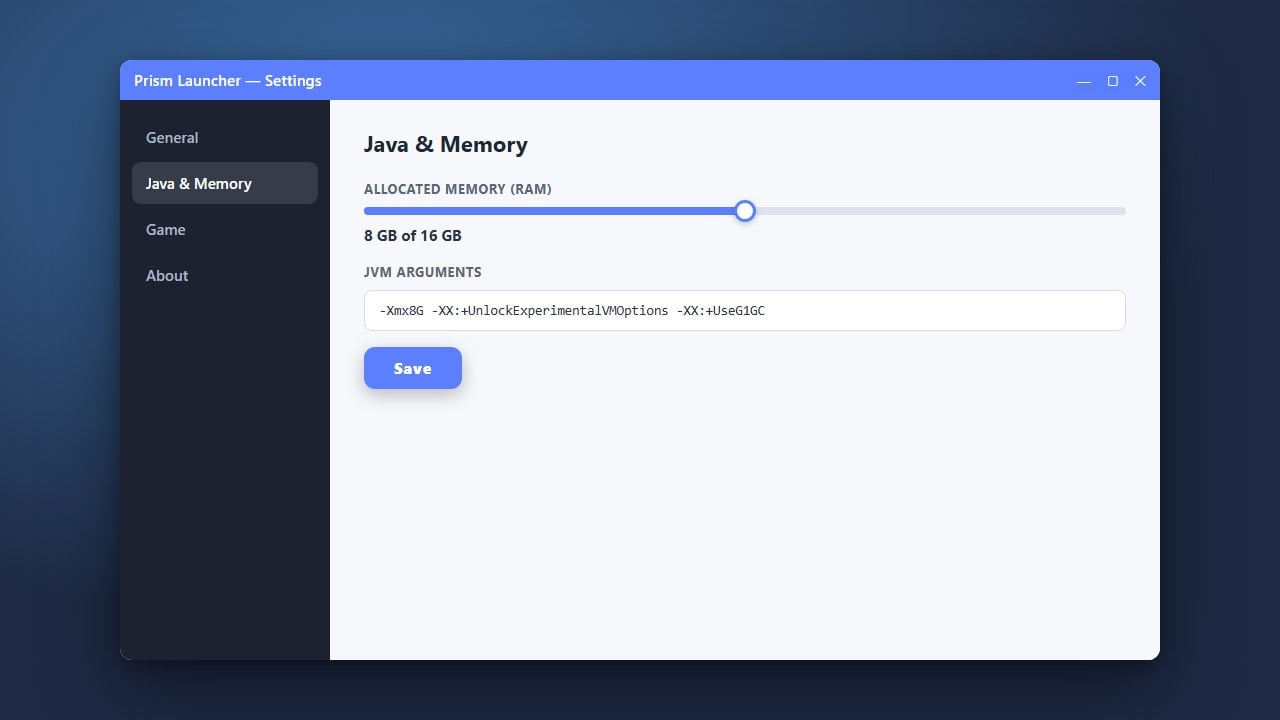
In the Settings window sidebar on the left, look for the Java category and click on it. This will display all of your Java runtime and memory allocation options.
Enable Custom Memory Settings
Find the Memory section near the top of the panel. Check the box labeled Maximum memory (and optionally Minimum memory) to override the default global launcher settings.
Adjust Your RAM Values
Type in your desired RAM allocation in megabytes (for example, type 4096 for 4 GB or 8192 for 8 GB). Make sure you leave enough RAM free for your operating system and background applications.
Save and Launch Minecraft
Click the Close or Apply button at the bottom of the window to save your changes. You can also configure memory on a per-instance basis by right-clicking your specific Minecraft instance and editing its individual settings.
Frequently Asked Questions
How much RAM should I allocate to Minecraft?
For vanilla Minecraft, 2 GB to 4 GB is usually plenty. For heavy modpacks, 4 GB to 8 GB is recommended depending on the number of mods installed.
Can I allocate RAM to a single modpack instead of globally?
Yes! Right-click your specific instance in Prism Launcher, select Edit, go to the Settings tab, check Memory, and set custom values just for that profile.