If your Technic Launcher is failing to open, freezing on startup, or crashing immediately on Minecraft Java Edition, don't worry. This guide will walk you through the most effective troubleshooting steps to get your favorite modpacks running smoothly again.
Never download modified launcher executables from unverified third-party sites, as they can compromise your account privacy or install unwanted adware.
Check and Update Java
Technic Launcher relies on Java to run properly. Make sure you have the correct version of Java installed for your operating system.
For modern Minecraft versions, Java 17 or Java 21 is typically required. Download the latest Java Development Kit (JDK) or Java Runtime Environment (JRE) from a trusted source, install it, and restart your computer.
End Background Processes
Sometimes a hidden instance of the Technic Launcher is already running in the background and preventing a new window from opening.
Open your Task Manager (Ctrl+Shift+Esc on Windows) or Activity Monitor (on macOS), look for any lingering javaw.exe or Technic processes, right-click them, and select End Task. Try launching the application again.
Clear Launcher Cache Data
Corrupted cache or temporary files can easily stop the launcher from starting up correctly. Clearing out the old cache forces the app to rebuild essential files.
Press Windows Key + R, type %appdata%\technic, and press Enter. Inside that folder, locate the cache directory and delete its contents. Be careful not to delete your actual modpack saves or worlds.
Adjust Allocated Memory
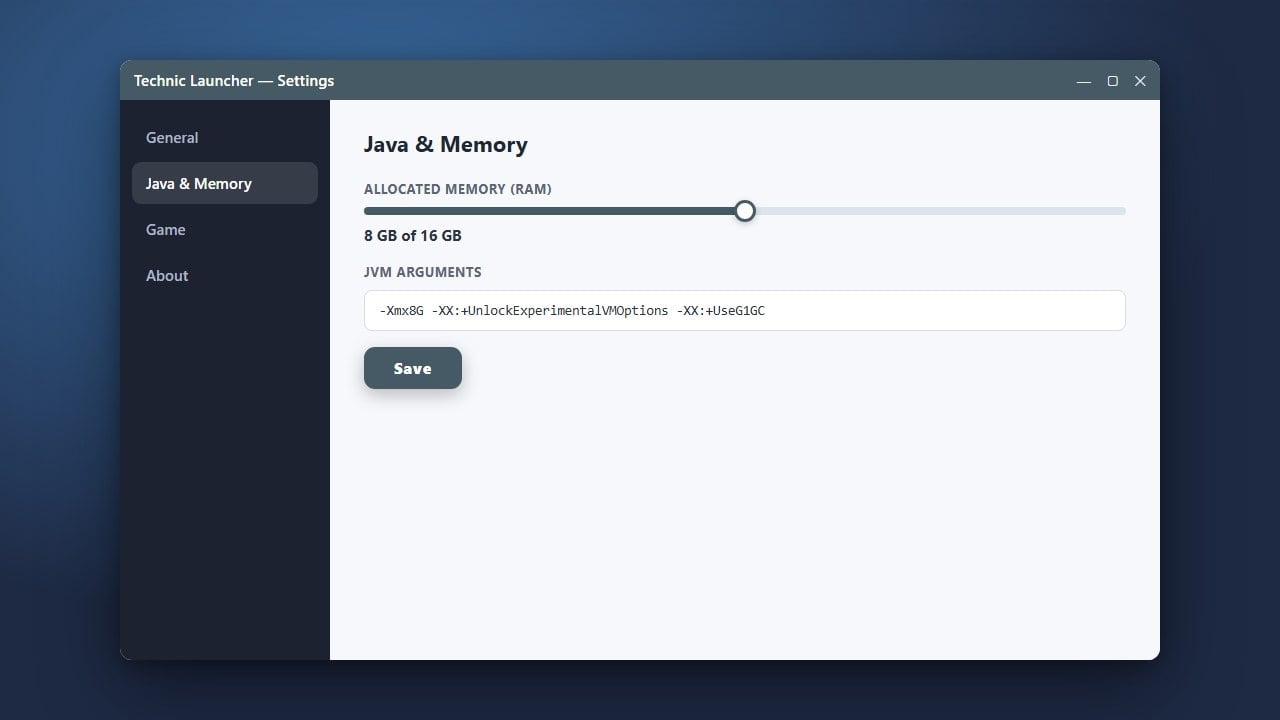
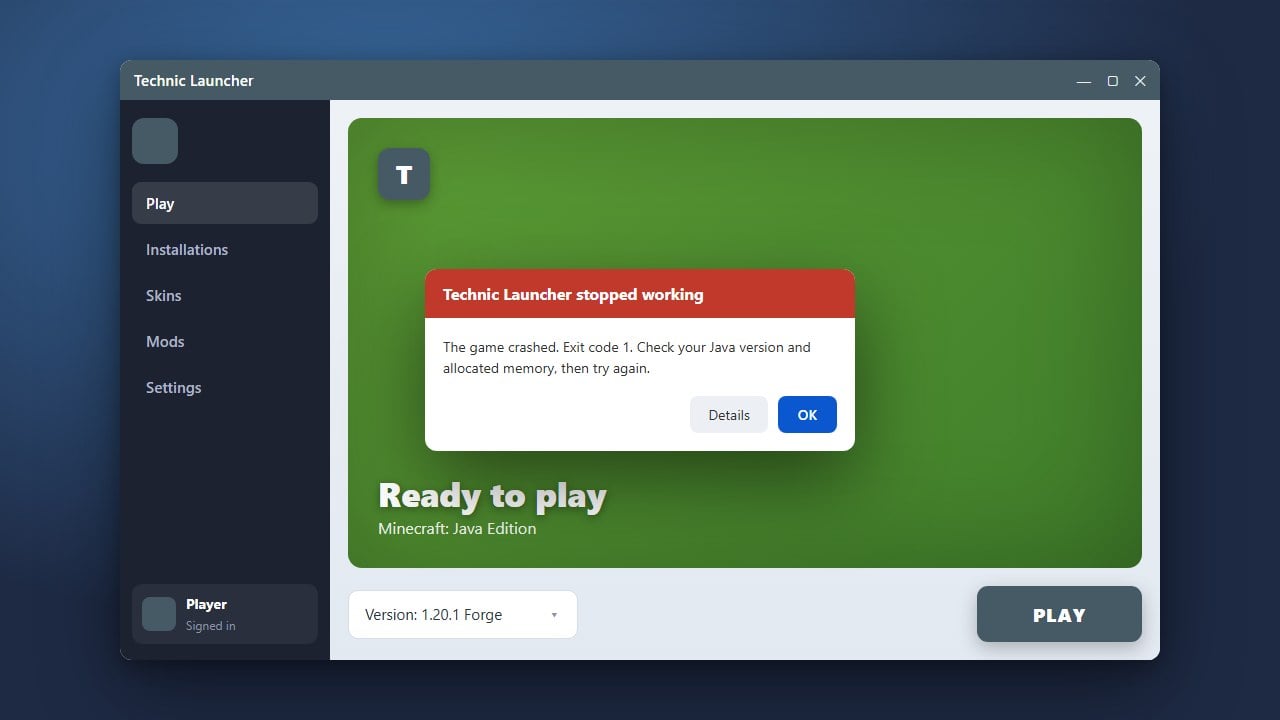
If the launcher opens briefly and then crashes, it might be running out of memory while trying to initialize. You can fix this by changing how much RAM is assigned, similar to the process in How to Allocate More RAM in Technic Launcher.
Open the Technic Launcher settings before launching a pack, navigate to Java Settings, and adjust the memory slider to allocate a reasonable amount of RAM (such as 4GB) based on your system capacity.
Reinstall Technic Launcher
If none of the previous steps work, your installation files might be severely corrupted. A clean reinstallation is often the fastest fix.
Uninstall the launcher completely, delete any leftover folders in your application data directory, and download a fresh copy from the official website. Always make sure you own a legitimate copy of the game by buying Minecraft from minecraft.net to ensure full online compatibility and security.
Frequently Asked Questions
Why does Technic Launcher get stuck on the Mojang or startup loading screen?
This is usually caused by outdated Java versions, corrupted modpack assets, or insufficient RAM allocation. Clearing your launcher cache or updating Java typically resolves this problem.
Do I need a paid Minecraft account to use Technic Launcher?
Yes, Technic Launcher requires you to log in with a valid, official Minecraft Java Edition account to download and play modpacks. We strongly recommend purchasing the game directly from minecraft.net.