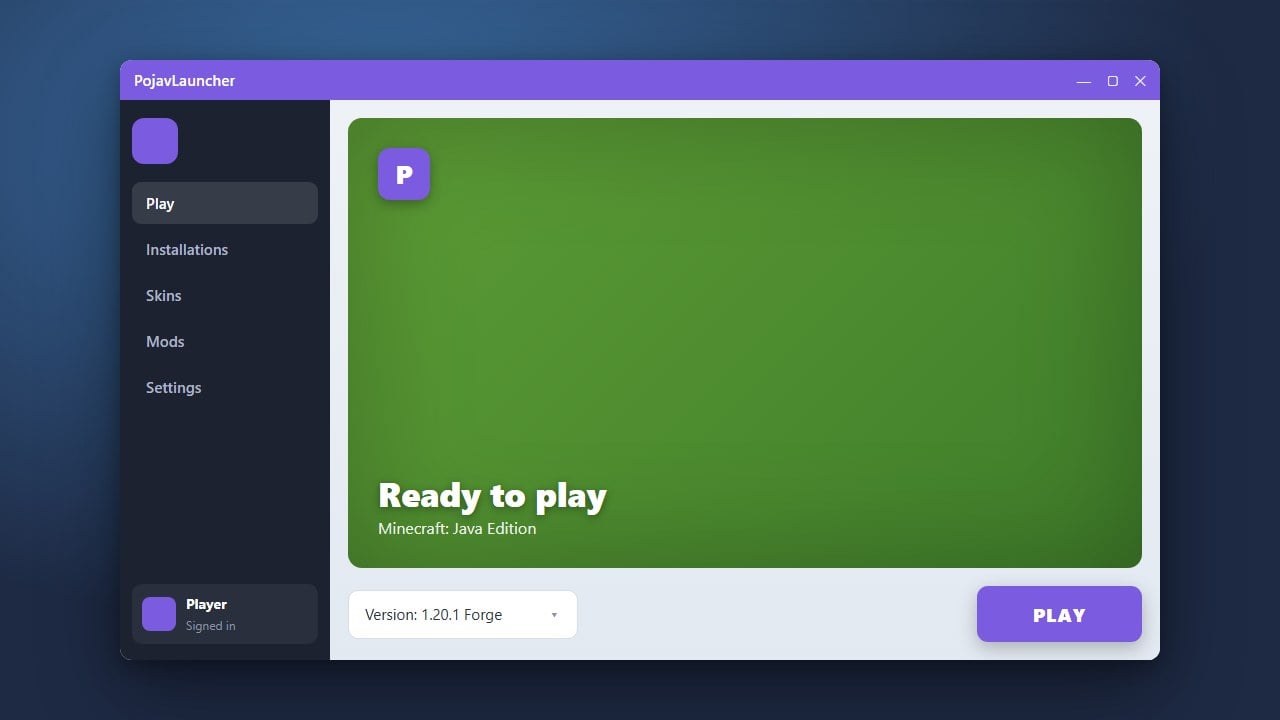
If you no longer want to play Java Edition on your mobile device or need to free up storage space, uninstalling PojavLauncher is a quick and simple process. Follow this step-by-step guide to completely remove the app and its leftover files from your device.
Back Up Important Worlds
Before you begin the uninstallation process, make sure to back up any singleplayer worlds, resource packs, or screenshots you want to keep. You can find these inside the PojavLauncher directory using your mobile device's file manager.
Copy your important folders to a safe location outside of the launcher directory so you do not permanently lose your gameplay progress.
Locate PojavLauncher on Your Device
Open your device's home screen, app drawer, or system settings menu where all of your installed applications are listed. Scroll through the list until you find PojavLauncher.
If you previously learned how to download and install PojavLauncher, the removal process uses your system's standard application management tools.
Uninstall the Application
On Android, long-press the PojavLauncher app icon and tap Uninstall, or navigate to Settings > Apps > PojavLauncher and select uninstall. On iOS, long-press the icon and tap Remove App.
Confirm the prompt to delete the main application package from your operating system.
Delete Residual Game Files
Standard app uninstallation sometimes leaves behind custom directories, cached data, and downloaded game versions. Open your file manager app and check your internal storage.
Look for a folder named games/pojavlauncher or similar directories in your root storage and delete them manually to reclaim full storage space.
Restart Your Device
Once the application and its leftover folders are completely deleted, perform a quick restart on your mobile phone or tablet.
Rebooting your device ensures that all temporary cache files are cleared out and your operating system's storage registry refreshes properly.
Frequently Asked Questions
Does uninstalling PojavLauncher delete my Minecraft worlds?
Yes, uninstalling the app and clearing its storage folders will remove your local worlds. Always back up your saves manually before deleting the launcher.
Can I reinstall PojavLauncher later if I change my mind?
Absolutely. You can download and install it again anytime, though you will need to reconfigure your account details, control settings, and game versions.