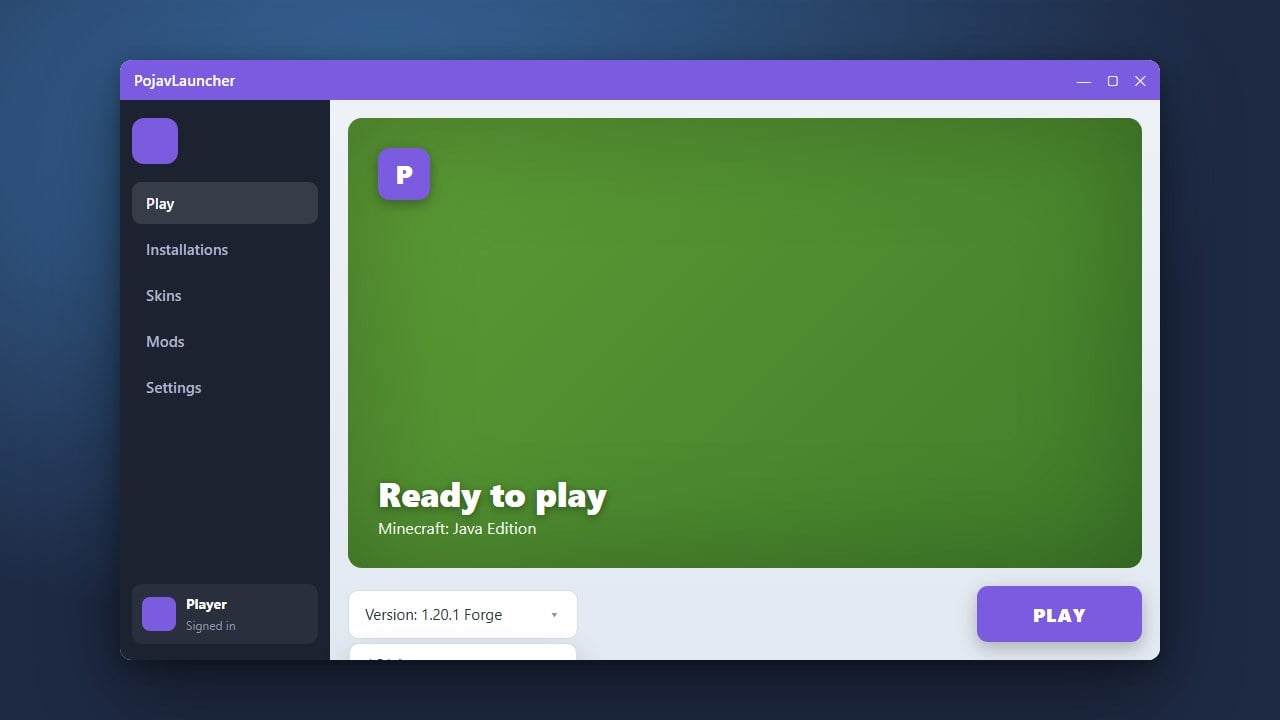
Learn how to change your Minecraft version in PojavLauncher so you can play older releases, snapshots, or newer updates on your mobile device. Before you begin, make sure you know How to Download and Install PojavLauncher properly.
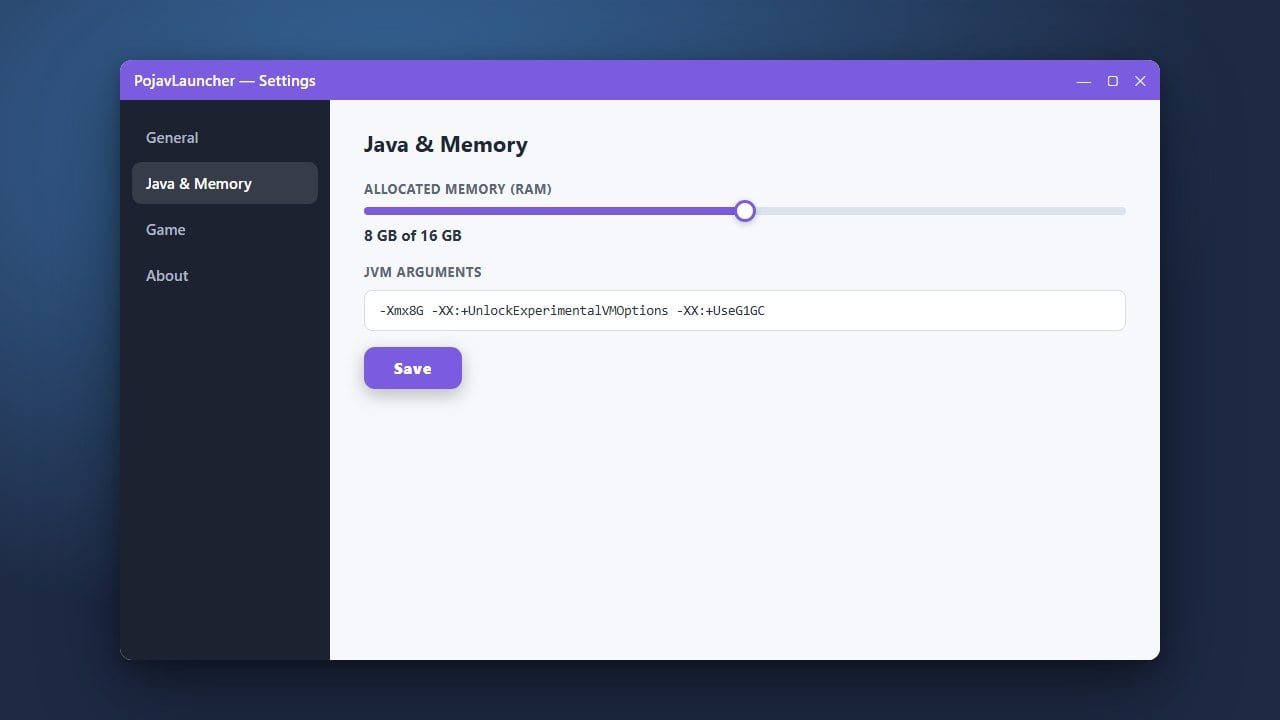
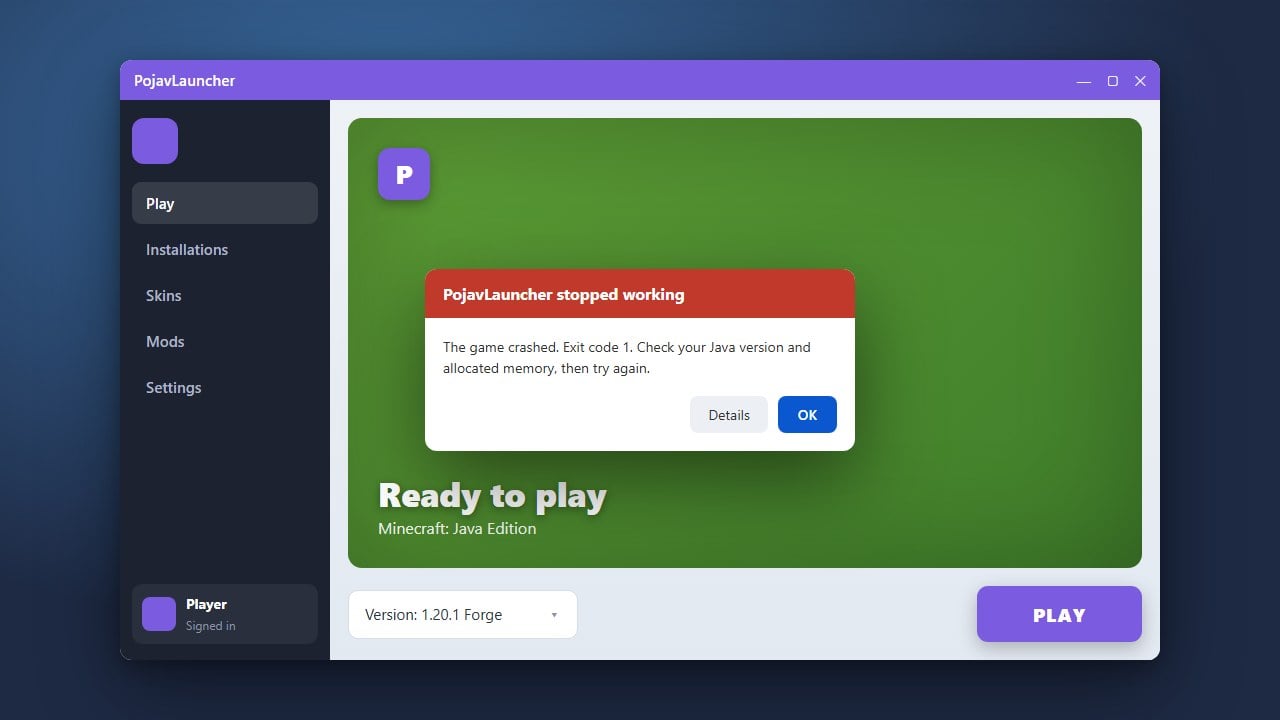
If your game runs slowly or crashes on newer versions, consider checking our guide on How to Allocate More RAM in PojavLauncher to improve performance.
Open PojavLauncher
Unlock your mobile device and tap the PojavLauncher app icon to open the launcher interface. Ensure you are signed into your account before proceeding to version management.
Navigate to the Profile Selection
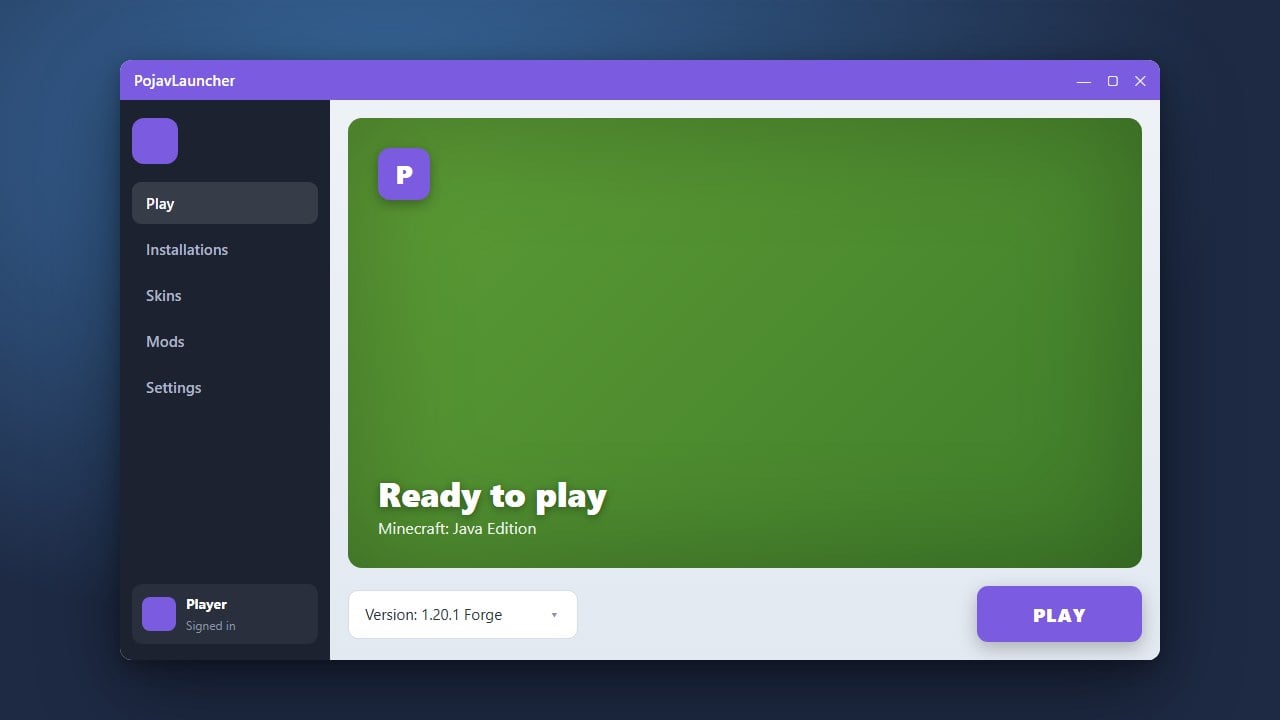
On the main dashboard screen, look for the version dropdown menu located near the top or directly under your profile name. Tap on this menu to open the list of installed and available Minecraft versions.
Select or Add a New Version
If your desired version is already listed, tap on it to select it. If you need a different version, tap on the options to create a new profile or manage versions, then choose the specific release or snapshot you want to use.
Save and Launch the Game
Once you have chosen your preferred version, confirm your selection and save the profile settings. Tap the large play button to start downloading and running your chosen Minecraft version.
Frequently Asked Questions
Can I play Minecraft Bedrock Edition using PojavLauncher?
No, PojavLauncher is specifically designed to run Minecraft Java Edition on mobile operating systems like Android and iOS.
Do I need an internet connection to change versions?
Yes, an active internet connection is required the first time you launch a new version so the launcher can download the necessary game files from the official servers.