PojavLauncher is a popular open-source tool that lets you play Minecraft Java Edition on mobile devices. While PojavLauncher is completely legitimate software, you must own a legal Java Edition account purchased from minecraft.net to log in safely. To enhance your visuals, follow this guide to install a rendering mod and shader packs on your Android or iOS device.
Set Up PojavLauncher and Download Your Minecraft Account
Before installing any shaders, make sure you have successfully set up the launcher following the steps in How to Download and Install PojavLauncher. Log in using your official Microsoft account credentials.
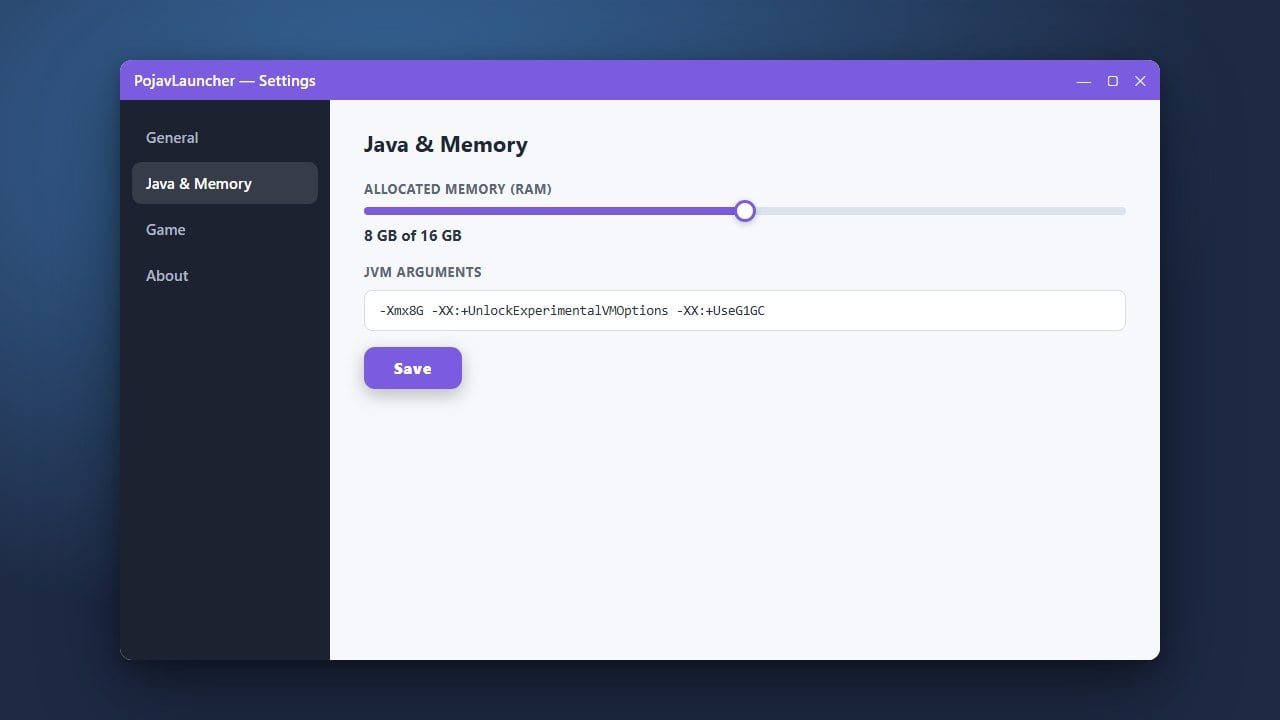
For the best performance with heavy graphics packs, you may also want to check out How to Allocate More RAM in PojavLauncher to ensure your mobile device has enough memory assigned.
Install Iris or Optifine for Shader Support
Minecraft Java Edition requires a mod or performance loader to render shader packs. Open your browser and download the installer for either Iris (requires Fabric) or Optifine for your desired game version.
Run the downloaded installer file inside PojavLauncher by using the installer profile option, or place the Fabric mod jar files directly into your instance's mods folder.
Launch the Game Once to Generate Folders
Open PojavLauncher and select your newly created profile with Optifine or Iris installed. Tap Play and let the game start up completely to the main menu.
Starting the game at least once forces the application to automatically generate all the necessary configuration folders, including the dedicated shaderpacks directory where your visual files will live.
Download Compatible Shader Packs
Find and download your favorite shader packs online from trusted community sources like Modrinth or CurseForge. Make sure to choose lightweight or mobile-optimized shaders, as full desktop shaders can easily crash mobile GPUs.
Keep the downloaded .zip archive files saved somewhere easily accessible on your phone's internal storage.
Move Shaders Into the Shaderpacks Folder
Using your phone's file manager app, locate the hidden Minecraft directory used by PojavLauncher (usually found inside games/net.kdt.pojavlaunch/.minecraft/).
Copy your downloaded shader pack .zip files and paste them directly into the shaderpacks folder. Do not extract or unzip the files; leave them zipped.
Select Your Shaders In-Game
Launch Minecraft Java Edition through PojavLauncher once more. Navigate to Options, then Video Settings, and click on Shaders (if using Iris or Optifine).
You will see a list of your installed shader packs. Click on the shader you want to use, apply the settings, and jump into a world to enjoy your new graphics!
Frequently Asked Questions
Can I use Bedrock texture packs or shaders with PojavLauncher?
No. PojavLauncher runs Minecraft Java Edition, so it only supports Java-compatible mods and shader packs (like Iris or Optifine format).
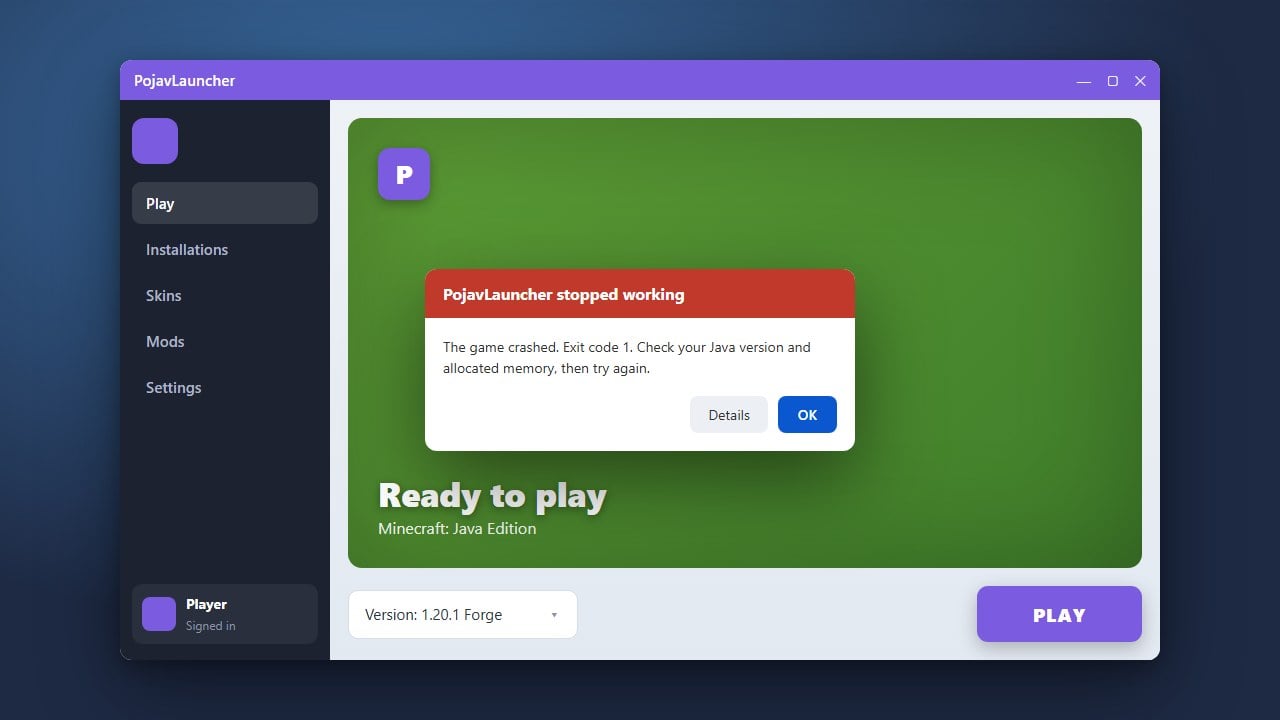
Why is my game crashing when I turn on shaders?
Your mobile device's GPU might be running out of memory, or the shader pack is too demanding. Try allocating more RAM or switching to a lighter shader pack.