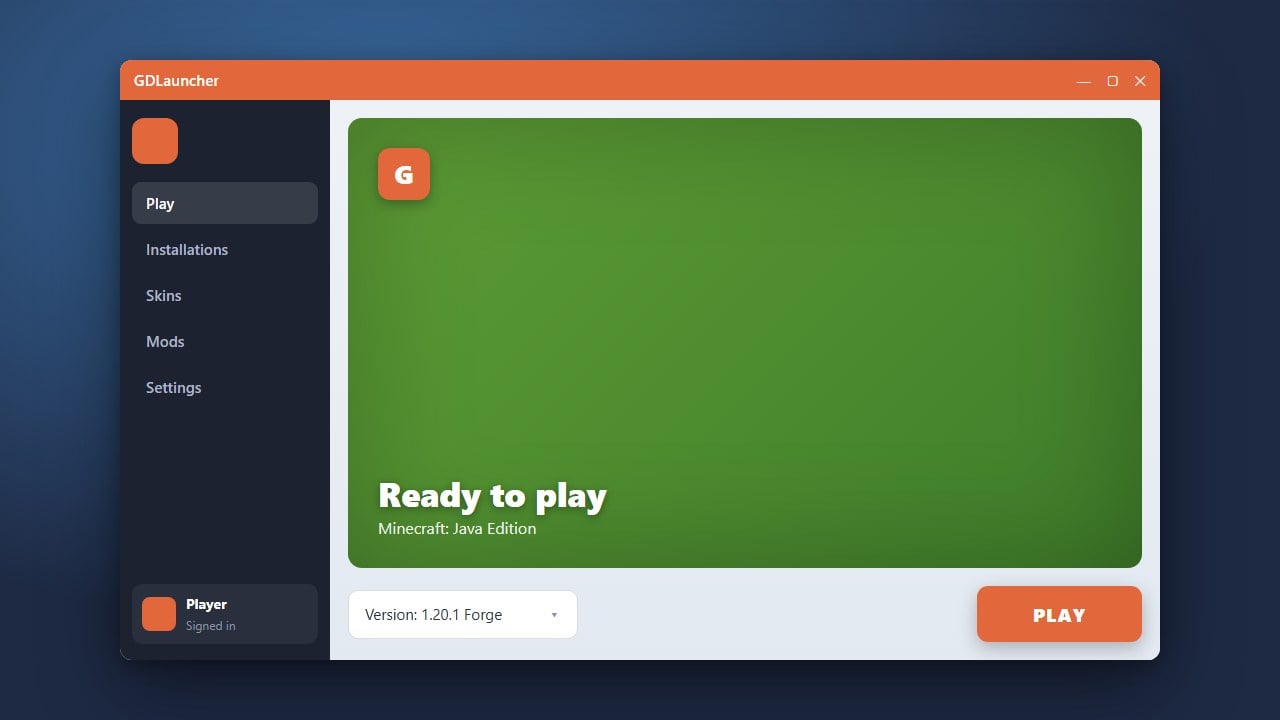
If you no longer use GDLauncher or want to switch to a different client like the Modrinth App, this guide will walk you through completely removing the application and its associated files from your system.
Close GDLauncher
Before starting the uninstallation process, make sure that GDLauncher is completely closed. Check your system tray (Windows) or menu bar (macOS) to ensure the application isn't running in the background.
Uninstall the Application
On Windows, open your Settings, navigate to Apps > Installed apps (or Apps & features), find GDLauncher in the list, click the three dots, and select Uninstall. On macOS, simply drag the GDLauncher application from your Applications folder to the Trash.
Locate the Data Folder
GDLauncher stores instance data, configuration files, and downloaded mods in a separate app data directory. On Windows, press Windows Key + R, type %appdata%, and look for the folder named gdlauncher or gdevlauncher. On macOS, check ~/Library/Application Support/.
Delete Leftover Files
If you want a completely clean removal and no longer need your saved Minecraft instances or worlds managed by the launcher, delete the GDLauncher data folder. Make sure to back up any important worlds first if you want to keep them!
Frequently Asked Questions
Will uninstalling GDLauncher delete my official Minecraft account?
No, uninstalling GDLauncher only removes the application and its local files from your computer. It does not affect your official Minecraft account purchased through minecraft.net.
Where are my game instances stored?
By default, GDLauncher stores your instances inside its application data directory. If you delete this folder during uninstallation, all instances created within the launcher will be removed.