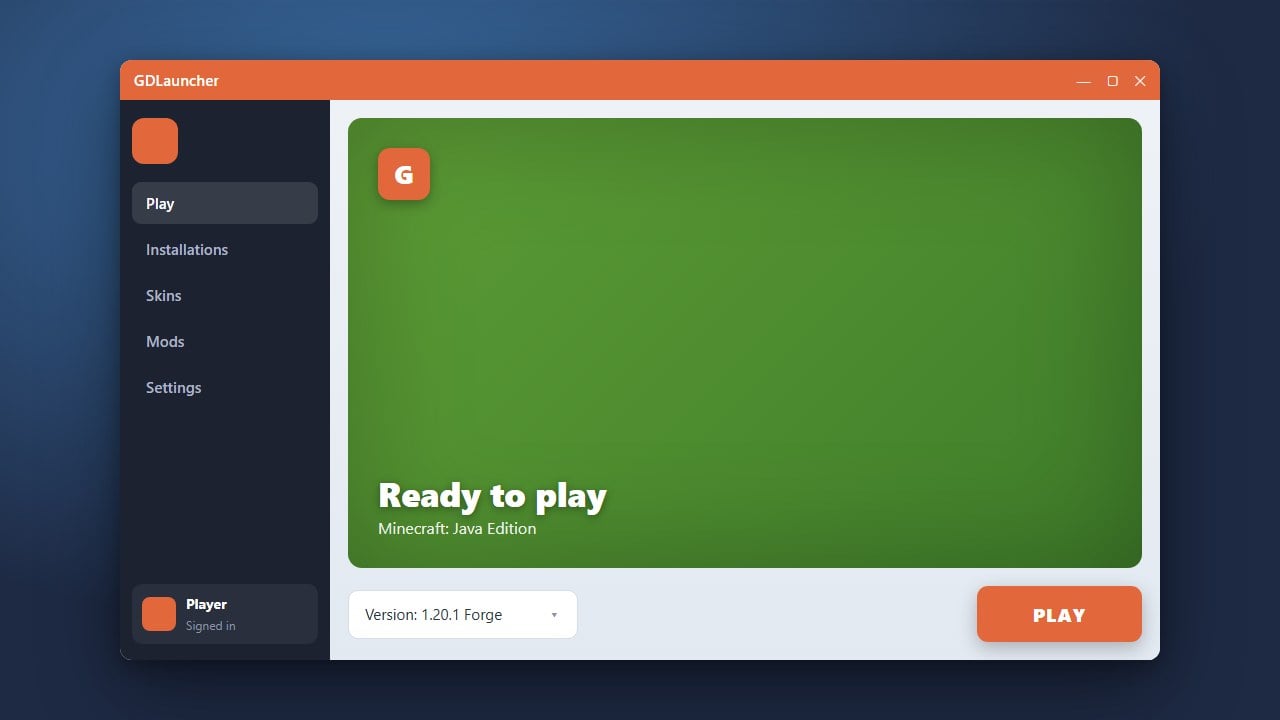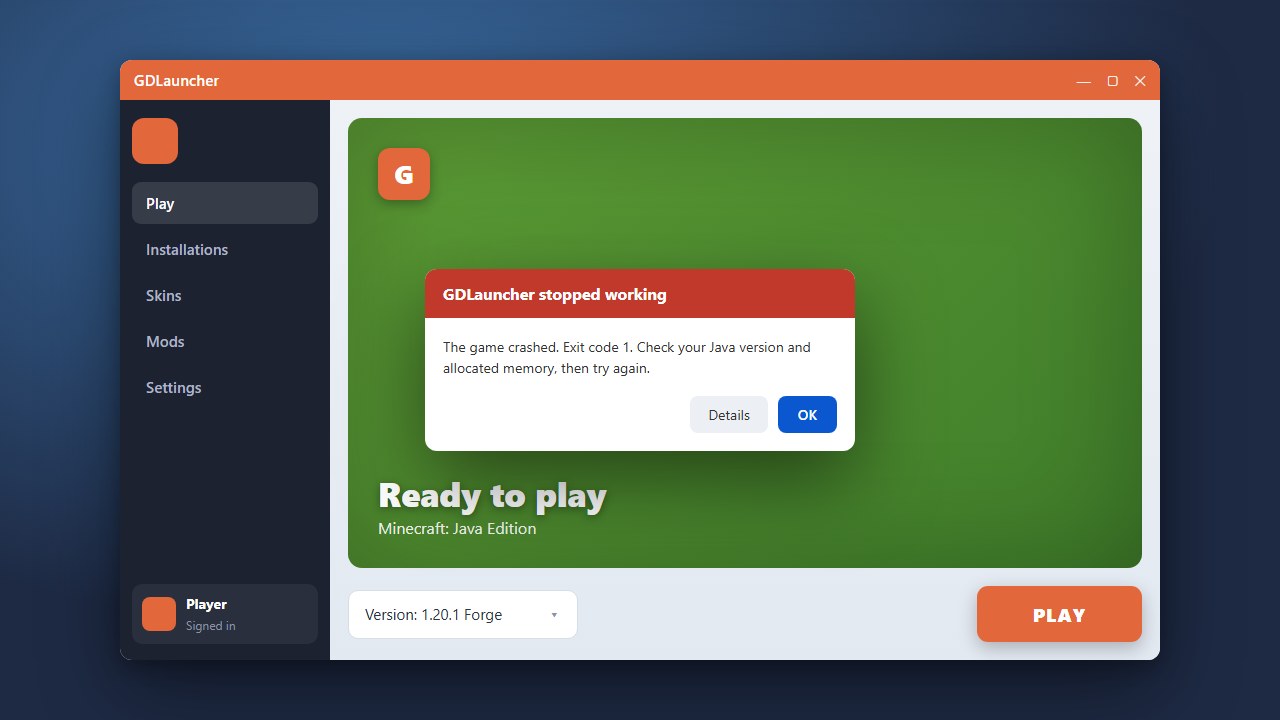
If GDLauncher is failing to start up or refusing to launch your Minecraft instances, it can be frustrating. This guide walks you through the most effective troubleshooting steps to get GDLauncher working smoothly again on Java Edition.
Always remember that third-party launchers require a legitimate Minecraft account. If you do not own the game yet, please remember to purchase the official game directly from minecraft.net to support the developers and ensure account safety.
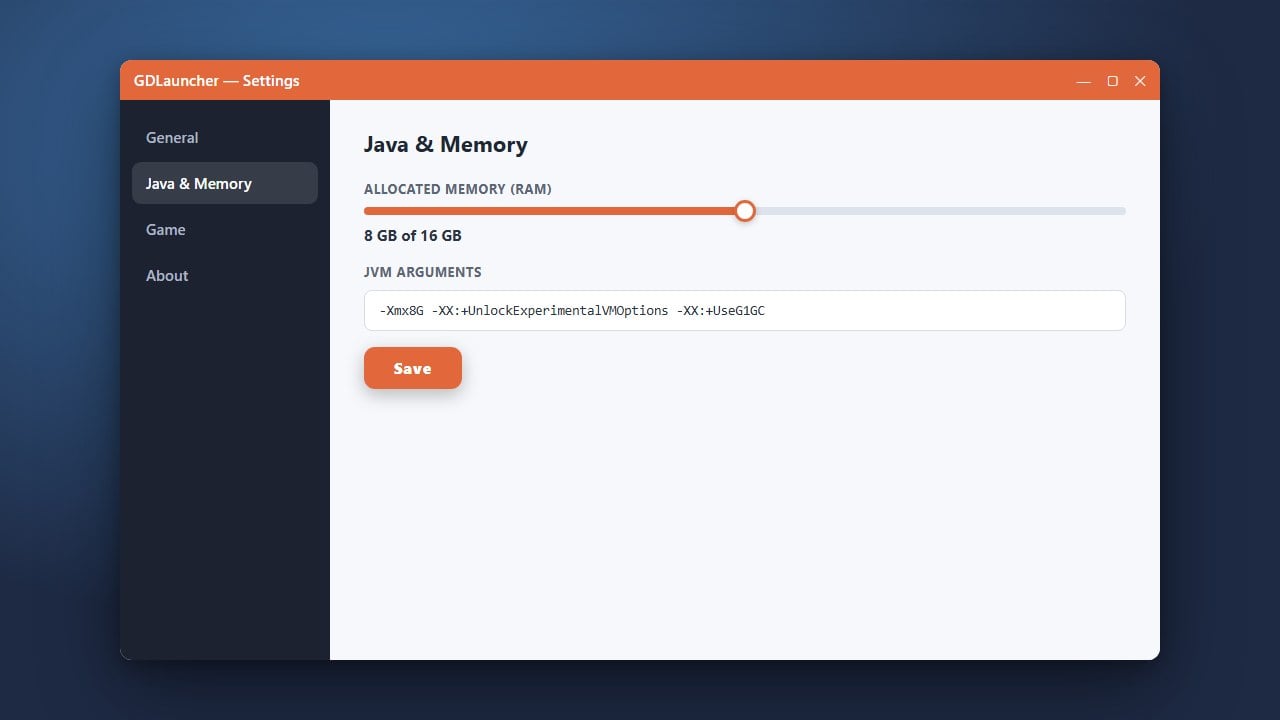
If your instances crash right after launching the game rather than the launcher itself, you may need to adjust your allocated memory. You can follow How to Allocate More RAM in GDLauncher to fix out-of-memory errors.
Check for Running Background Processes
Sometimes GDLauncher is already running as a background process in your operating system, preventing a new window from opening. Open your Task Manager on Windows or Activity Monitor on macOS, look for any lingering GDLauncher or Electron processes, and force close them.
After ending those background tasks, try launching GDLauncher again to see if the main dashboard opens up normally.
Verify Your Java Installation
GDLauncher requires the correct Java runtime environment to execute properly, depending on the version of Minecraft you are trying to play. Minecraft Java Edition 1.17 and newer requires Java 16 or Java 17+, while older versions need Java 8.
Ensure you have a compatible Java development kit or runtime installed on your PC, and check your GDLauncher settings to point toward the correct Java executable path.
Clear Corrupted App Data and Cache
Corrupted temporary files or cache data can frequently cause custom launchers to crash on startup. Navigate to your app data folder (%appdata% on Windows or the equivalent application support directory on macOS) and locate the GDLauncher directory.
Back up any crucial instance folders if necessary, then clear out the cache and temporary folders. Restarting the launcher will regenerate clean configuration files.
Reinstall GDLauncher Completely
If core application files have gone missing or become corrupted, a fresh installation is usually the fastest fix. Uninstall GDLauncher completely from your system, then download the latest official installer package.
If you are looking for alternative modded launchers while troubleshooting, you can also check out How to Download and Install Modrinth App or How to Download and Install Prism Launcher for similar features.
Run the Launcher with Administrator Rights
Permission issues can sometimes block GDLauncher from writing necessary files or accessing system resources upon startup. Right-click the GDLauncher shortcut and select Run as Administrator on Windows.
If this successfully resolves the startup failure, you can permanently set the application to run with elevated privileges via its compatibility properties.
Frequently Asked Questions
Why does GDLauncher freeze on the loading screen?
Freezing on the startup logo usually indicates a network connection timeout while fetching updates or corrupted local cache files. Try disconnecting your internet momentarily or clearing your cache folder.
Do I need a paid Minecraft account to use GDLauncher?
Yes. GDLauncher requires you to log in with a valid Microsoft account that owns a legal copy of Minecraft Java Edition in order to download assets and join online servers.