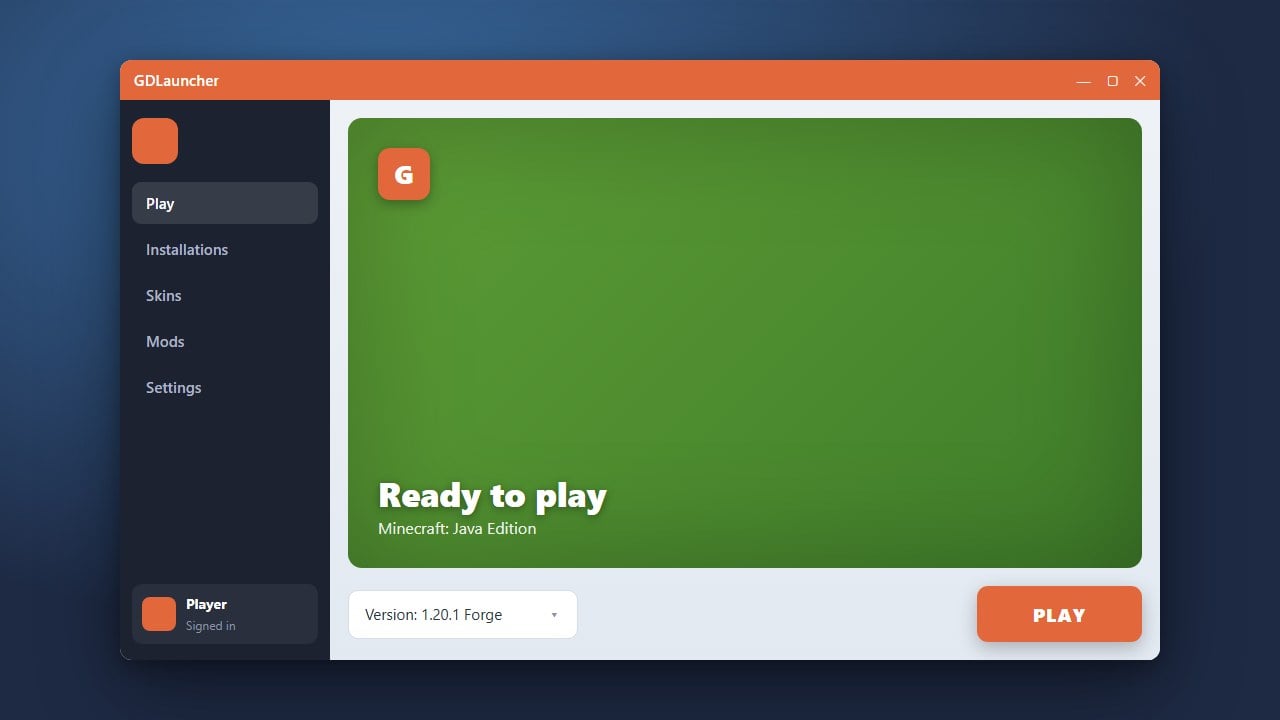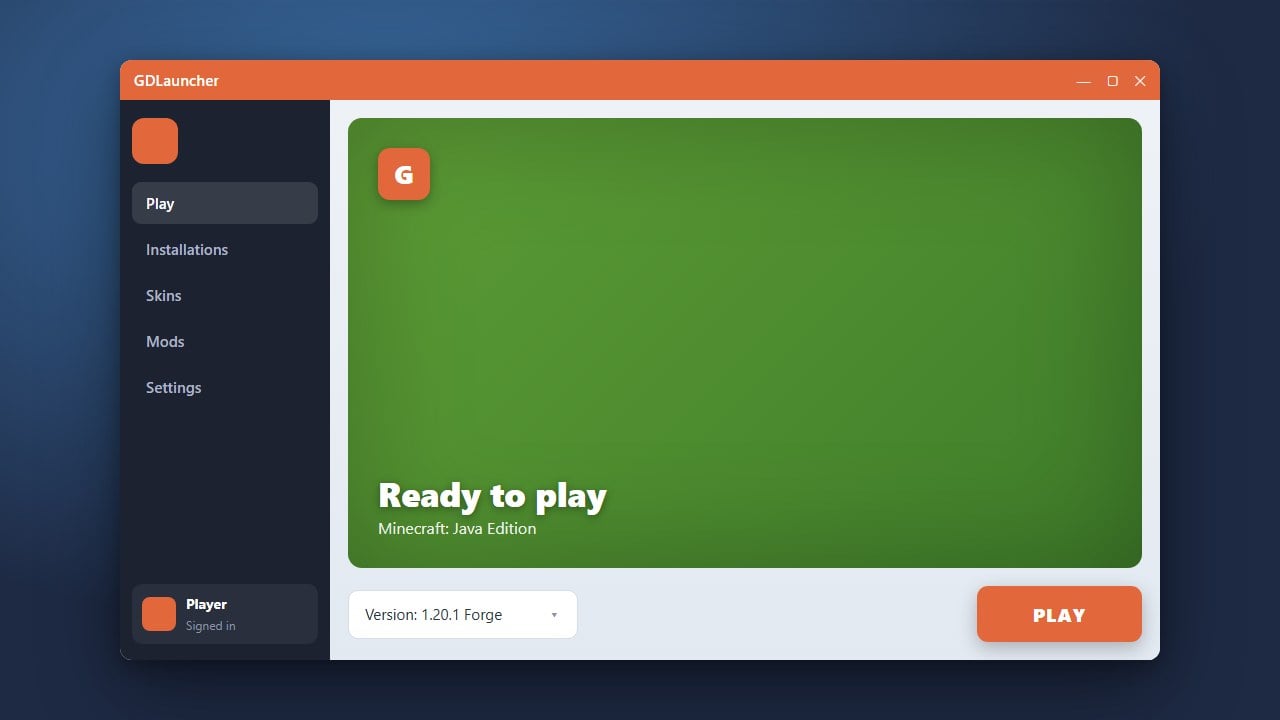
Keeping GDLauncher updated ensures you have access to the latest features, bug fixes, and compatibility improvements for managing your Minecraft Java Edition instances. Please ensure you have legally purchased Minecraft from minecraft.net to safely sign into your official account.
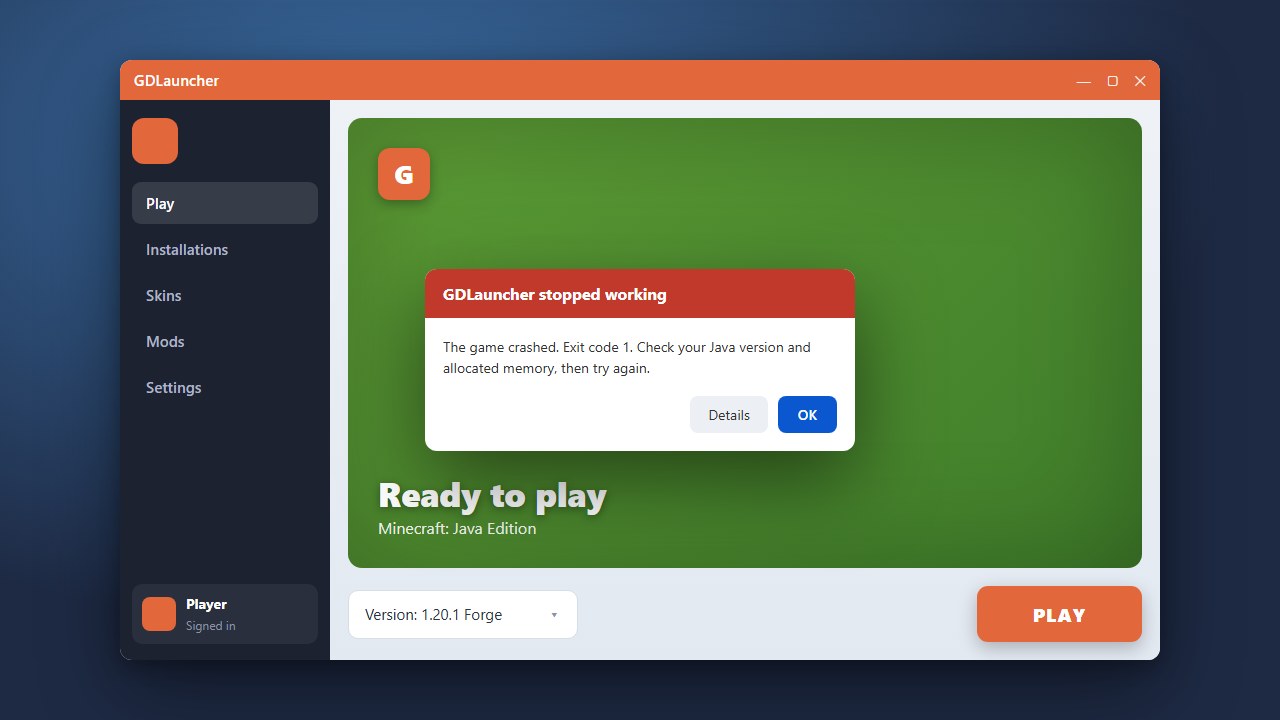
If you encounter any persistent bugs after updating, you can consult How to Fix GDLauncher Not Launching for troubleshooting help.
Open GDLauncher
Launch GDLauncher on your computer just as you normally do when playing Minecraft. Wait for the application to fully load your profile and existing instances.
Check for Updates
GDLauncher usually checks for updates automatically upon startup. If a newer version is available, you will typically see a notification banner or prompt near the bottom or top of the user interface.
Initiate the Download
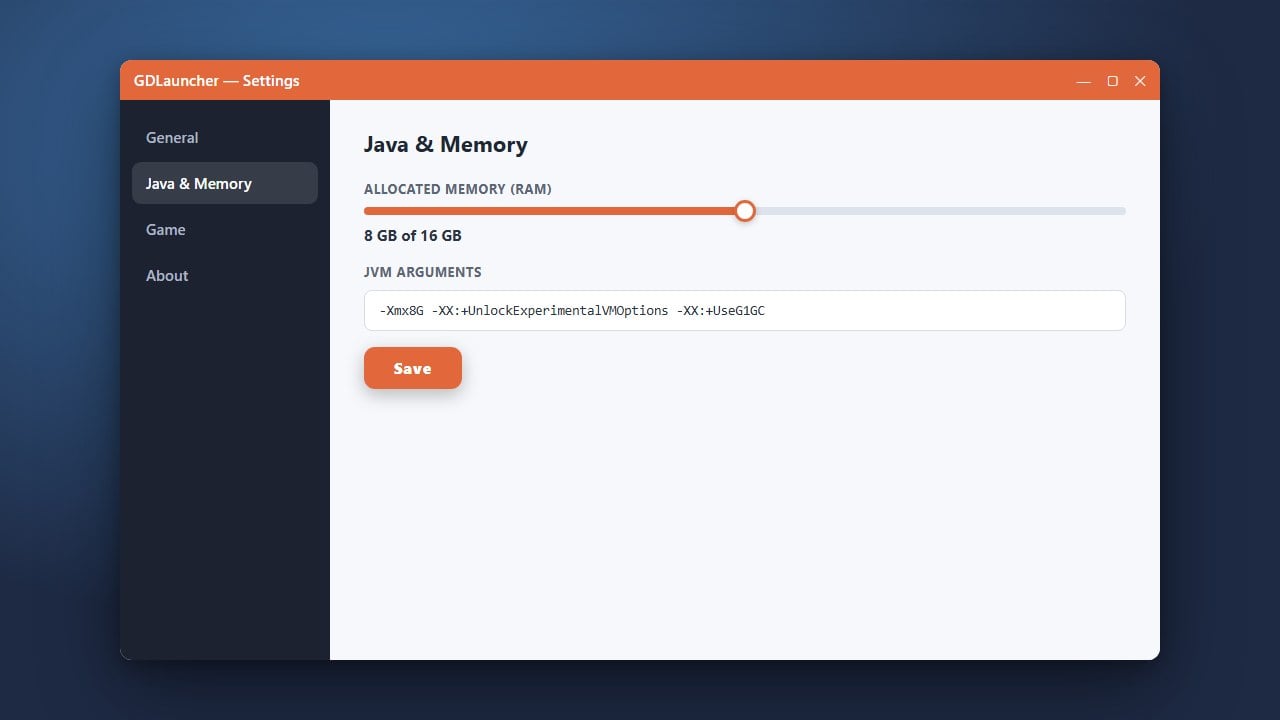
Click on the update notification or navigate to the settings menu to check for updates manually. Select the option to download and install the latest version.
Restart the Launcher
Once the download completes, GDLauncher will prompt you to restart. Close and reopen the application to apply the update successfully and resume managing your game.
Frequently Asked Questions
Will updating GDLauncher deletemy modpacks?
No, updating the launcher application itself will not delete your instances, modpacks, or saved worlds. However, it is always a good idea to back up important worlds just in case.
Do I need to pay for GDLauncher updates?
No, GDLauncher is completely free and open-source software. All updates are free of charge.