If you no longer need FoldCraft Launcher or wish to switch to official game clients, this guide will walk you through completely removing the application and its associated files. Always ensure you purchase and use the official game from minecraft.net to protect your device and personal data from unverified third-party security risks.
Be aware that unofficial launchers may carry privacy or security risks, and bypassing authentic authentication can jeopardize your account safety. We strongly recommend buying the genuine game directly from minecraft.net.
If you ever decide to set things up again properly, check out our guide on How to Download and Install FoldCraft Launcher for proper setup instructions.
Close the Application
Before beginning the uninstallation process, make sure that FoldCraft Launcher is completely closed and not running in the background of your device. If the app is active, your system might prevent you from deleting certain core files or directories.
Uninstall the App from Your Device
On Android or your operating system's settings menu, navigate to your list of installed applications and locate FoldCraft Launcher. Tap or click on the app icon and select Uninstall or Remove to delete the main program package.
Locate and Delete Game Folders
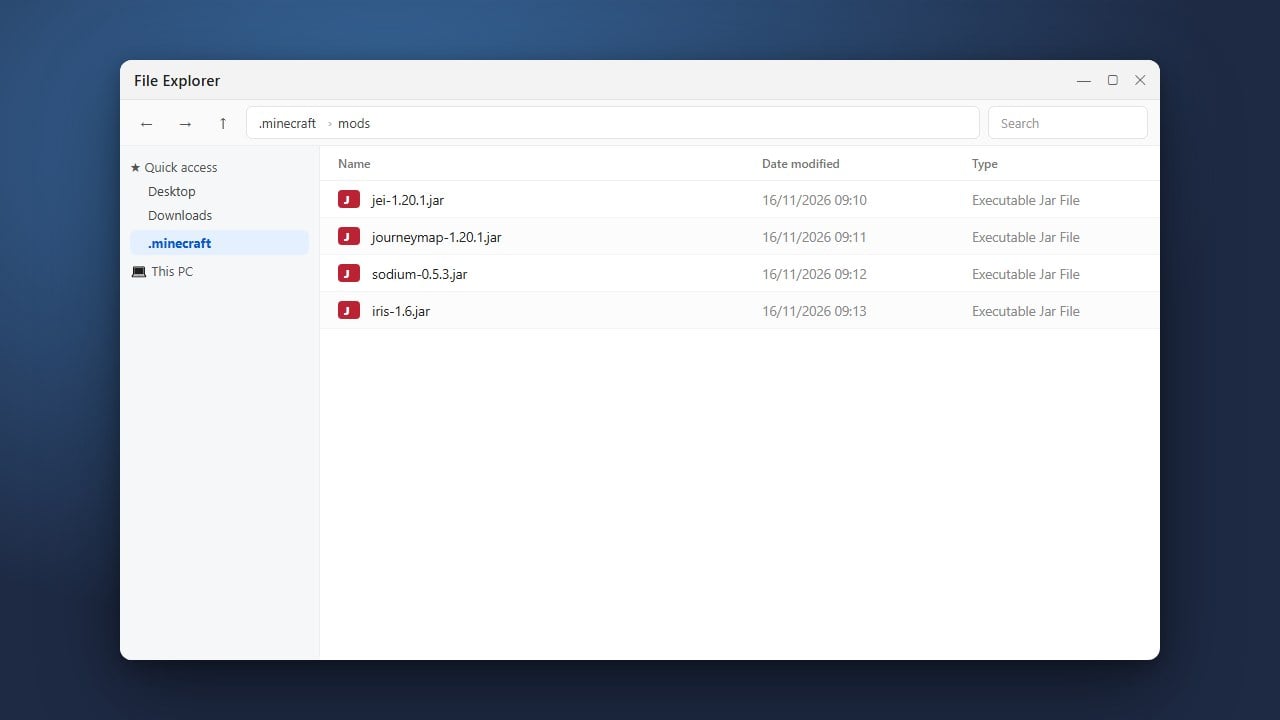
Third-party launchers often leave behind custom game directories, resource packs, and configuration files. Use a file manager app to find the primary FoldCraft folder in your internal storage and delete it to free up valuable storage space.
Restart Your Device
Once the application and its leftover data folders have been fully removed, restart your device to clear any temporary cache files and finalize the uninstallation process successfully.
Frequently Asked Questions
Will uninstalling FoldCraft Launcher delete my worlds?
Yes, deleting the application's data folders will remove any worlds stored exclusively inside the launcher's local directory. Make sure to back up important world saves before proceeding with the removal.
Is FoldCraft Launcher safe to use?
Third-party launchers not affiliated with Mojang or Microsoft can pose security and privacy concerns. For the safest experience, always use the official Minecraft launcher purchased from minecraft.net.