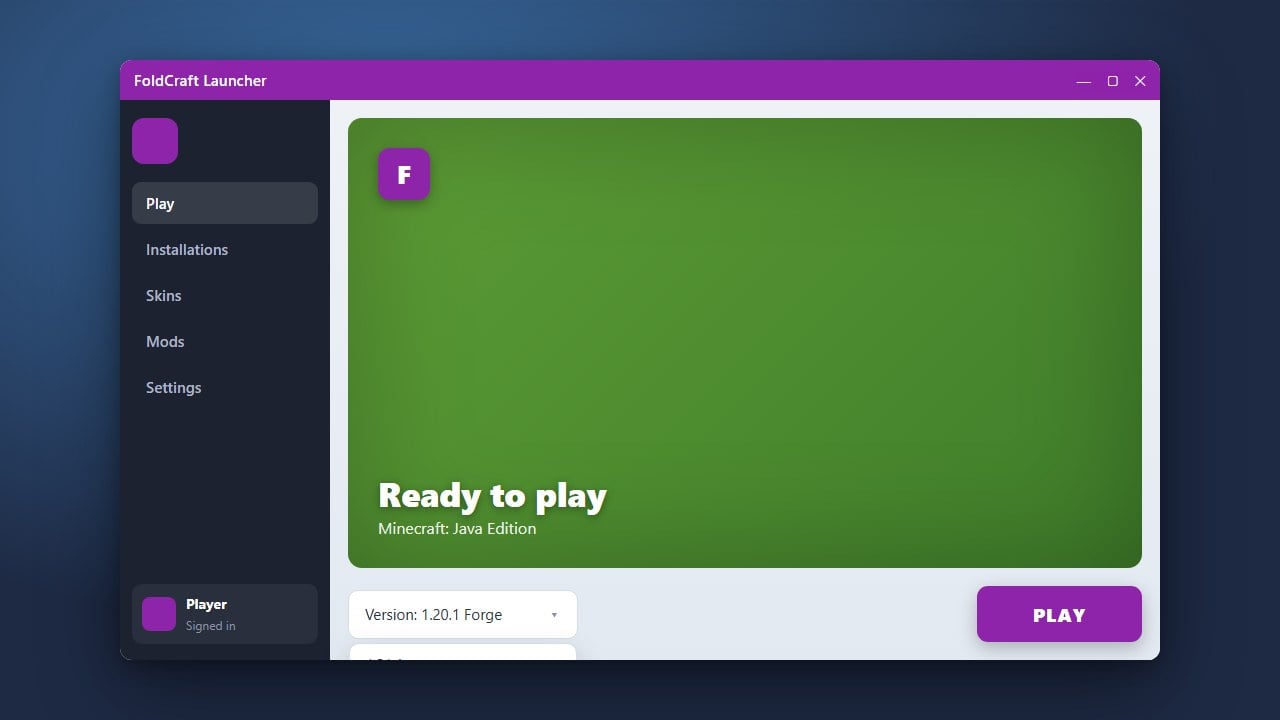
Changing your Minecraft version in FoldCraft Launcher is a simple process that allows you to play on older snapshots, release versions, or customized modded setups directly on your mobile device. Whether you are setting up a new profile or updating an existing one, this guide will walk you through each step.
Always back up your world saves before switching to an older version to prevent data corruption.
Open FoldCraft Launcher
Start by launching the FoldCraft Launcher app on your mobile device. Ensure you are logged into your account and ready to manage your game profiles.
Navigate to Profile Settings
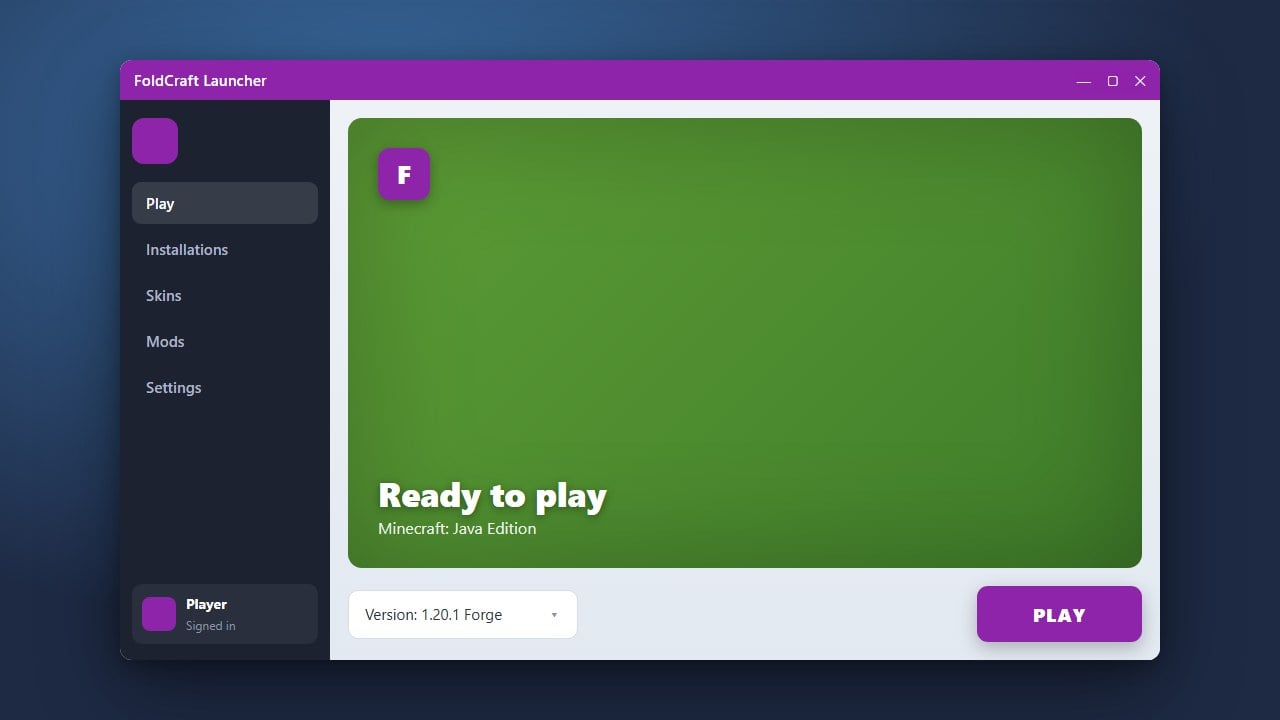
On the main dashboard of the launcher, locate your current profile or version selection menu. Tap on the profile settings or manage profiles option to view your available configurations.
Select a New Version
Look for the version dropdown or selection list within your profile settings. Scroll through the available options to find the specific release or snapshot version you want to play.
Save and Launch the Game
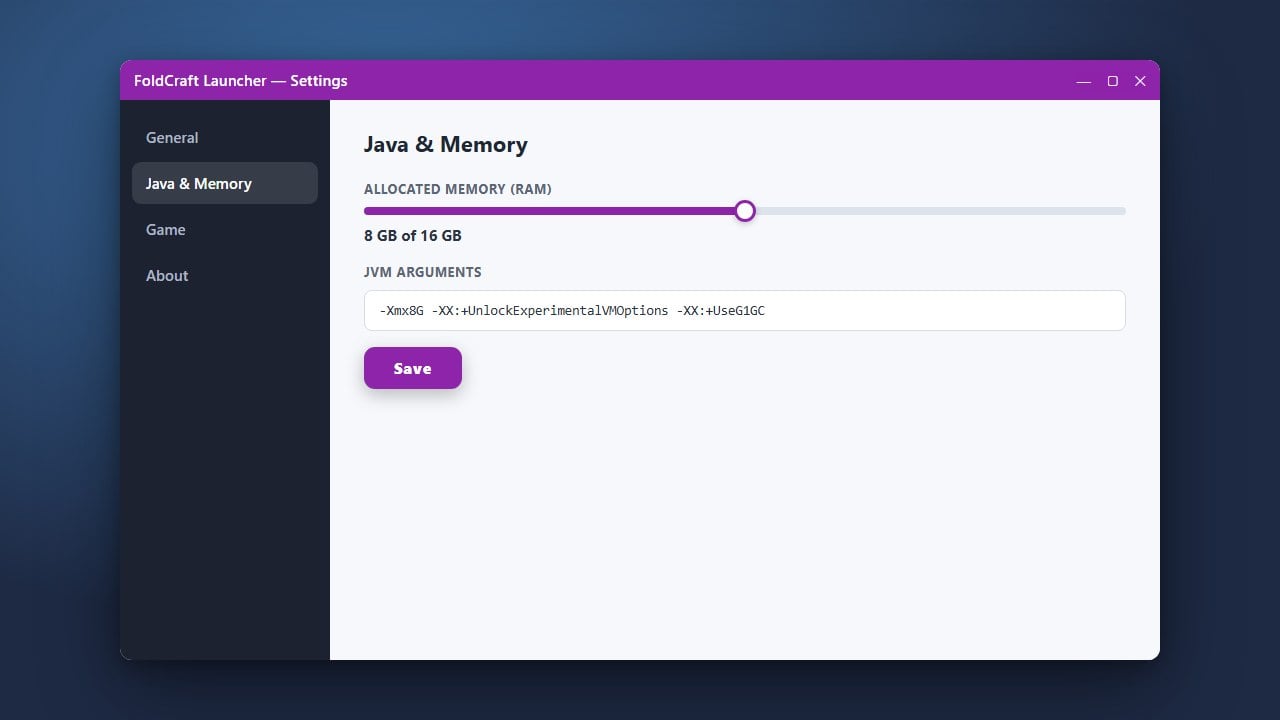
After choosing your desired version, tap the save button to confirm your changes. You can also review our guide on How to Allocate More RAM in FoldCraft Launcher to ensure your game runs smoothly before hitting the play button.
Frequently Asked Questions
Can I play snapshots in FoldCraft Launcher?
Yes, you can enable snapshots in the version settings menu to download and play the latest experimental releases.
Do I need an active internet connection to download a new version?
Yes, the launcher requires an internet connection to download the necessary game assets and version files the first time you select a new version.