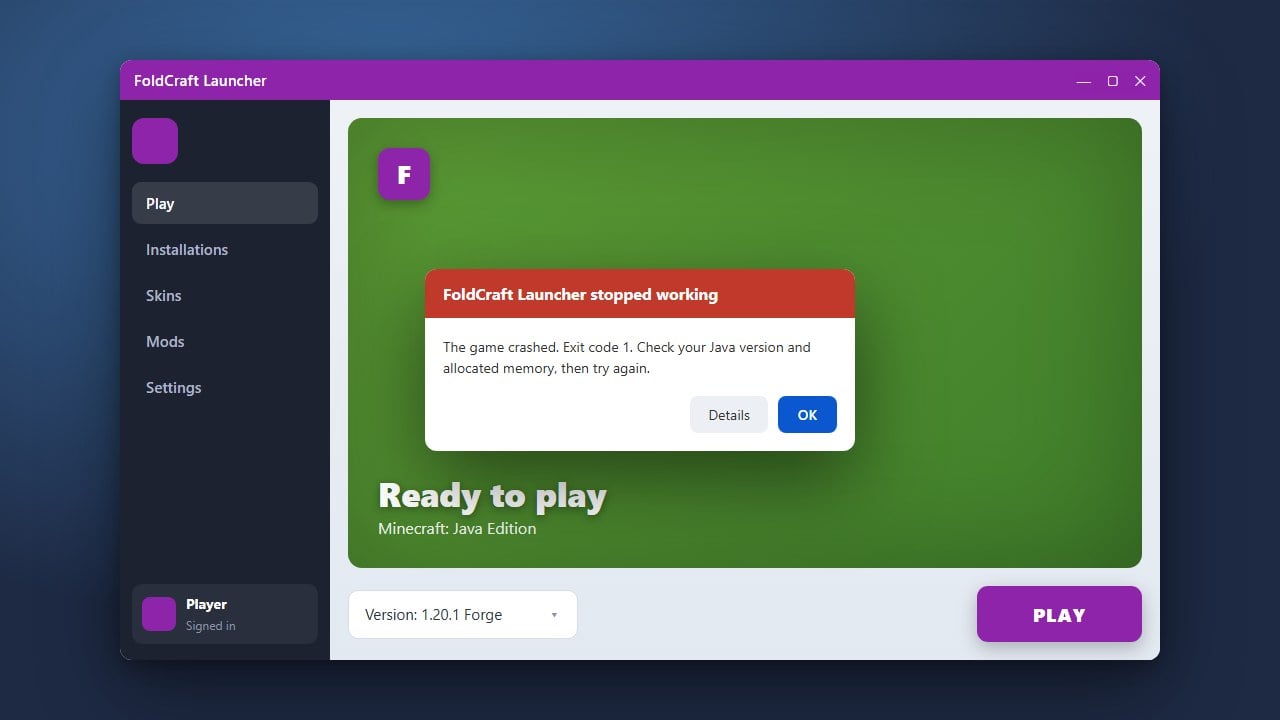
If FoldCraft Launcher is failing to open or crashing immediately upon startup on your Bedrock Edition setup, don't panic. This troubleshooting guide will walk you through the most effective methods to resolve common application errors, storage conflicts, and runtime issues so you can get back to gaming.
Third-party launchers are sometimes associated with unauthorized account access risks or modified security wrappers. We strongly recommend purchasing and playing Minecraft officially through minecraft.net to ensure complete account safety and privacy.
Always backup your configuration files, worlds, and custom resource packs before performing a clean reinstallation of any launcher application.
Check Device Compatibility and Requirements
FoldCraft Launcher is primarily designed to run Java Edition on mobile devices. Ensure your mobile operating system meets the minimum system requirements for the version of the app you have installed.
If your device lacks sufficient memory or processing power, the app may instantly close or fail to boot up. Consider updating your device operating system to the latest available version.
Clear App Cache and Temporary Data
Corrupted cache files are one of the most frequent reasons custom launchers fail to launch. Open your device settings, navigate to your application manager, locate FoldCraft Launcher, and select Clear Cache.
Avoid clearing all app data unless necessary, as this may erase your custom profiles and saved login credentials. Restart your device entirely after clearing the cache.
Verify Your Installation and Update the App
Running an outdated version of FoldCraft Launcher can cause compatibility crashes with newer Java runtimes or operating system updates. Uninstall the app completely, download the official and most recent APK release from a trusted source, and reinstall it fresh.
Always ensure you download your launcher files safely to protect your device from modified or malicious files.
Adjust RAM Allocation Settings
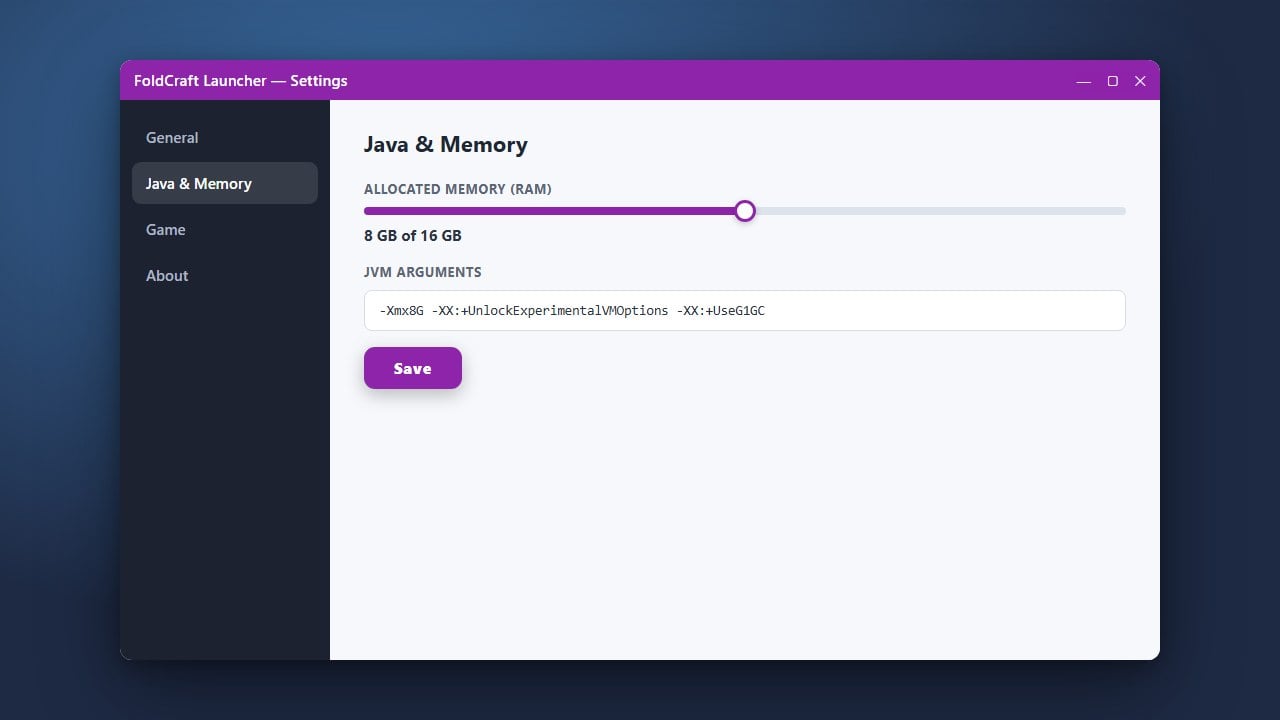
Allocating too much or too little memory can cause the launcher or the game instance to crash before the main menu appears. Open your launcher settings and adjust your memory slider to a balanced amount that leaves plenty of RAM free for your operating system.
For detailed guidance on optimizing your memory settings, you can check out our guide on How to Allocate More RAM in FoldCraft Launcher.
Check Runtime and Java Settings
FoldCraft Launcher relies on correct Java runtime components to execute properly. Ensure you have the appropriate Java version downloaded and linked within the launcher profile settings.
If the selected runtime is missing or incompatible with your chosen game version, the launcher will frequently abort the startup sequence without displaying a detailed error message.
Frequently Asked Questions
Why does FoldCraft Launcher crash immediately upon opening?
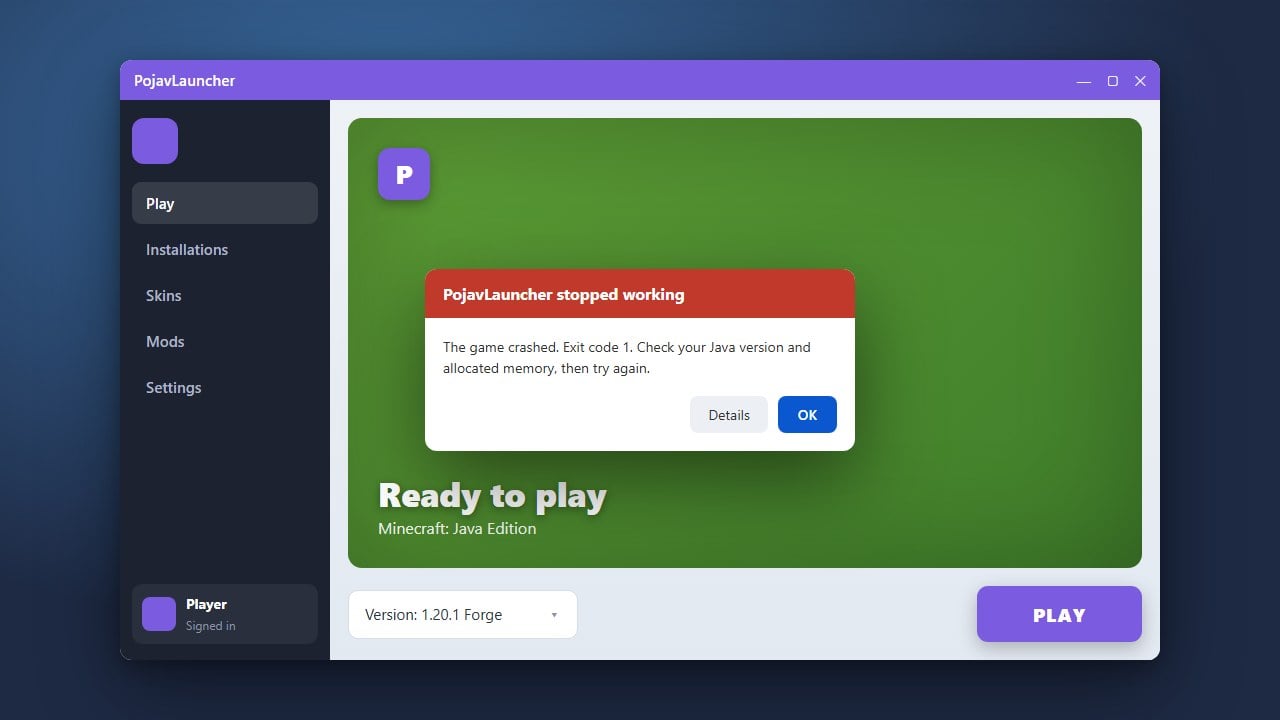
This is usually caused by corrupted cache files, insufficient device RAM, or an incompatible operating system version. Clearing the app cache or reinstalling the latest version typically resolves the problem.
Is FoldCraft Launcher safe to use?
While many players use third-party clients, they carry inherent security and privacy risks compared to the official client. Always download files from official repositories and never share your primary login credentials with untrusted apps.