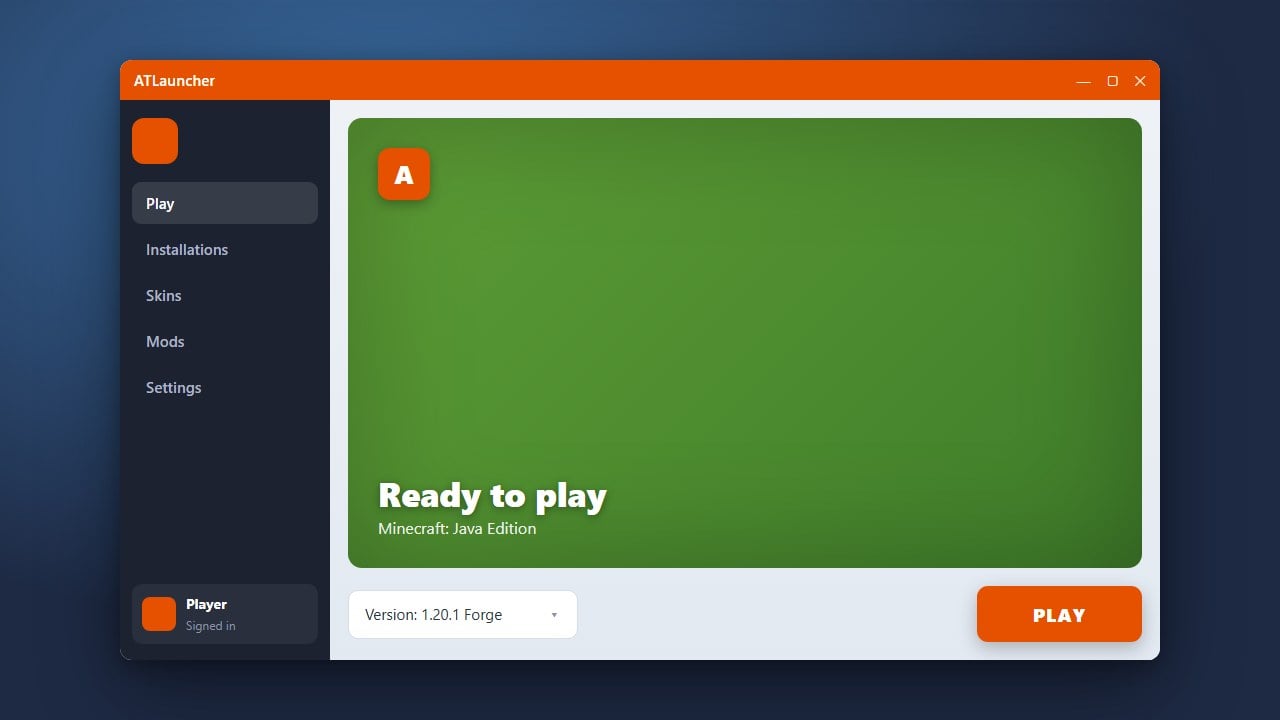
If you no longer need ATLauncher or want to clear up space, this guide will walk you through completely removing the launcher and its associated files from your system. Remember that third-party launchers require a legitimate account to play, and if you have not already, you should always purchase the official game from minecraft.net to support the developers and ensure account security.
Deleting the ATLauncher folder will permanently erase all custom modpacks, game instances, and saved worlds stored inside the launcher. Make sure to back up any important worlds before proceeding!
Close ATLauncher
Before starting the uninstallation process, make sure that ATLauncher is completely closed. Check your system tray in the bottom right corner of Windows or the dock on macOS to ensure the application is not running in the background.
Delete the ATLauncher Application
Locate where you saved the ATLauncher executable file or application. On Windows, simply delete the ATLauncher.exe file from your desktop or downloads folder. On macOS, drag the ATLauncher application from your Applications folder to the Trash.
Remove Leftover Game and Data Folders
ATLauncher stores your modpacks, instances, and configuration files in a separate folder. To completely remove all data, press Windows Key + R, type %appdata%, and hit Enter. Locate and delete the folder named ATLauncher.
For macOS users, navigate to your user library folder, open Application Support, and delete the ATLauncher folder there.
Empty Your Trash or Recycle Bin
To finish cleaning up your storage drive, open your Recycle Bin on Windows or the Trash on macOS and permanently delete the files you just moved. If you ever want to use the launcher again in the future, you can always check out our guide on How to Download and Install ATLauncher.
Frequently Asked Questions
Will uninstalling ATLauncher delete my official Minecraft account?
No, uninstalling ATLauncher only removes the application and its local files from your device. Your official Minecraft account credentials remain safe with Microsoft.
How do I reinstall ATLauncher if I change my mind?
You can easily download a fresh copy from the official website and set up your instances again. If you need assistance getting started, refer to How to Download and Install ATLauncher for step-by-step help.