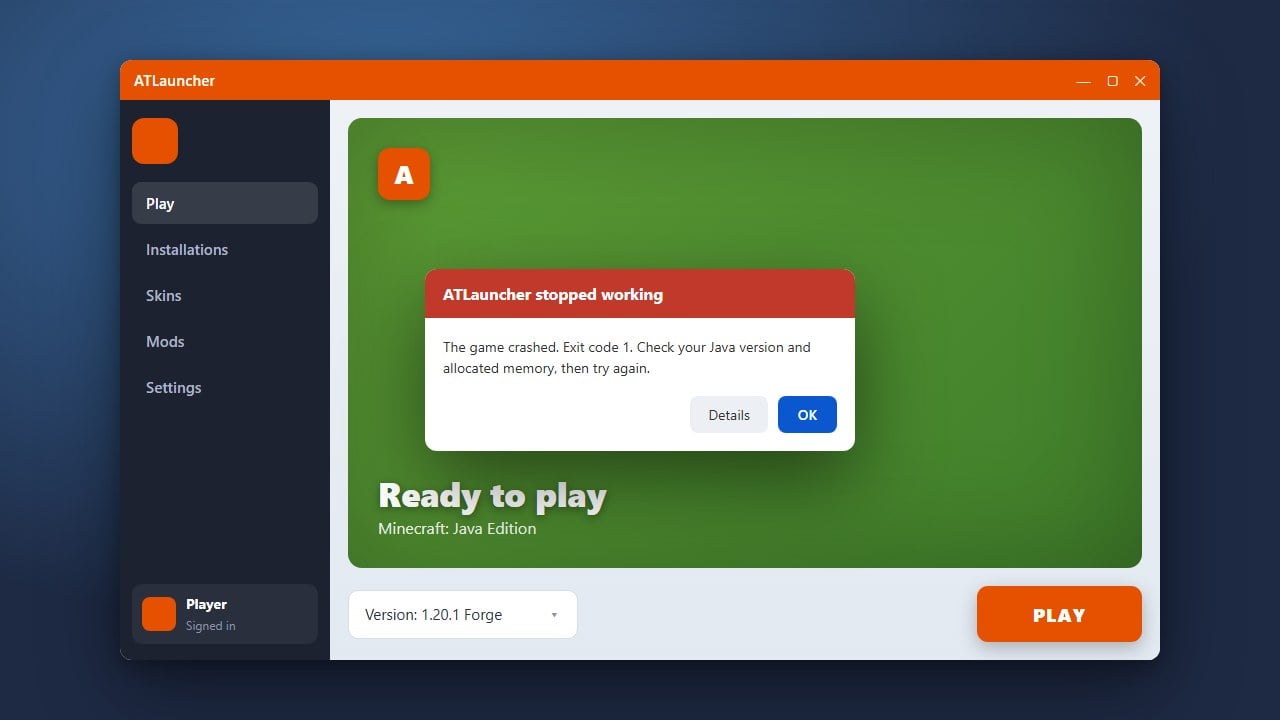
If your ATLauncher is refusing to start, freezing on startup, or failing to load your favorite modpacks, you are in the right place. This guide will walk you through the most effective troubleshooting steps to get your Java Edition client running smoothly again.
Check for Running Background Processes
Sometimes a previous instance of ATLauncher is still running invisibly in your operating system's background, preventing a new window from opening.
Open your Task Manager (Windows) or Activity Monitor (macOS), look for any processes named ATLauncher or Java, right-click them, and select End Task. Once closed, try launching ATLauncher again.
Update or Reinstall Java
ATLauncher requires a compatible Java runtime environment to operate correctly. Outdated or corrupted Java installations are a primary reason Java Edition launchers fail to start.
Ensure you have the correct version of Java installed for your Minecraft version (Java 21 for modern versions like 1.21+). If problems persist, completely uninstall Java and perform a fresh installation from a trusted official source.
Adjust Allocated RAM Settings
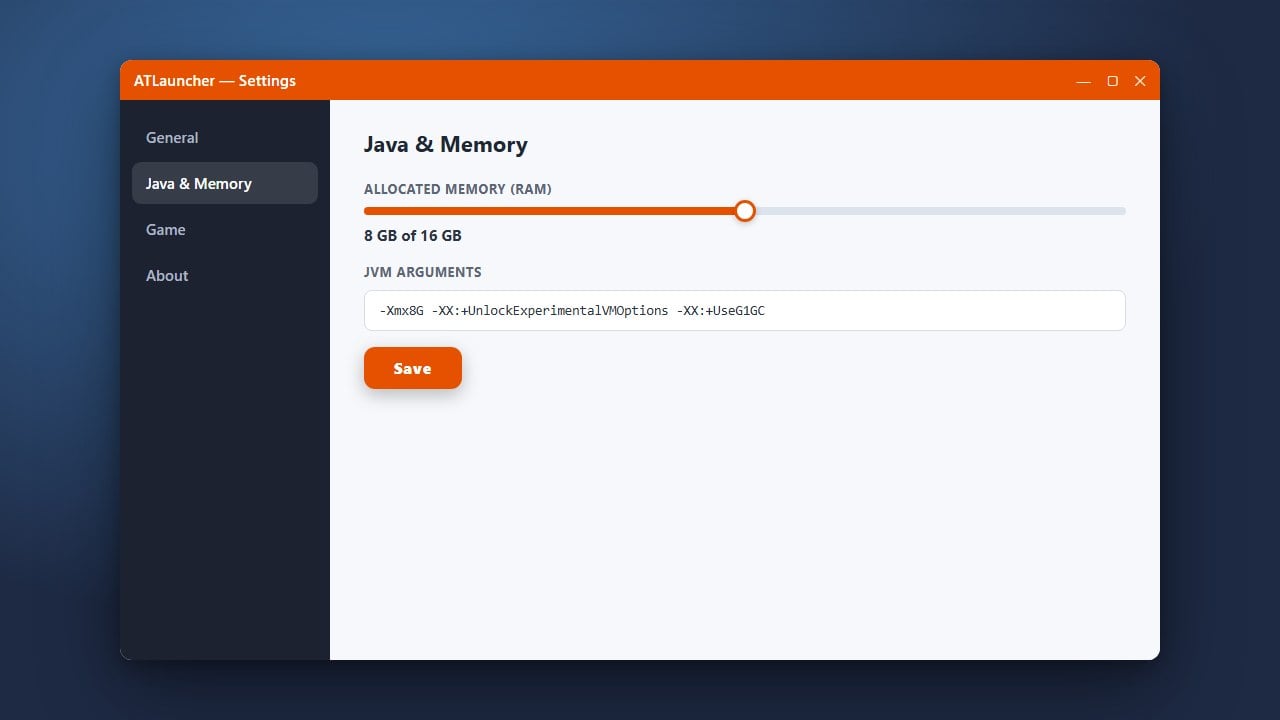
Giving the launcher too little memory—or more memory than your PC actually has available—can cause crashes before the game window ever appears. You can learn more about managing memory by checking our guide on How to Allocate More RAM in ATLauncher.
Open your ATLauncher settings, navigate to the Java/Minecraft tab, and adjust the maximum RAM allocation to a reasonable amount (such as 4GB or 8GB depending on your system specs and modpack requirements).
Clear Corrupted Cache Files
Damaged configuration or temporary files inside your launcher directory can prevent startup routines from completing successfully.
Navigate to your ATLauncher folder, locate the logs or temp directories, and safely clear out outdated files. Be careful not to delete your active instances or world saves unless you have a complete backup.
Run the Launcher as Administrator
Permission issues can block ATLauncher from creating necessary files, downloading updates, or communicating with Microsoft authentication servers.
On Windows, right-click the ATLauncher executable file and select Run as Administrator. If this resolves the issue, you can permanently set it to run with elevated privileges via its properties menu.
Frequently Asked Questions
Why does ATLauncher close immediately after opening?
This is usually caused by a corrupted Java runtime, an incorrect RAM allocation setting, or an existing invisible process running in your task manager. Ending background tasks and reinstalling Java usually fixes this behavior.
Do I need a paid Minecraft account to use ATLauncher?
Yes. ATLauncher requires you to log in using a legitimate Microsoft/Minecraft account that owns the official game in order to download assets and play online or offline safely.