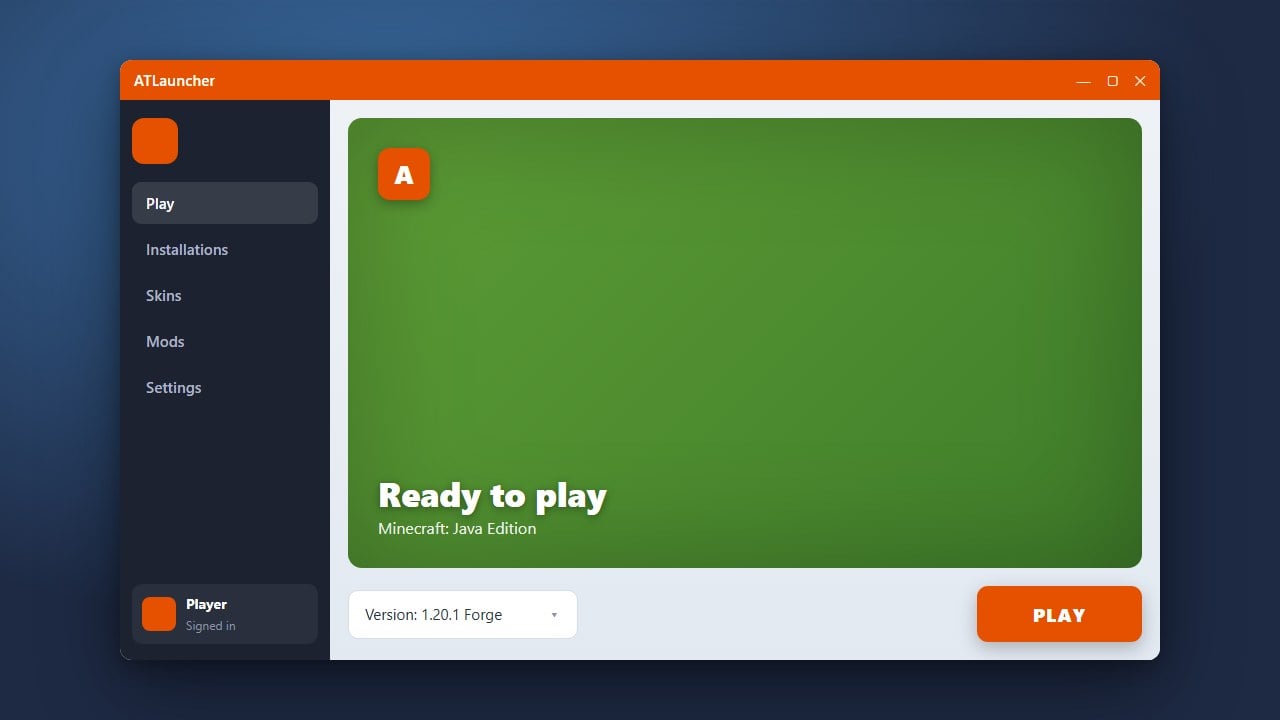
Updating your ATLauncher ensures you have access to the newest features, bug fixes, and compatibility improvements for Minecraft Java Edition. Please note that ATLauncher requires a legitimate Minecraft account purchased from minecraft.net to play the full game, as third-party launchers do not provide free game access or bypass official ownership verification.
Open ATLauncher
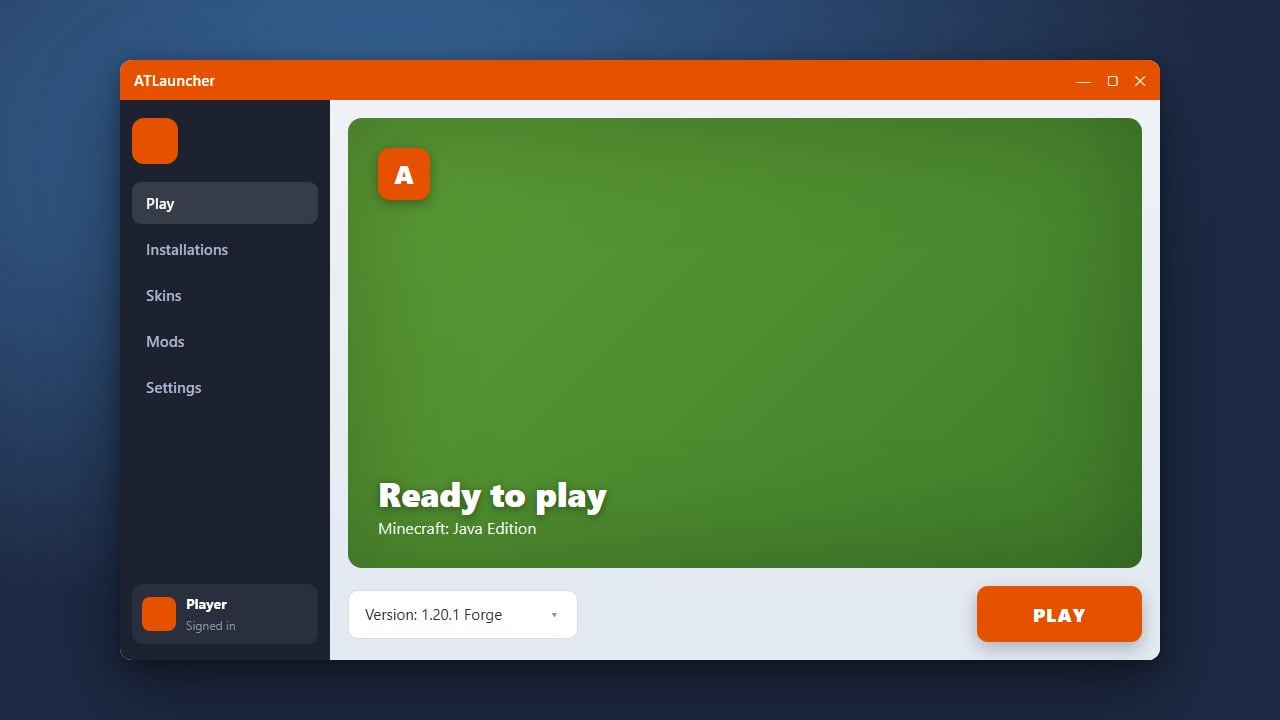
Launch the ATLauncher application on your computer. Make sure your internet connection is active so the launcher can check for available updates.
Check for Updates
Navigate to the settings or check the main dashboard where the launcher typically notifies you if a newer version is available for download.
Download the New Version
If an update prompt appears, click the update button to begin downloading the latest files. You can also review How to Download and Install ATLauncher if you prefer to grab the fresh installer directly from the official website.
Restart the Launcher
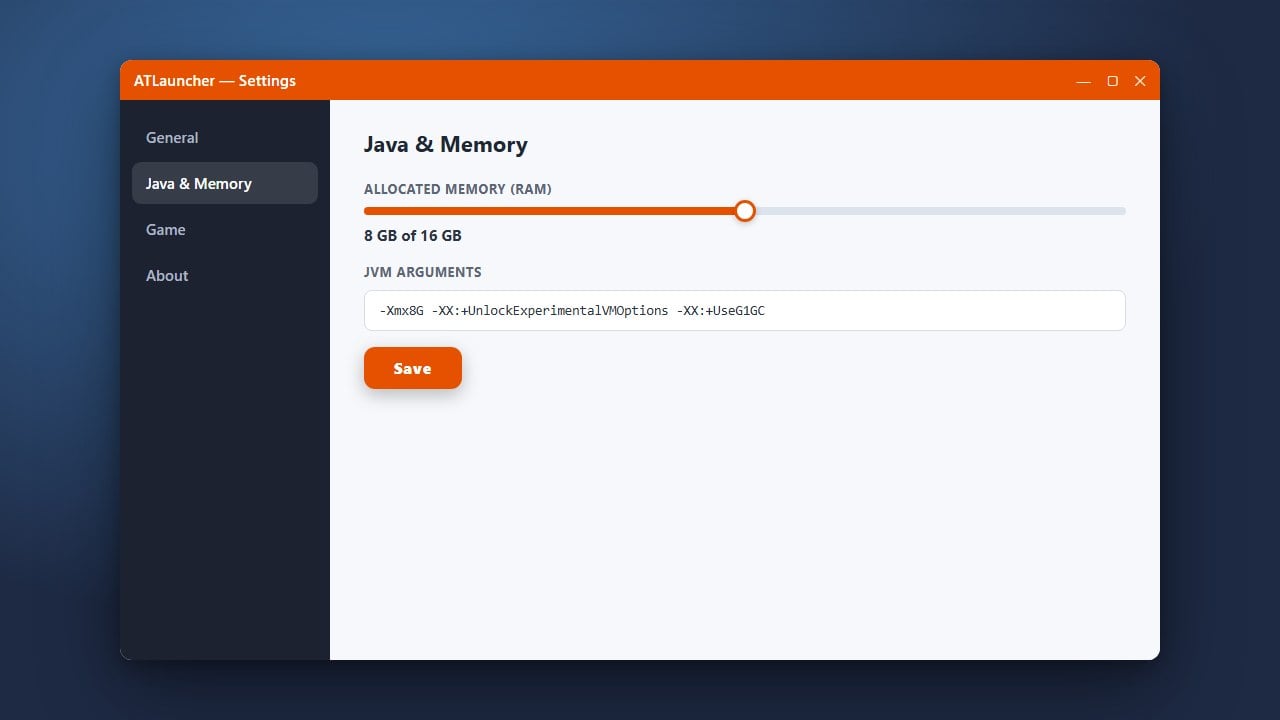
Once the download finishes, close and restart ATLauncher to apply the update completely. After updating, you might want to check How to Allocate More RAM in ATLauncher to ensure your memory settings remain optimized.
Frequently Asked Questions
Do I need to reinstall my modpacks when I update ATLauncher?
No, updating the ATLauncher application generally preserves your existing instances, configurations, and world saves safely.
Is ATLauncher free to use?
Yes, ATLauncher is completely free and open-source software, but you must own a legitimate paid Minecraft account to log in and play.