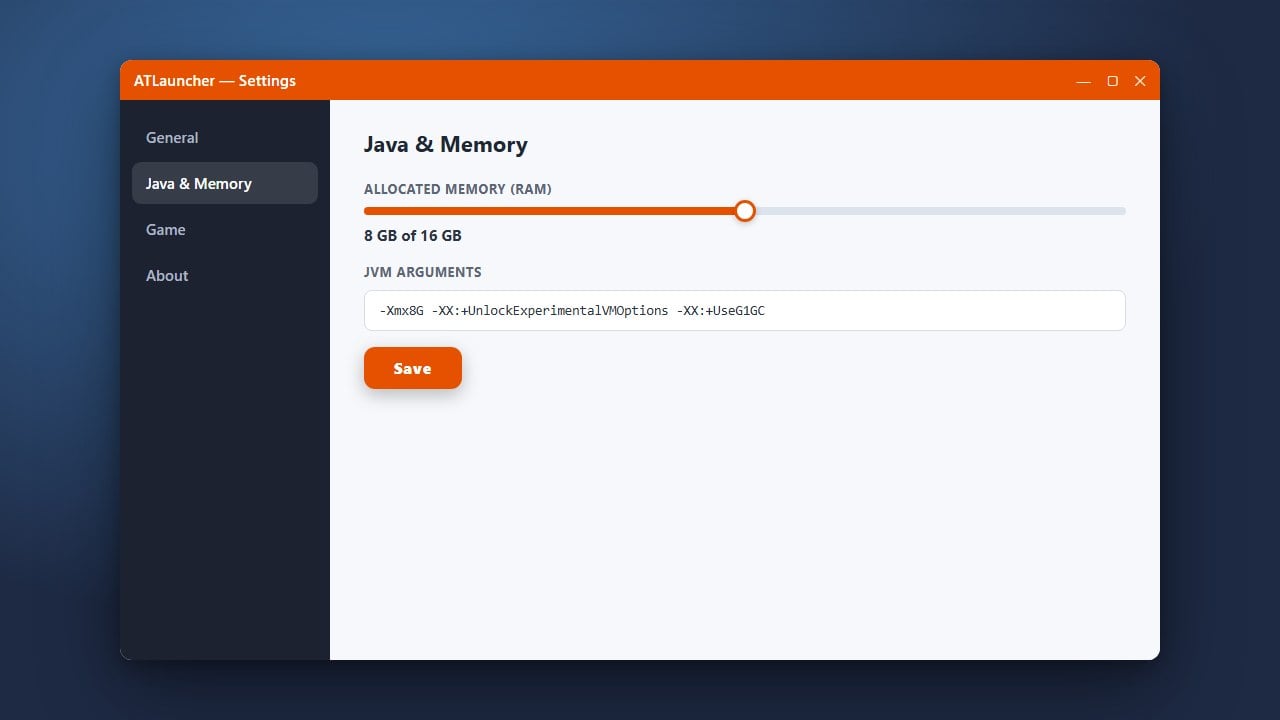
Allocating more RAM to ATLauncher ensures that your Minecraft Java Edition game runs smoothly, especially when you are playing with heavy mods or large modpacks. If you are experiencing lag spikes or out-of-memory crashes, adjusting your memory settings is a quick fix. Before you start configuring your setup, you might want to check out our guide on How to Download and Install ATLauncher if you are just getting started.
Never allocate all of your computer's total physical RAM to Minecraft. Always leave at least 2 GB free for your operating system and background applications to prevent system crashes.
If you plan to switch between different versions or test out custom setups, you can also learn How to Change the Minecraft Version in ATLauncher to manage your instances effectively.
Open ATLauncher
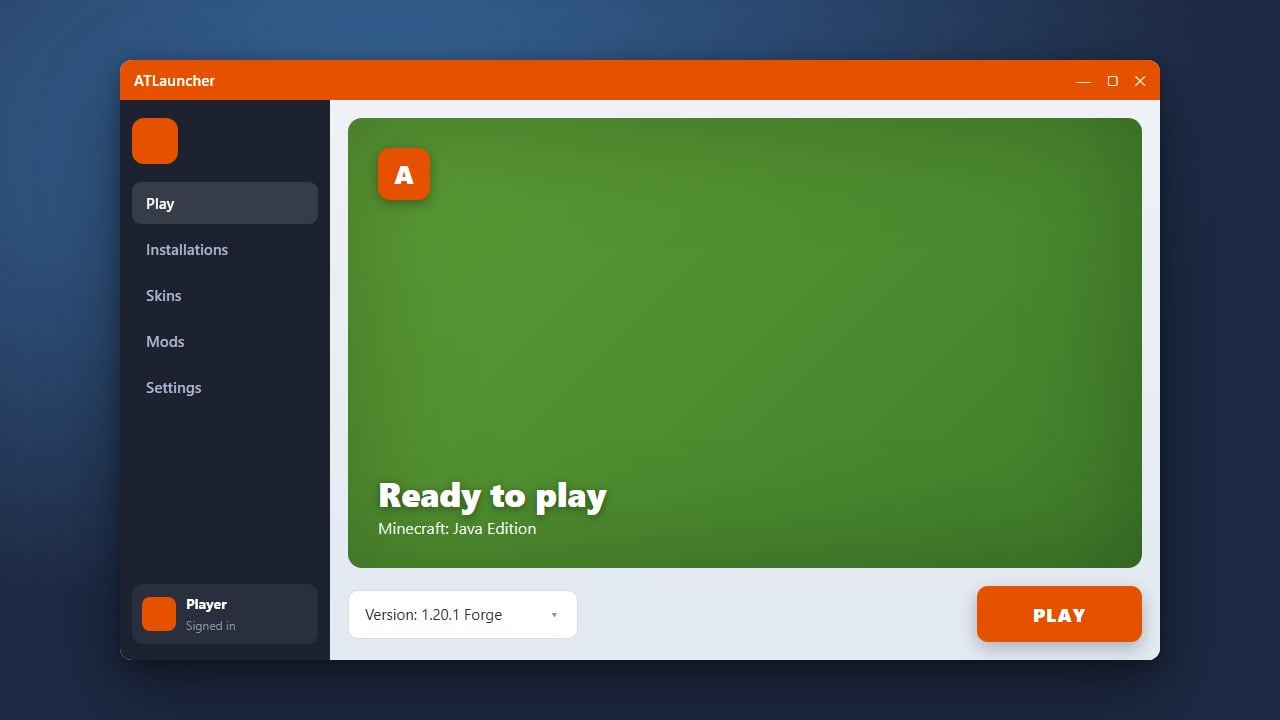
Launch ATLauncher on your computer and wait for the main application window to open. Make sure you are on the primary dashboard where you can see your packs, instances, and settings tabs.
Navigate to the Settings Tab
Look at the menu on the right-hand side of the ATLauncher window. Click on the Settings tab to open the global configuration options for the launcher and your Minecraft instances.
Locate the Java/RAM Settings
Inside the Settings menu, click on the Java/Minecraft tab at the top. Here you will see various technical options, including Java paths, window sizes, and memory allocation sliders or dropdowns.
Change the Maximum Memory Amount
Find the Maximum Memory / RAM dropdown or text box. Select the amount of RAM you want to assign to Minecraft. For vanilla or light performance setups, 2 to 4 GB is usually plenty, while large modpacks often require 4 to 8 GB or more depending on your system.
Save Your Changes
Scroll down to the bottom of the Settings page and click the Save button. Your new RAM allocation will now apply to any game instances you launch through ATLauncher.
Frequently Asked Questions
How much RAM should I allocate to ATLauncher?
For vanilla Minecraft, 2GB to 4GB is usually sufficient. For medium to heavy modpacks, you should allocate between 4GB and 8GB of RAM. Do not allocate more than half of your total system memory.
Why does ATLauncher give me an error when I allocate too much RAM?
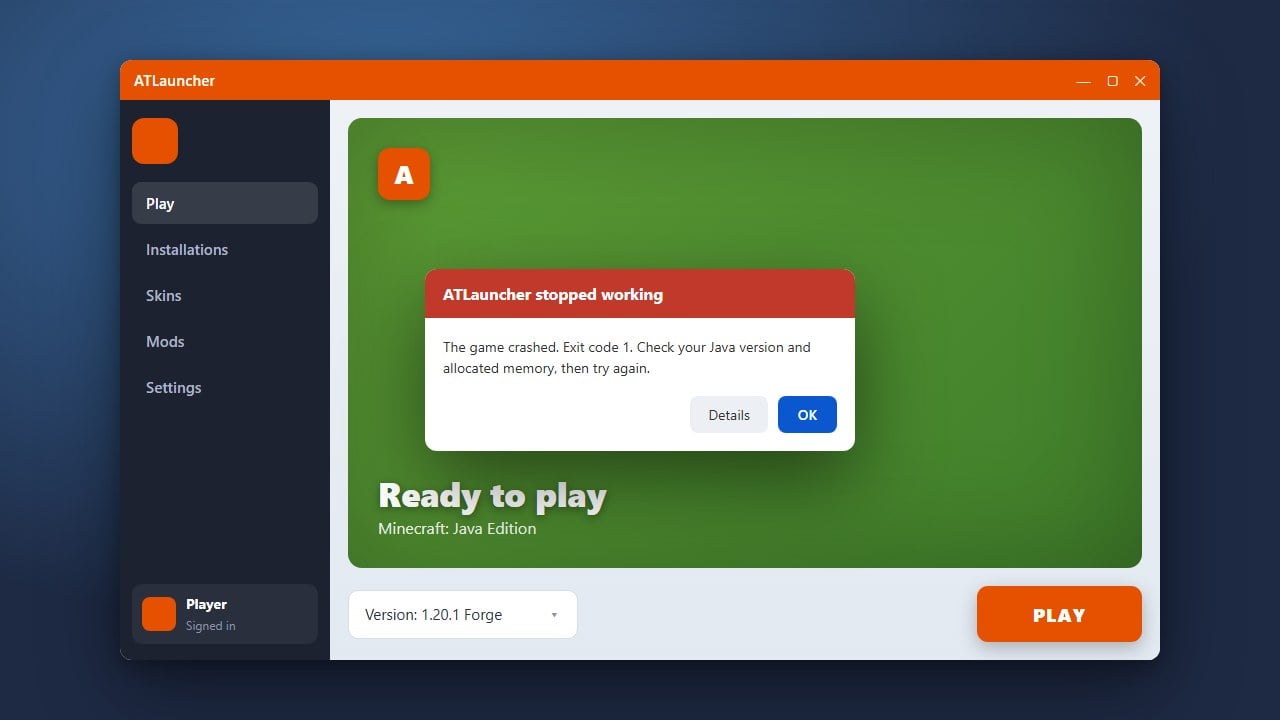
If you try to allocate more RAM than your physical computer has available, or more than your installed Java version can address (such as using 32-bit Java), the game will fail to launch. Ensure you are using 64-bit Java.