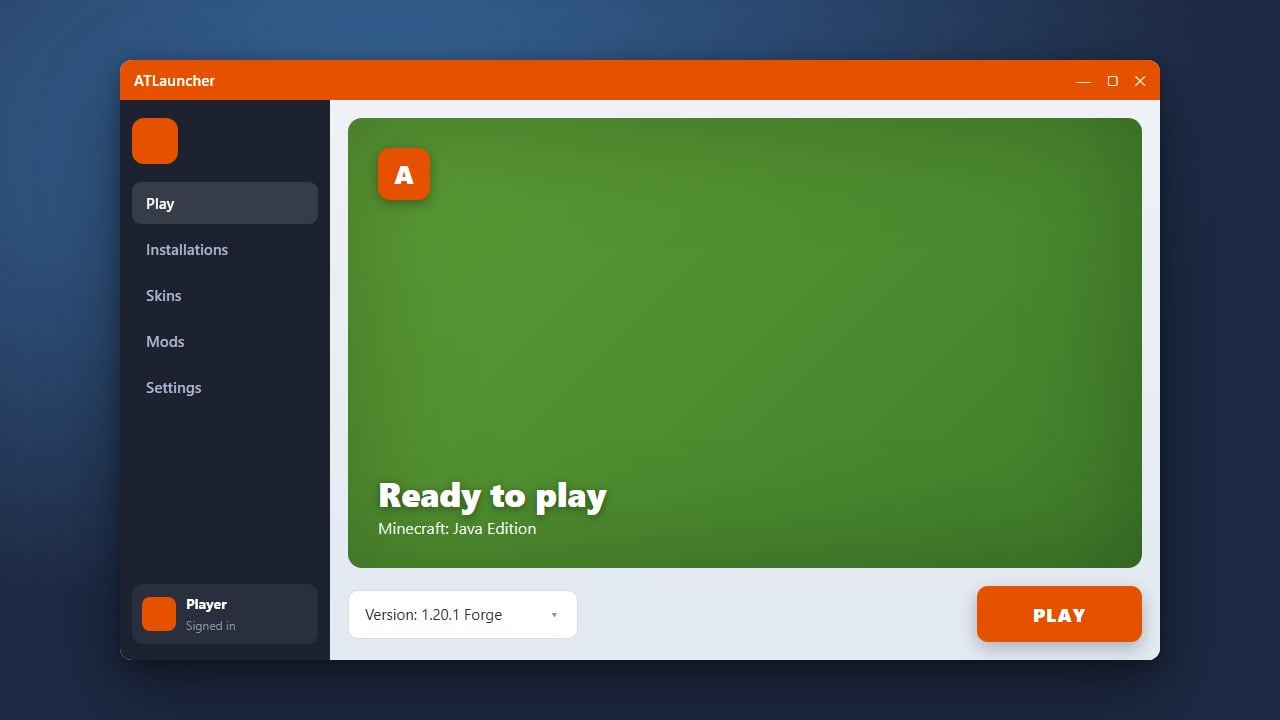
ATLauncher is a powerful, safe, and open-source third-party launcher for Minecraft Java Edition that allows you to easily manage multiple mod loaders, modpacks, and instances. Please ensure you purchase the official game from minecraft.net to play securely. ATLauncher requires a legitimate Minecraft account to log in and play safely without any account security risks.
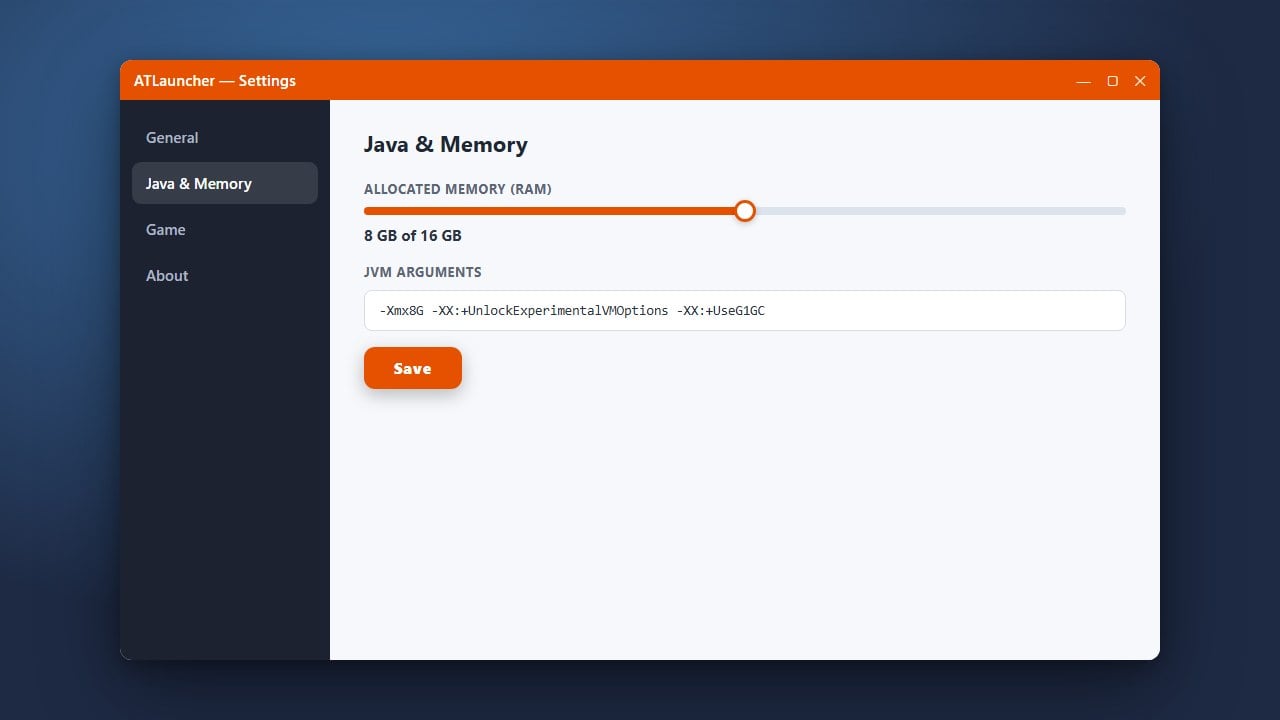
If you plan on adding heavy content mods or large modpacks, remember to allocate sufficient memory. You can easily adjust your memory settings by following the guide on how to allocate more RAM in ATLauncher.
Forge and Fabric mods are not compatible with each other in the same instance. Always create separate instances if you wish to switch between Forge and Fabric mod environments.
Download and Open ATLauncher
First, make sure you have the launcher installed by checking our guide on how to download and install ATLauncher. Once installed, launch the application and log in securely using your official Minecraft account credentials.
Navigate to the Instances Tab
In the ATLauncher main window, click on the Instances tab on the right side of the menu bar. This section will display all of your currently created Minecraft profiles and allow you to create new ones.
Create a New Instance for Fabric or Forge
Click the Add New tab at the top of the launcher. Scroll through the available modpacks or click on your desired game version to create a vanilla instance equipped with your chosen mod loader. ATLauncher natively supports both Forge and Fabric for almost every Minecraft version.
Select Your Version and Mod Loader
Select the Minecraft version you want to play. Under the mod loader options for that version, check the box for either Fabric or Forge (note that you cannot install both loaders on the exact same instance simultaneously). You can also change your preferred game version later if needed by following tips similar to how to change the minecraft version in atlauncher.
Install the Instance
After selecting your preferred mod loader and version, click the Install button at the bottom. ATLauncher will automatically download all necessary libraries, assets, and the selected mod loader files directly from official sources.
Play Your Modded Game
Once the installation finishes, return to the Instances tab. Your newly created Forge or Fabric profile will appear in the list. Click the Play button to start your modded Minecraft experience!
Frequently Asked Questions
Can I install both Forge and Fabric in the same instance?
No, Forge and Fabric use completely different underlying APIs and mod structures. You must create two separate instances in ATLauncher—one for Forge and one for Fabric.
Is ATLauncher safe to use with my Minecraft account?
Yes. ATLauncher is open-source and communicates directly with official Microsoft and Minecraft authentication servers, meaning your login details remain secure.