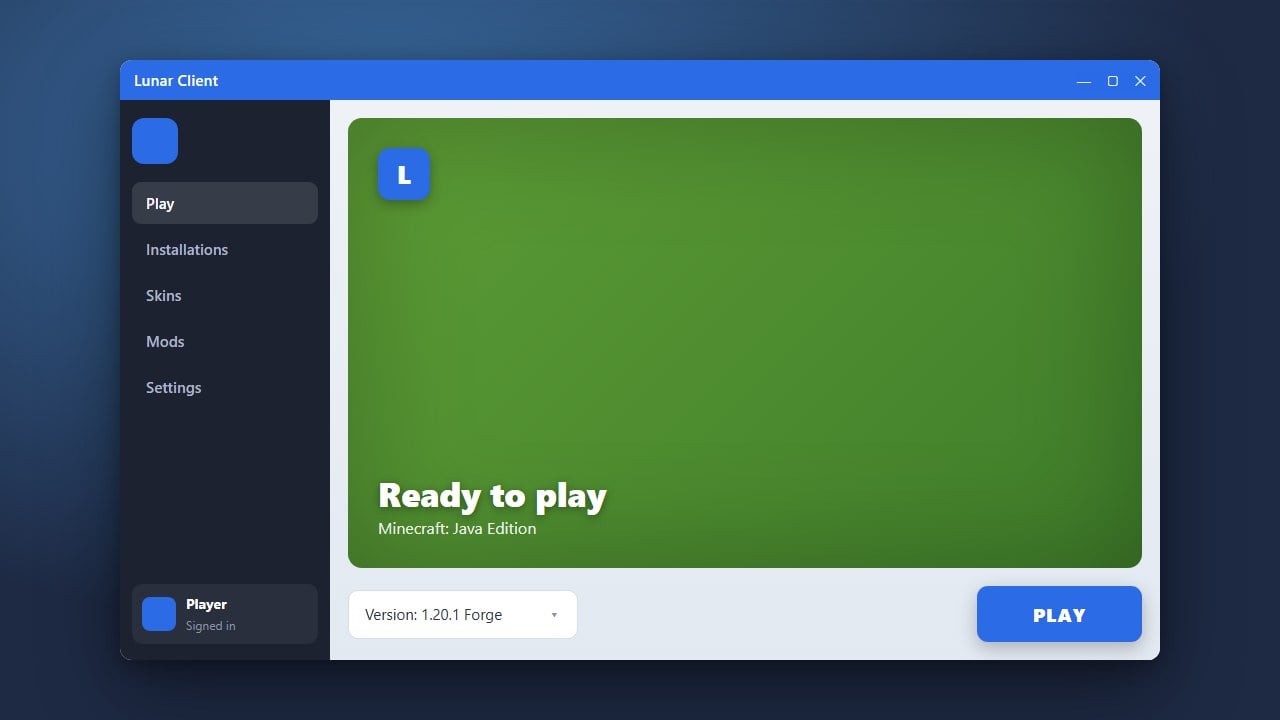
If you are experiencing low frame rates, stuttering, or lag while playing Minecraft Java Edition, optimizing your client is one of the best ways to improve performance. Lunar Client comes packed with built-in performance enhancements, optimization mods, and customizable settings that can dramatically increase your FPS without needing to manually install external mods.
Make sure your graphics card drivers are fully up to date, as outdated drivers can heavily limit the effectiveness of FPS boost settings.
Do not allocate all of your computer's physical RAM to Minecraft, as your operating system needs memory to run smoothly in the background.
Open Lunar Client Settings
Launch Lunar Client and select your desired game version. Once you reach the main menu or while you are inside a singleplayer or multiplayer world, press the Right Shift key on your keyboard to open the Lunar Client settings menu.
Enable Performance Mods
In the Lunar Client settings, look for the Mods tab. Ensure that built-in performance boosters like Sodium (on supported versions), FPS Boost, and optimization utilities are turned on. These mods replace vanilla rendering code with much faster alternatives.
Adjust Video Settings
Press Esc and open the standard Minecraft Video Settings menu powered by Lunar Client. Lower demanding options such as render distance, particle details, smooth lighting, and clouds. Turning off fancy graphics and setting graphics to Fast will immediately free up GPU resources.
Allocate More RAM
Open the Lunar Client launcher settings before starting the game and check your memory allocation slider. Giving Minecraft enough RAM—typically between 4GB and 6GB for modern versions—prevents stuttering caused by garbage collection lag. If you use other clients, you can also check out guides like How to Allocate More RAM in CurseForge App for comparison.
Disable Unused Mods and HUD Elements
Every active HUD element and mod consumes a small amount of CPU power. Open the Lunar Client mod menu and disable any overlays, minimaps, or cosmetic mods that you do not actively need during gameplay to keep your frame rates high.
Frequently Asked Questions
Does Lunar Client natively include Sodium or OptiFine?
Yes, Lunar Client integrates high-performance optimization mods like Sodium or OptiFine directly into the client depending on the Minecraft version you select, so you do not need to install them manually.
How do I check my FPS while playing on Lunar Client?
Lunar Client has a built-in FPS counter mod. You can search for the FPS module in your Lunar Client settings and toggle it on to display your frame rate on screen.