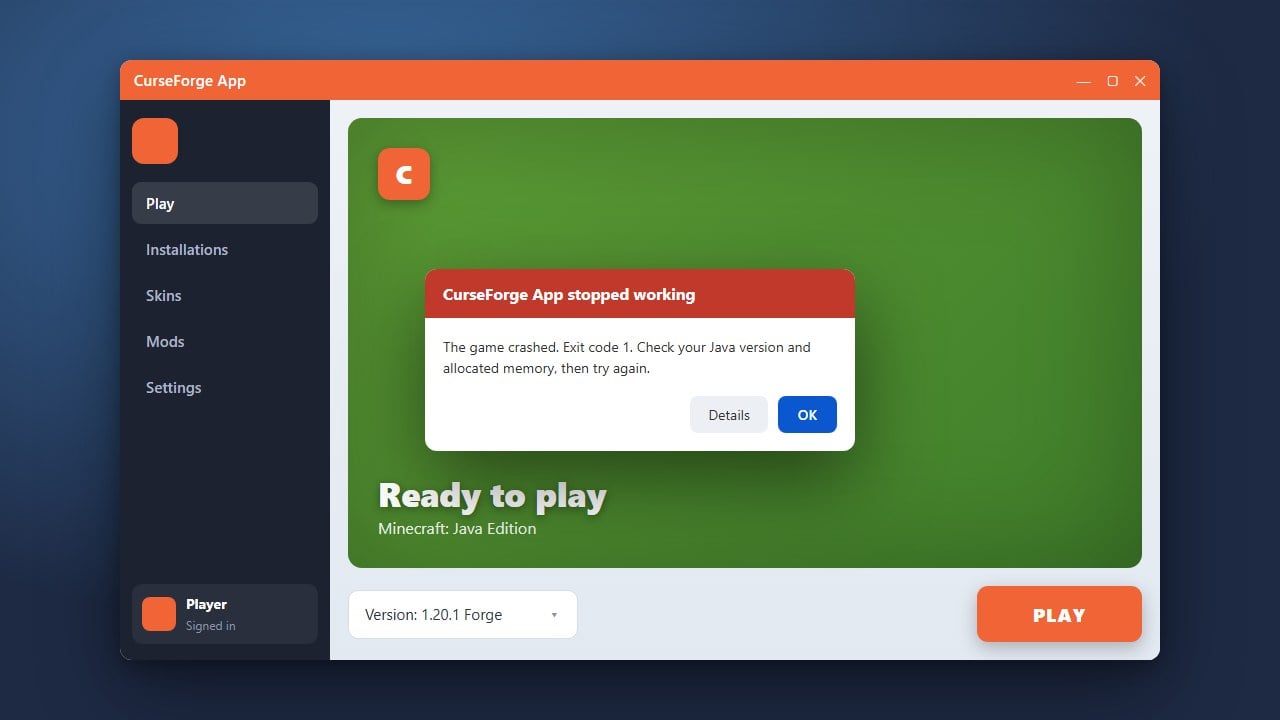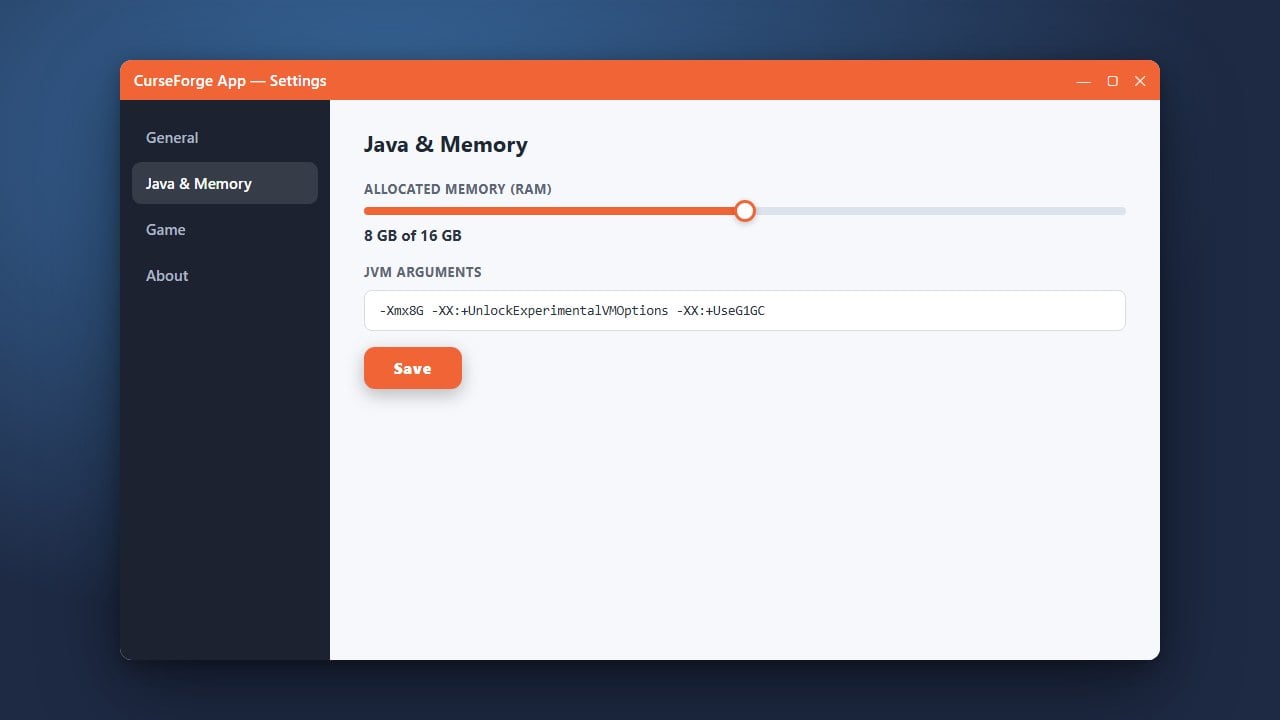
If your modded Minecraft game is lagging, freezing, or crashing with out-of-memory errors, you likely need to assign more RAM. This guide will show you how to easily adjust memory settings inside the CurseForge application for Java Edition.
Do not allocate all of your computer's physical RAM to Minecraft. Doing so can cause your entire operating system to freeze or crash.
Open the CurseForge App
Launch the CurseForge desktop application on your computer. Make sure you are on the main dashboard view where your installed games and profiles are listed.
Navigate to Application Settings
Look at the bottom left corner of the CurseForge window and click on the Settings gear icon. This will open the global preferences menu for the launcher.
Locate the Minecraft Game Settings
In the left-hand sidebar of the settings menu, scroll down and click on Minecraft under the Game Specific section. Here you will find all configuration options related to launching Minecraft Java Edition.
Find the Allocated Memory Slider
Scroll down the Minecraft settings page until you reach the Allocated Memory section. You will see a slider displaying your current RAM allocation in megabytes (MB) or gigabytes (GB).
Adjust Your RAM Slider
Drag the slider to your desired amount of RAM. For heavy modpacks, 4GB to 6GB is usually recommended, but make sure to leave enough RAM free for your operating system and other background programs. Changes are saved automatically as you move the slider.
Frequently Asked Questions
How much RAM should I allocate for heavy modpacks?
For large CurseForge modpacks containing hundreds of mods, allocating between 4GB and 8GB (4096MB to 8192MB) is typically ideal. Vanilla Minecraft generally runs fine on 2GB.
Can I change RAM allocation for just one specific profile?
Yes. You can click on a specific modpack profile, open its individual settings via the three dots menu, and override the global allocated memory setting just for that profile.