Boost your Minecraft Java Edition performance with Badlion Client! Follow this simple guide to configure built-in FPS-boosting mods, tweak video settings, and allocate enough RAM for a smooth gameplay experience.
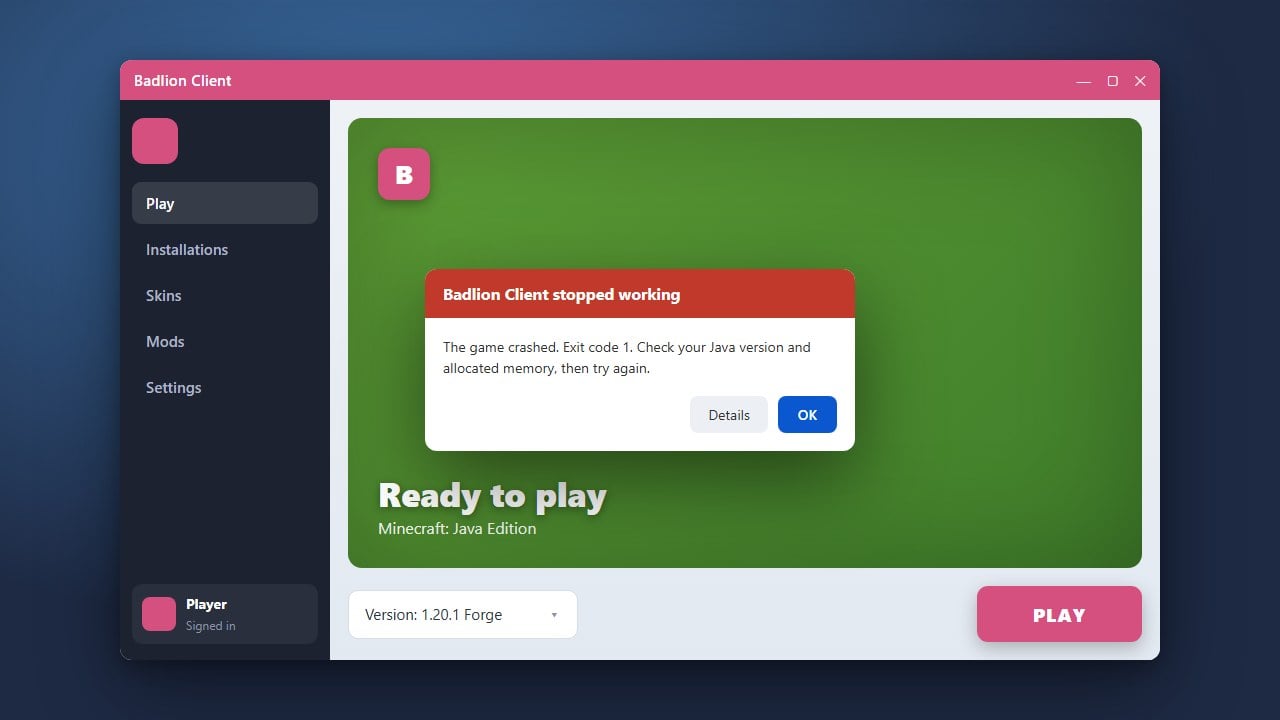
If you encounter any issues getting the client running properly, check out our guide on How to Fix Badlion Client Not Working for quick troubleshooting steps.
Do not allocate all of your computer's total RAM to Minecraft, as your operating system needs memory to run smoothly alongside the game.
1. Launch Badlion Client and Select Your Version
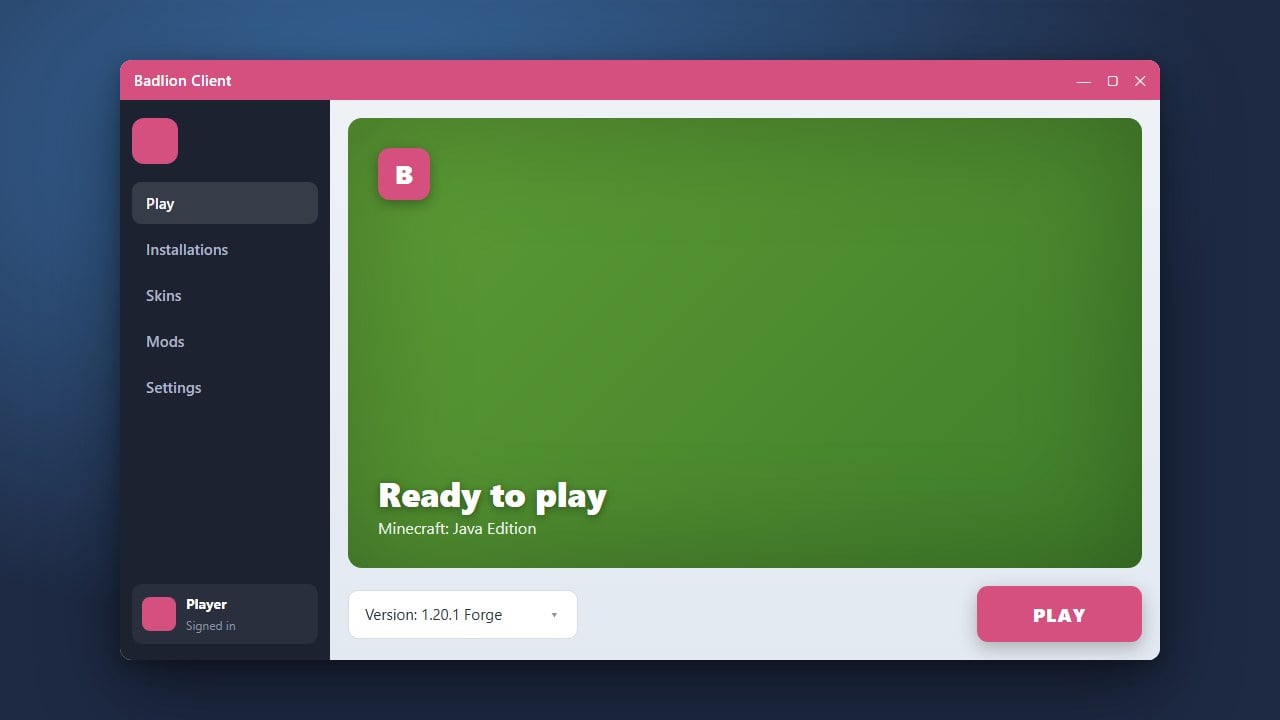
Open the Badlion Client launcher on your PC. Choose your desired Minecraft version from the dropdown menu at the top, ensuring that you select a version that supports performance mods like Sodium or OptiFine.
2. Enable Performance Mods
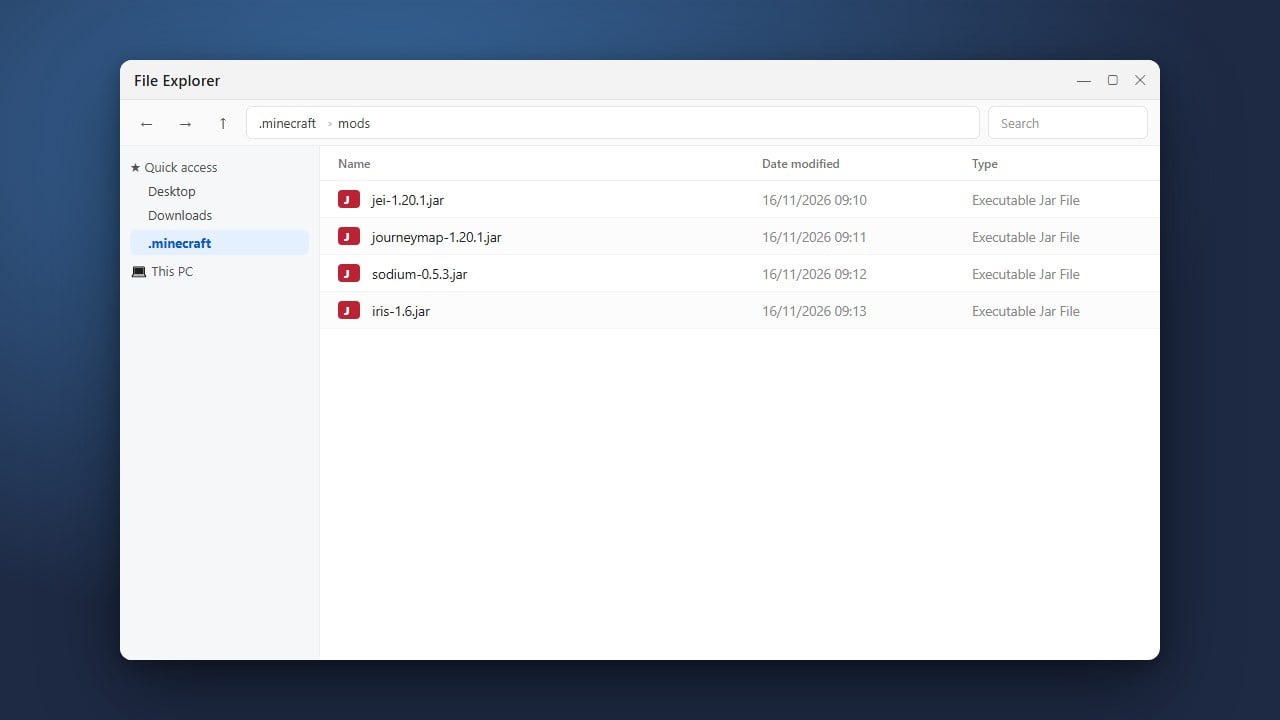
Before launching into a world, click on the Mods button in the launcher or ingame menu. Search for performance-enhancing options like OptiFine or Sodium, and make sure they are toggled on to drastically improve your frame rates.
3. Allocate Enough RAM
Navigate to the launcher settings gear icon. Adjust the RAM slider to allocate an appropriate amount of memory (usually 2GB to 4GB for standard gameplay) to prevent stuttering and lag spikes caused by garbage collection.
4. Tweak In-Game Video Settings
Once you are in a game, press Esc and open the Video Settings menu. Lower demanding settings such as render distance, particle details, smooth lighting, and clouds to achieve maximum FPS.
5. Disable Unused Badlion Mods
Press the Right Shift key by default to open the Badlion Mod Menu. Disable any overlays, HUD elements, or animation mods that you do not actively use, as running too many active modules can consume extra system resources.
Frequently Asked Questions
Does Badlion Client automatically include FPS-boosting mods?
Yes, Badlion Client comes with built-in integrations for popular performance tools like OptiFine and Sodium depending on the Minecraft version you select.
How do I open the Badlion Client settings menu in-game?
You can open the Badlion Client mod menu by pressing the Right Shift key on your keyboard while inside a Minecraft world.