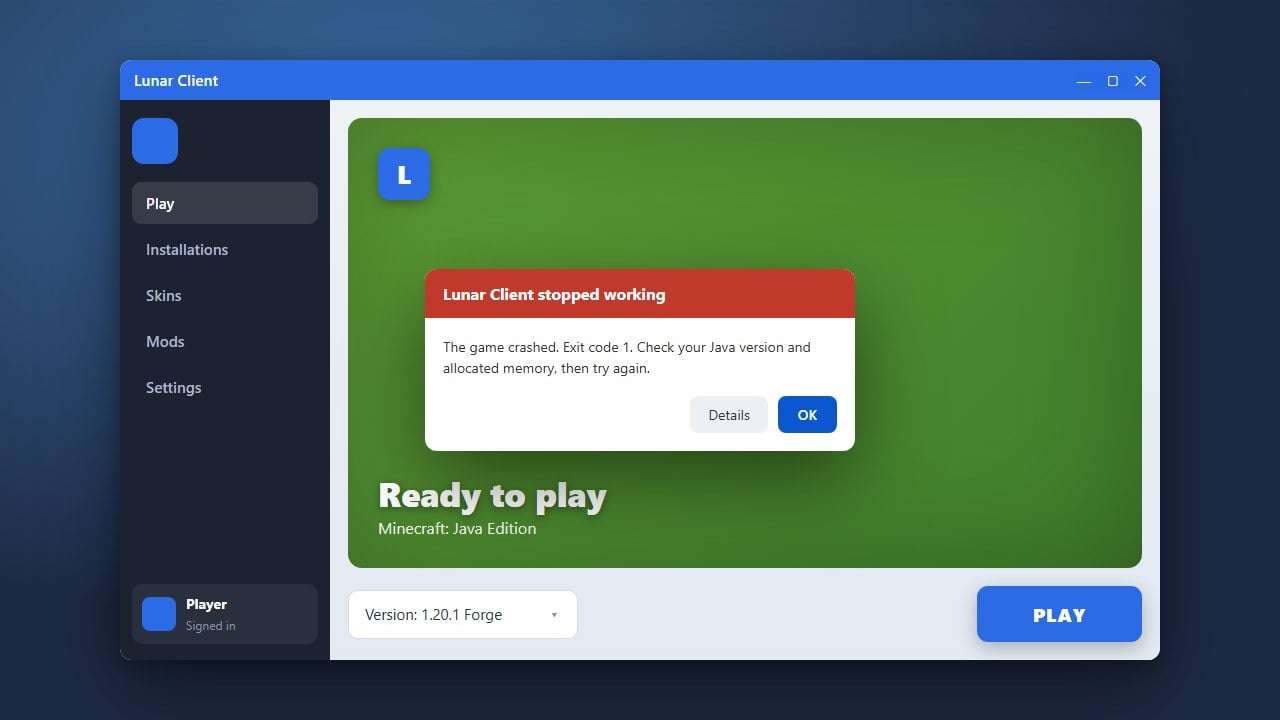
If Lunar Client is refusing to launch or crashing on startup, don't panic. This guide will walk you through the most effective troubleshooting steps for Minecraft Java Edition to get your favorite client working smoothly again. Please remember that you must always own a legitimate copy of the game from minecraft.net to play safely and legally.
Check Your Internet Connection and Firewall
Lunar Client requires an active internet connection to download game assets, updates, and verify your Microsoft account upon launching. If your connection is unstable, the client might freeze or fail to start completely.
Make sure your antivirus or Windows Defender firewall isn't accidentally blocking Lunar Client from accessing the internet. You can try temporarily disabling third-party antivirus software or adding the client as an exception in your firewall settings.
Update or Reinstall Java
Minecraft Java Edition relies heavily on the Java Runtime Environment to execute properly. Outdated or corrupted Java installations are one of the most common reasons why custom clients like Lunar fail to boot up.
Ensure your system is running the correct version of Java required for modern Minecraft updates. If problems persist, completely uninstall your current Java version and download a fresh copy from official sources before trying to launch again.
Clear the Lunar Client Cache
Corrupted configuration files or broken cached assets inside your client directory can prevent the game from starting. Clearing out these old temporary files forces the launcher to download fresh, working data.
Press the Windows Key + R, type %userprofile%/.lunarclient into the run dialog box, and press Enter. Locate folders containing cached game data or settings and safely delete them before reopening the launcher.
Run the Launcher as Administrator
Sometimes Windows security permissions prevent Lunar Client from modifying game files or writing necessary logs to your hard drive. Giving the application elevated privileges usually bypasses these permission roadblocks.
Right-click the Lunar Client shortcut on your desktop and select Run as administrator. If prompted by User Account Control, click Yes to allow the client full access to your system.
Perform a Clean Reinstallation
If none of the previous steps worked, a completely clean reinstall of Lunar Client is usually the definitive fix. Leftover files from broken patches or failed updates can permanently disrupt the launcher.
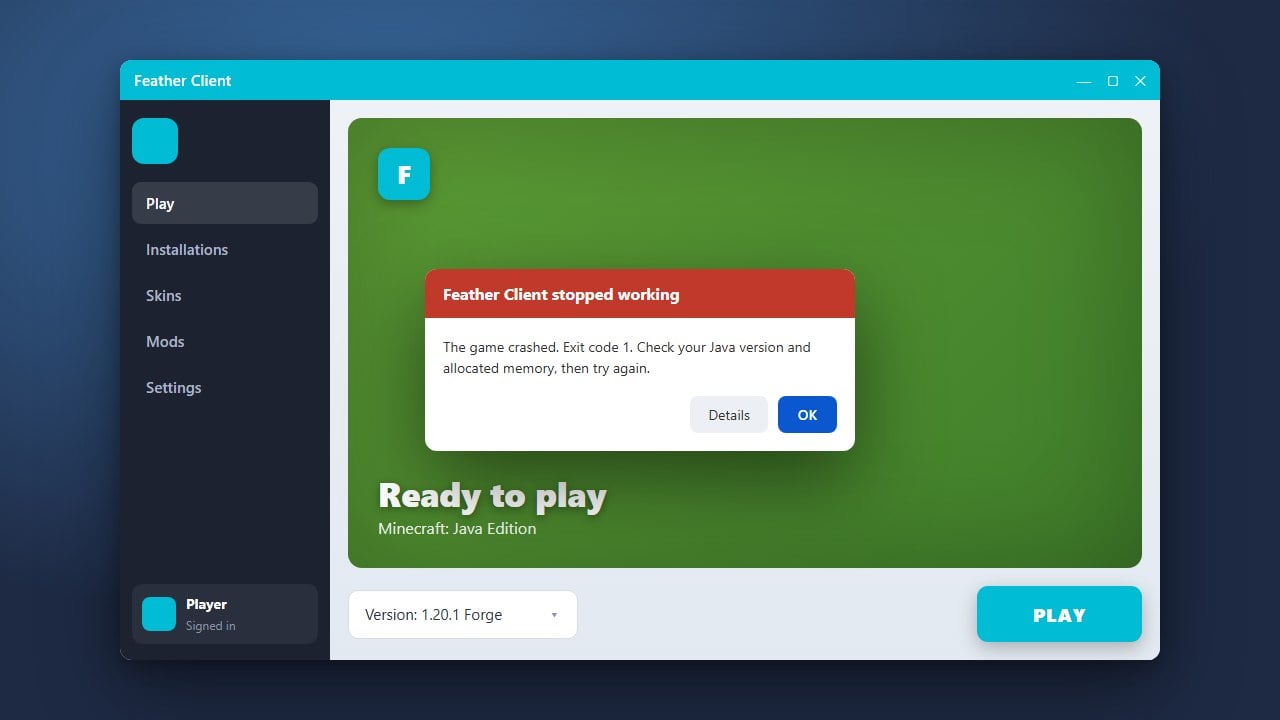
Uninstall Lunar Client completely through your system settings, make sure all residual folders in your user directory are removed, and then download the latest installer directly from the official website. If you want to explore other options, you can also check out guides like How to Download and Install Feather Client for alternative setups.
Frequently Asked Questions
Why does Lunar Client crash immediately on startup?
Immediate crashes are usually caused by outdated graphics drivers, incompatible Java versions, or corrupted game cache files. Updating your GPU drivers and clearing the .lunarclient folder usually resolves this issue.
Can I use Lunar Client without owning Minecraft?
No. Lunar Client requires a legitimate, purchased Minecraft Java Edition account to log in and play on multiplayer servers or singleplayer worlds. Always purchase your game legally through minecraft.net.