Data packs are an easy, built-in way to customize your Minecraft Java Edition worlds with new crafting recipes, loot tables, advancements, and structures without needing a mod loader. Unlike traditional mods, data packs are installed per world rather than globally. Note that data packs are exclusive to Java Edition; if you play on Bedrock Edition, you will want to learn how to install behavior packs instead.
Some data packs affect world generation or modify existing blocks. It is always smart to learn how to back up your world before adding or removing data packs on a save you care about.
Some complex data packs also require a companion resource pack for custom textures or models. If yours came with one, you will also need to know how to install resource packs so your new items do not look like missing textures.
Download Your Data Pack
Find and download a data pack that matches your current Minecraft version. Most data packs are distributed as a .zip file. Do not extract the .zip file unless the creator's instructions specifically tell you to do so because another zip is hidden inside.
Select Your World in Minecraft
Launch Minecraft Java Edition and click Singleplayer. Click once on the world where you want to install the data pack to highlight it, then click the Edit button at the bottom of the screen.
If you are creating a brand-new world instead, click Create New World, go to the More tab at the top, and click the Data Packs button.
Open the World's Data Pack Folder
In the Edit World menu, click Open World Folder. This will open a file explorer window directly to that specific save's files. Inside this folder, locate and open the datapacks folder.
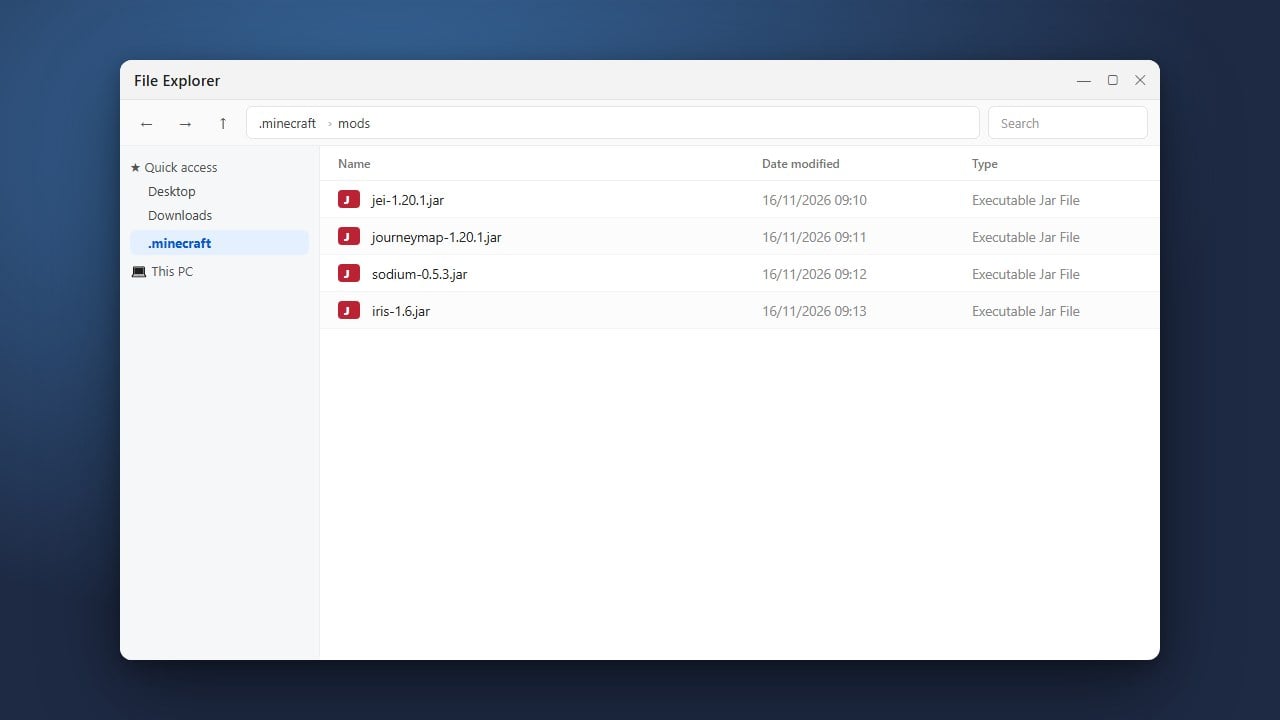
Alternatively, you can reach this folder outside the game if you know how to find your .minecraft folder, then navigating to saves, opening your world's folder, and opening datapacks.
Move the Data Pack Into the Folder
Drag and drop your downloaded data pack .zip file (or unzipped folder) directly into the datapacks folder. If you are on the Create New World screen, you can simply drag the file straight onto the Minecraft game window and click Yes to confirm.
Load and Verify the Data Pack
Return to Minecraft, click Save (or finish creating your world), and load into the game. If your world was already open while you moved the file, open the chat and type /reload (requires cheats/commands enabled) to activate the pack.
To make sure it worked, type /datapack list in the chat. Your new data pack should appear under the active list in green text.
Frequently Asked Questions
Why isn't my data pack showing up in the game?
The most common reason is that the downloaded .zip file is actually a bundle containing both the data pack and a resource pack inside it. Open the .zip file and check the contents: you should immediately see a file named pack.mcmeta and a folder named data. If you see other zip files instead, extract them first.
Can I use data packs on a multiplayer server?
Yes! Server admins can install data packs by placing them into the datapacks folder located inside the server's main world folder, then running the /reload command from the server console. Connected players do not need to install the data pack on their own computers.
Do data packs disable advancements?
No. Unlike Bedrock Edition behavior packs which disable achievements, Java Edition data packs do not disable vanilla advancements, and many data packs even add custom advancements of their own.