Installing custom maps in Minecraft Java Edition is a great way to experience thrilling adventures, puzzle challenges, and breathtaking builds created by the community. Follow this quick guide to learn how to add custom worlds to your game.
Download a Custom Map
First, find a custom map you want to play from a trusted source and download the file. Custom Java maps are almost always distributed as compressed .zip archives.
Locate Your Saves Folder
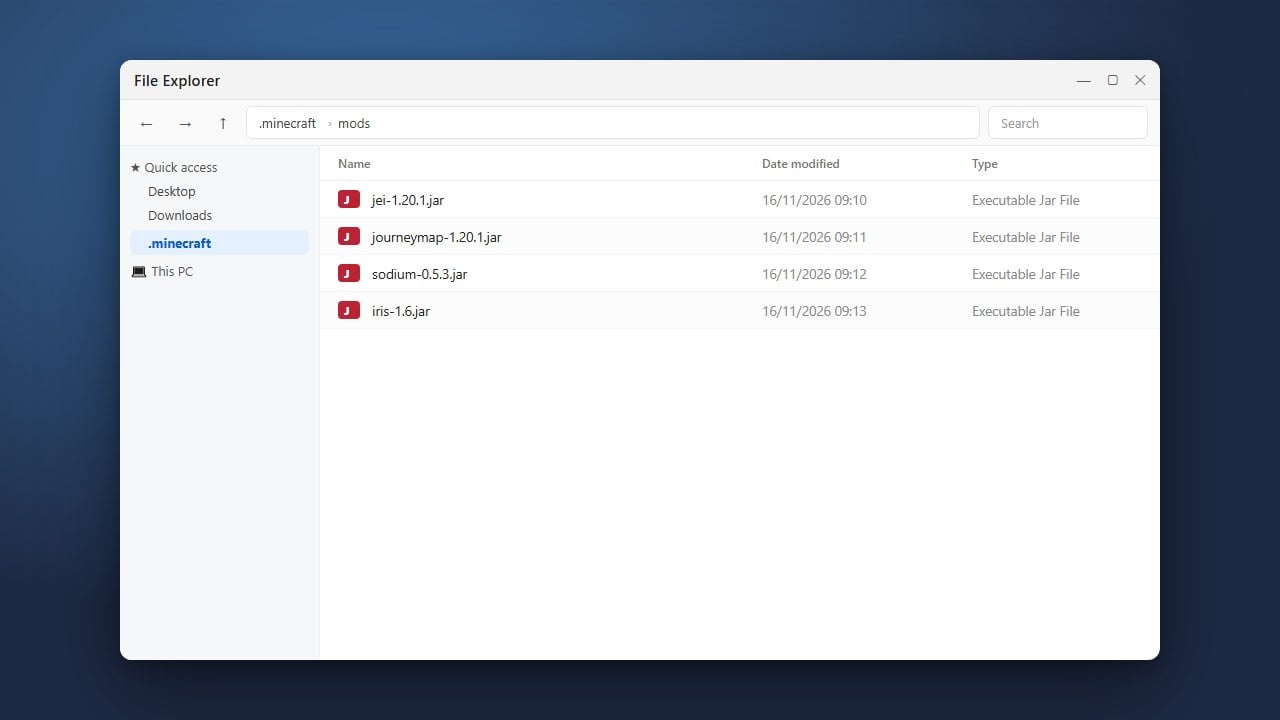
Next, you need to open your game directory. If you are not sure where it is located, check out our guide on how to find your .minecraft folder. Once inside your .minecraft directory, open the folder named saves, which holds all of your singleplayer worlds.
Extract the Map Folder
Extract the downloaded .zip file using your computer's built-in extraction tool or a program like 7-Zip or WinRAR. Inside the extracted folder, make sure there is a subfolder containing a level.dat file. This specific subfolder is your actual world save folder.
Move the World Folder into Saves
Drag and drop the world folder (the one containing level.dat) directly into your saves folder. Do not drop the outer compressed archive or a parent folder that lacks the level.dat file, or Minecraft will not recognize the map.
Launch Minecraft and Play
Open the Minecraft launcher, start Minecraft Java Edition, and click on Singleplayer. Scroll through your world list until you find your newly installed map, select it, and click Play Selected World to begin your adventure.
Frequently Asked Questions
Why isn't my installed map showing up in the Singleplayer menu?
This usually happens if you placed the wrong folder into the saves directory. Open your map folder inside saves and verify that files like level.dat, region, and data are sitting directly inside it, rather than nested another folder deep.
Can I use this method to install maps on Minecraft Bedrock Edition?
No, this guide is specifically for Java Edition. Bedrock Edition uses a different file structure and installation process. If you play on Bedrock, refer instead to our guide on how to install maps (Bedrock).