Resource packs allow you to completely transform the look and feel of Minecraft, from high-resolution textures to custom sounds and user interfaces. Whether you are playing on Java Edition or Bedrock Edition, this guide will walk you through the process of downloading and applying resource packs to your game.
Always download resource packs from reputable sources to avoid malicious files. Be especially careful with executable .exe files, as legitimate Minecraft resource packs never require installation through an executable.
Download a Compatible Resource Pack
First, find and download a resource pack from a trusted community site. Make sure the pack matches your current game version (such as Minecraft 1.21). Resource packs typically download as a .zip file for Java Edition, or a .mcpack file for Bedrock Edition.
Locate Your Resource Packs Folder (Java Edition)
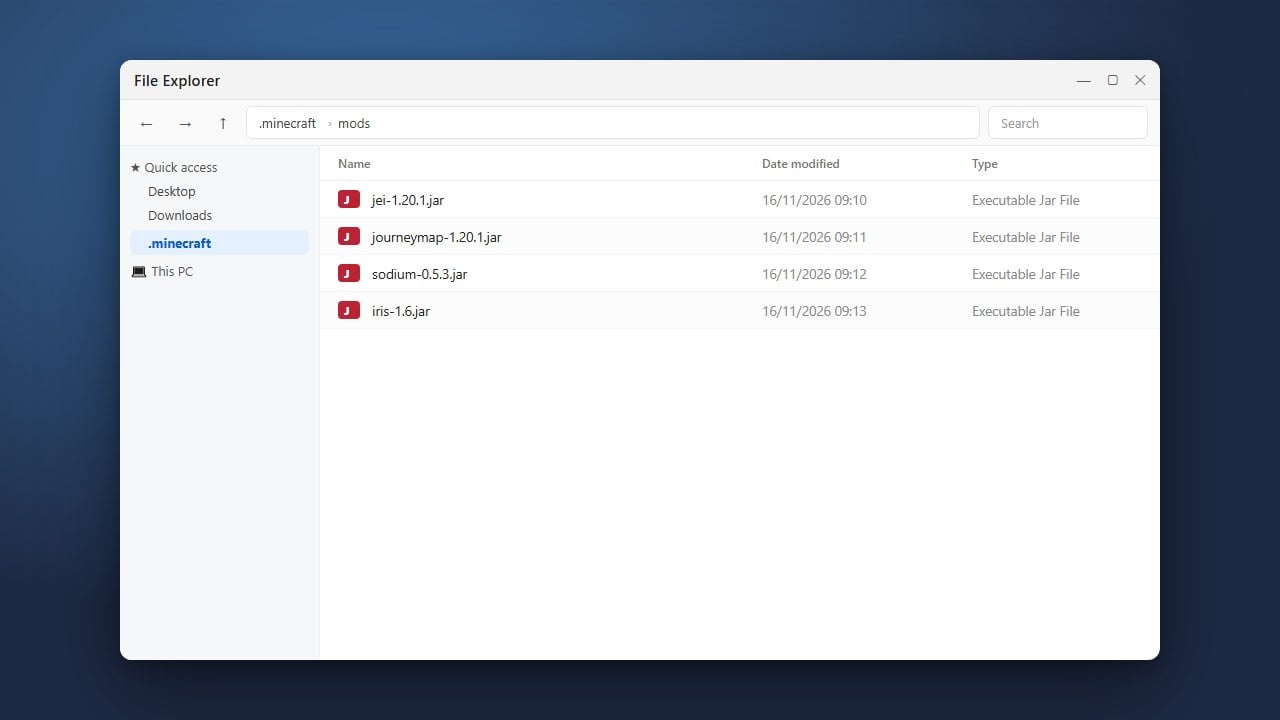
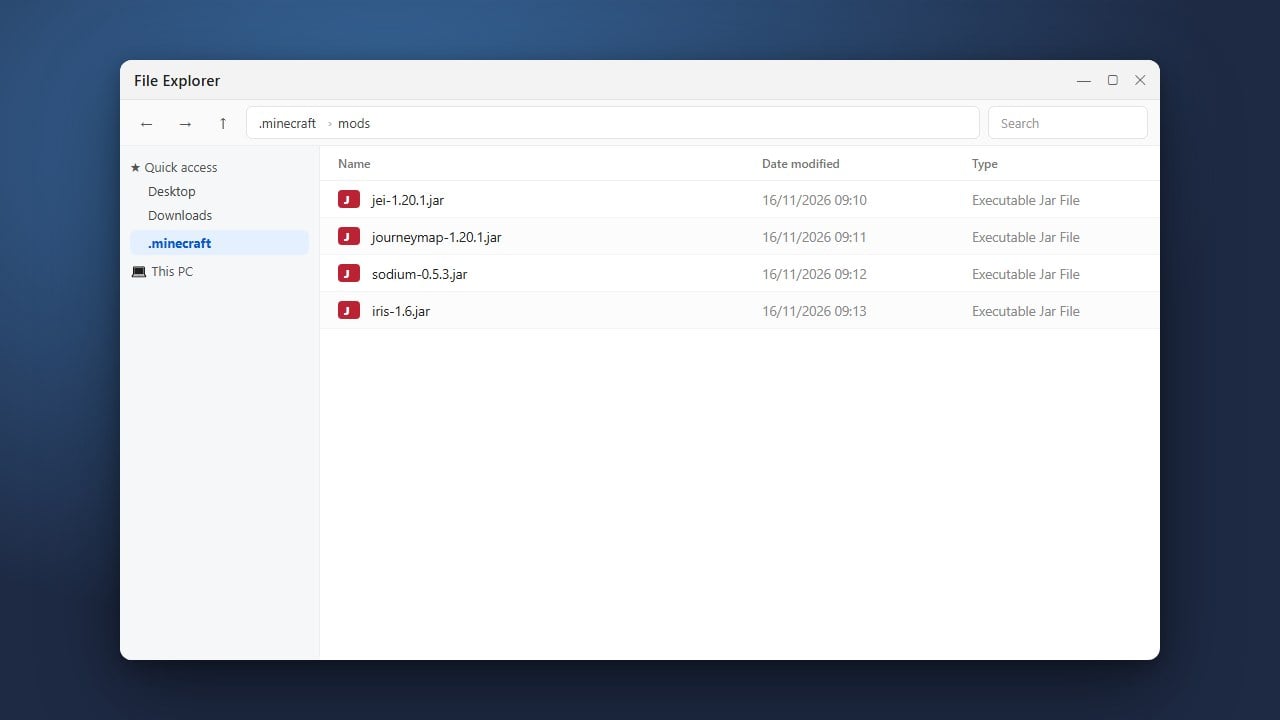
If you are playing Minecraft Java Edition, open the game and click on Options from the main menu, then select Resource Packs.... Click the Open Pack Folder button in the bottom left corner to automatically open the correct directory on your computer. If you need help finding your game files manually, you can check our guide on how to find your .minecraft folder.
Move the Pack File into the Game Directory
For Java Edition, drag and drop the downloaded .zip file directly into the resource packs folder you opened in the previous step. Do not unzip or extract the file; Minecraft reads resource packs as compressed archives. For Bedrock Edition, simply double-click the downloaded .mcpack file, and Minecraft will automatically launch and import it for you.
Activate the Resource Pack in Game
Launch or return to Minecraft and navigate back to your resource pack menu. In Java Edition, you will see your newly added pack in the left column; hover over its icon and click the right-facing arrow to move it to the 'Selected' column on the right, then click Done. In Bedrock Edition, go to Settings, select Global Resources or world-specific settings, find your pack under My Packs, and click Activate.
Frequently Asked Questions
Do I need to unzip Java resource packs?
No! Minecraft Java Edition reads resource packs directly as .zip files. Placing an extracted folder inside the resource packs directory often causes the game failing to recognize the pack.
Can I use Java resource packs on Bedrock Edition?
No, Java Edition resource packs and Bedrock Edition texture or resource packs use different file structures and formats. You must use packs specifically designed for your game edition.