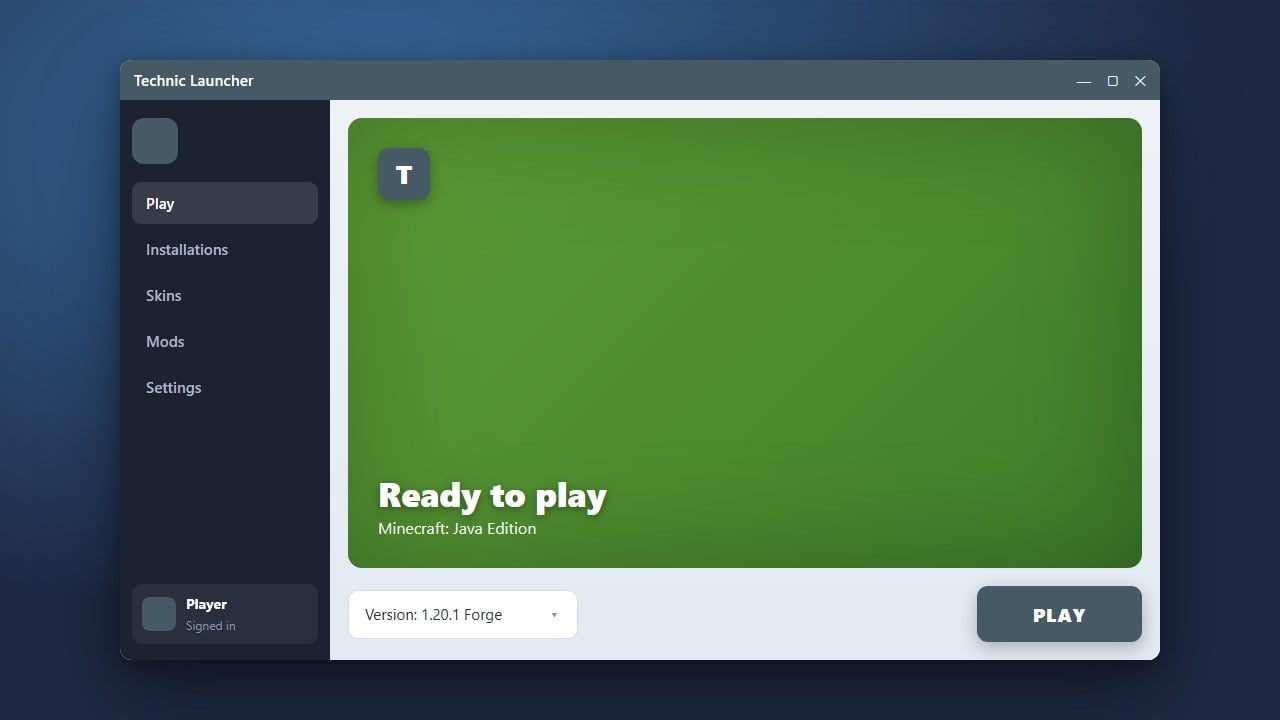
Welcome to this guide on using the Technic Launcher for Minecraft Java Edition! This tool allows you to discover, install, and manage custom modpacks with just a few clicks. Please note that you must own a legitimate copy of Minecraft purchased from minecraft.net to log in and play.
Never download modified launchers from unverified third-party websites that claim to give away the full game for free, as these often contain malware or steal your login details.
Download and Install the Launcher
Go to the official website and download the correct installer for your operating system (Windows, macOS, or Linux). Run the installer file and follow the on-screen prompts to finish setting up the application on your computer.
Log in with Your Minecraft Account
Open the Technic Launcher and enter your official Minecraft Java Edition account credentials to sign in. Always ensure you are using the official launcher software and your genuine Microsoft or Mojang credentials to keep your account safe and secure.
Browse or Search for Modpacks
Navigate to the Discover or Modpacks tab inside the launcher. You can search for popular curated modpacks by name, browse top-rated community creations, or paste a specific platform URL into the search bar to find exact packs.
Install and Configure Your Pack
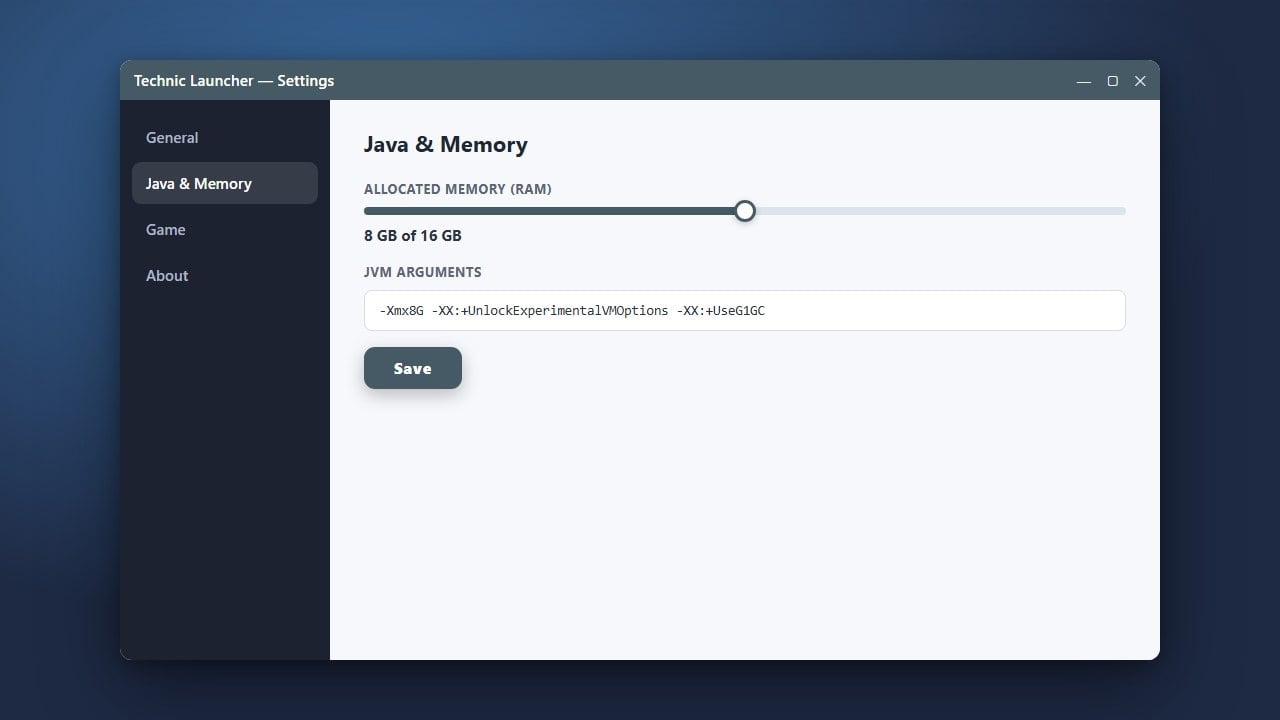
Click on the modpack you want to play, then click the Install button in the bottom right corner. If your game requires extra memory to run smoothly, check out our guide on how to allocate more RAM in Technic Launcher before hitting play.
Launch and Play
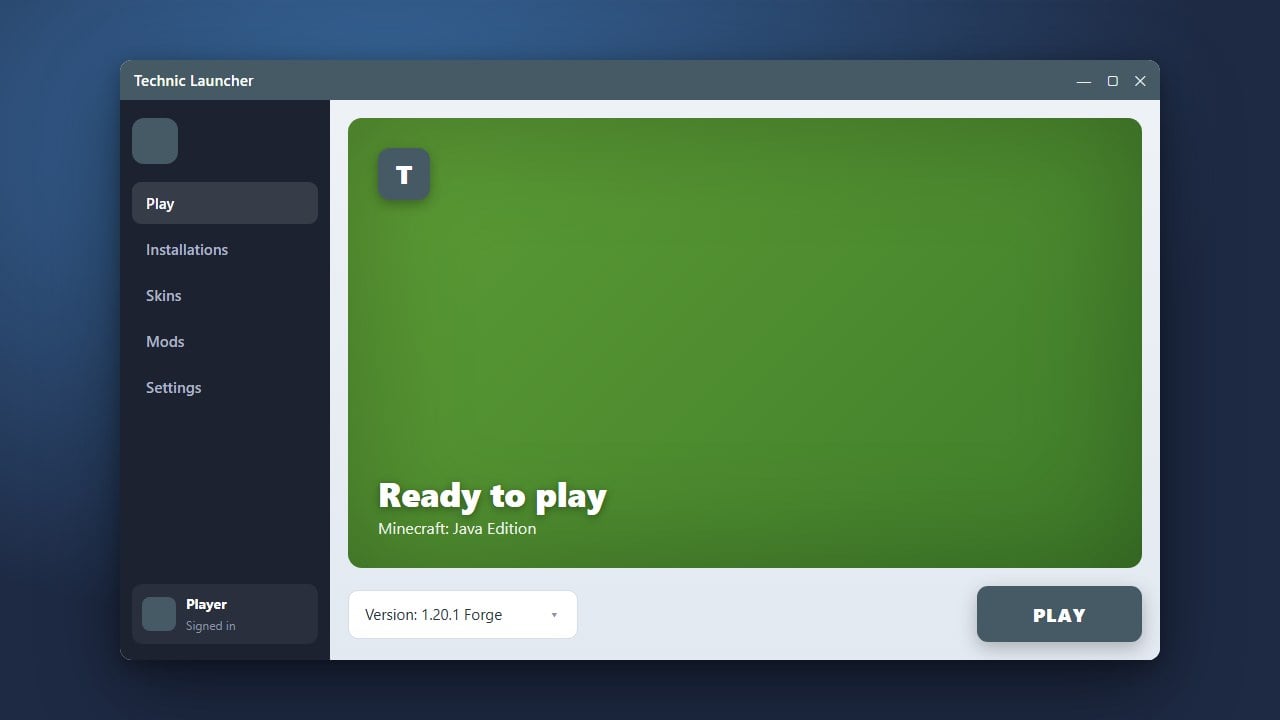
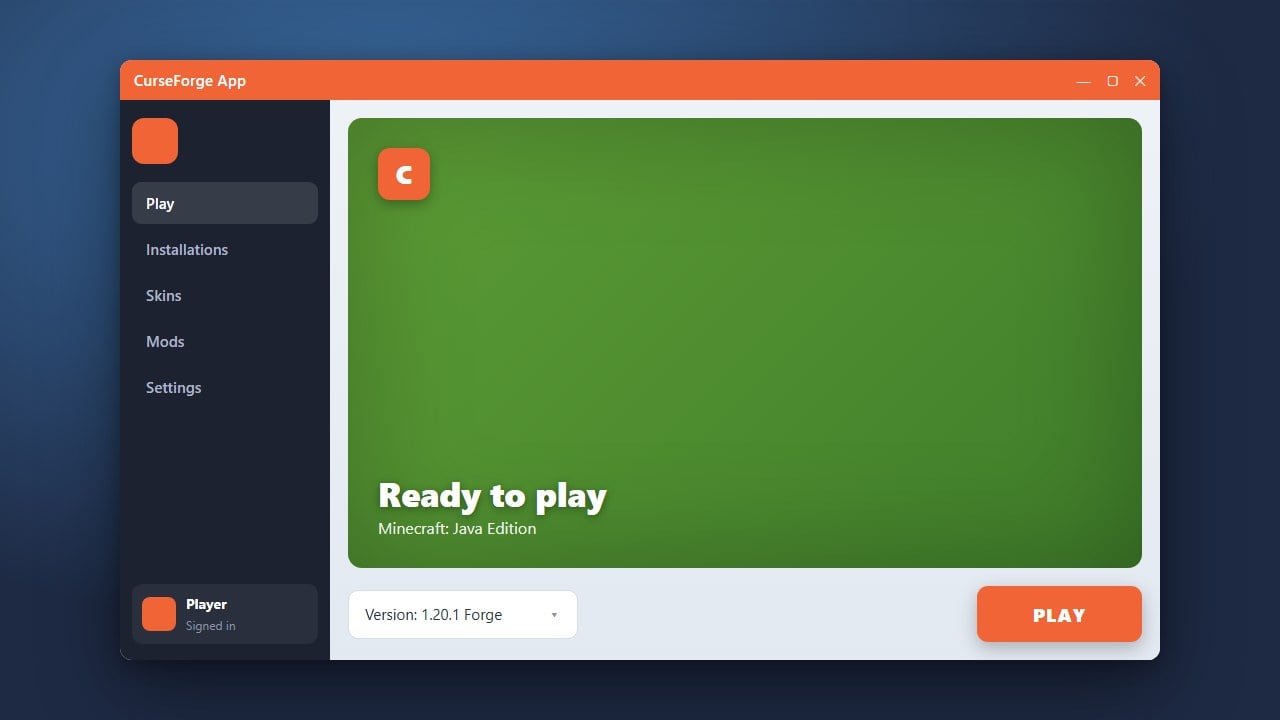
Once the download is complete, the install button will change to a Play button. Click it to start your modded adventure, and remember you can always explore other options like how to download and install CurseForge App if you want more modding variety.
Frequently Asked Questions
Do I need to buy Minecraft to use the Technic Launcher?
Yes. The Technic Launcher is simply an alternative interface for managing game files; you must log in with a paid, official Minecraft Java Edition account to actually play.
Can I add my own mods to a Technic modpack?
Yes, you can click the gear icon on any installed pack, select Modpack Options, and open the folder directory to manually drop additional `.jar` or `.zip` mod files into the mods folder.