The Technic Launcher is a popular platform for discovering, installing, and playing modded Minecraft Java Edition modpacks. Before you begin, please ensure you have purchased and own the official game from minecraft.net, as logging in with a legitimate Minecraft account is required to play safely and securely.
Download and Install the Technic Launcher
Head over to the official Technic website and download the installer matching your operating system (Windows, macOS, or Linux). Run the installer and follow the on-screen prompts to finish setting up the application on your computer.
Log In with Your Minecraft Account
Open the Technic Launcher from your desktop or applications folder. Click on the login area in the bottom-left or top-right corner, and enter your official Minecraft account credentials to link your profile securely.
Browse or Search for Modpacks
Navigate to the Modpacks tab at the top of the launcher interface. Here, you can explore featured packs or use the search bar to find specific adventures like Hexxit, Tekkit, or any community-made modpack you want to play.
Install the Selected Modpack
Click on your chosen modpack from the search results to open its overview page. Look for the Install button in the bottom-right corner and click it to let the launcher automatically download all necessary mods, configuration files, and matching Java versions.
Configure Memory Settings If Needed
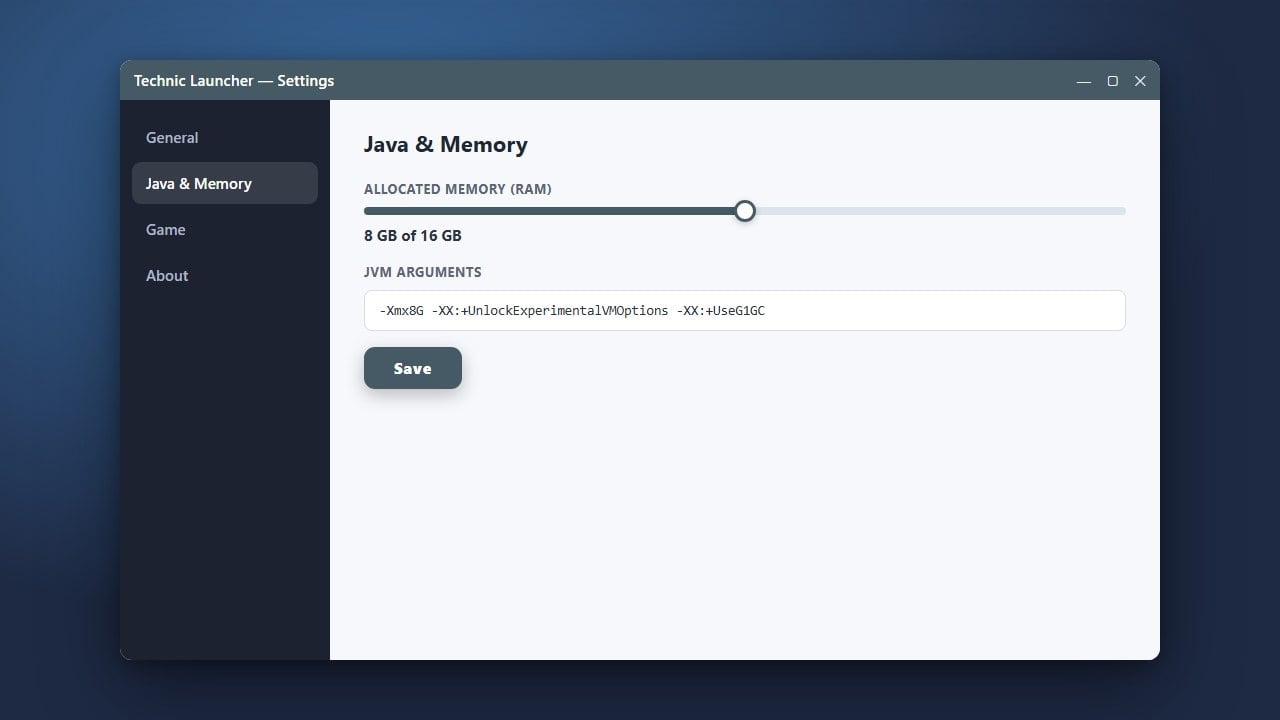
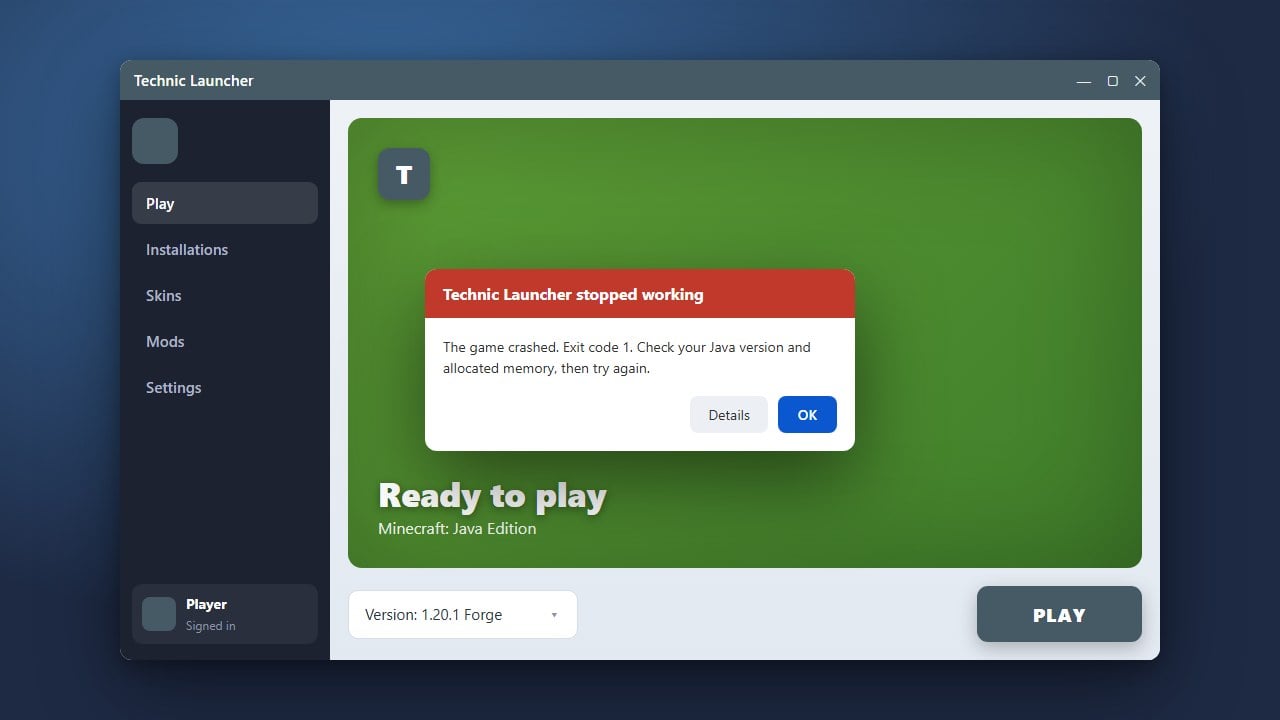
If your game lags or crashes due to running out of memory, you can adjust your RAM allocation. Go to launcher options, find the Java settings tab, and check out How to Allocate More RAM in Technic Launcher for detailed instructions.
Launch and Play the Game
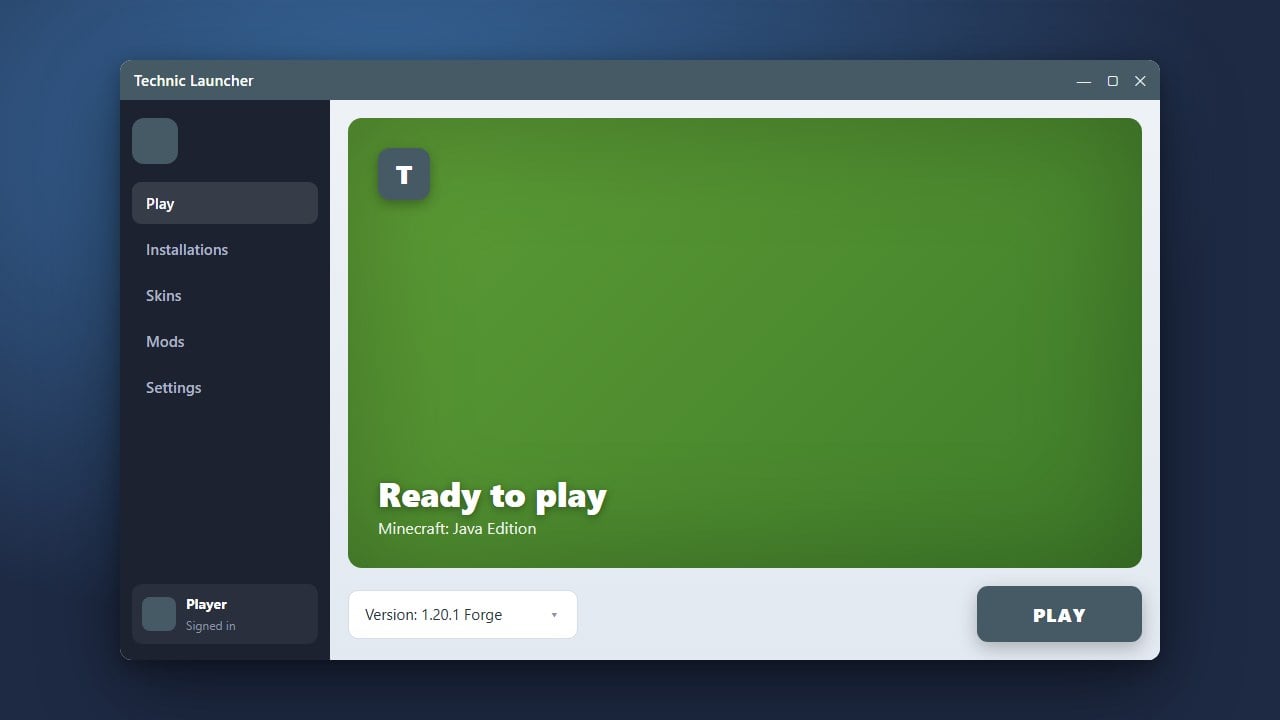
Once the download completes, the install button will change to a Play button. Click it to boot up your modded Minecraft instance and enjoy your customized gameplay experience!
Frequently Asked Questions
Do I need to buy Minecraft to use the Technic Launcher?
Yes. You must own a legitimate copy of Minecraft Java Edition and log in with your official Mojang or Microsoft account to play modpacks through the Technic Launcher.
Can I add individual custom mods to a Technic modpack?
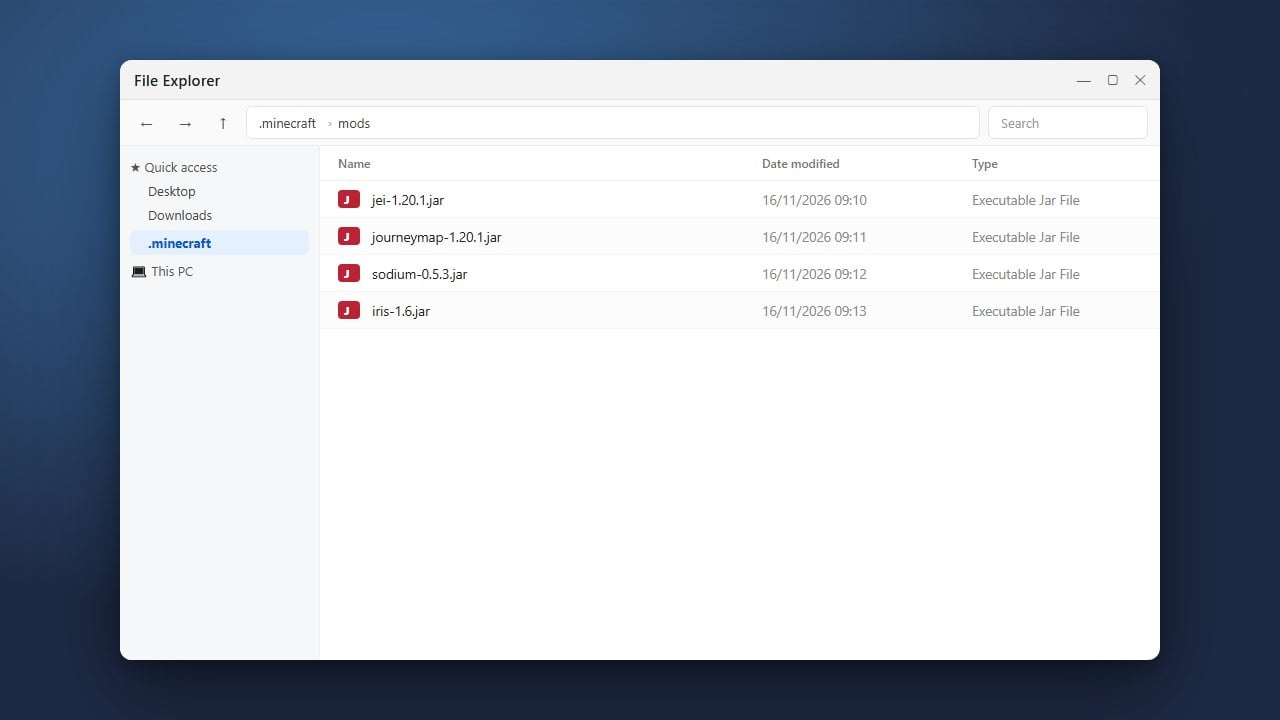
Yes, you can click on the modpack's gear icon or modpack options, open the local directory folder, and manually drop extra .jar files into the mods folder.