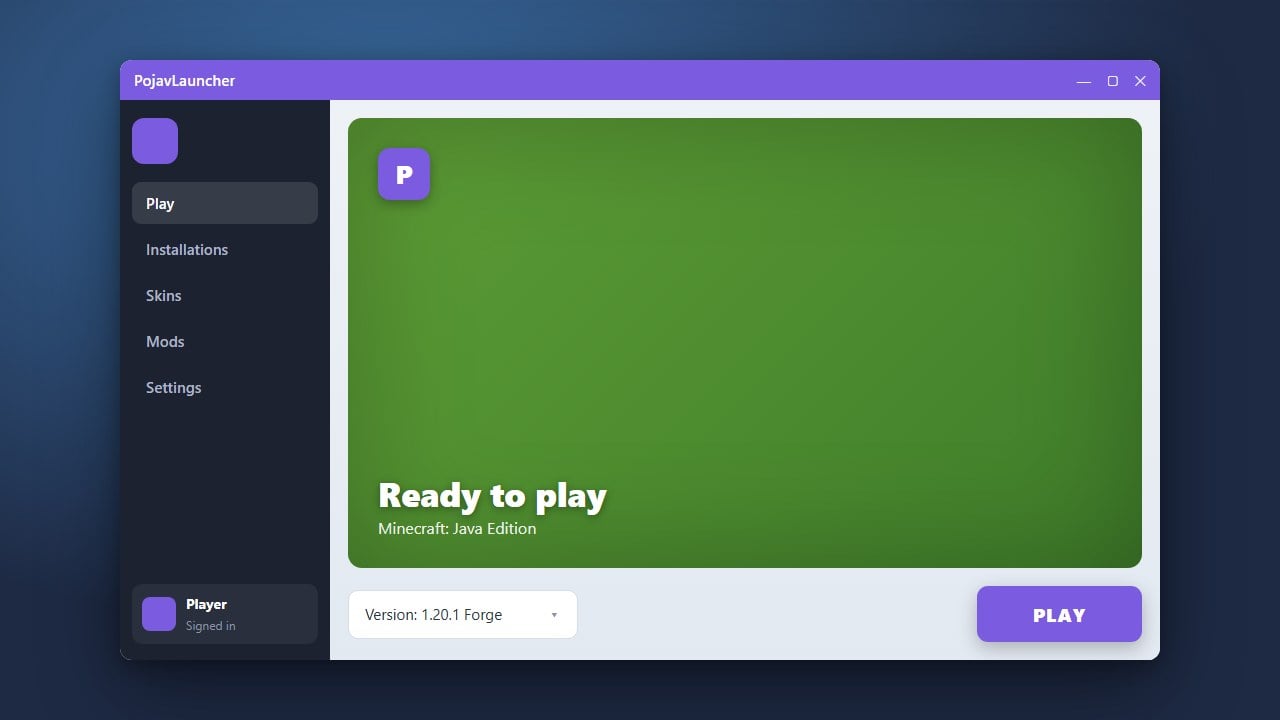
PojavLauncher is a popular third-party launcher that brings Minecraft Java Edition to mobile operating systems like Android and iOS. Please note that PojavLauncher requires a legitimate Minecraft account to log in, and we always recommend purchasing the official game directly from minecraft.net to ensure full safety, privacy, and access to official updates.
Never input your Microsoft account details into unofficial forks or modified versions of PojavLauncher found on untrusted websites, as this puts your account at risk of theft.
Using a Bluetooth mouse and keyboard can greatly improve your navigation and gameplay experience when playing Minecraft Java Edition on a mobile device.
Download and Install PojavLauncher
First, get the official application package from a trusted source such as the Google Play Store for Android or the official GitHub repository. Follow the on-screen installation prompts to place the app on your mobile device.
Make sure your device has enough free storage space and meets the minimum operating system requirements before proceeding with the setup.
Log In with Your Microsoft Account
Open PojavLauncher after the installation completes. You will be greeted by a login screen where you must enter your legitimate Minecraft or Microsoft account credentials.
Because third-party launchers interact with your login tokens, always verify you are using the authentic app to protect your personal information and account safety.
Select Your Minecraft Version
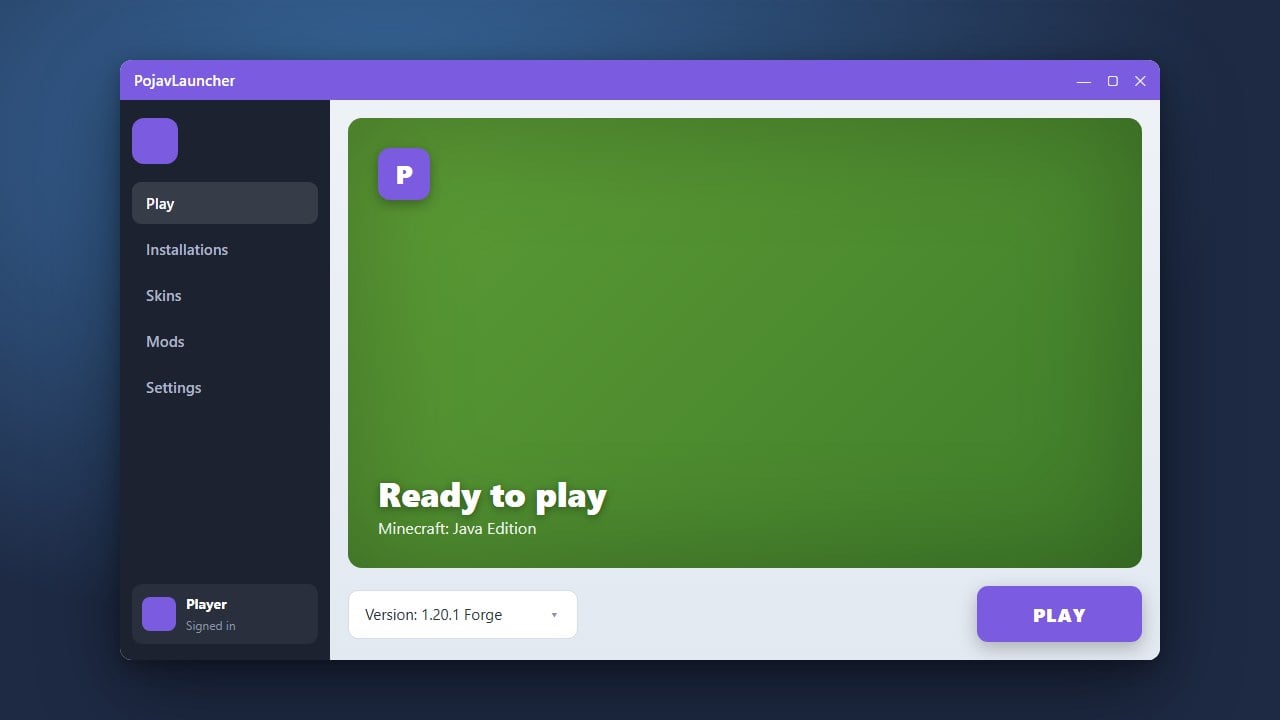
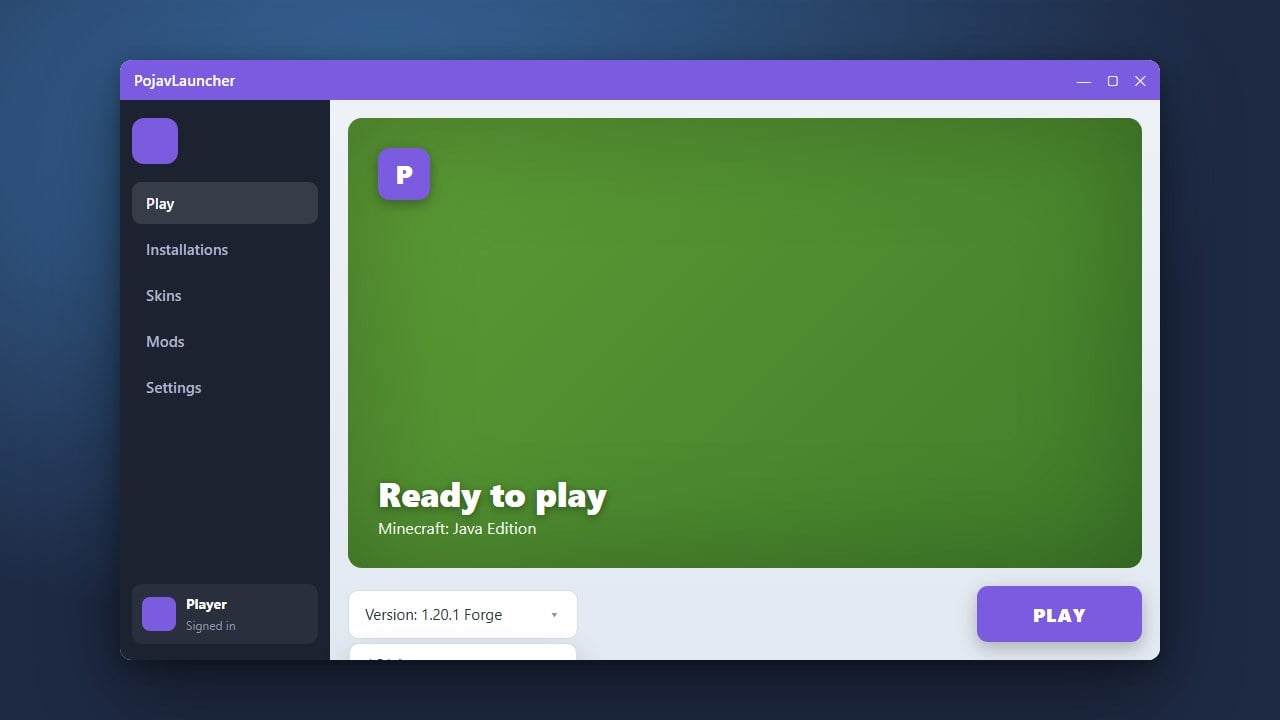
Once logged in, navigate to the version selection menu on the main dashboard. You can choose to play the latest release or configure older versions depending on your preferences.
If you want to customize your experience further, you can also check out guides like How to Change the Minecraft Version in PojavLauncher for more specific version management tips.
Configure Performance and RAM Settings
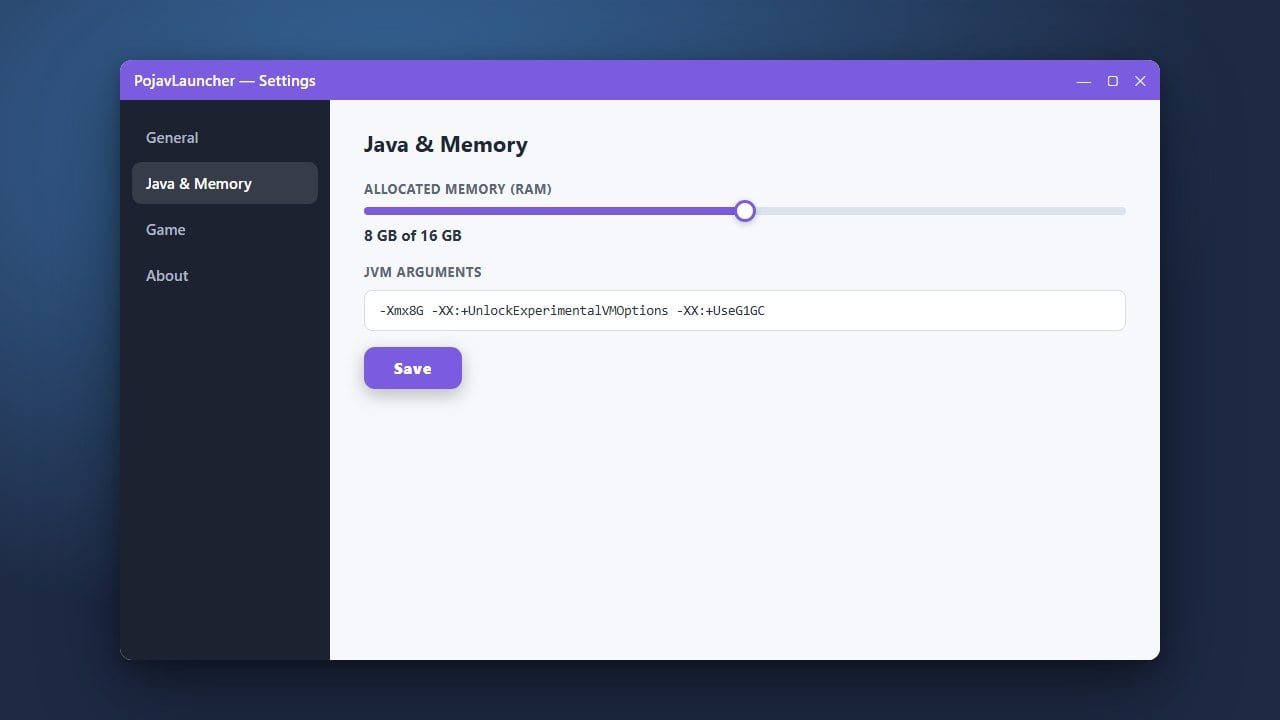
Mobile hardware varies greatly, so adjusting your resource allocation is crucial for smooth gameplay. Head into the launcher settings to adjust memory limits and control renderer options.
To get the best performance balance on your specific phone or tablet, follow the steps in How to Allocate More RAM in PojavLauncher.
Launch the Game and Play
After saving your settings and selecting your desired version, tap the large Play button to start the game files downloading and initializing. The initial boot may take a few moments as Java assets load on your mobile processor.
Once the main menu appears, you can join servers, play singleplayer worlds, and customize your touch controls or connect an external controller for comfortable gaming.
Frequently Asked Questions
Can I play Minecraft Bedrock Edition using PojavLauncher?
No. PojavLauncher is specifically designed to run Minecraft Java Edition on mobile devices through a specialized Java runtime environment. Minecraft Bedrock Edition has its own native mobile application available on official app stores.
Is PojavLauncher free to use?
Yes, the launcher application itself is free and open-source, but you must own a paid, legitimate Minecraft Java Edition account to log in and play the game.