PojavLauncher is a popular third-party tool that lets you play Minecraft: Java Edition on mobile devices (Android and iOS). While it is a convenient way to bring your favorite Java mods on the go, please remember that you must legally own the game by purchasing it from minecraft.net to log in safely. Always download PojavLauncher from its official source to protect your device and login credentials from malicious third-party modifications.
Never input your official Minecraft account details into unofficial, modified forks of PojavLauncher found on untrusted app stores, as this can lead to account theft.
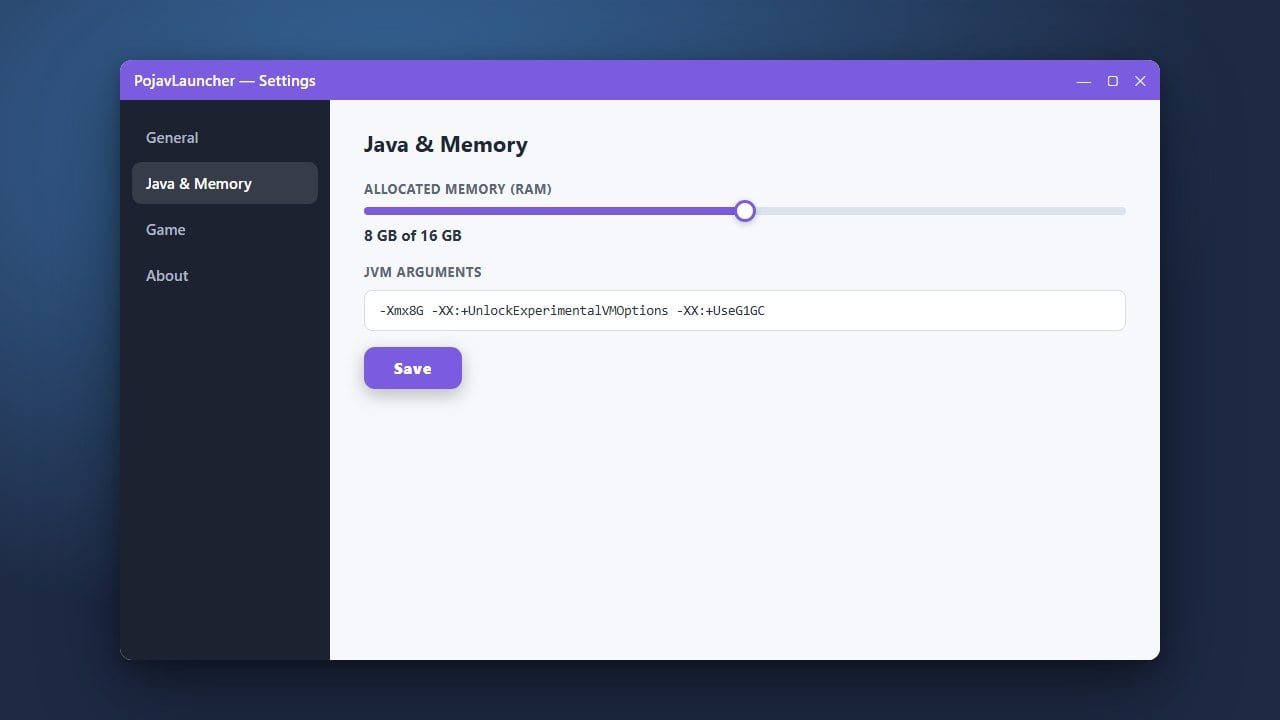
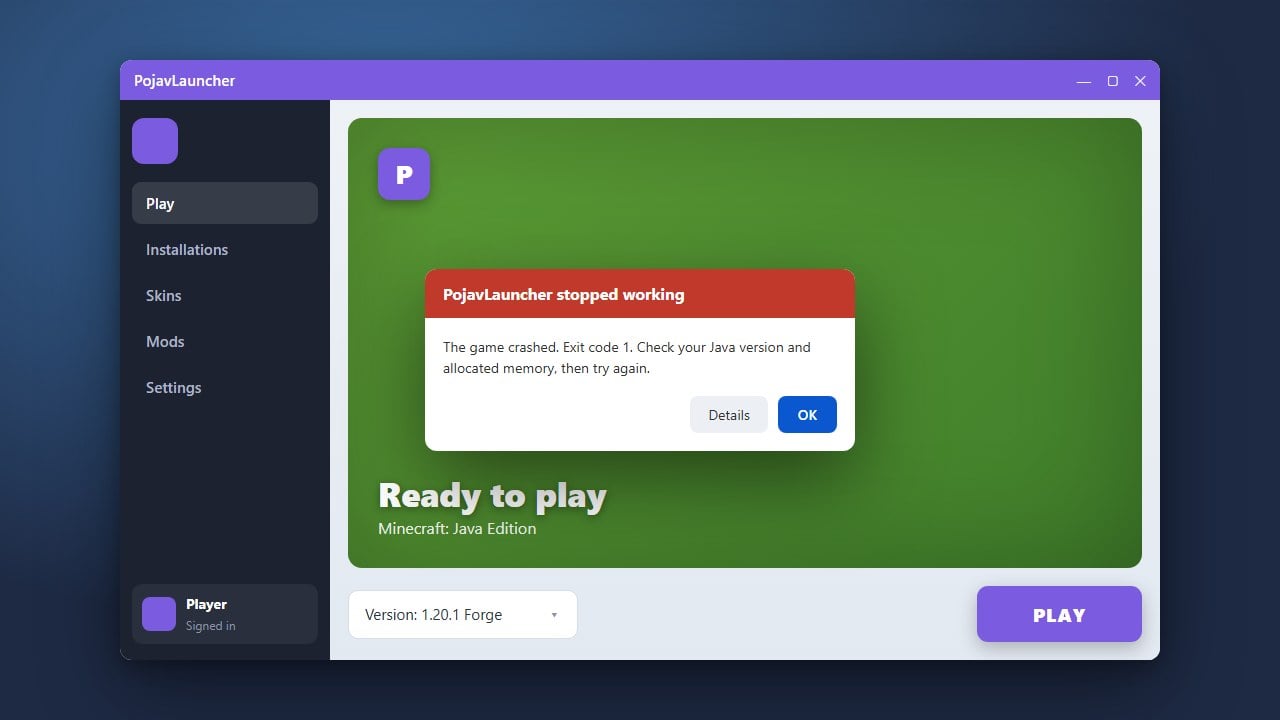
If your game crashes due to high memory usage, you can adjust your memory limits by following How to Allocate More RAM in PojavLauncher.
Set Up PojavLauncher and Log In
First, ensure you have successfully installed PojavLauncher on your mobile device. Open the launcher and log in using your legitimate Microsoft account credentials associated with your purchased Java Edition copy.
Install a Mod Loader Profile
Java mods require a mod loader like Fabric or Forge to run. If you need help getting started with your setup, check out How to Download and Install PojavLauncher for initial configuration. Create a profile in the launcher for your desired Minecraft version with Fabric or Forge installed.
Download Your Desired Mods
Using your device's web browser, download the .jar files for the Java mods you want to play. Ensure that the mod files match your exact Minecraft version and chosen mod loader (such as Fabric 1.21).
Locate the Minecraft Directory
Launch your modded profile at least once so the game generates all necessary folders. Next, use your phone or tablet's file manager to locate the hidden .minecraft directory inside the PojavLauncher files on your storage.
Place Mods Into the Mods Folder
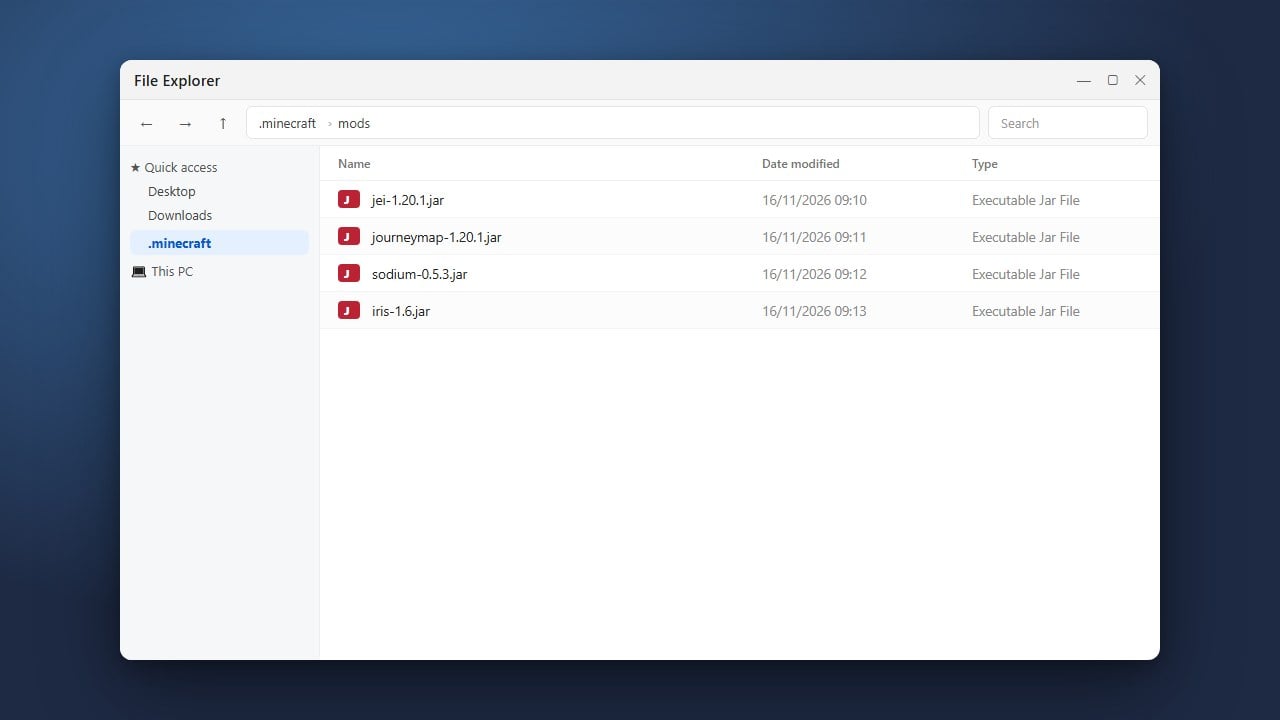
Inside the .minecraft directory, look for a folder named mods. If it does not exist, you can create a new folder and name it mods in lowercase letters. Copy and paste your downloaded .jar mod files directly into this folder.
Launch the Game and Verify
Return to PojavLauncher, select your modded profile, and tap Play. Once the game loads on your mobile screen, check the Mods menu to confirm that your newly added modifications are active and running smoothly.
Frequently Asked Questions
Can I install Bedrock Edition addons with PojavLauncher?
No. PojavLauncher is specifically designed to run Minecraft: Java Edition on mobile devices. It does not support Bedrock Edition behavior packs or resource packs.
Why is my game crashing when I add too many mods?
Mobile devices have limited RAM compared to desktop computers. Running too many heavy Java mods at once can easily cause the application to run out of memory and crash.