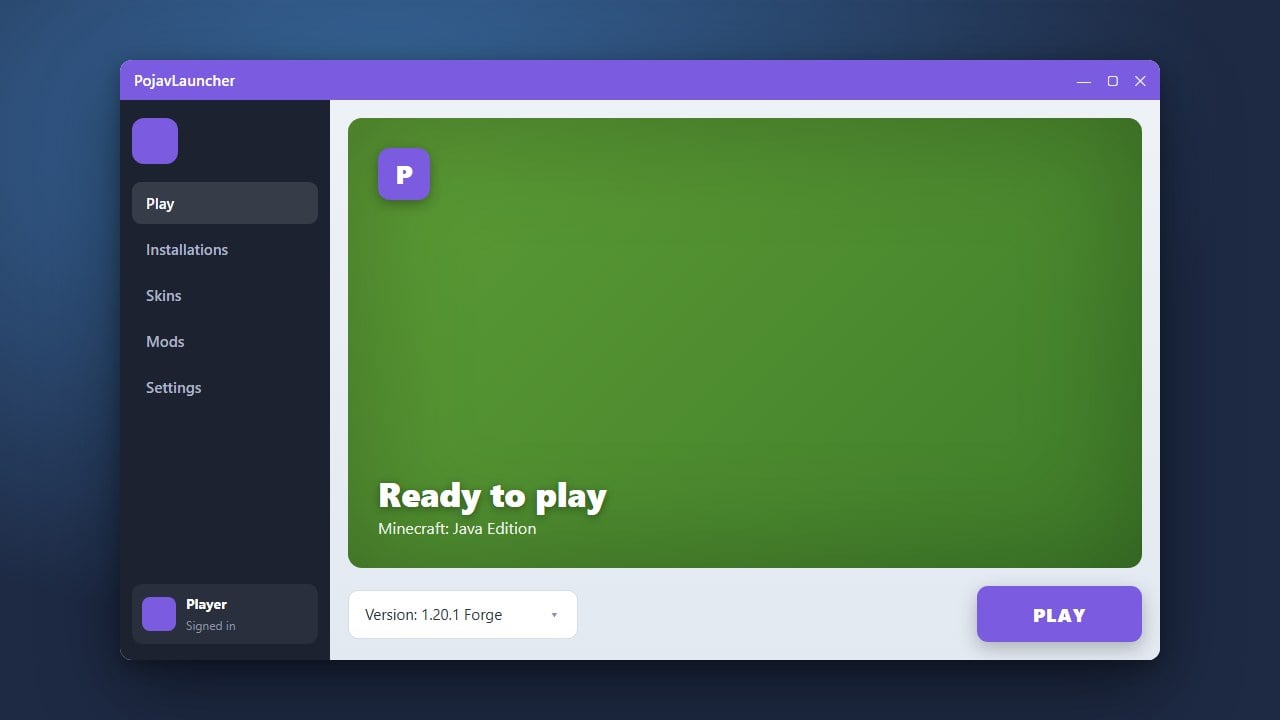
PojavLauncher is a popular third-party tool used to run Minecraft Java Edition on mobile devices. If you are setting up or maintaining your client, you might want to review How to Download and Install PojavLauncher for initial setup details. Updating your launcher ensures compatibility with new game versions, better performance, and access to the latest features.
PojavLauncher requires a legitimate paid Minecraft Java account to log in securely. Always purchase the official game from minecraft.net rather than relying on unauthorized third-party credentials or cracked launchers that pose severe privacy and security risks.
Always backup your .minecraft folder stored locally on your device before performing a major app update to ensure your worlds and custom resource packs remain safe.
Check Your Current App Version
Before updating, open PojavLauncher on your mobile device and navigate to the settings or about menu to see which version you are currently running. Knowing your version helps you confirm whether an update is actually available.
Visit the Official Source
Go to the official PojavLauncher GitHub repository or trusted app store page where the latest stable releases are hosted. Always download updates from official and verified sources to protect your device from modified or malicious files.
Download the Latest APK File
If you are using Android, download the newest .apk release file provided by the developers. Ensure you select the correct architecture build for your phone or tablet to prevent crashing issues upon startup.
Install the Update Over Your Existing App
Tap the downloaded file to begin installation. In most cases, your system will recognize that PojavLauncher is already installed and prompt you to update the existing application without losing your game profiles, worlds, or settings.
Launch and Verify the Update
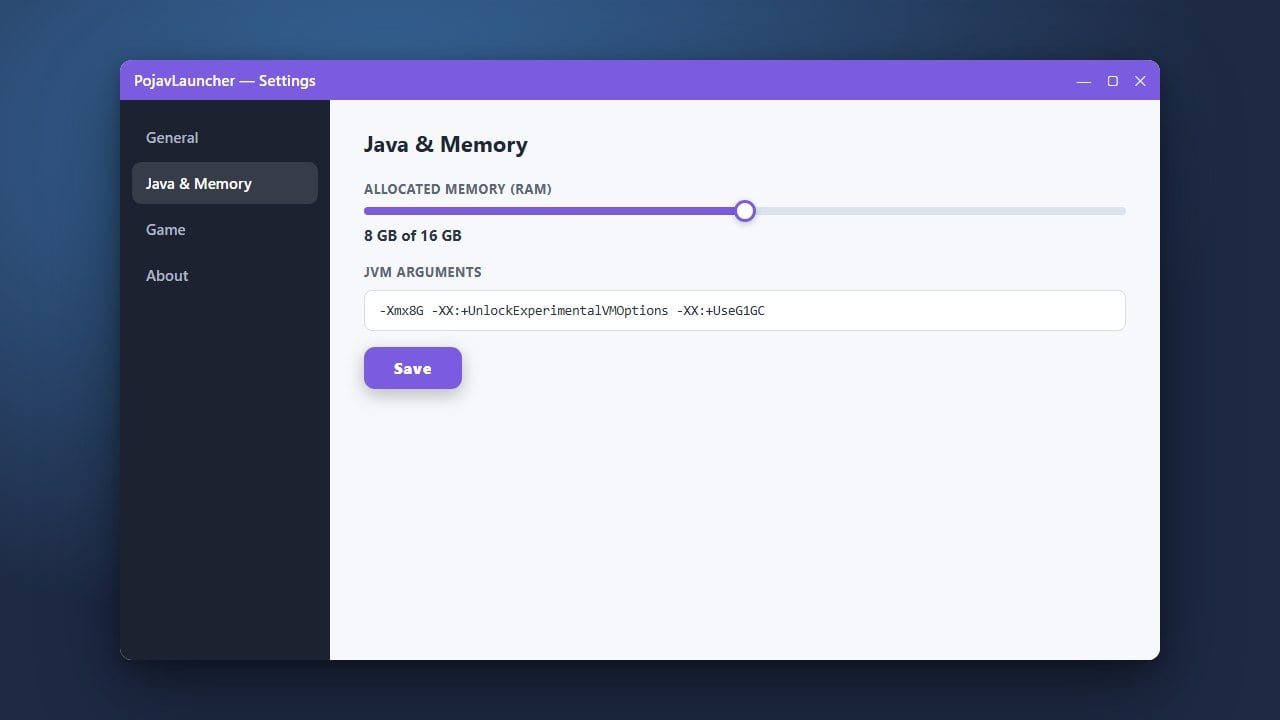
Open the newly updated PojavLauncher and check the version number on the main screen to confirm the update was successful. You can now configure your runtime options or read How to Allocate More RAM in PojavLauncher if your game needs extra memory optimizations.
Frequently Asked Questions
Will updating PojavLauncher delete my saved Minecraft worlds?
Normally, installing an app update over your current version preserves your internal application data, including your worlds and profiles. However, creating a manual backup of your game folder is always recommended before updating.
Where can I find help if the new update fails to launch?
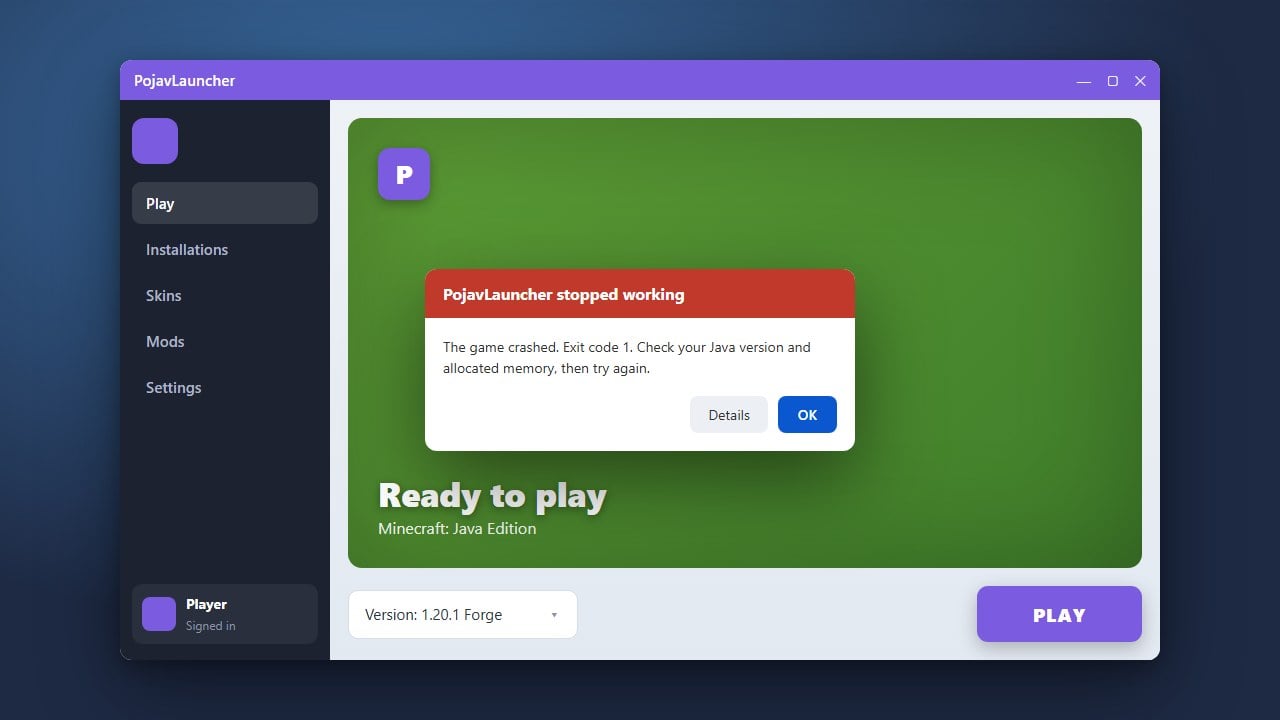
If your app crashes after updating, check out How to Fix PojavLauncher Not Launching for troubleshooting steps, error log analysis, and solutions to common startup problems.