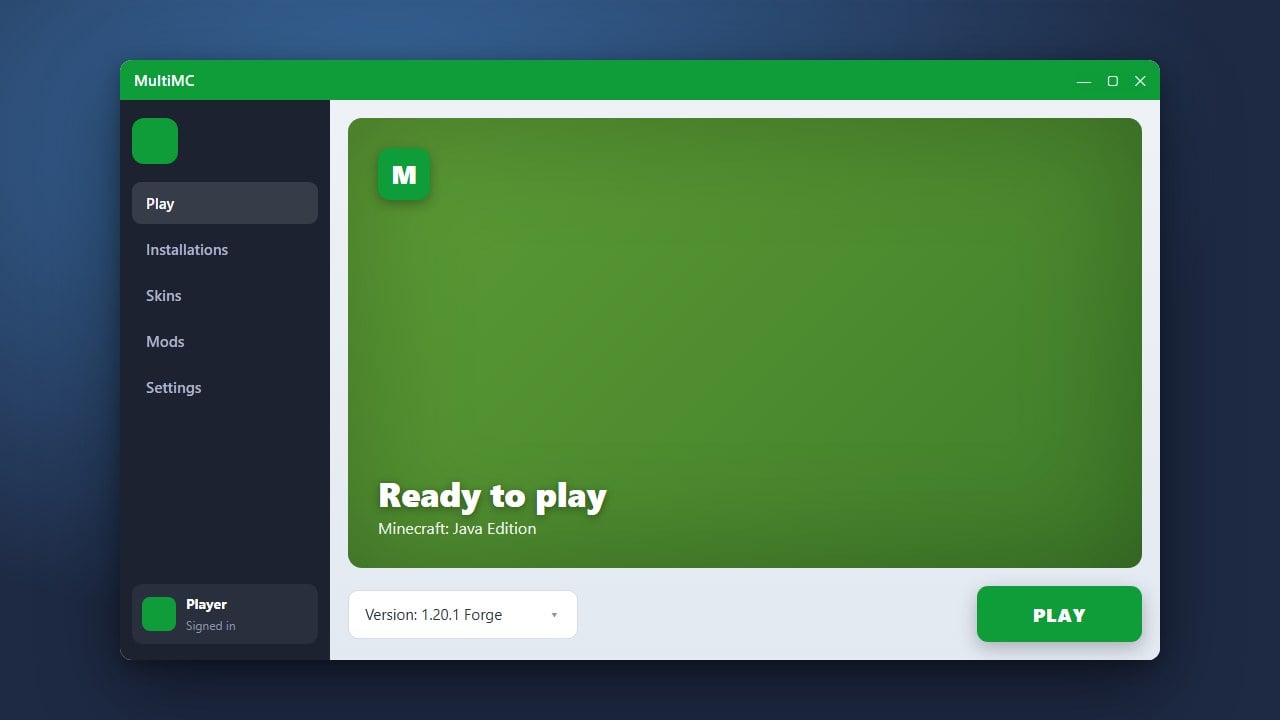
If you are looking to clear up storage space or switch to a different client such as the Modrinth App, completely removing MultiMC is a quick process. MultiMC is a legitimate open-source Java Edition launcher that requires players to log in with a genuine Minecraft account purchased from minecraft.net. This guide will walk you through safely removing the application and its leftover data files.
Deleting the MultiMC folder will delete all installed instances, saves, and configurations contained within it. Always backup your world saves before uninstalling.
Close MultiMC and Background Processes
Before deleting any files, make sure that MultiMC is completely closed. If the application is currently running in the background, your operating system may prevent you from deleting its installation folder.
Check your system tray in the bottom right corner of Windows or the dock on macOS to ensure no instances of MultiMC or Minecraft instances launched through it are still active.
Locate the MultiMC Folder
Unlike traditional installers that hide files deep within system directories, MultiMC usually keeps all of its application files, configurations, and game instances inside a single self-contained folder.
Navigate to the location where you originally extracted or installed MultiMC. If you are unsure where it is, you can right-click your MultiMC desktop shortcut and select Open file location or Show in Finder.
Backup Any Important Instances
If you have custom modpacks, saves, or screenshots stored inside your MultiMC instances that you want to keep, make sure to copy that specific instance folder to your desktop before proceeding.
Once you delete the main MultiMC directory, everything inside it will be permanently removed unless you have safely backed it up elsewhere.
Delete the MultiMC Directory
Drag the entire MultiMC folder into your Recycle Bin or Trash. On Windows, right-click the folder and select Delete. On macOS, right-click and choose Move to Trash.
After moving the folder to your trash bin, make sure to empty your Recycle Bin or Trash to permanently free up the storage space on your hard drive.
Remove Leftover Java Runtime Files
Depending on how you configured MultiMC, the launcher may have downloaded specific versions of Java into its directory. Deleting the main folder usually takes care of these automatically.
If you installed standalone shortcuts or placed data files in other directories, double-check your system to ensure no stray configuration files remain.
Frequently Asked Questions
Does uninstalling MultiMC delete my Minecraft account?
No, uninstalling MultiMC only removes the launcher application and local game files from your computer. Your official Minecraft account credentials and ownership remain safely tied to your Microsoft account on minecraft.net.
Can I transfer my MultiMC instances to another launcher?
Yes, you can easily copy the individual instance folders (such as your mods, configs, and saves) from your MultiMC directory and import them into other modern launchers like Prism Launcher or the Modrinth App.