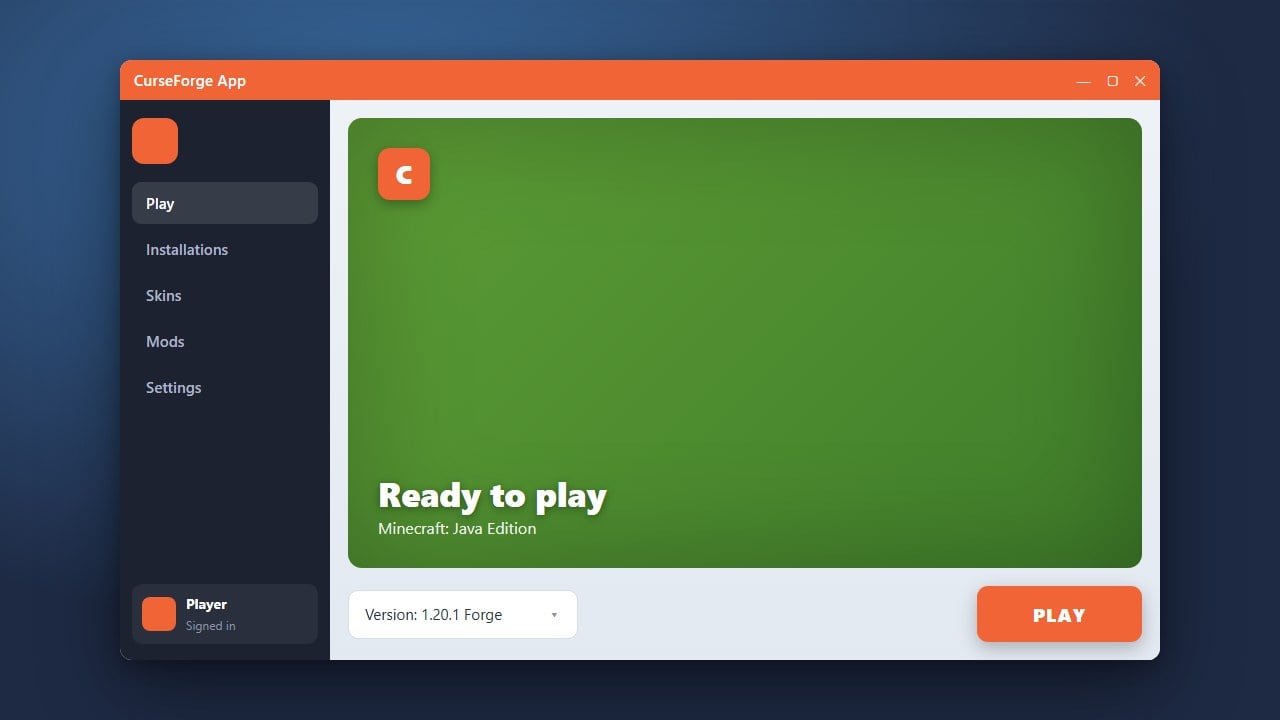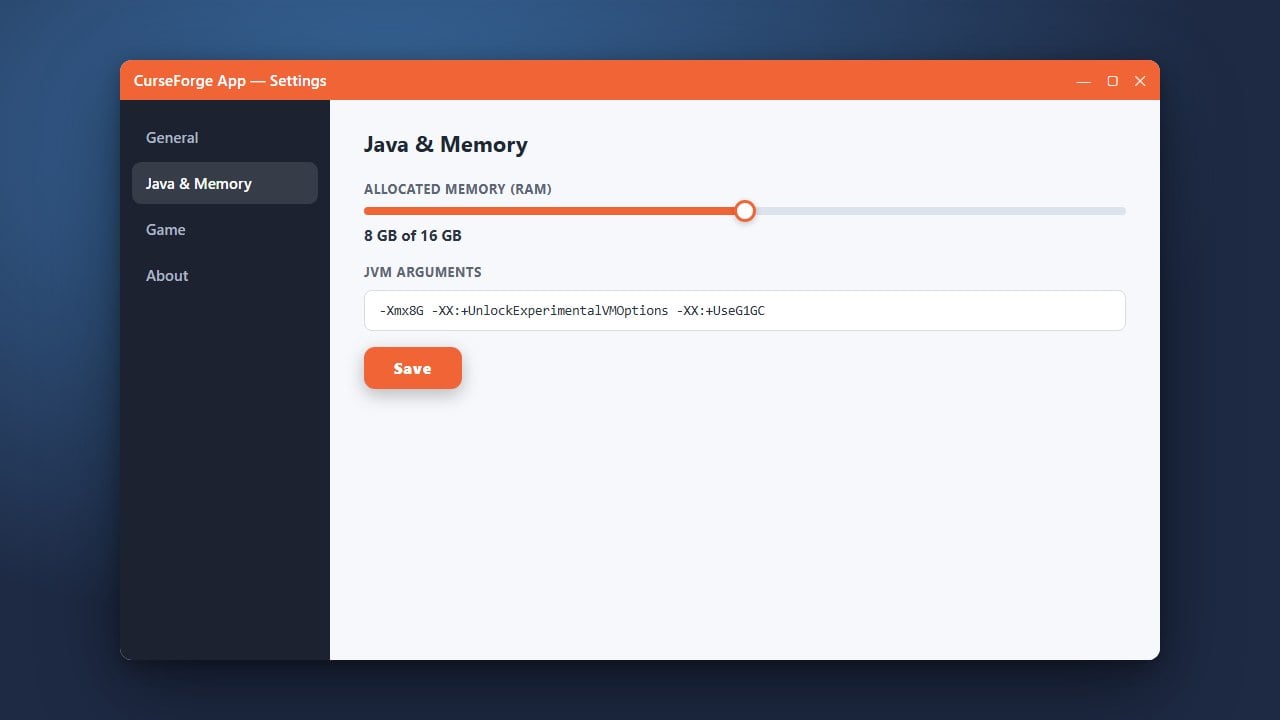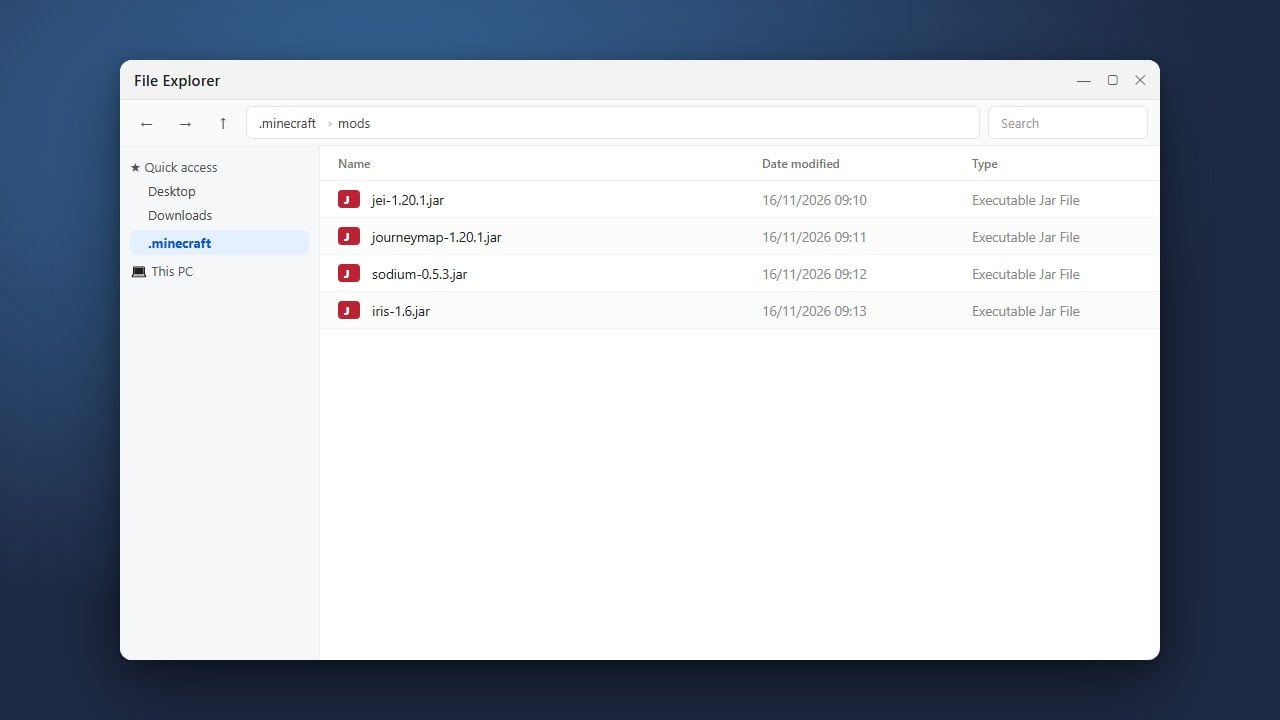
If you no longer play modded Minecraft or want to clear up space, completely removing the CurseForge App is simple. Remember that CurseForge requires a legitimate, purchased copy of Minecraft from minecraft.net to play; it is simply a helpful utility manager and does not provide free access to the game. Follow this quick guide to safely uninstall the app and optionally clear out your leftover mod profiles.
Close the CurseForge App
Before starting the uninstallation process, make sure the CurseForge application is completely closed. Check your Windows system tray (bottom-right corner of your screen near the clock) to ensure CurseForge isn't running quietly in the background.
If you see the CurseForge icon there, right-click it and select Quit or Exit to shut down all background processes.
Open Windows Settings or Control Panel
On Windows, open your system settings by pressing the Windows Key + I on your keyboard, or search for Control Panel in your Windows search bar.
Navigate to the Apps section (or Programs and Features if using the classic Control Panel) to view a complete list of all software installed on your computer.
Locate and Uninstall CurseForge
Scroll through your list of installed applications or type CurseForge into the search box. Once you find the app, click on it and select Uninstall.
Follow the on-screen prompts provided by the uninstaller wizard to remove the core application files from your system.
Delete Leftover Mod Files and Folders
The standard uninstaller typically leaves your downloaded modpacks and custom profiles intact so you don't lose data by accident. If you want to wipe everything completely, open File Explorer and navigate to your user folder.
Locate the CurseForge folder—often found inside your Documents folder—and manually delete it if you wish to reclaim hard drive space. Be careful, as this will permanently delete any worlds or mod configurations you saved inside those profiles!
Frequently Asked Questions
Does uninstalling CurseForge delete my Minecraft account?
No. CurseForge only manages local game files and connects to your official Microsoft account. Uninstalling the app simply removes the manager; it does not affect your actual Minecraft license or Microsoft login.
Can I keep my downloaded mods if I reinstall later?
Yes. If you only use the standard uninstaller and leave the CurseForge folder in your Documents directory intact, your modpacks and configurations will still be there if you decide to reinstall the application in the future.