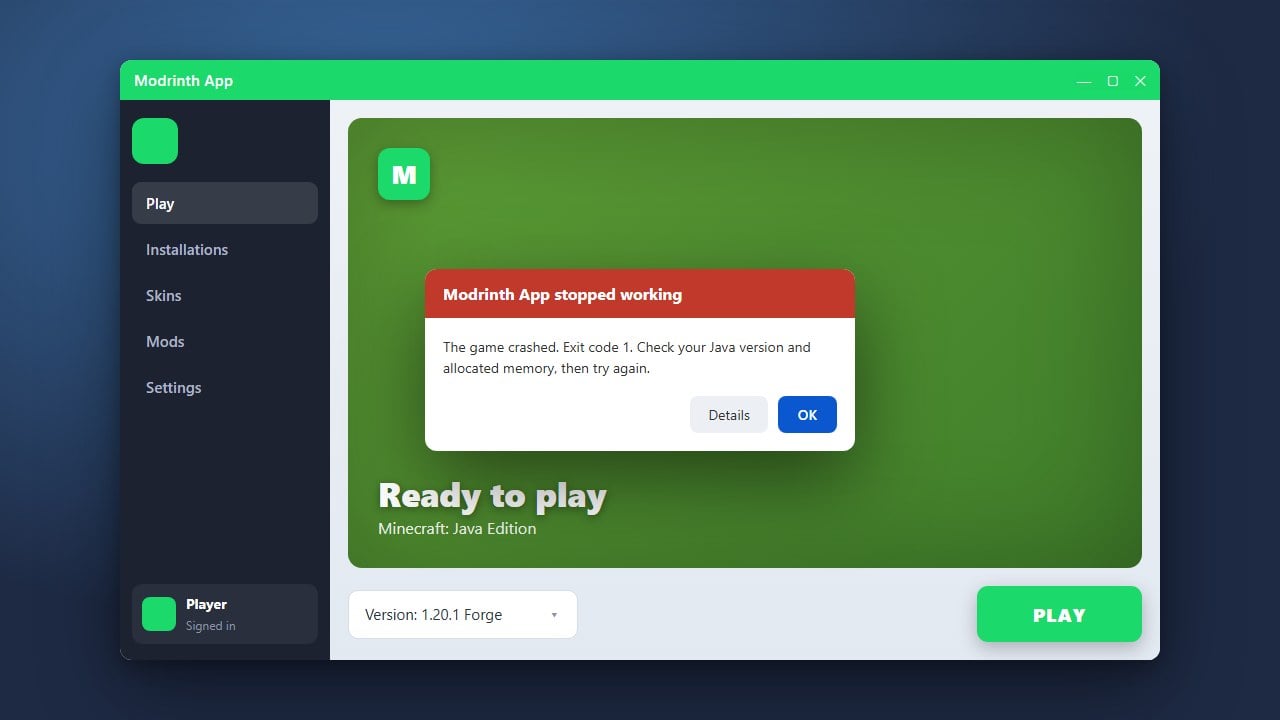
If the Modrinth App is refusing to open or crashing on startup, it can completely halt your modded Minecraft experience on Java Edition. This guide walks you through the best methods to troubleshoot and fix launcher issues, ensuring you can return to playing safely. Please note that the Modrinth App is a legitimate, open-source launcher designed for players who have purchased the official game; always buy Minecraft from minecraft.net to protect your Microsoft account from security and privacy risks associated with pirated third-party tools.
Remember that the Modrinth App requires a legitimate Microsoft or Minecraft account to authenticate and download game assets from official Mojang servers.
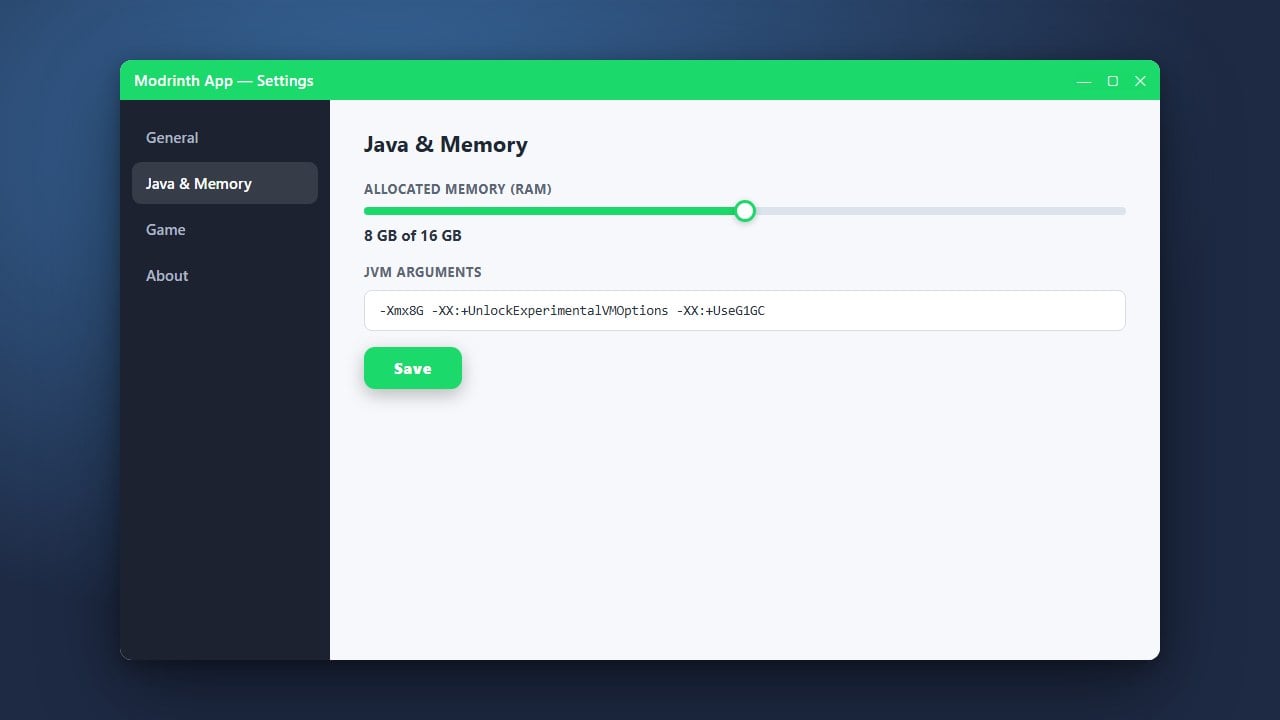
If your launcher opens but crashes when starting a specific modpack, you might need to adjust your memory allocation by following our guide on How to Allocate More RAM in Modrinth App.
Close Background Processes
Sometimes the Modrinth App is already running as a background task, which prevents a new window from opening. Open your system's task manager (Ctrl+Shift+Esc on Windows or Activity Monitor on macOS).
Look for any active processes related to Modrinth or Electron, right-click them, and select End Task. Once closed, try launching the application again.
Check and Update Java
Minecraft Java Edition requires a properly configured Java runtime environment to operate correctly. Ensure you have the correct Java version installed for modern game versions (Java 21 for current Minecraft releases).
If your Java installation is outdated or corrupted, download and install the latest Java Development Kit (JDK) or Java Runtime Environment (JRE) from a trusted source, then restart your computer.
Run the App as Administrator
Permission issues can often stop launchers from reading necessary configuration files or creating local caches. On Windows, right-click the Modrinth App shortcut and choose Run as administrator.
If this successfully opens the application, you may want to adjust your shortcut properties to always run the launcher with elevated privileges.
Clear Corrupted App Data
Corrupted local cache or configuration files are a frequent cause of launcher crashes. Navigate to your system's app data directory (usually %appdata% on Windows or ~/Library/Application Support on macOS) and locate the Modrinth folder.
Temporarily rename or move this folder to reset your launcher settings and force the app to generate fresh configuration files upon startup.
Reinstall the Modrinth App
If the application files are permanently damaged, a clean reinstall is your best option. Uninstall the current version of the Modrinth App through your system settings or control panel.
Next, download the latest official installer directly from the verified Modrinth website and complete the setup process. If you need assistance setting up instances afterward, check out our guide on How to Download and Install Modrinth App for step-by-step help.
Frequently Asked Questions
Why is the Modrinth App showing a white or blank screen?
A blank screen usually indicates a graphics hardware acceleration issue or a corrupted local cache. Try resizing the application window, updating your graphics drivers, or clearing the application data folder.
Does the Modrinth App support cracked or offline accounts?
No. Modrinth strictly requires a genuine, paid Microsoft account to log in and play Minecraft, ensuring compliance with developer guidelines and user safety.