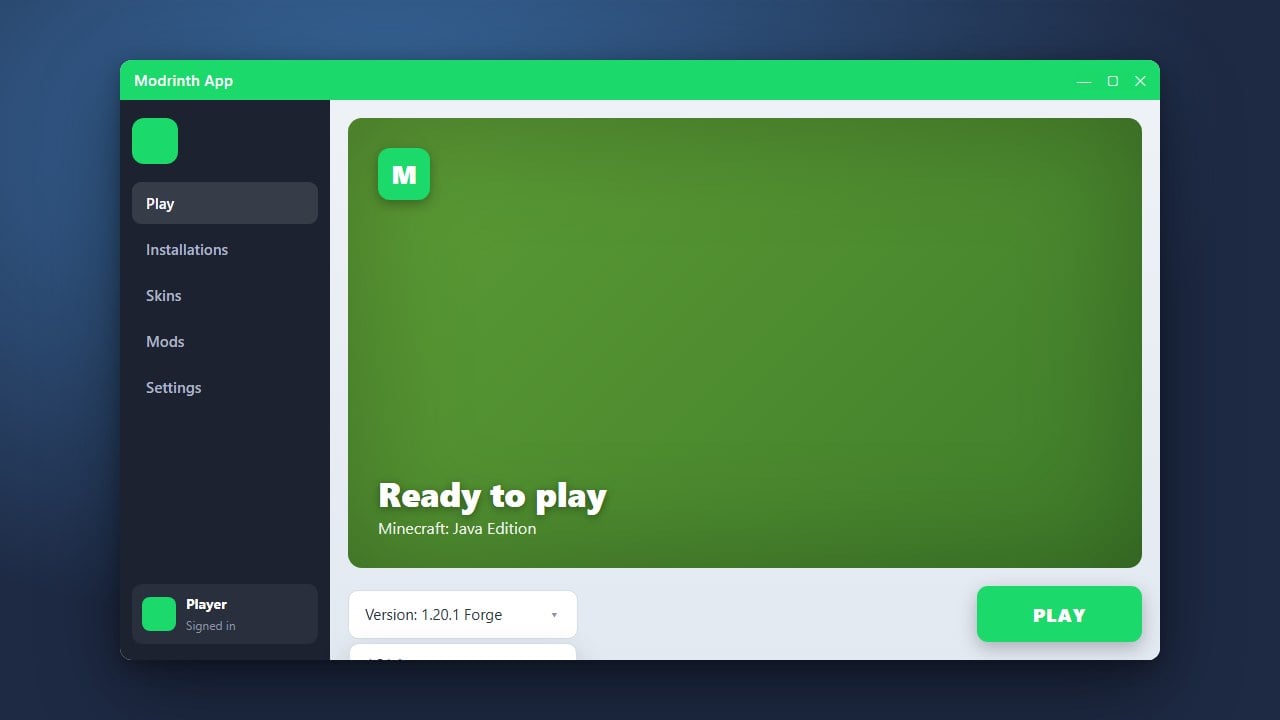
Changing your game version in the Modrinth App is a quick process, whether you are setting up a brand-new custom profile or updating an existing one. If you haven't installed the launcher yet, check out our guide on How to Download and Install Modrinth App before getting started.
Changing your version to an older release may break world saves that were created in newer versions of Minecraft. Always backup your world folders before switching.
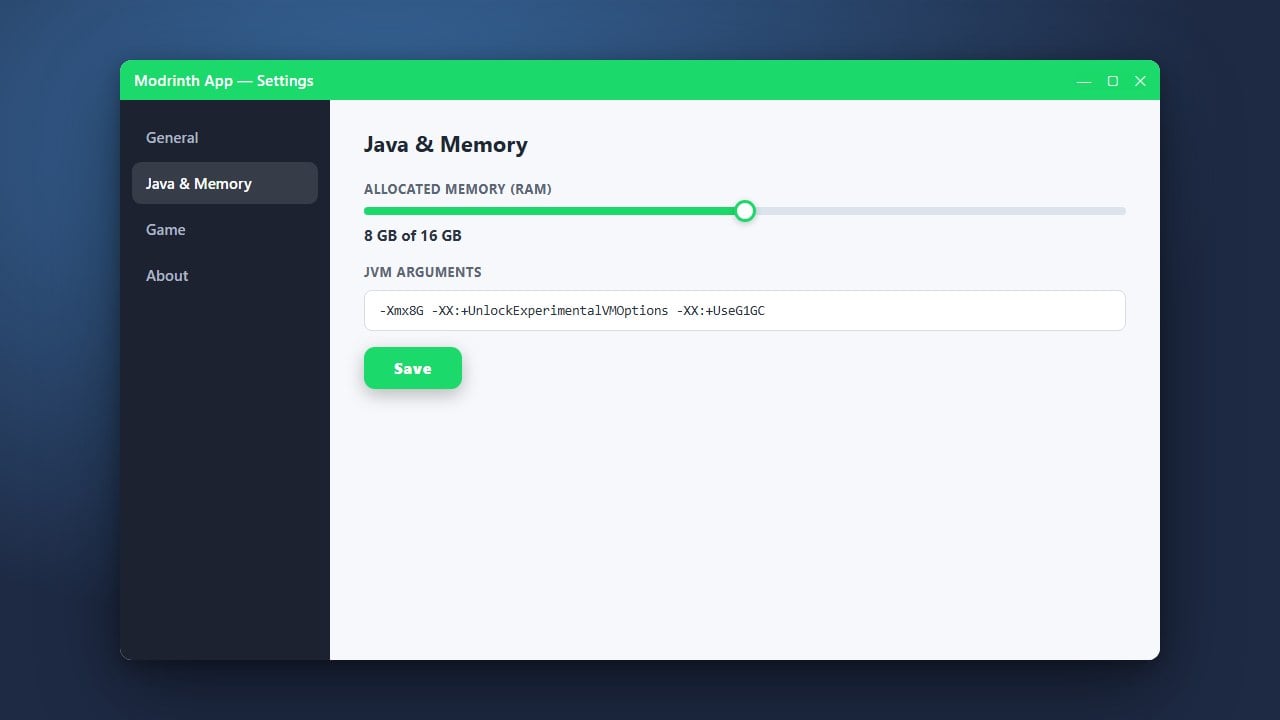
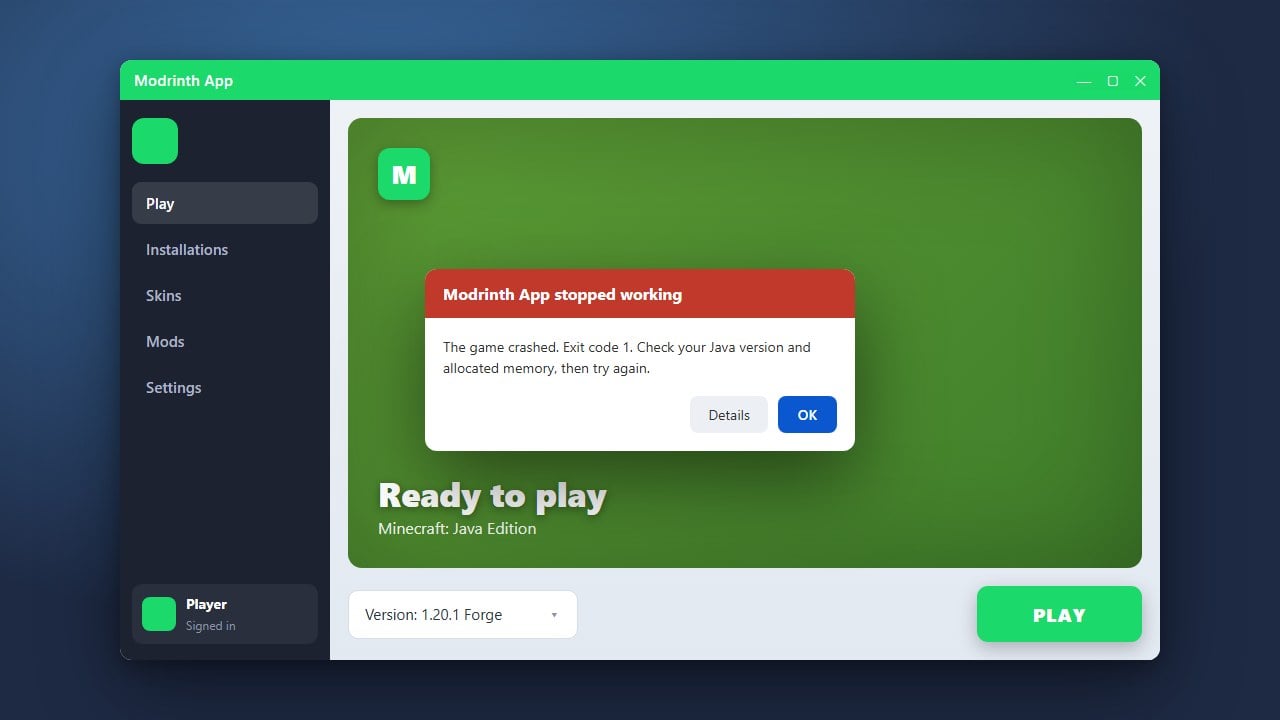
If your game ever runs out of memory after changing versions or adding heavy content, you can easily adjust your settings using the steps in How to Allocate More RAM in Modrinth App.
Open the Modrinth App
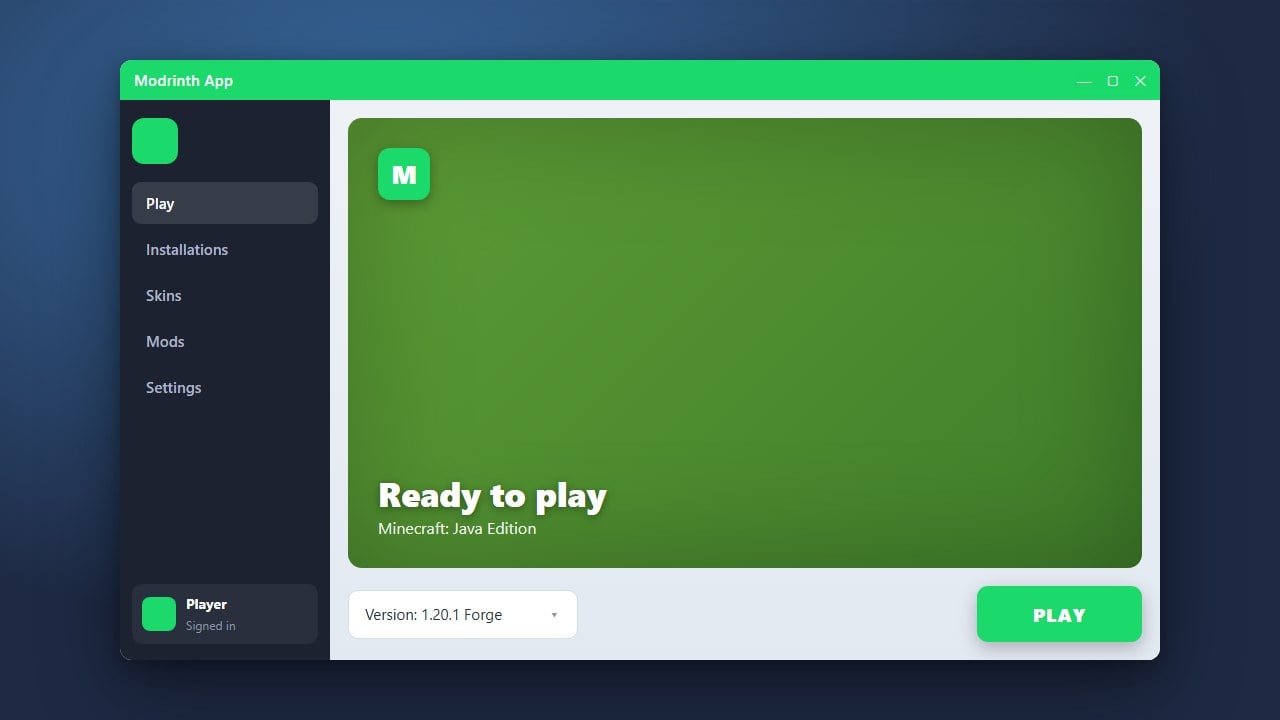
Launch the Modrinth App on your computer and make sure you are logged into your Minecraft Java Edition account. Navigate to your library of profiles from the main dashboard.
Select Your Profile
Click on the specific Minecraft profile or instance where you want to change the version. This will open up the detailed view and management options for that instance.
Open the Version Settings
Look for the settings gear icon or the version number displayed within your profile's management page. Click on it to access the configuration menu where you can modify installed software and versions.
Choose Your New Minecraft Version
Select your desired Minecraft version from the dropdown menu or version list. You can also change your mod loader loader such as Fabric or Forge here if needed, similar to what is covered in How to Install Forge and Fabric with Modrinth App.
Save and Play
Confirm your changes and apply the new version. The Modrinth App will automatically download any necessary files for the selected version, and you are ready to hit play!
Frequently Asked Questions
Can I change the Minecraft version of an existing world?
Yes, but downgrading to an older version can corrupt blocks, items, and entity data unique to newer updates. Upgrading is generally safer, but backing up your world is always recommended.
Do my installed mods update automatically when I change versions?
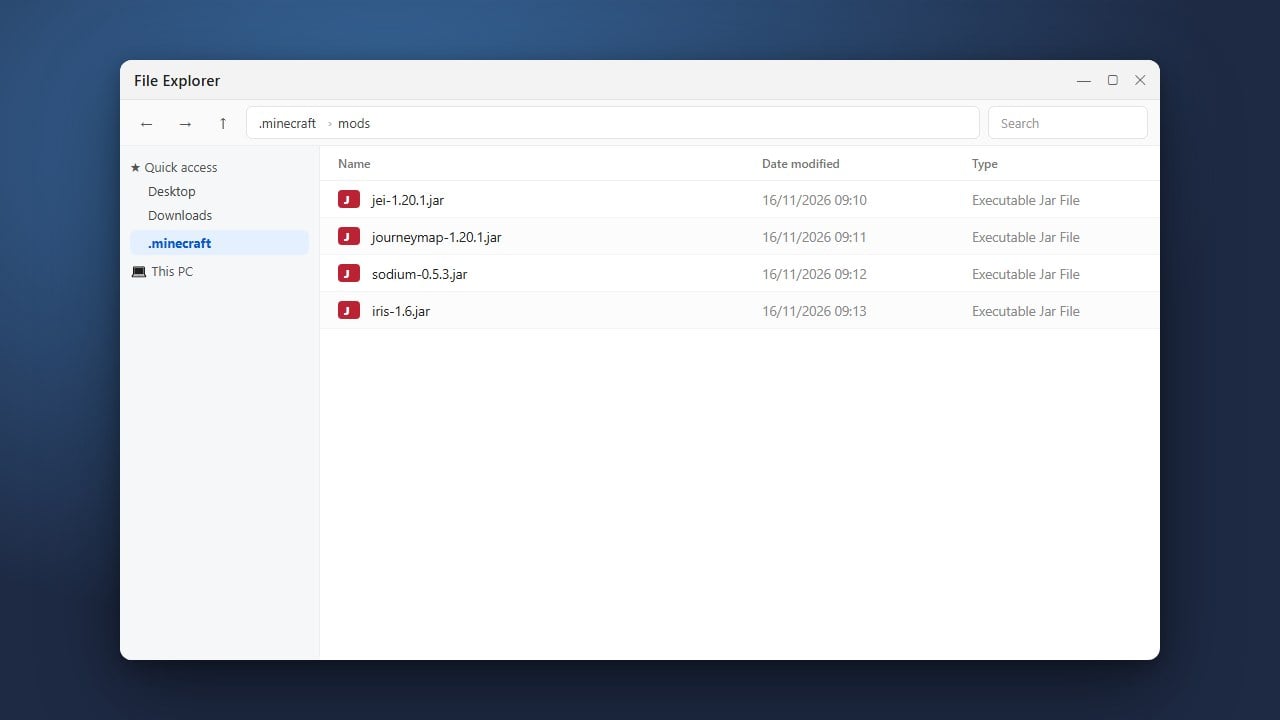
No. If you change your Minecraft version, you will also need to update your mods to match the new version, as older mods will not load correctly.