If your modded Minecraft game is stuttering, freezing, or crashing with out-of-memory errors, you likely need to assign more RAM. This guide will show you how to quickly and safely adjust your memory settings inside the Modrinth App for Java Edition.
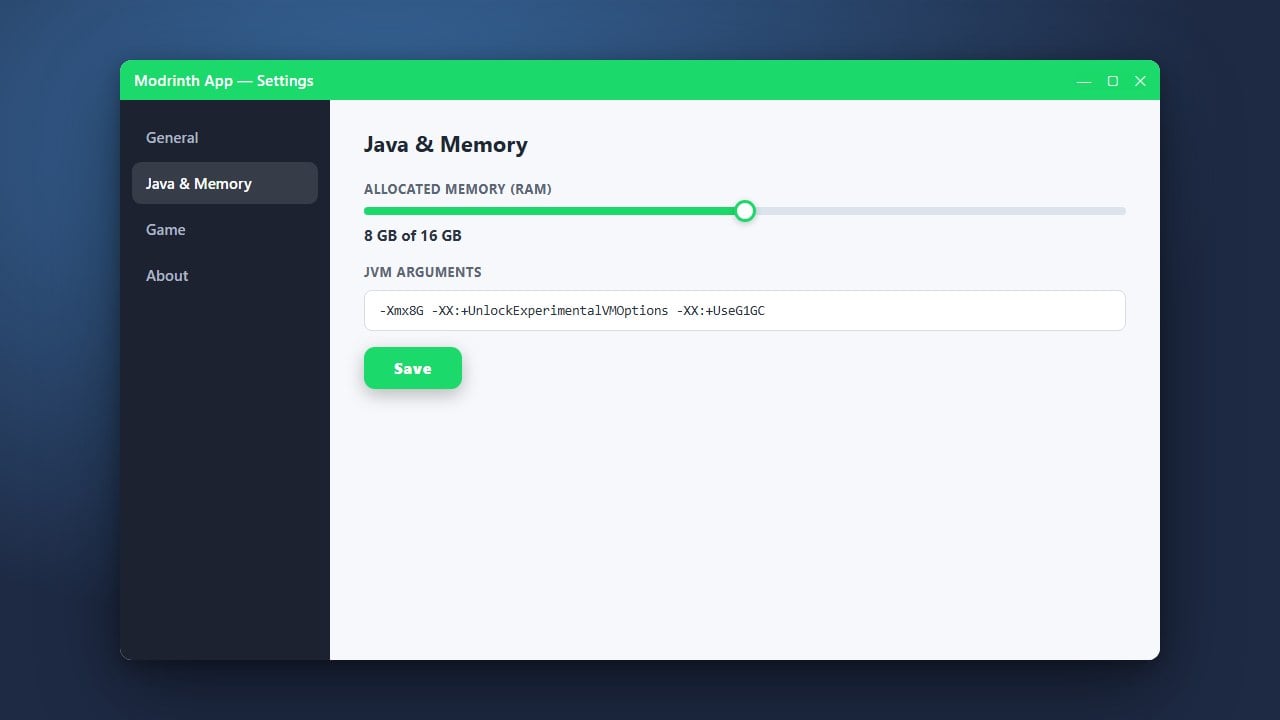
Never allocate all of your physical RAM to Minecraft. If your PC has 16GB of total RAM, allocate no more than 8GB to avoid system crashes.
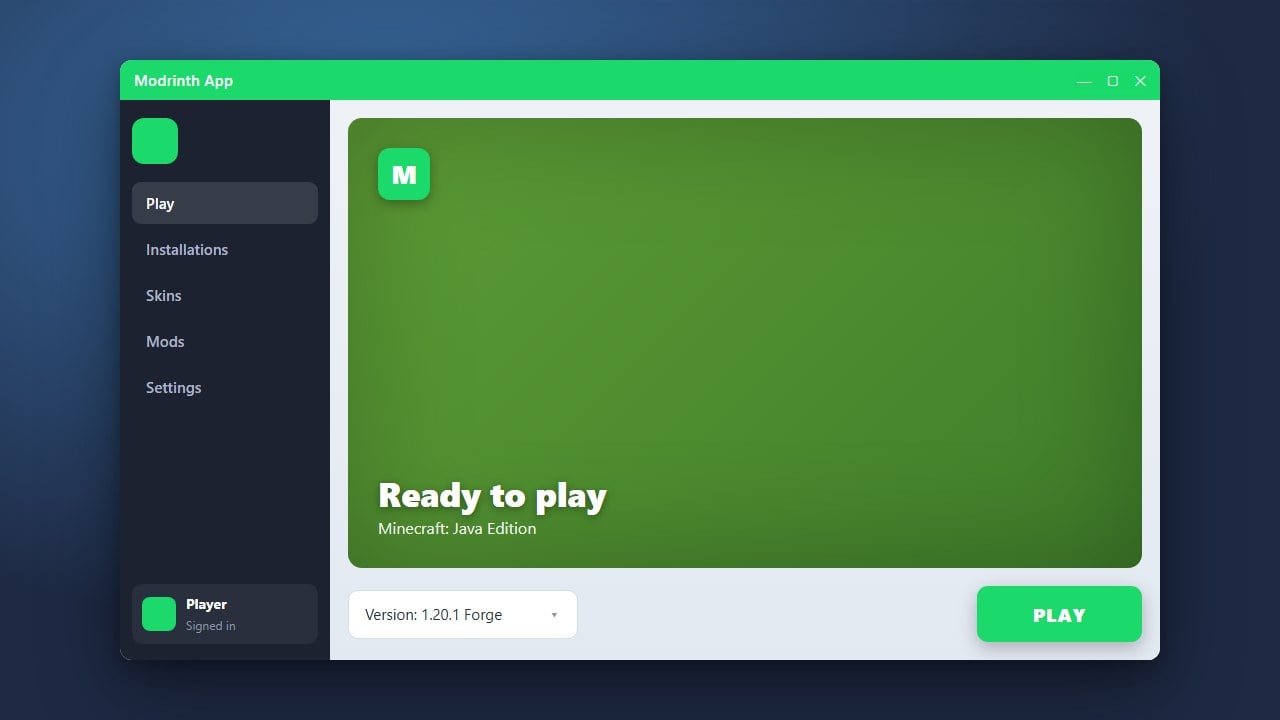
Open the Modrinth App
Launch the Modrinth App on your computer and make sure you are logged into your account. Before making changes, you may want to review How to Download and Install Modrinth App if you are just getting started.
Navigate to App Settings
Look toward the bottom-left or top-right corner of the app interface and click on the Settings icon (usually represented by a gear or cog symbol) to open your global configuration panel.
Locate the Java Memory Settings
Scroll down through the settings menu until you find the Java or Memory Allocation section. Here you will see sliders or text boxes that let you control how much RAM is dedicated to running your Minecraft instances.
Adjust Your RAM Allocation
Drag the slider or type in the desired amount of RAM. For standard modded packs, 4GB to 6GB is usually ideal, but heavy modpacks might require more. Make sure not to allocate all of your computer's total memory, as your operating system needs RAM to run smoothly as well.
Save and Launch Your Game
Close the settings menu or click save if prompted. Your new memory allocation will now apply to your instances, ensuring better stability. If you ever need to adjust your game setup further, check out How to Change the Minecraft Version in Modrinth App.
Frequently Asked Questions
How much RAM should I allocate for modded Minecraft?
For vanilla Minecraft, 2GB is plenty. For light to medium modpacks, 4GB to 6GB works best. Very large, heavy modpacks may require 8GB or more.
Can I change RAM allocation for just one specific profile?
Yes, you can override global memory settings by clicking on a specific profile's settings inside your library tab in the Modrinth App.