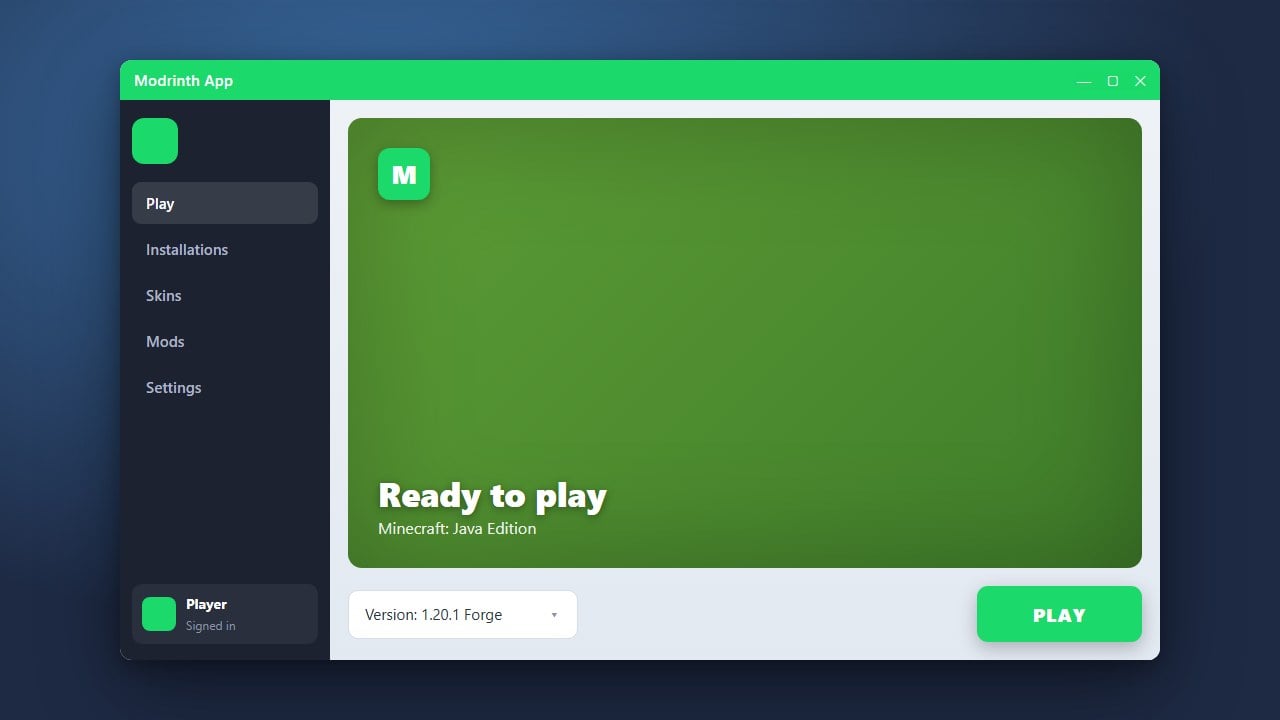
Keeping your Modrinth App up to date ensures you have access to the newest features, performance improvements, and bug fixes for managing your Java Edition mods and modpacks. This guide will show you how to check for updates and install them quickly.
Always remember that third-party launchers require a legitimate Java Edition account purchased from minecraft.net to play online and authenticate properly.
Open the Modrinth App
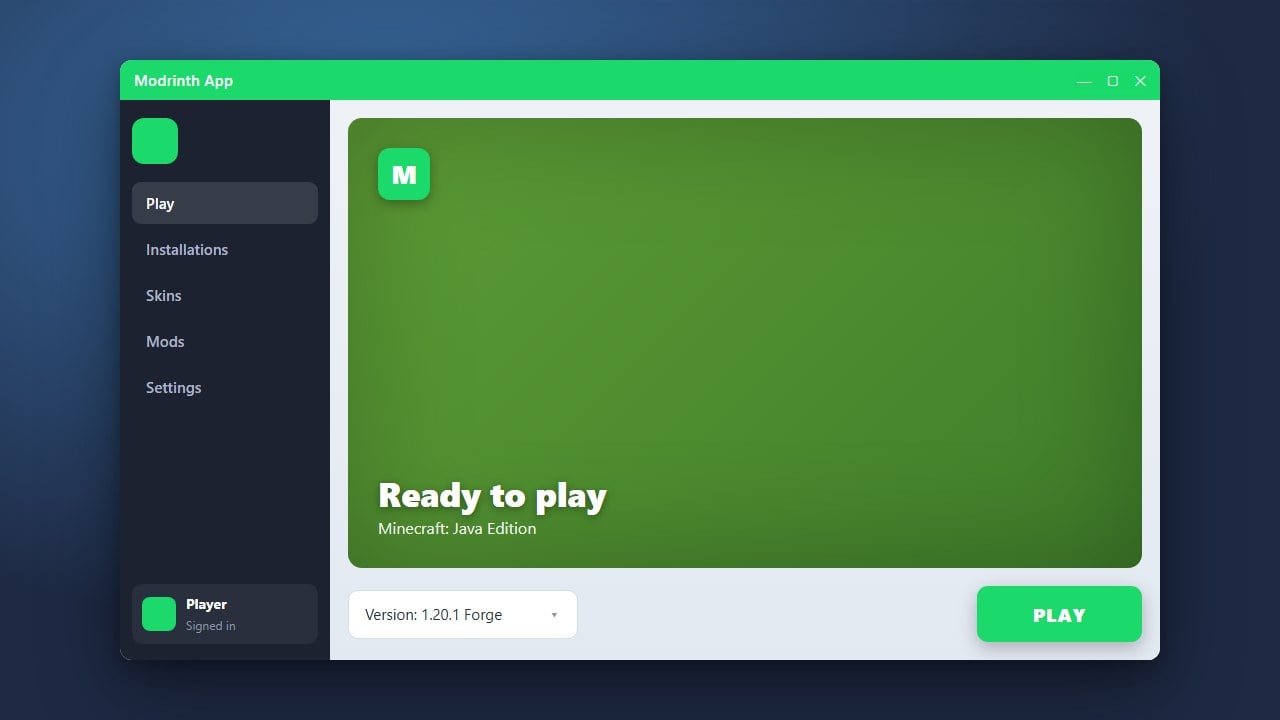
Launch the Modrinth App from your desktop or application menu as you normally would to play Minecraft Java Edition. Ensure your computer has an active internet connection so the launcher can check for available updates.
Navigate to Settings
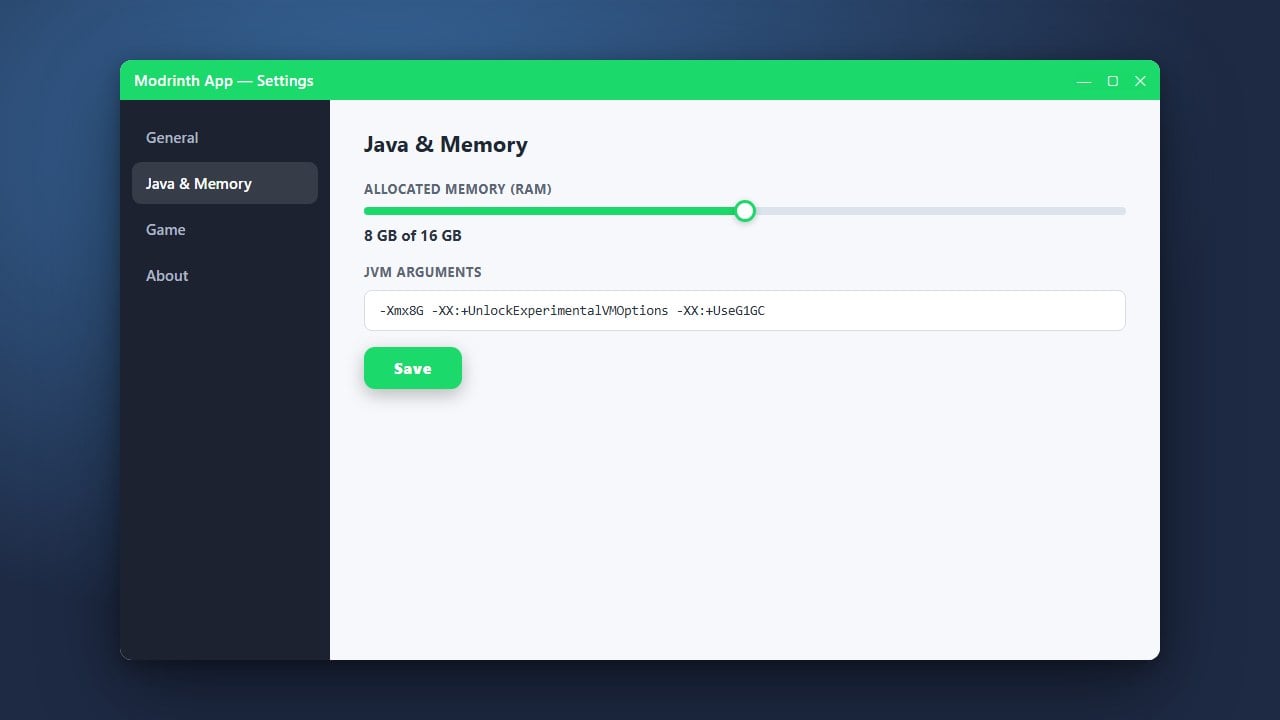
Look for the Settings icon, usually represented by a gear symbol located in the bottom-left corner of the app interface. Click on it to open the application preferences and account management options.
Check for Available Updates
Inside the settings menu, scroll down or look for the About or Updates section. The app will automatically check if a newer version is available. If an update is ready, a download button or notification will appear.
Download and Install the Update
Click the update or restart button to download and apply the latest package. The application will automatically restart once the installation process finishes, bringing you up to date.
Frequently Asked Questions
Do I lose my modpacks when I update the Modrinth App?
No, updating the application itself will not delete your installed modpacks, profiles, or world saves. However, it is always a good idea to back up important worlds just in case.
What should I do if the app fails to update automatically?
If the automatic update fails, you can simply visit the official Modrinth website, download the latest installer package for your operating system, and run it over your current installation.