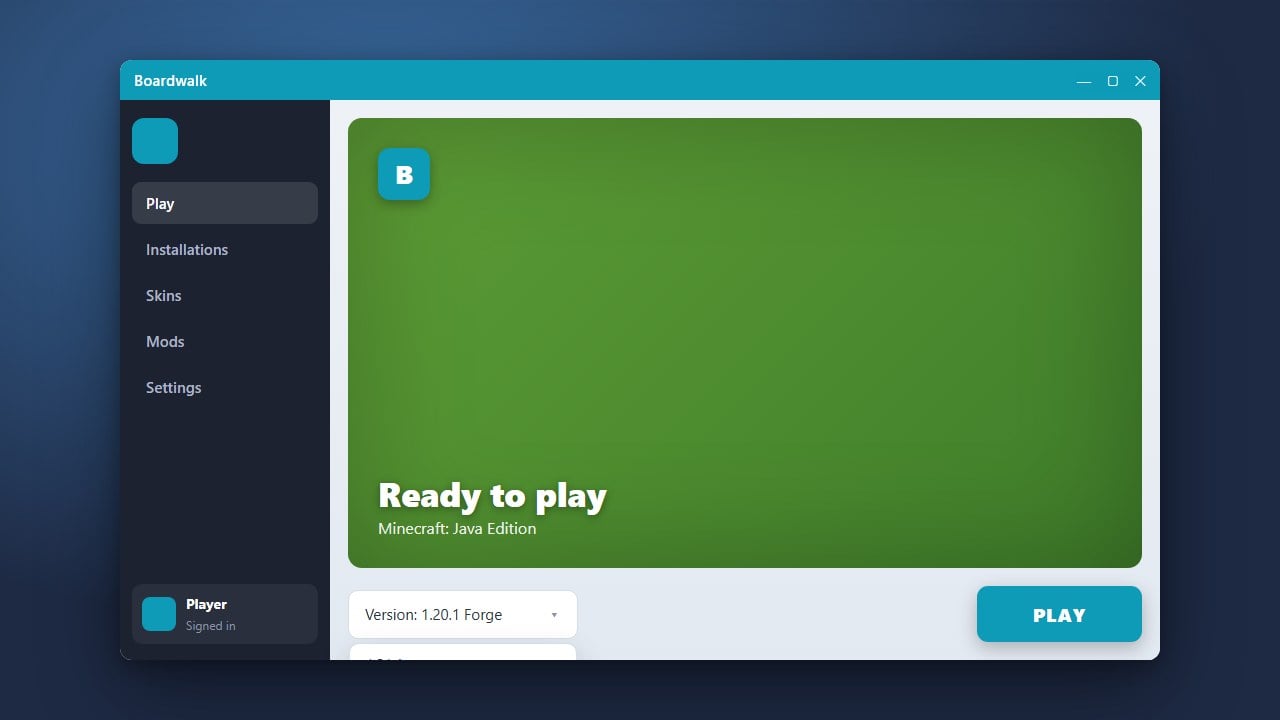
Changing your Minecraft Java version in Boardwalk is a straightforward process if you want to play on older releases or test snapshots on your mobile device. If you are just getting started with the client, you may want to check out our guide on How to Download and Install Boardwalk to ensure your setup is correct.
Older Minecraft versions may require specific Java runtime configurations. Make sure your device has enough resources allocated before launching heavy updates.
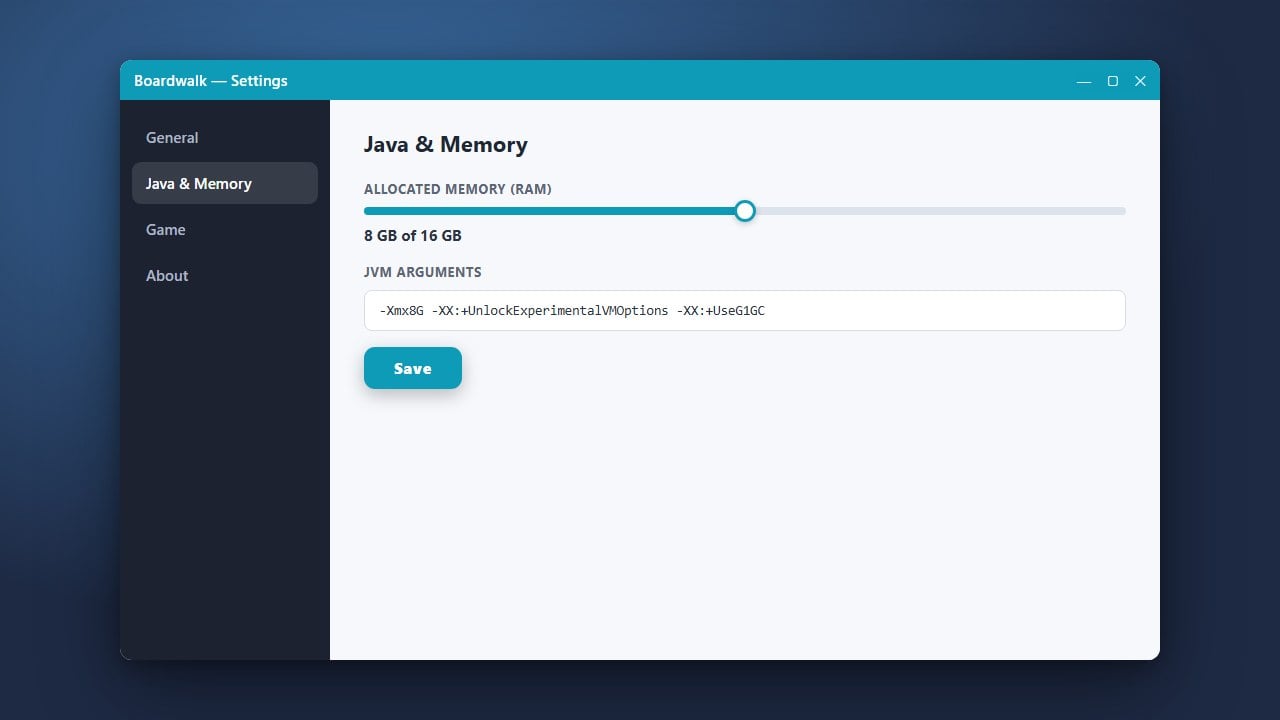
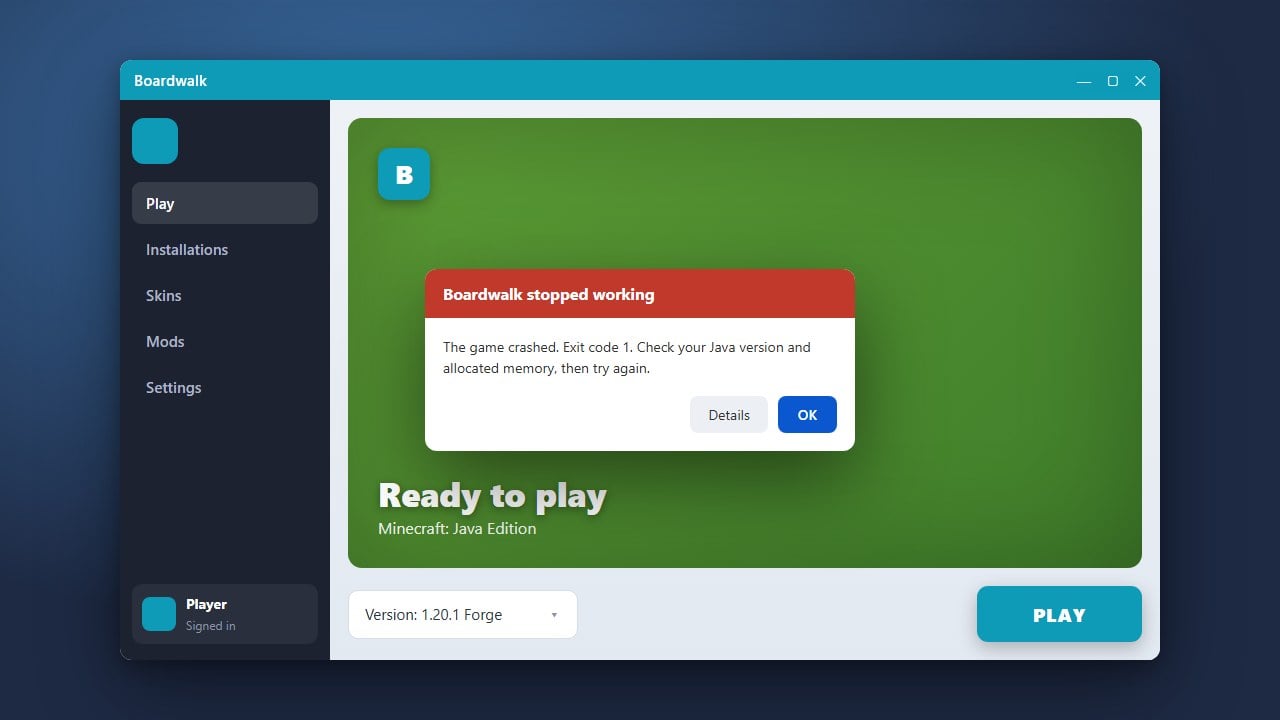
If you experience performance issues or crashes after switching versions, you can optimize your gameplay by following our guide on How to Allocate More RAM in Boardwalk.
Open Boardwalk on Your Device
Launch the Boardwalk app from your mobile device's home screen or app drawer. Wait for the application to load completely before attempting to modify any settings.
Navigate to the Settings or Profile Menu
Look for the settings icon, options menu, or profile manager on the main dashboard of the launcher. This section controls your game configurations, Java runtime parameters, and version profiles.
Select Your Desired Minecraft Version
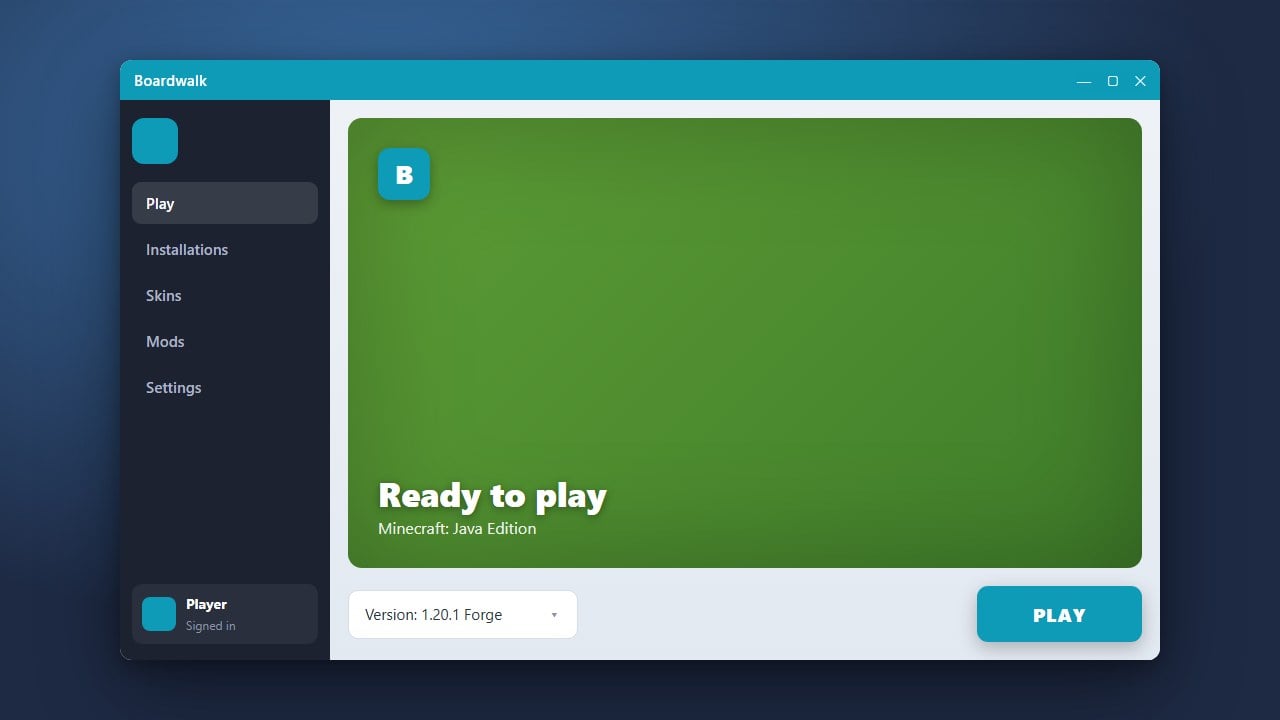
Find the version selection dropdown or list within your profile settings. Browse through the available Java Edition releases, snapshots, or modded loaders and tap the specific version you wish to use.
Save Your Changes and Launch the Game
Confirm your selection by saving the profile or settings changes. Click the play button to download and start your newly selected Minecraft version.
Frequently Asked Questions
Can I play Bedrock Edition using Boardwalk?
No. Boardwalk is designed specifically to run Minecraft Java Edition on mobile devices. Bedrock Edition is not supported by this launcher.
Why is Boardwalk failing to download my selected version?
Download failures usually happen due to an unstable internet connection or restricted storage permissions. Ensure your device is connected to Wi-Fi and has enough free space available.