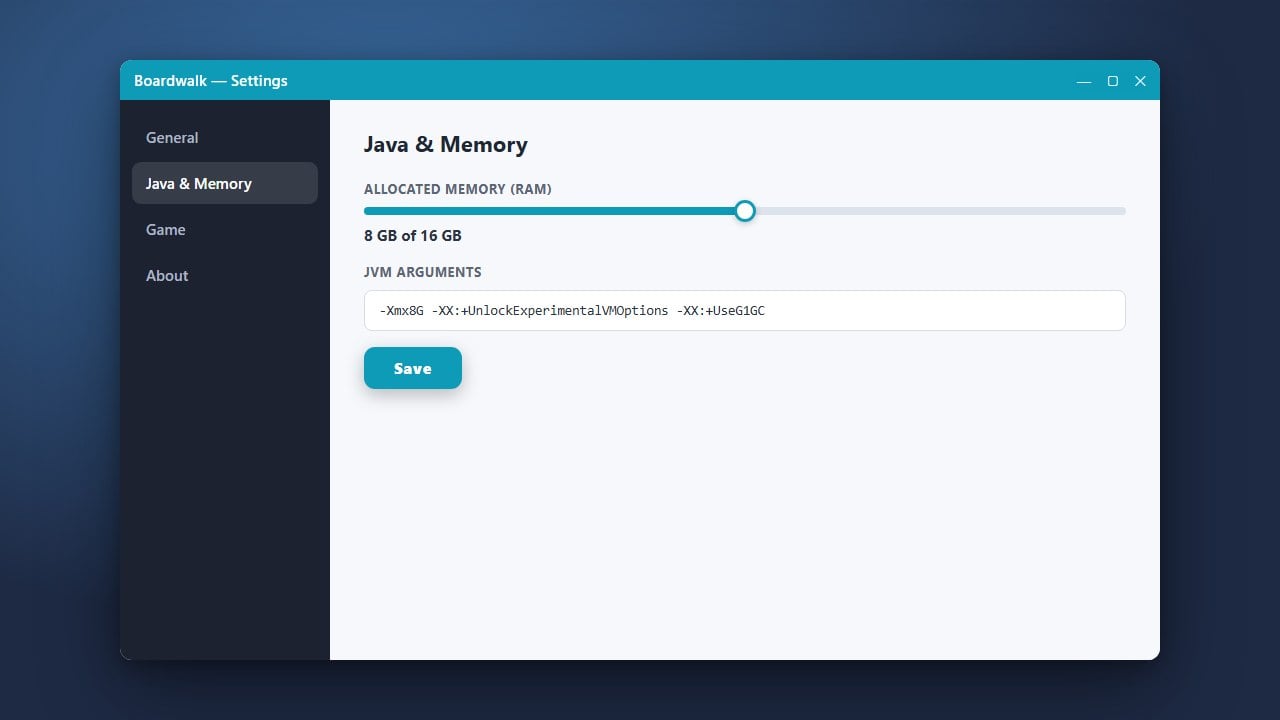
Allocating more RAM in Boardwalk can greatly improve your game's performance, especially if you are experiencing stuttering, crashes, or low frame rates while playing on your mobile device. Because Boardwalk runs Minecraft Java Edition on Android, managing your device's memory correctly is essential for a smooth experience. Before getting started, you can also check out our guide on How to Download and Install Boardwalk if you need help setting up the launcher.
Open the Boardwalk App
Start by unlocking your Android device and opening the Boardwalk launcher application from your app drawer. Ensure you are running the latest version of the app to prevent any configuration errors.
Navigate to Settings
Look for the settings menu or the gear icon located on the main dashboard of the Boardwalk launcher. Tap on it to open up your global launcher configurations and Java runtime preferences.
Locate the RAM Allocation Option
Scroll through the settings menu until you find the memory or RAM allocation slider. This option dictates how much of your mobile device's physical memory is dedicated to running the Java virtual machine for Minecraft.
Adjust Your Memory Limit
Drag the slider to your desired RAM amount, keeping in mind how much total memory your Android device has. Make sure to leave enough RAM for Android itself so your phone or tablet does not slow down or force-close the app.
Save and Launch Minecraft
Tap the save or confirm button to apply your new settings, then return to the main screen. You can now launch your game with the updated memory limits applied. If you want to tweak other aspects of your setup, take a look at How to Change the Minecraft Version in Boardwalk.
Frequently Asked Questions
How much RAM should I allocate in Boardwalk?
It depends on your device's total RAM. For most Android phones with 4GB to 6GB of total memory, allocating between 1GB and 2GB is usually safe and stable.
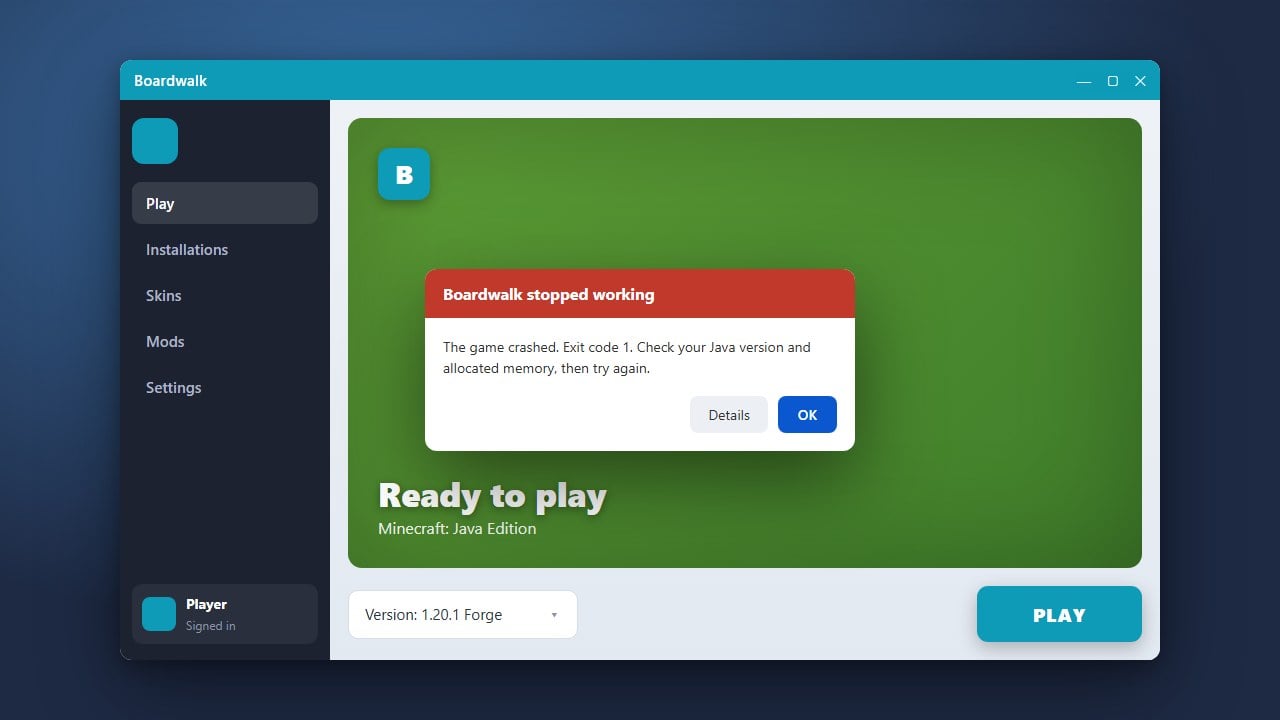
Why does Boardwalk crash when I increase the RAM?
If you assign more RAM than your mobile device has free, the system will immediately terminate the process. Lower your allocation slider to fix this issue.