LabyMod is a popular Minecraft client designed to enhance your gameplay with built-in voice chat, custom cosmetics, and performance optimizations. If you want to expand your experience even further, you can easily install your favorite community modifications directly into the client. Follow this guide to learn how to add mods to LabyMod for Minecraft Java Edition.
Open the LabyMod Settings
Launch your Minecraft game with LabyMod installed. Once you reach the main menu, click on the LabyMod button or open your game options to access the custom client configuration interface.
If you are new to the client, you might want to check out the guide on How to Download and Install LabyMod before proceeding with additional modifications.
Navigate to the Addons Menu
Inside the LabyMod interface, locate and click on the Addons tab. This is where LabyMod manages its internal ecosystem of features, utility tools, and official modifications.
You can browse through featured and community-made add-ons directly from this screen, or prepare the client to accept external files.
Access Your LabyMod Folder
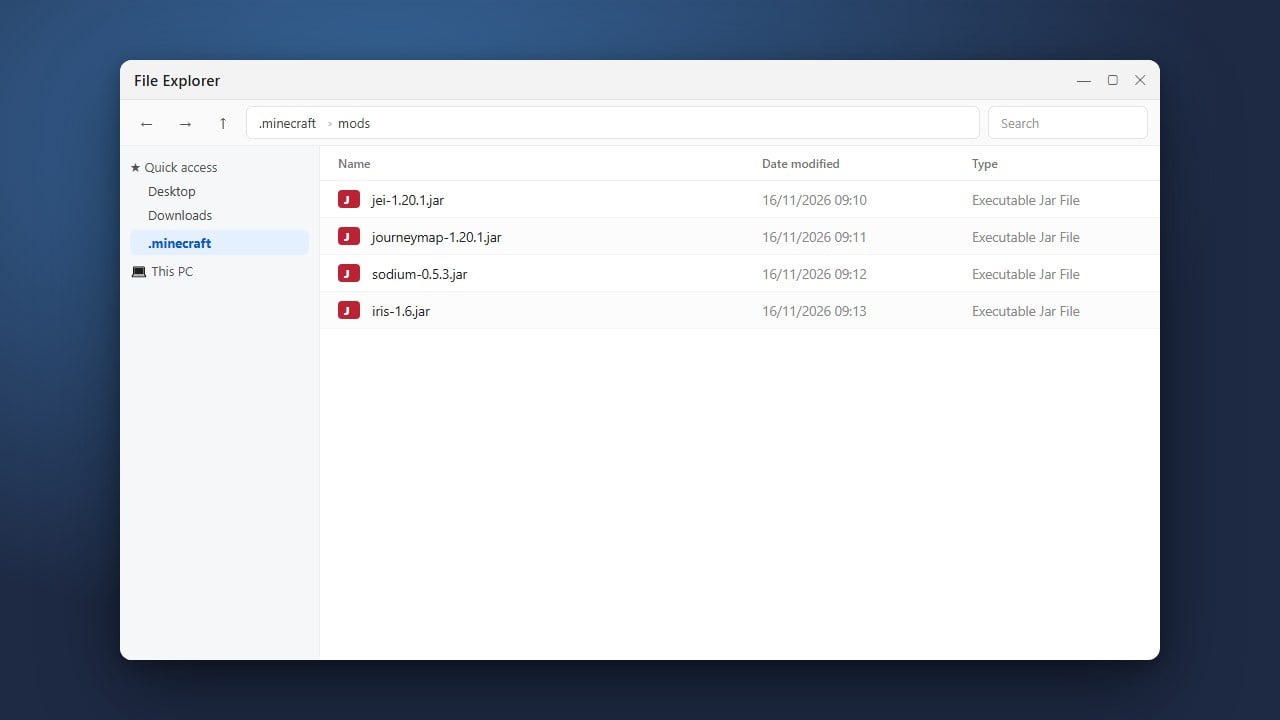
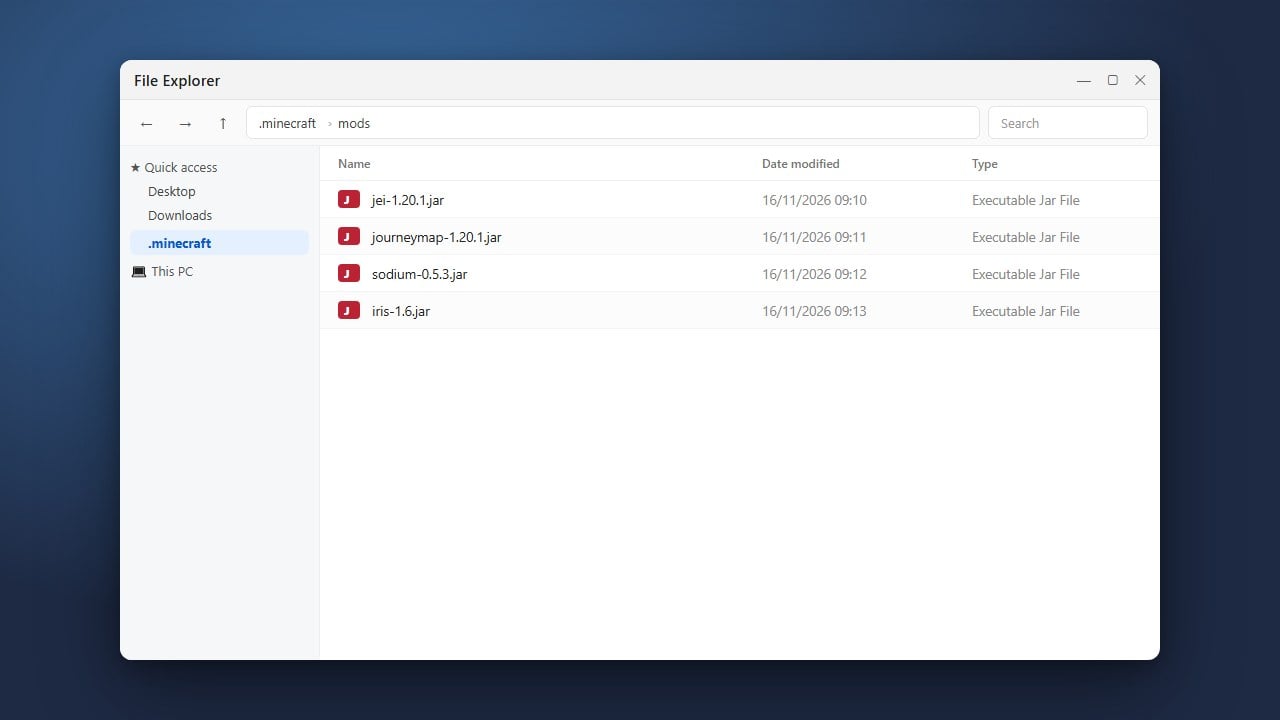
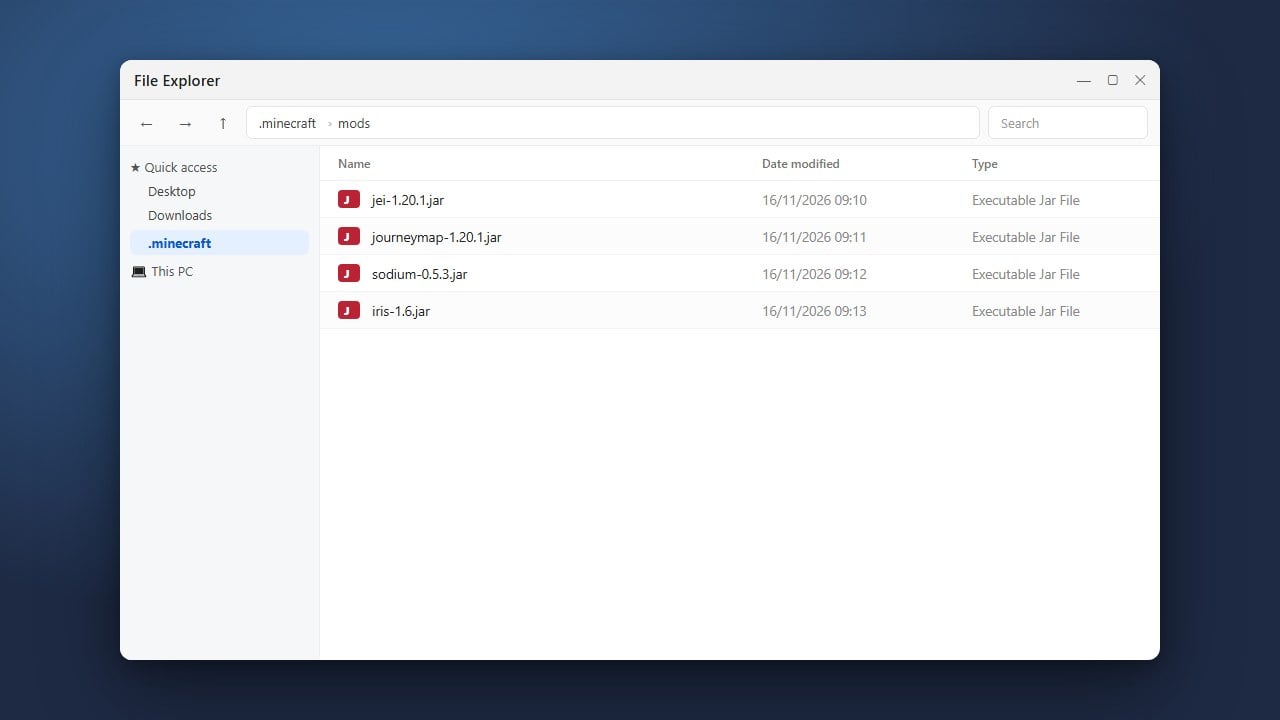
To install third-party mods, you will need to place them into your game directory. Open your operating system's file explorer and navigate to your Minecraft folder, then open the specific directory created for your LabyMod installation.
Alternatively, you can use the open folder shortcut found within the LabyMod settings menu to jump directly to the correct destination directory.
Place Your Mod Files
Download your desired .jar mod files from trusted sources that match your current Minecraft version. Drag and drop these files directly into the mods folder associated with your LabyMod installation.
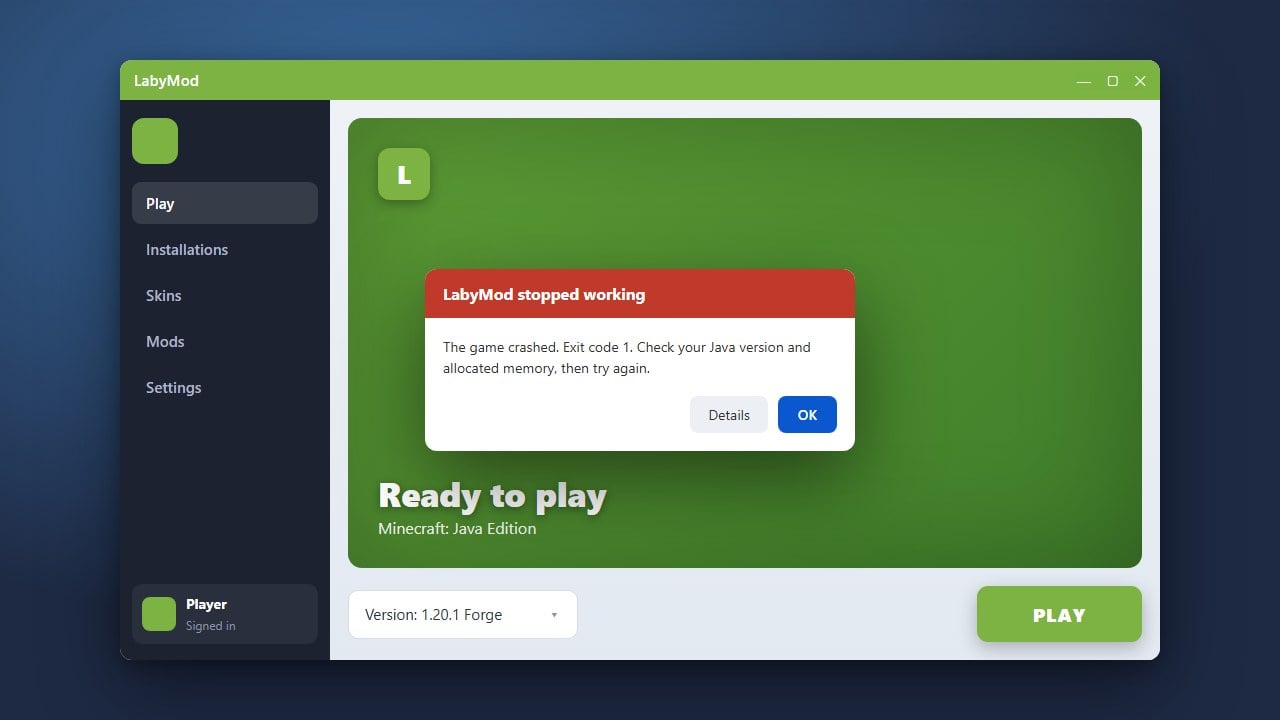
Make sure that any added modifications are compatible with LabyMod and do not conflict with its built-in features to prevent game crashes upon startup.
Restart Minecraft and Verify
Close your game completely if it was running, and then launch Minecraft again using your LabyMod profile. The client will automatically detect and load the new files you placed in the directory.
Once you load into a singleplayer world or multiplayer server, open your mod menu or check the LabyMod interface to ensure everything is running smoothly.
Frequently Asked Questions
Can I use Forge or Fabric mods with LabyMod?
LabyMod has its own internal system and supports its specific add-ons. Depending on the version you use, LabyMod can often be installed alongside Forge or Fabric loaders to run standard community mods seamlessly.
Where is the LabyMod folder located on Windows?
By default, you can find your Minecraft directory by pressing Windows Key + R, typing %appdata%\.minecraft, and hitting Enter. Look for the folder corresponding to your LabyMod profile or version installation.