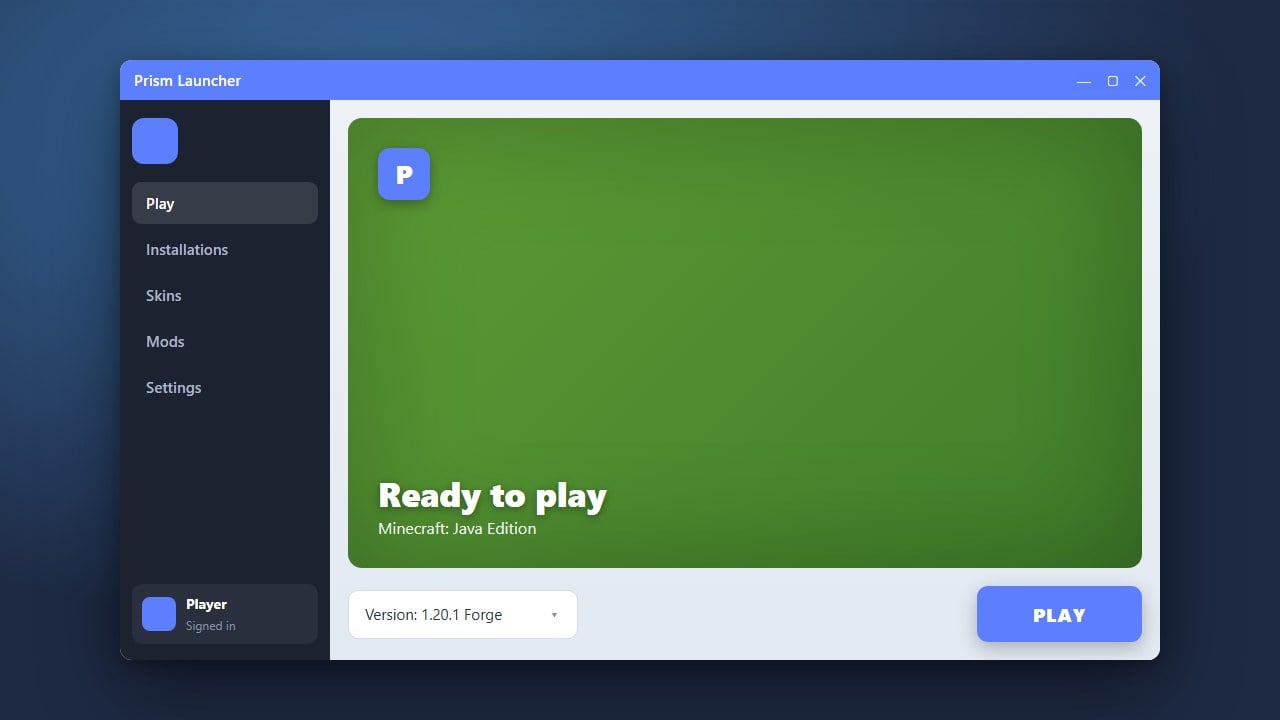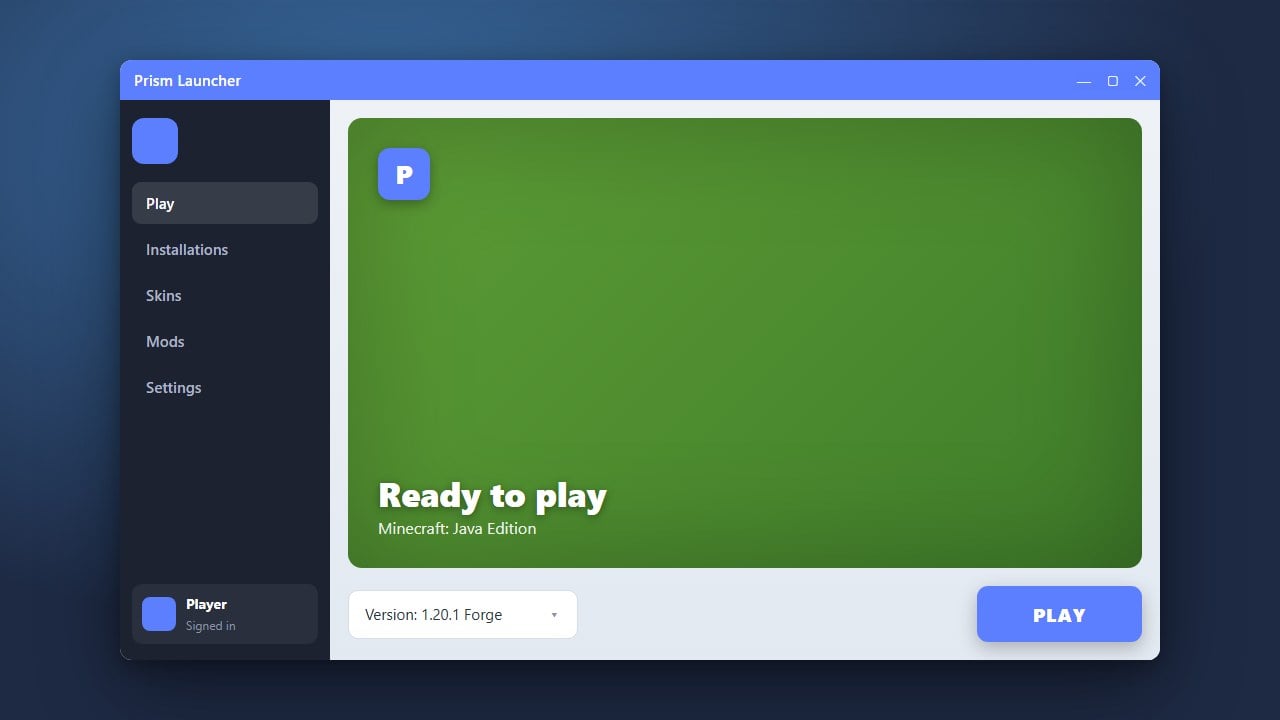
Prism Launcher is a powerful, open-source custom launcher for Minecraft Java Edition that lets you easily manage multiple instances, accounts, and mod loaders like Fabric and Forge. Please note that Prism Launcher requires a legitimate Minecraft account; make sure to purchase the official game from minecraft.net to play online and support the developers safely.
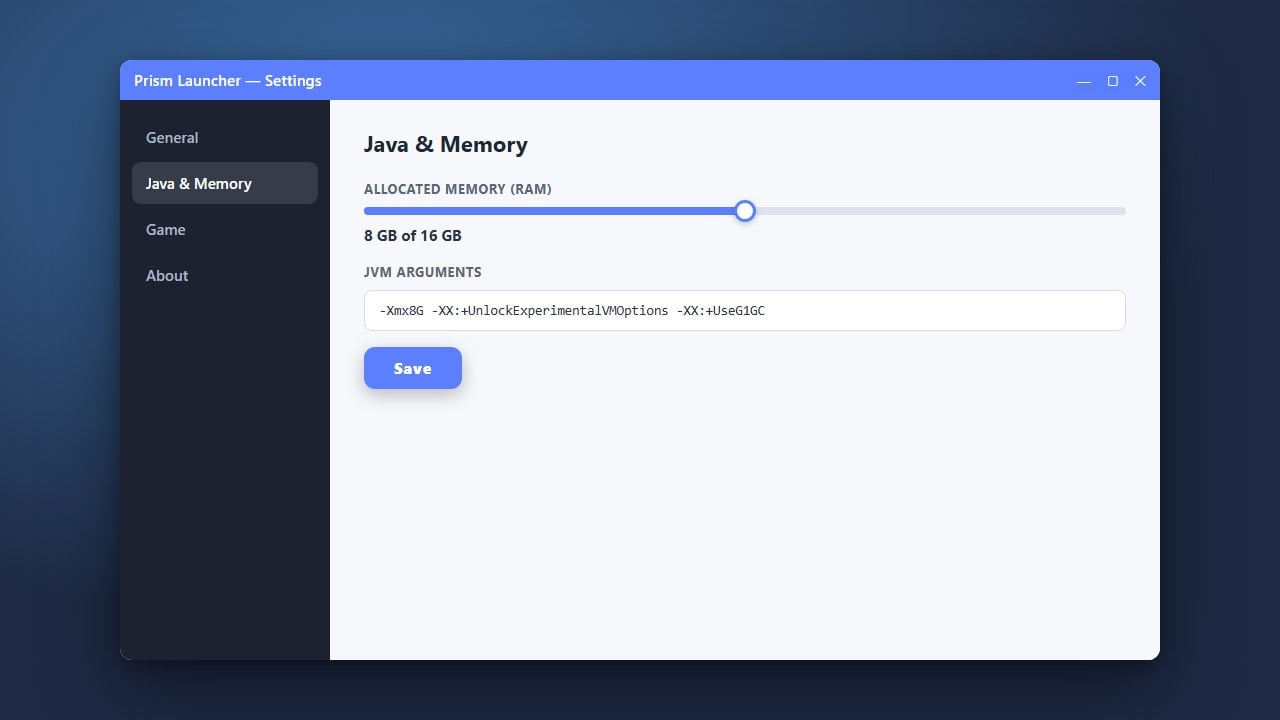
You can easily customize your allocated memory if you experience lag; check out our guide on How to Allocate More RAM in Prism Launcher to improve performance.
Always download Prism Launcher from its official repository or website to avoid malicious modified versions that could compromise your Microsoft account security.
Download and Install Prism Launcher
Go to the official Prism Launcher website and download the installer for your operating system (Windows, macOS, or Linux). Run the installer and follow the on-screen setup instructions to complete the installation on your computer.
Complete the Initial Setup Wizard
When you open Prism Launcher for the first time, a setup wizard will guide you through selecting your preferred language and detecting your Java installations. Prism Launcher requires a compatible Java version (such as Java 17 or Java 21 for recent Minecraft versions) to run the game correctly.
Add Your Minecraft Account
To play Minecraft, you must link your official Microsoft account. Click on the Manage Accounts button located on the top-right corner of the Prism Launcher window, then select Add Microsoft and follow the secure login prompts in your web browser.
Create a New Instance
Click the Add Instance button in the top left. Choose your desired Minecraft Java Edition version, and optionally select a mod loader like Fabric, Forge, or Quilt if you plan on modding. Give your instance a name and click OK to create it.
Launch and Play Minecraft
Double-click your newly created instance in the Prism Launcher list, or select it and click the Launch button on the right panel. The launcher will automatically download the necessary game files and start Minecraft for you.
Frequently Asked Questions
Is Prism Launcher free to use?
Yes, Prism Launcher is completely free and open-source software. However, it does not include a free copy of Minecraft, so you must own a legal account purchased from minecraft.net.
Can I install mods directly through Prism Launcher?
Yes! You can edit any instance in Prism Launcher, click on the 'Edit' or 'Loader' tabs, and directly browse and install mods from Modrinth and CurseForge.