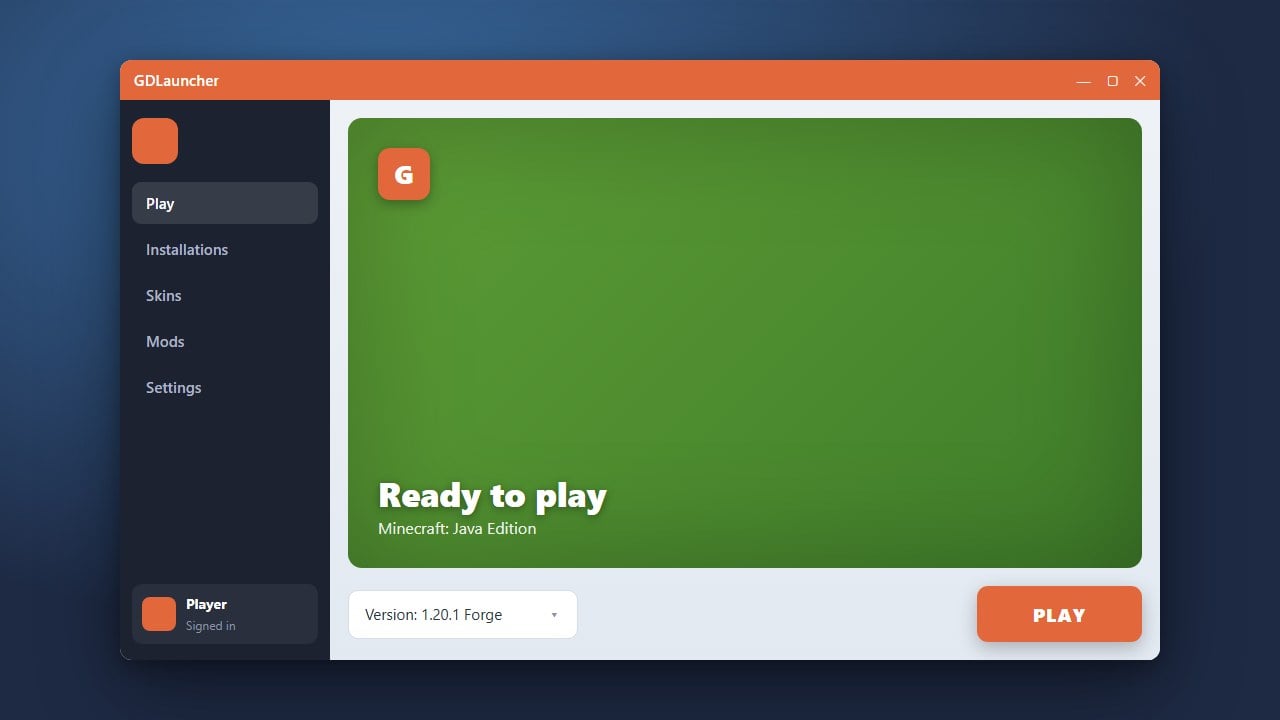
GDLauncher is a powerful, modern custom launcher for Minecraft Java Edition that makes managing multiple modpacks, versions, and loaders exceptionally easy. Please note that custom launchers require a legitimate Java Edition account; to play the full game legally, remember to purchase your official copy from minecraft.net.
Always download GDLauncher from its official source to avoid malicious modified versions that could compromise your Microsoft account security.
You can easily import existing modpacks exported from CurseForge or Modrinth directly into GDLauncher by using the drag-and-drop feature.
Download and Install GDLauncher
Head over to the official GDLauncher website to download the installer for your operating system (Windows, macOS, or Linux). Run the installer and follow the on-screen setup prompts to finish installing the application on your computer.
Log In with Your Microsoft Account
Open GDLauncher and link your official Minecraft Java Edition account. Click on the account management section to log in securely using your Microsoft credentials, verifying that you own a genuine copy of the game.
Create a New Instance
Click the plus button in the launcher to create a new instance (profile). Select your preferred Minecraft version, and optionally choose a mod loader like Forge or Fabric right from the creation menu. If you need step-by-step instructions for mod loaders, check out our guide on How to Install Forge and Fabric with GDLauncher.
Manage Mods and Addons
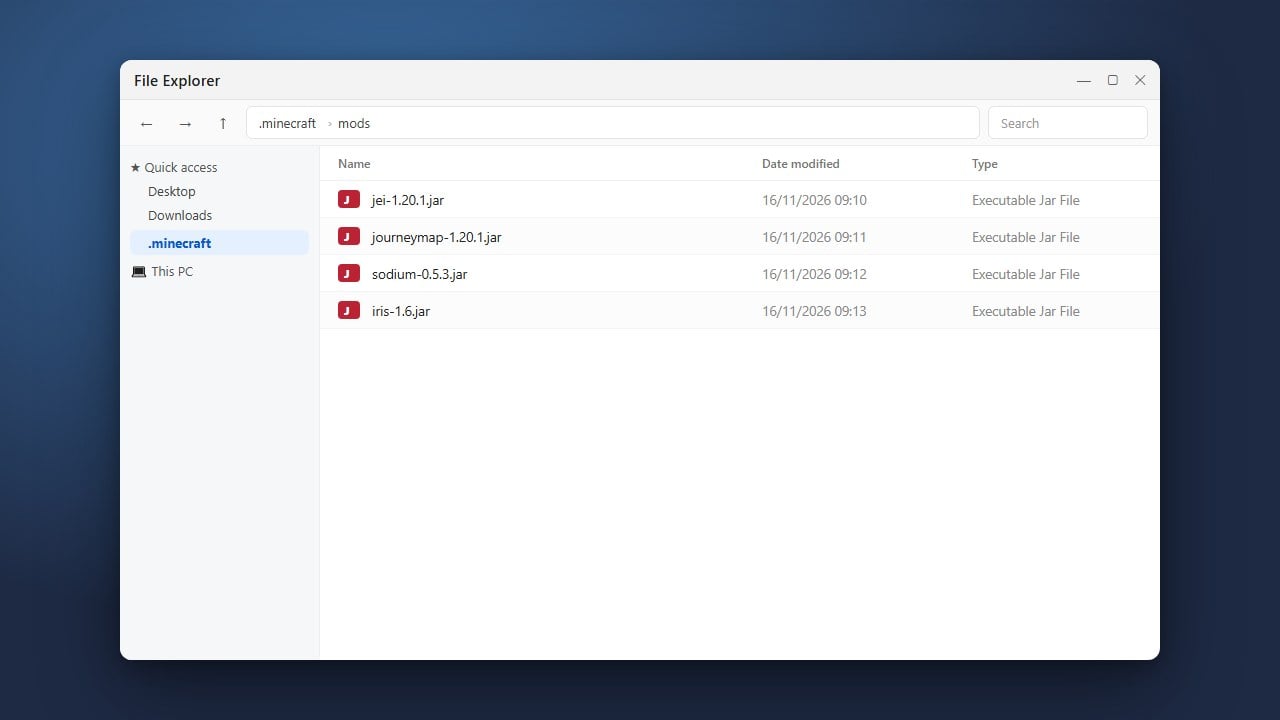
Once your instance is created, click on it and navigate to the Addons or Mods tab. From here, you can directly browse and install your favorite CurseForge and Modrinth mods without having to download .jar files manually.
Configure RAM and Settings
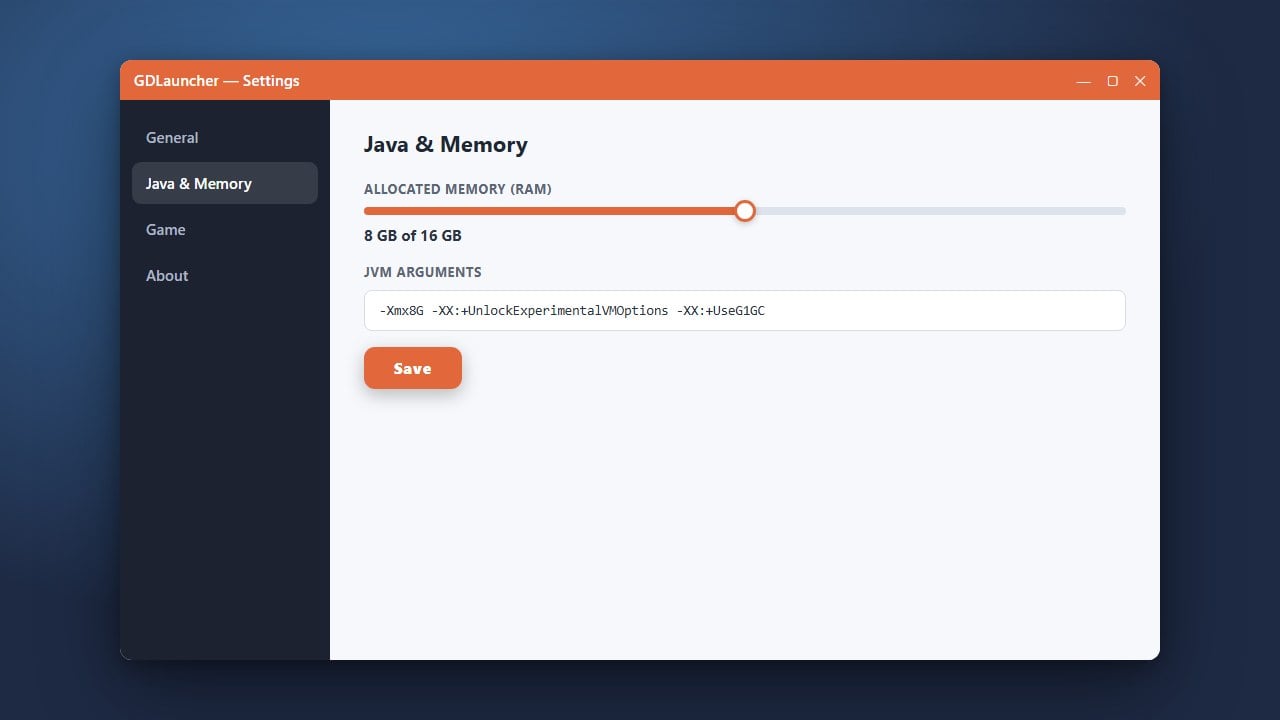
If your game feels laggy or crashes, you may need to adjust your memory allocation. For detailed steps on optimizing performance, read our guide on How to Allocate More RAM in GDLauncher. You can also customize Java paths and window resolutions in the global settings.
Launch and Play Minecraft
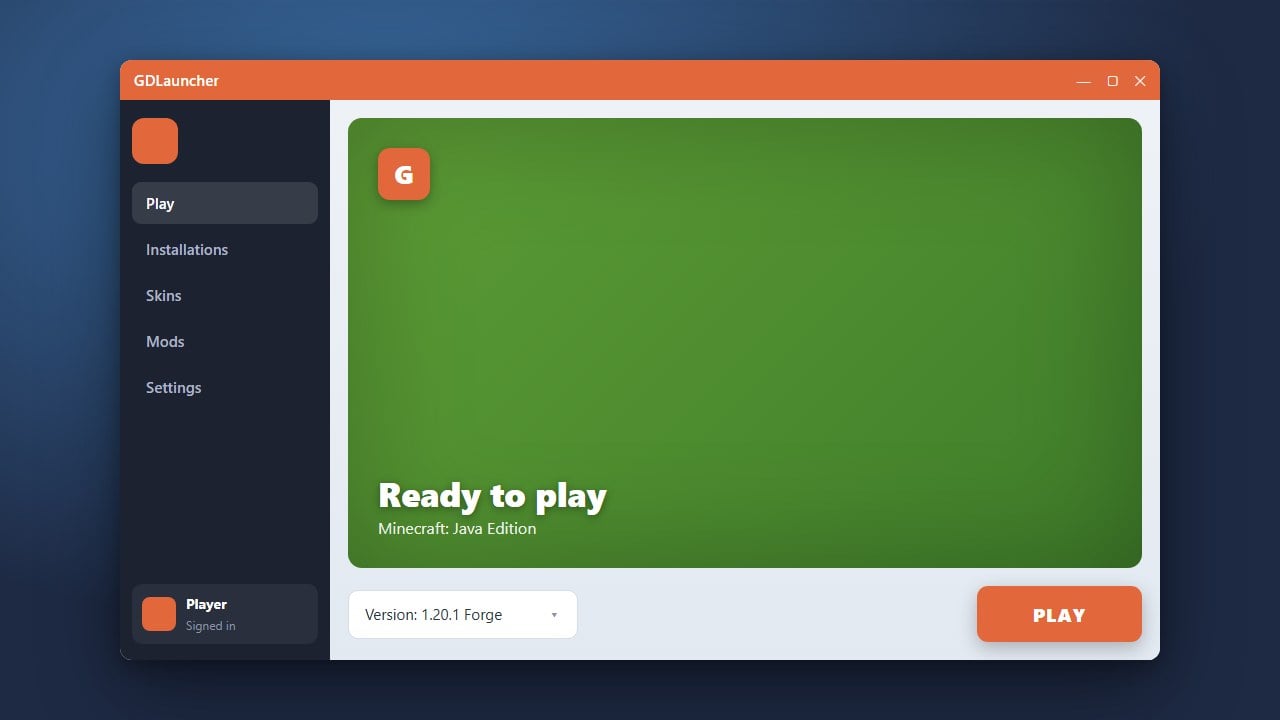
Return to the main instances screen and click the Play button on your configured profile. GDLauncher will automatically handle asset downloads and start your customized Minecraft experience.
Frequently Asked Questions
Is GDLauncher free to use?
Yes, the launcher application itself is completely free and open-source. However, you must own a legal, paid Minecraft Java Edition account to log in and play.
Can I play Bedrock Edition using GDLauncher?
No, GDLauncher is exclusively built for Minecraft Java Edition. It does not support Bedrock Edition.