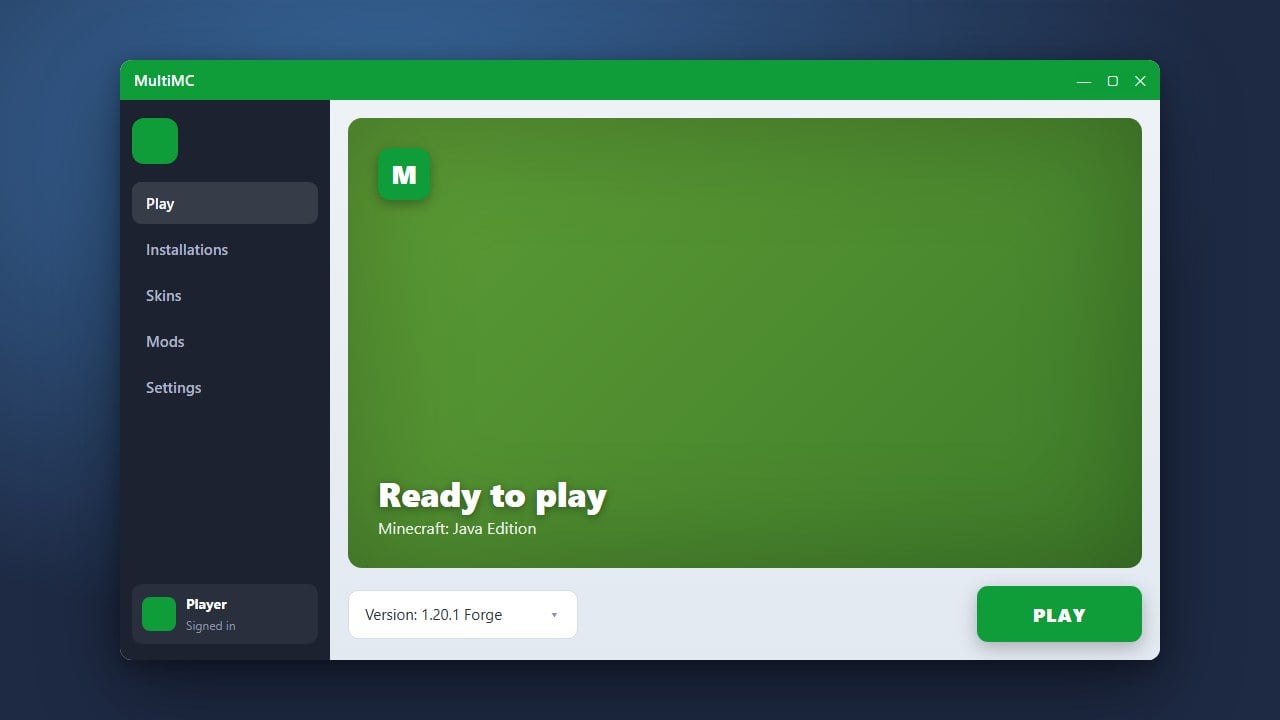
MultiMC is a fantastic, open-source custom launcher for Minecraft Java Edition that lets you manage multiple instances, versions, and mod loaders with ease. Before you begin, please ensure you own a legal copy of the game by purchasing it from minecraft.net, as MultiMC requires a genuine Microsoft/Minecraft account to log in and play securely.
Always double-check that your mods match the exact major version of Minecraft you are playing, as 1.20 mods will generally not work on 1.21 without updates.
Only download mods from official, trusted sources like CurseForge and Modrinth to protect your PC from malicious files and adware.
Create a New Instance
Open MultiMC and click on the Add Instance button in the top left corner. Select your desired Minecraft version and, if you plan on using mods, choose your preferred mod loader such as Fabric or Forge from the available options.
Give your new instance a recognizable name and click OK to create it in your main dashboard.
Open the Instance Folder
Click once on your newly created Minecraft instance to highlight it. On the right-hand sidebar, click the Edit Instance button to open the configuration menu for that specific game profile.
From the sidebar of the new window, click on the Loader Mods tab if you are using Fabric, or check the version page to locate your mod directory.
Download Your Desired Mods
Visit trusted websites like Modrinth or CurseForge to find compatible mods for your specific Minecraft version and mod loader. Download the .jar files directly to your computer, making sure you also grab any necessary library dependencies or APIs.
Keep your downloaded mod files in an easily accessible folder, such as your desktop or downloads directory.
Add Mods to MultiMC
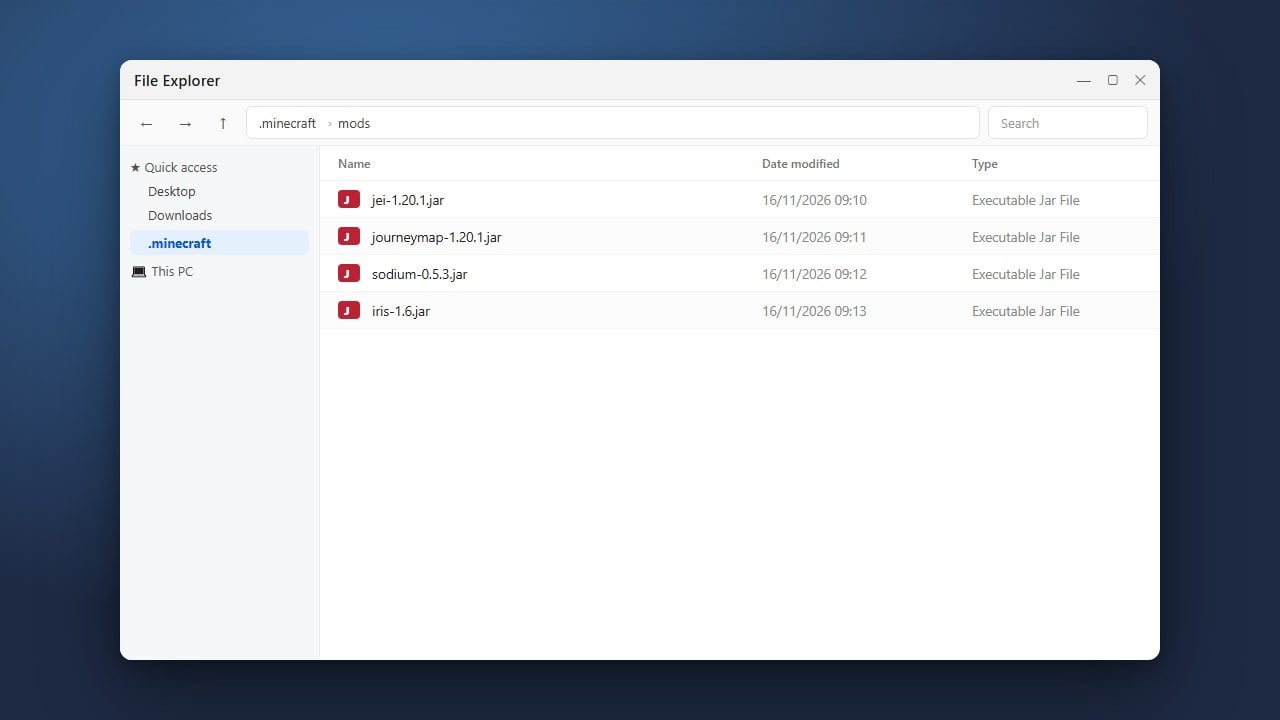
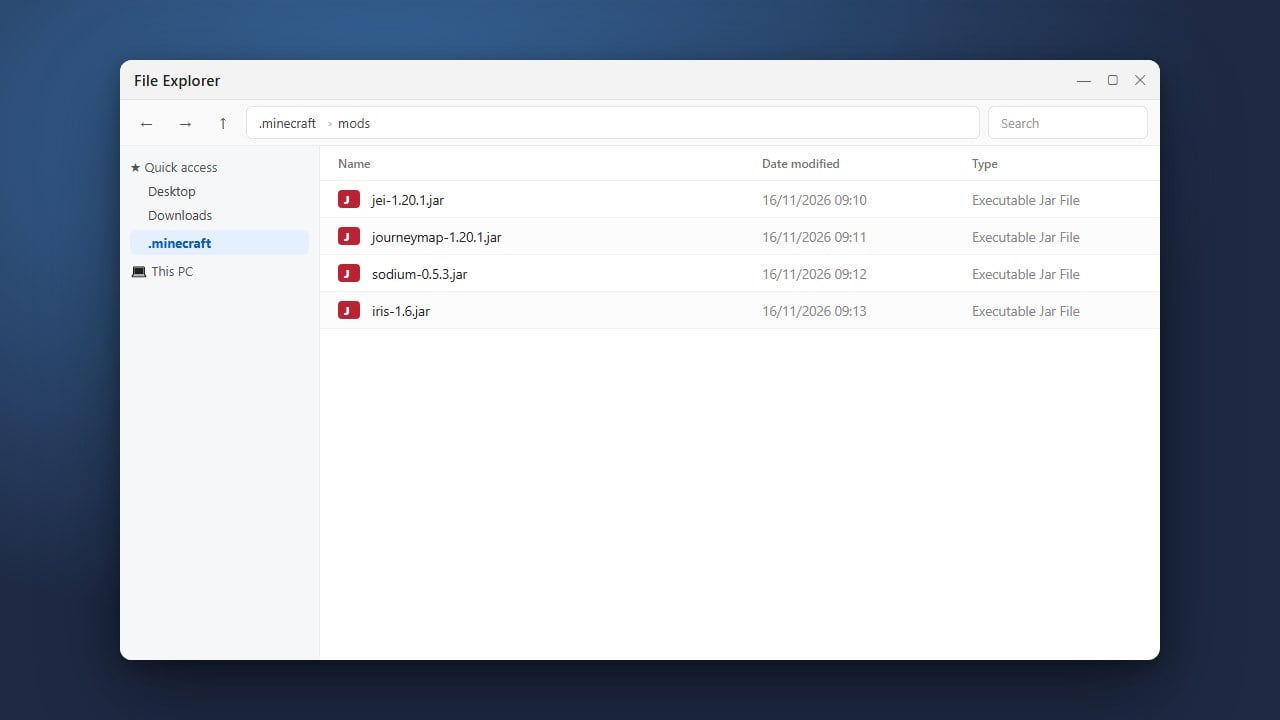
In the MultiMC instance edit window under the Loader Mods tab, click the Add files button on the right side. Alternatively, you can simply drag and drop your downloaded .jar mod files directly into the mod list area.
Ensure that all added mods appear checked and enabled in the list before closing the configuration window.
Launch the Game
Double-click your configured instance in the main MultiMC window to start the game. MultiMC will automatically boot up Minecraft with your newly installed mods active and ready to play.
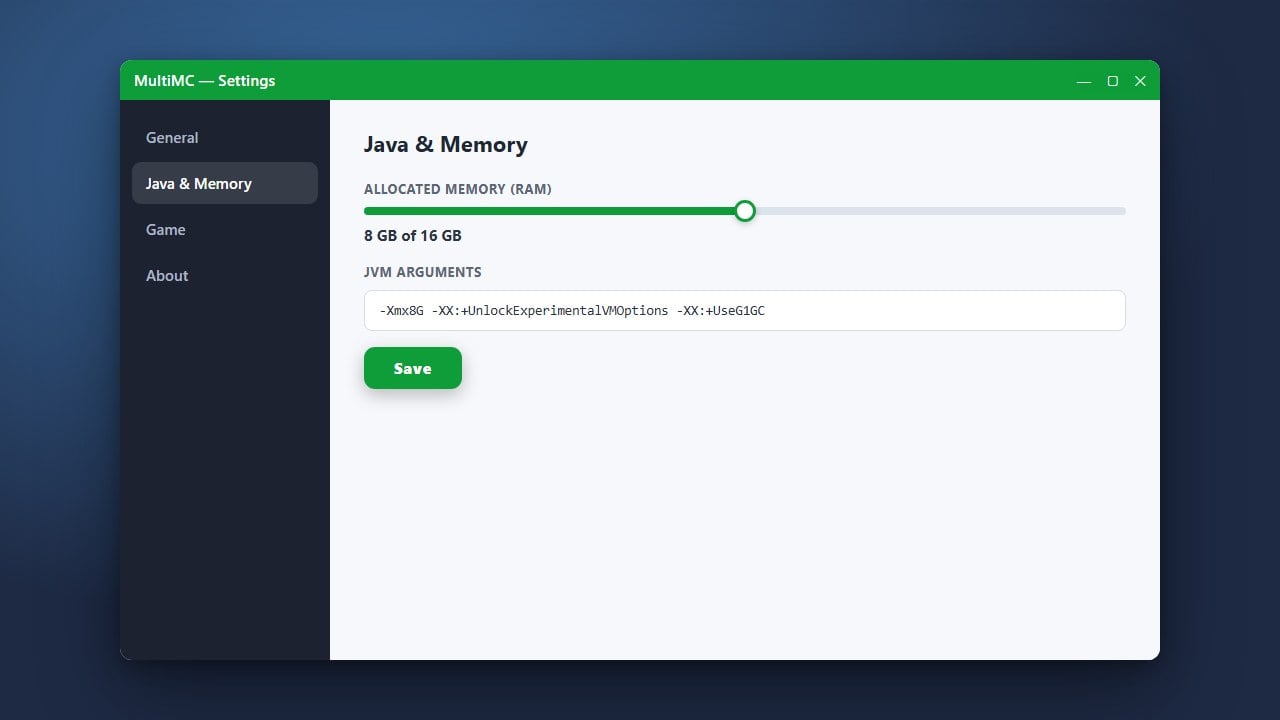
If you ever need to adjust your performance settings, you can check out our guide on how to allocate more RAM in MultiMC to ensure smooth gameplay.
Frequently Asked Questions
Do I need a Minecraft account to use MultiMC?
Yes. MultiMC requires you to log in with your official Microsoft account to authenticate and download game files legally from Mojang's servers.
Can I install both Forge and Fabric mods in the same instance?
No. Forge and Fabric are separate mod loaders and cannot run together in the same instance. You must create separate instances for each loader.