Installing mods for Minecraft Java Edition is quick and easy when you use a dedicated launcher. The CurseForge App lets you search, download, and manage individual mods and massive modpacks in just a few clicks. Please ensure you purchase and play the official game through minecraft.net, as third-party modding tools require a legitimate Mojang or Microsoft account to connect to official multiplayer servers.
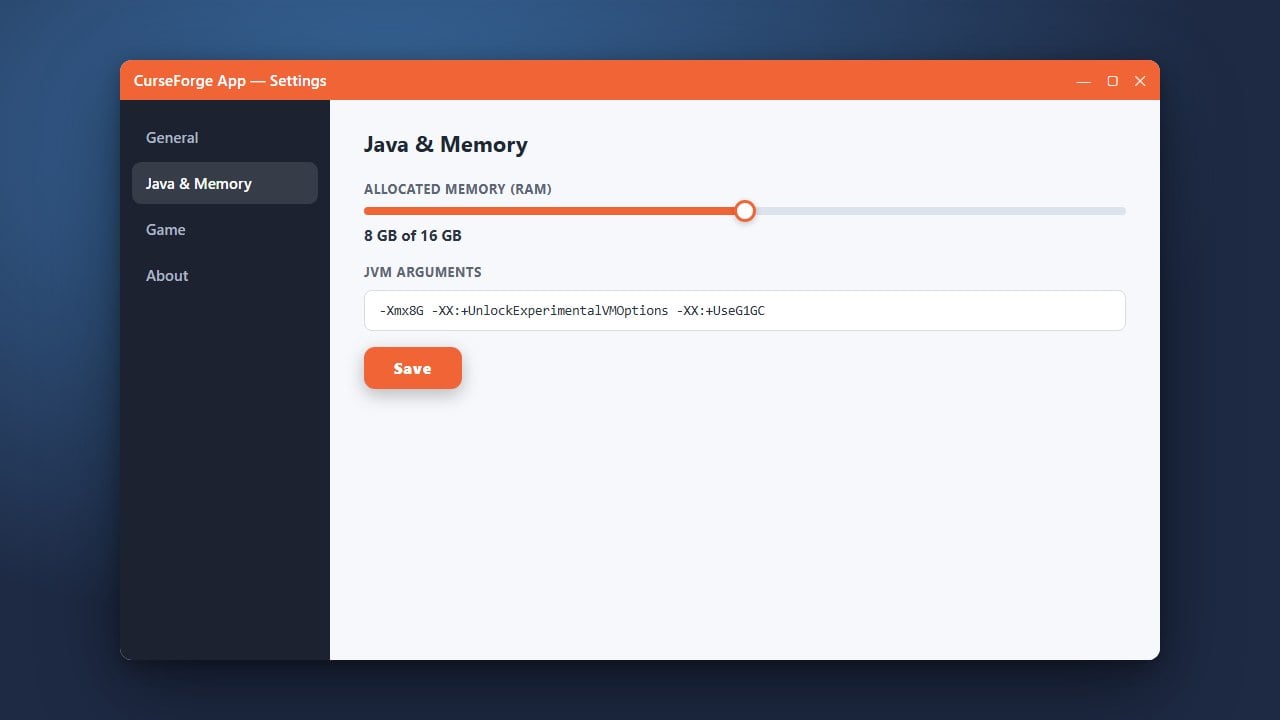
If your game runs slowly or crashes with a memory error, check out our guide on How to Allocate More RAM in CurseForge App to give your mods more breathing room.
CurseForge is a legitimate platform owned by Overwolf. While the app is safe to use, it does run background processes, so you can adjust your app settings to close CurseForge automatically when Minecraft launches if you want to save system resources.
Download and Open the CurseForge App
Head over to the official CurseForge website and download the desktop application for Windows or macOS. Once the installer finishes downloading, run it and follow the on-screen prompts to complete the setup on your computer.
Launch the application and select Minecraft from the list of supported games on your dashboard to begin setting up your modded profiles.
Create a New Custom Profile
Click on the Minecraft tile inside the CurseForge App, then look for the Create Custom Profile button in the top right corner. This creates an isolated game directory so your mods won't interfere with your vanilla worlds.
Give your profile a name, choose your preferred Minecraft Java Edition version, and select your modloader (such as Forge or Fabric). Click Create to generate your new custom instance.
Browse and Add Mods
Click on your newly created profile tile to open its management screen, then click Add More Content (or the puzzle piece icon depending on your app version). This opens the integrated CurseForge mod browser.
Search for your favorite mods using the search bar. When you find a mod you want to play, click the Install button next to it. The app will automatically handle all necessary mod dependencies and version compatibility for you.
Launch and Play Minecraft
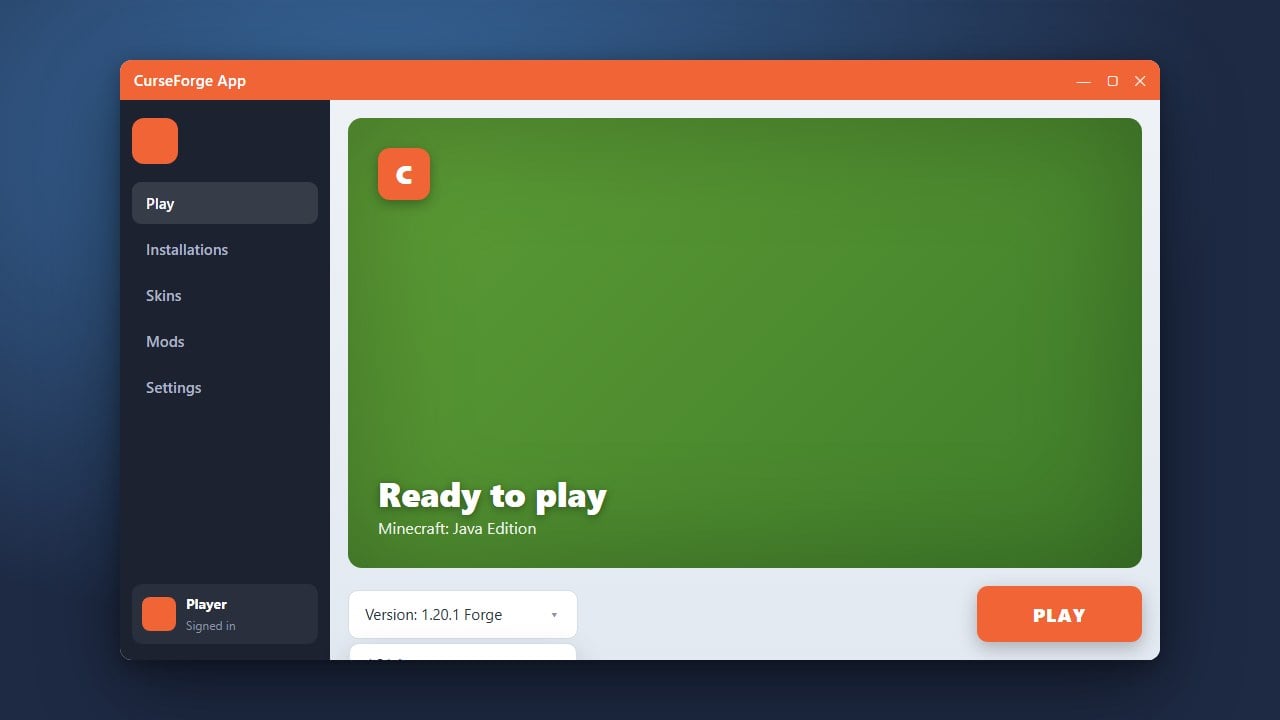
Once you have finished adding all the mods you want, return to your profile overview screen. Click the big orange Play button located at the top right.
The CurseForge App will safely launch the official Minecraft Launcher with your custom mod profile pre-selected. Log in with your legitimate Microsoft account and click play to start your modded adventure!
Frequently Asked Questions
Do I need to own Minecraft to use the CurseForge App?
Yes. The CurseForge App is purely a management tool for Java Edition mods. You must own a legitimate copy of Minecraft purchased from minecraft.net to log in and play.
Can I add manual .jar mod files into CurseForge?
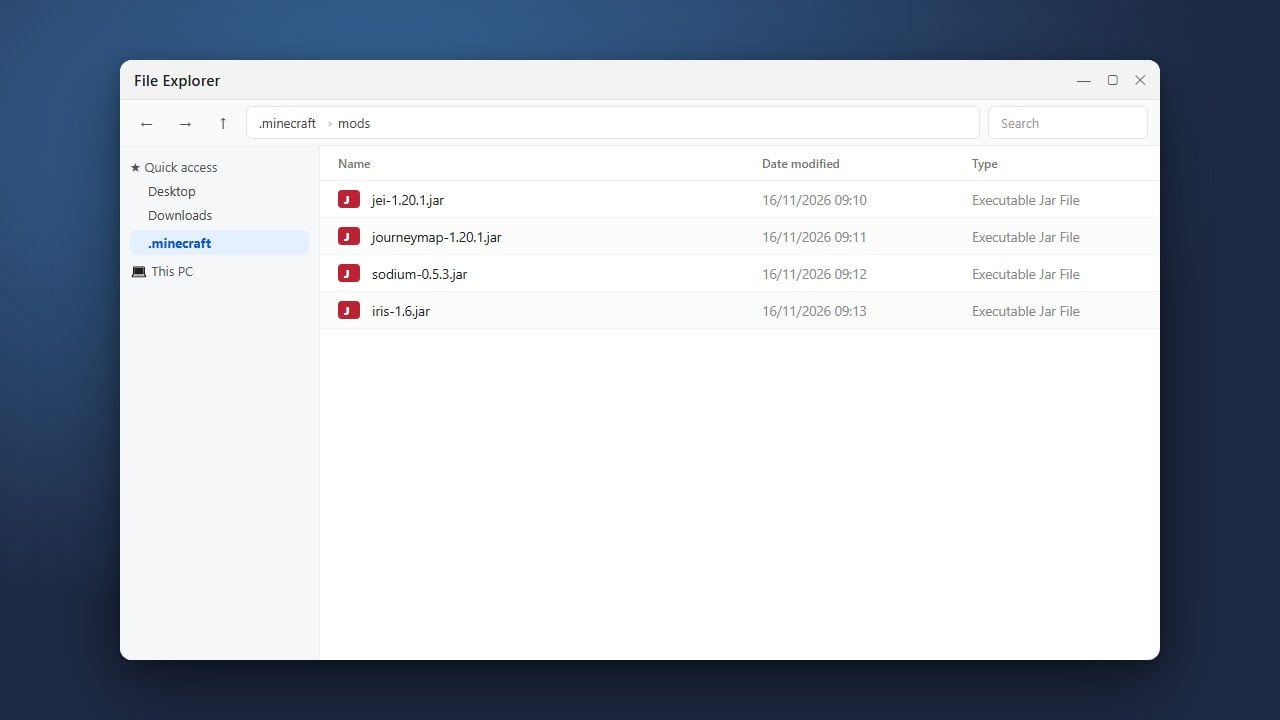
Yes! You can click the three dots next to your profile, select Open Folder, open the mods folder, and drop any downloaded .jar files directly inside.