Troubleshooting SKlauncher when it refuses to open can be frustrating, but most launch issues stem from outdated Java versions, incorrect memory settings, or corrupted configuration files. If you are looking for ways to configure your setup, you can also check our guide on How to Allocate More RAM in SKlauncher for performance adjustments.
Update Java
SKlauncher requires a compatible Java Runtime Environment to execute properly on your system. Modern versions of Minecraft Java Edition require Java 21 to run smoothly, so ensure you have the correct development kit installed.
Download and install the latest Java 21 runtime from a trusted provider such as Eclipse Temurin or Oracle, then restart your computer before attempting to launch the launcher again.
Run as Administrator
Permission issues can prevent SKlauncher from creating necessary configuration files or accessing system directories. Right-click the SKlauncher executable file or shortcut.
Select Run as administrator from the context menu. If a User Account Control prompt appears asking for permission to make changes, click Yes to allow it.
Adjust or Fix RAM Allocation
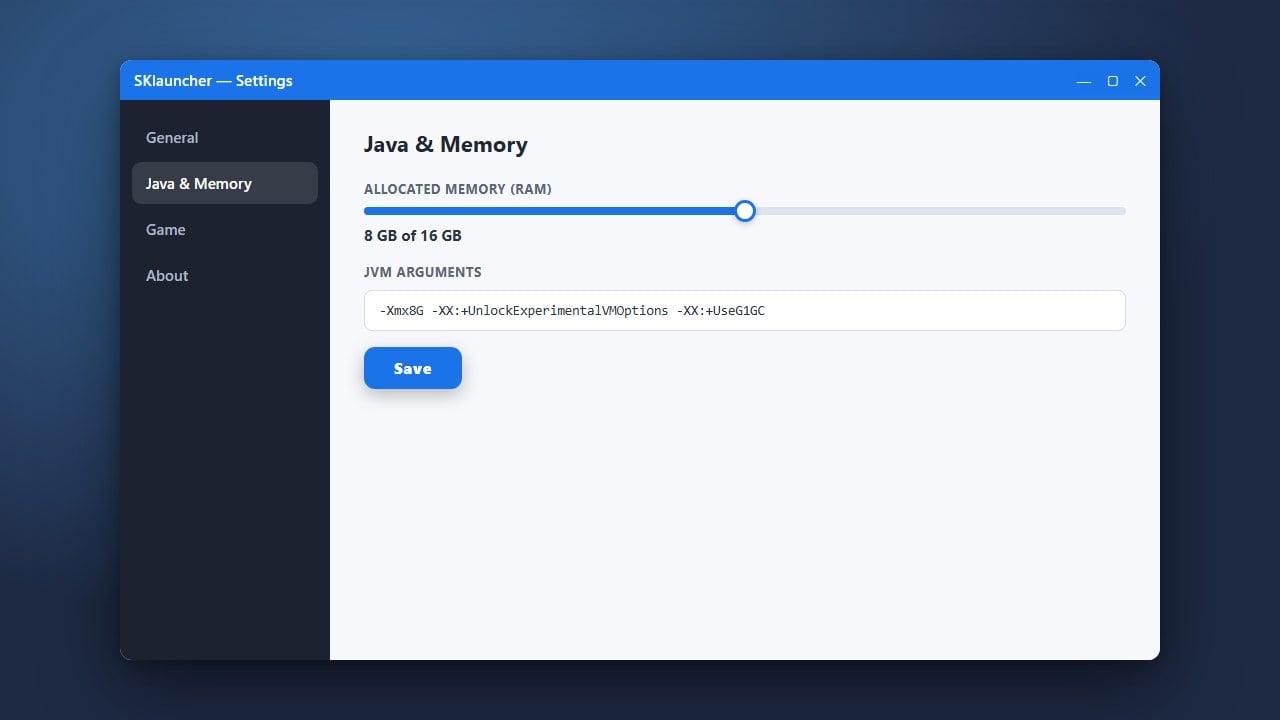
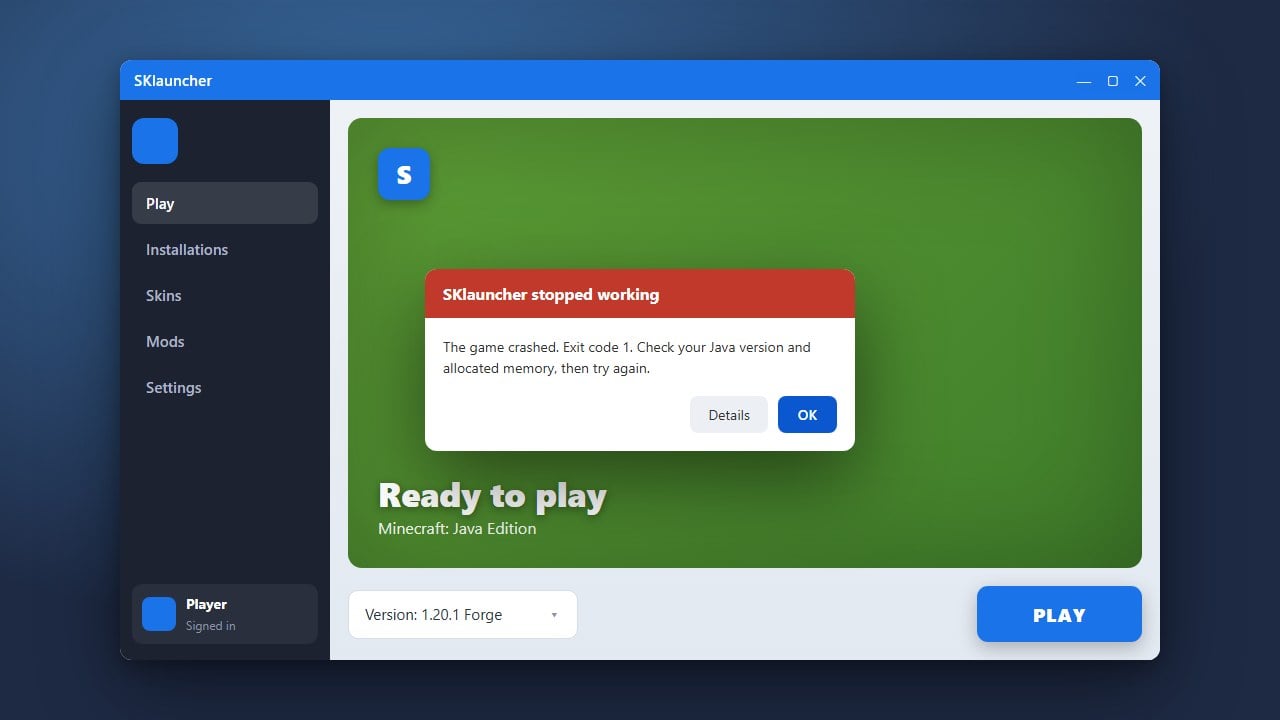
Insufficient or improperly configured memory allocation can cause the launcher or the game instance to crash instantly upon startup. If you assigned too much RAM or left it too low, it can prevent startup.
Open your launcher profile settings, lower the maximum RAM allocation to a reasonable amount (such as 2GB or 4GB depending on your system), and save the changes before relaunching.
Clear Corrupted Cache and Files
Damaged temporary files or corrupted profile configurations frequently cause startup loops and application freezes. Navigate to your user data folder by typing %appdata% in the Windows Run dialog.
Locate the folder associated with SKlauncher, back up any important worlds or mods if necessary, and delete the cache or configuration files to force the launcher to generate fresh, uncorrupted files.
Perform a Clean Reinstallation
If core application files are missing or damaged beyond repair, completely removing and reinstalling the program is the most reliable solution. Uninstall SKlauncher through your operating system settings.
Download the latest official installer package from the verified source, ensure your antivirus software is not mistakenly flagging or blocking the installation, and set up your account profile again.
Frequently Asked Questions
Why does SKlauncher close immediately after opening?
This is usually caused by an outdated Java installation, missing dependencies, or a conflict with your computer's graphics drivers. Updating Java and running the application as an administrator usually resolves the issue.
Is SKlauncher safe to use?
While many players use third-party launchers, downloading modified or unofficial clients always carries inherent security and privacy risks. For the safest and most reliable experience, it is always recommended to use the official Minecraft Launcher purchased directly from minecraft.net.