Changing your Minecraft version in SKlauncher is quick and easy, allowing you to play older updates, snapshot releases, or the latest Java Edition 1.21+ features. Whether you want to play nostalgic worlds or test out new snapshots, this guide will show you how to manage your game versions in just a few clicks.
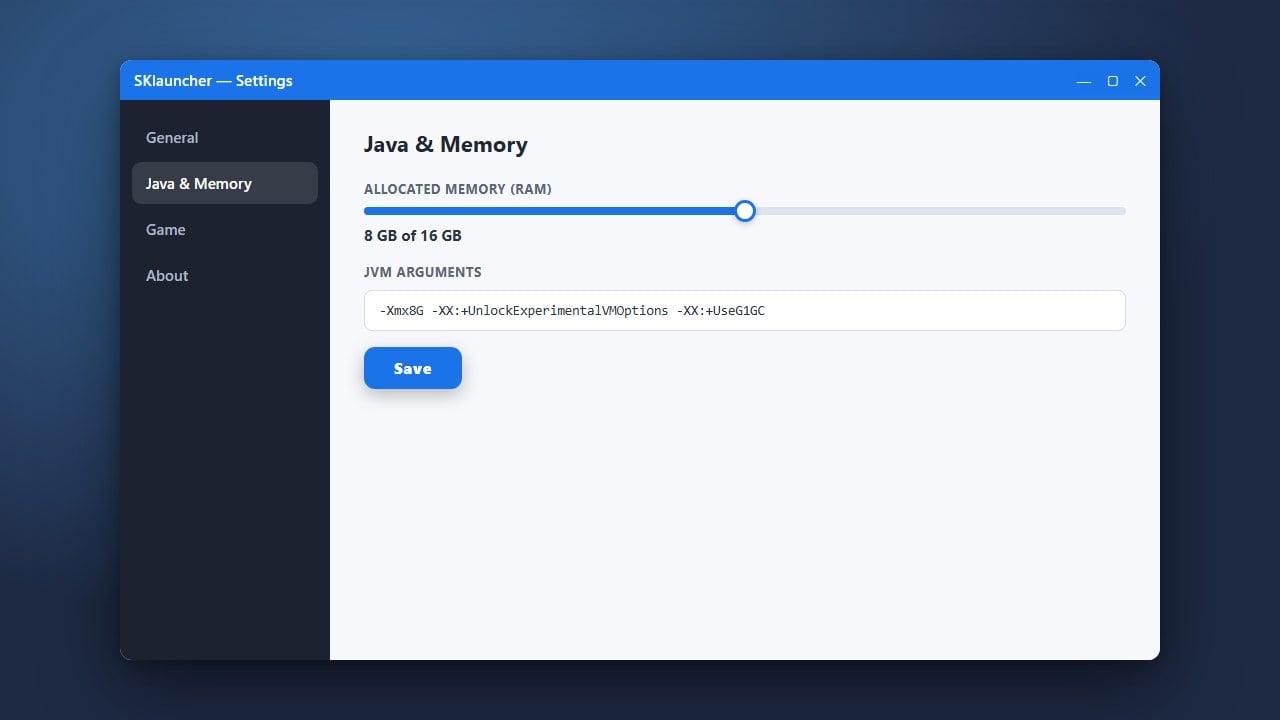
If you want to play with custom tweaks or mods on your chosen version, you might also want to check out How to Allocate More RAM in SKlauncher to ensure smooth performance.
Open SKlauncher
Start by launching SKlauncher on your computer. Make sure you are logged into your account and that the application is fully updated to the latest version.
Navigate to the Profiles Tab
Once the launcher dashboard opens, look at the top menu bar and click on the Profiles tab. This section manages all your custom game setups, installations, and version configurations.
Create or Edit a Profile
To change your version, you can either click on an existing profile to edit it or click the New Profile button to create a fresh installation dedicated to a specific version of Minecraft Java Edition.
Select Your Desired Version
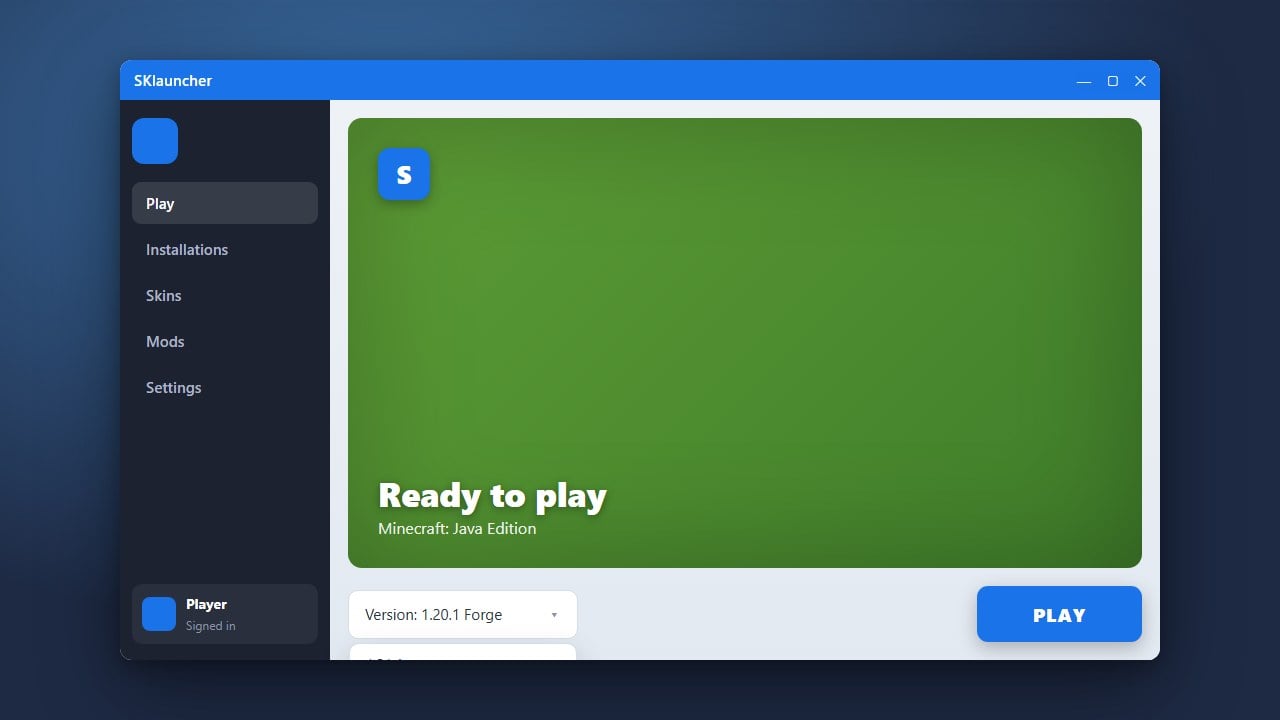
In the profile settings window, locate the Version dropdown menu. Scroll through the list and select the exact Minecraft version you want to play, ranging from old releases up to the newest updates.
Save and Launch the Game
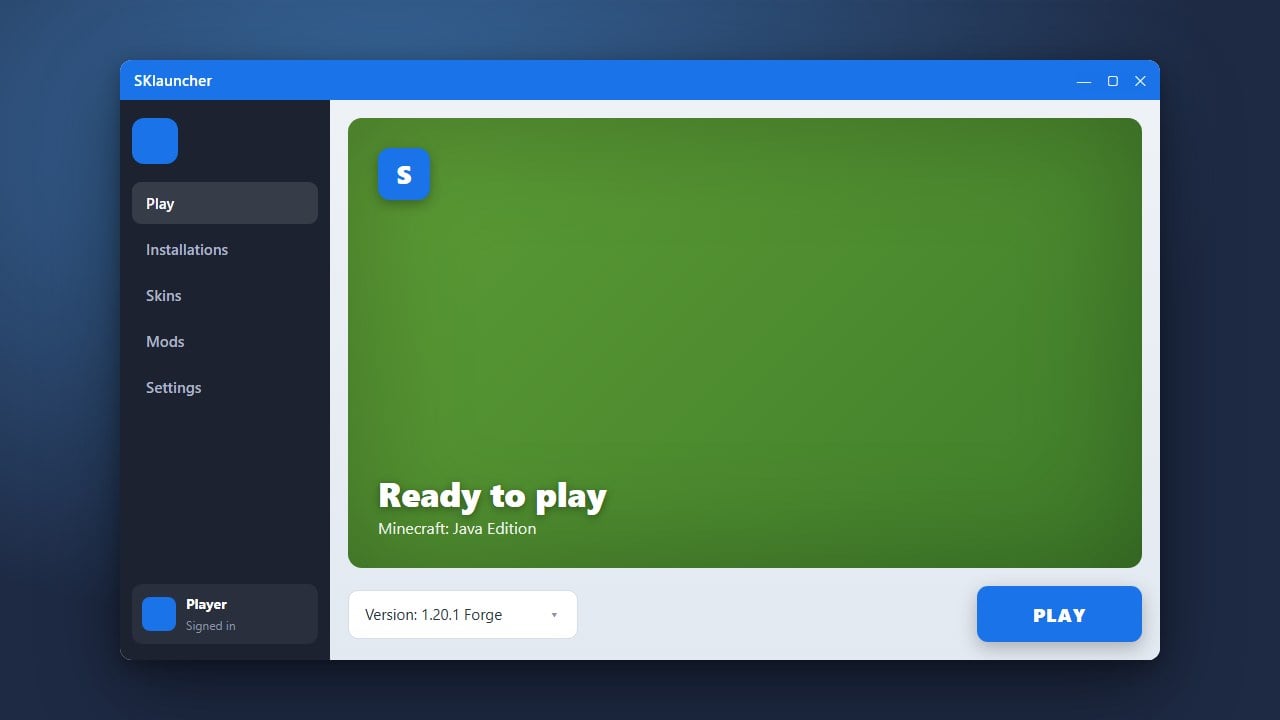
Click the Save button to confirm your changes. Return to the main game tab, select your updated profile from the dropdown menu at the bottom, and click Play to start your game.
Frequently Asked Questions
Can I play older Minecraft versions in SKlauncher?
Yes! SKlauncher lets you choose almost any historical Java Edition version, including old Alpha and Beta releases, by enabling version types in your profile settings.
Do I need a separate profile for each version?
It is strongly recommended to create a new profile for every different version you play to prevent world corruption and keep your game files organized.