Changing your Minecraft version in the Salwyrr Launcher is a straightforward process that allows you to play on older or newer game versions seamlessly. Whether you want to join a specific server or enjoy a nostalgic update, this guide will show you how to do it in just a few clicks.
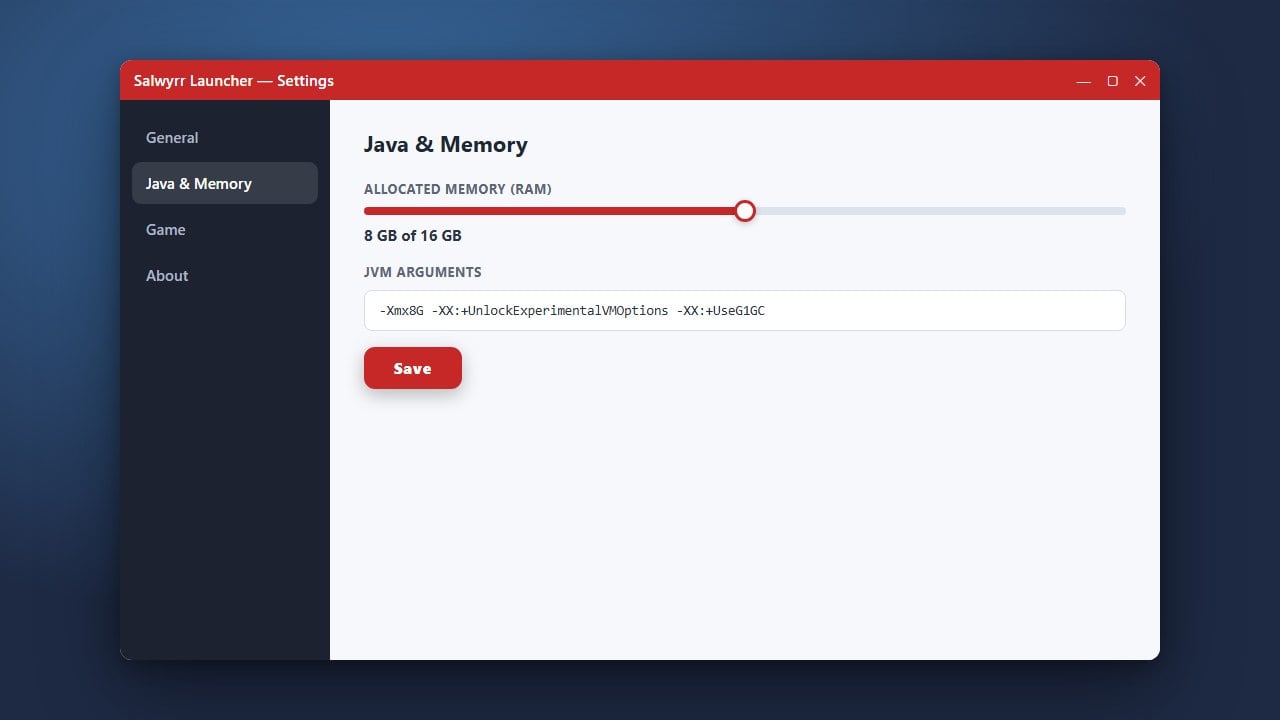
If you also want to optimize your performance while playing, you can check out our guide on How to Allocate More RAM in Salwyrr Launcher.
Open Salwyrr Launcher
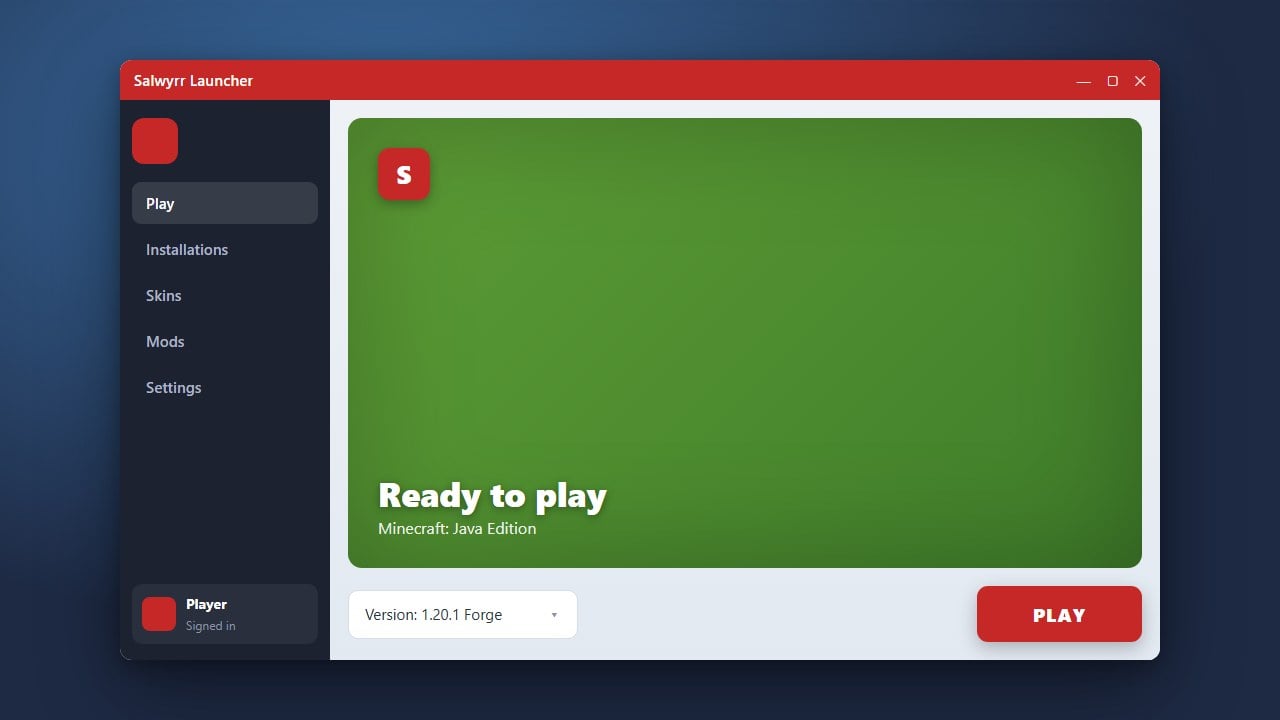
Start by launching the Salwyrr application on your computer. Make sure you are logged into your account and that the application is fully updated to the latest version.
Navigate to Version Settings
Look at the main dashboard of the launcher near the play button. Find the version selection menu or settings tab where your currently active Minecraft version is displayed.
Select Your Desired Version
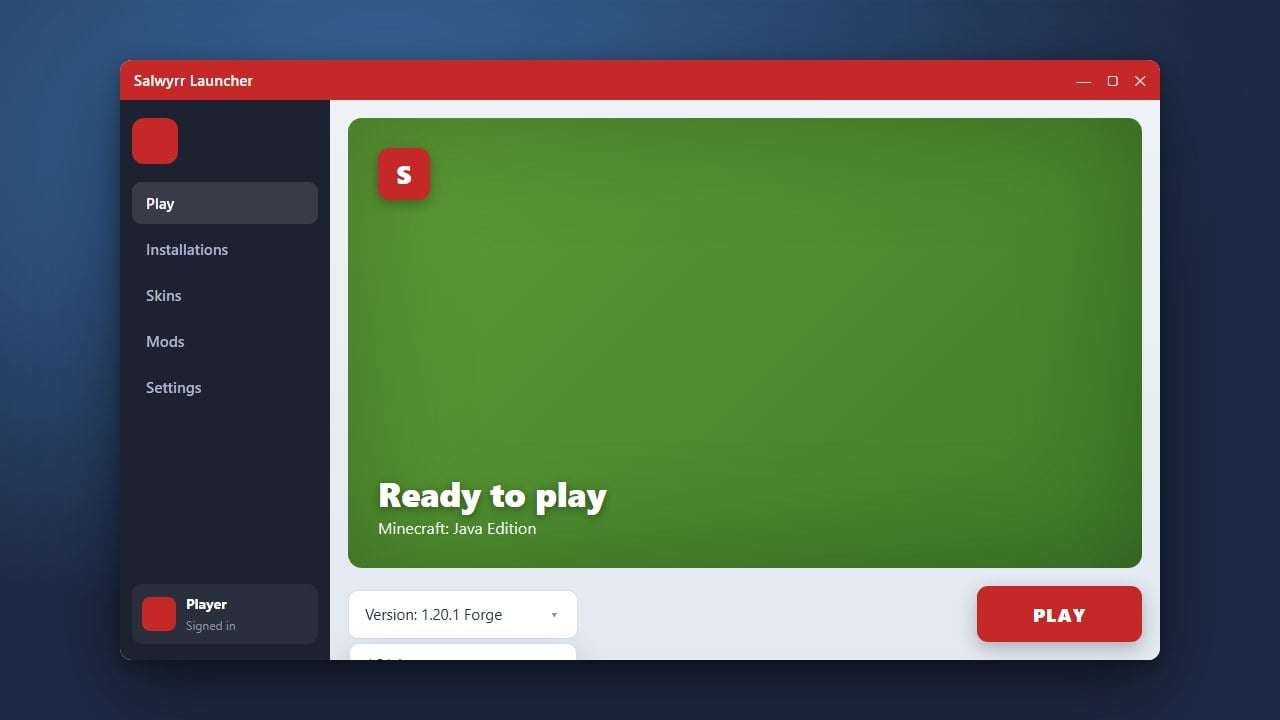
Click on the version dropdown menu to view the list of available Minecraft releases supported by the client. Scroll through and click on the specific version you wish to play on.
Launch the Game
Once you have picked your preferred version, click the confirmation or play button. The launcher will automatically download any necessary files for that version and start Minecraft for you.
Frequently Asked Questions
Can I play modded versions on Salwyrr Launcher?
Salwyrr is primarily designed to provide optimized client features and built-in mods for supported versions. Check the launcher interface for specific modded profile options.
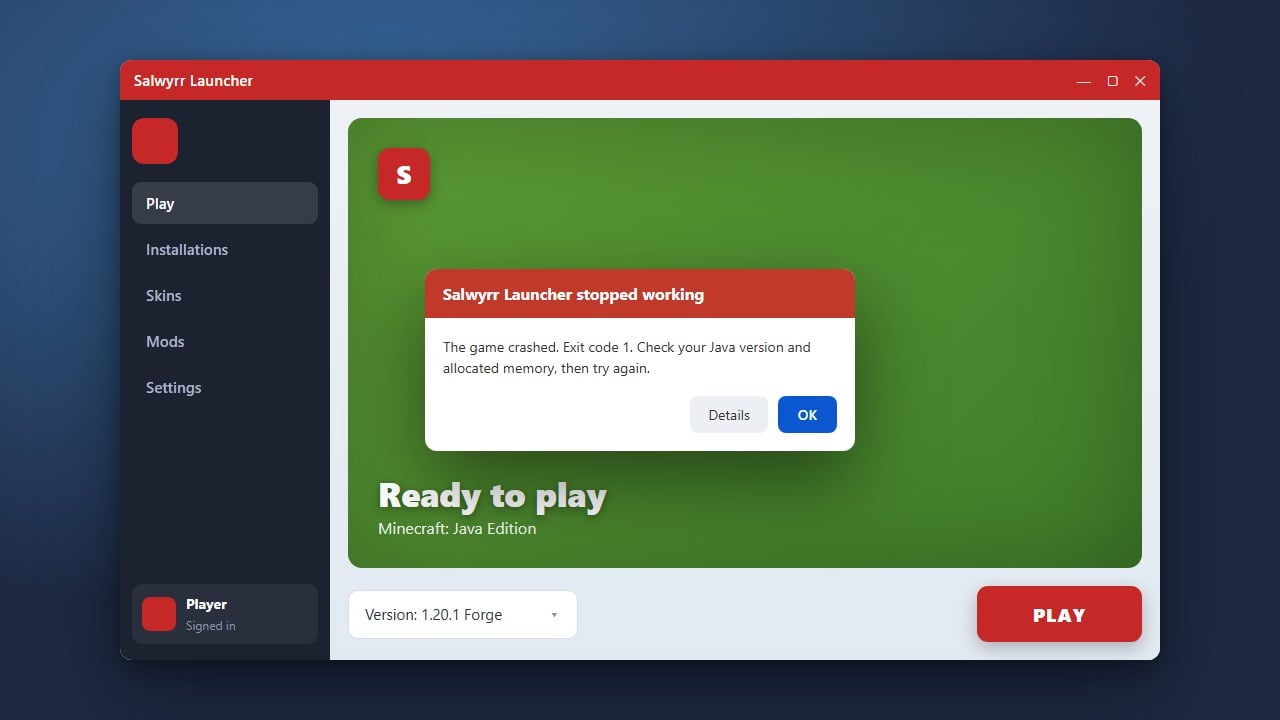
Why is my game crashing after changing versions?
Make sure your computer meets the system requirements for the chosen version and that your Java installation is up to date.