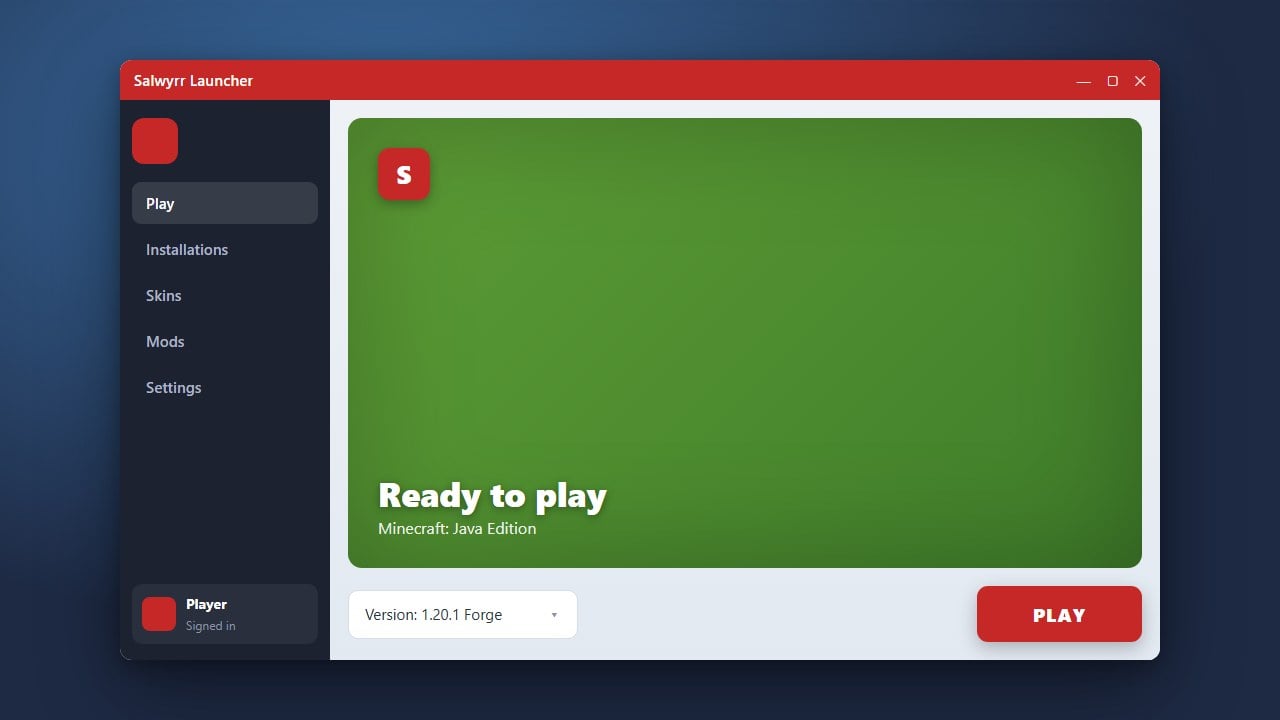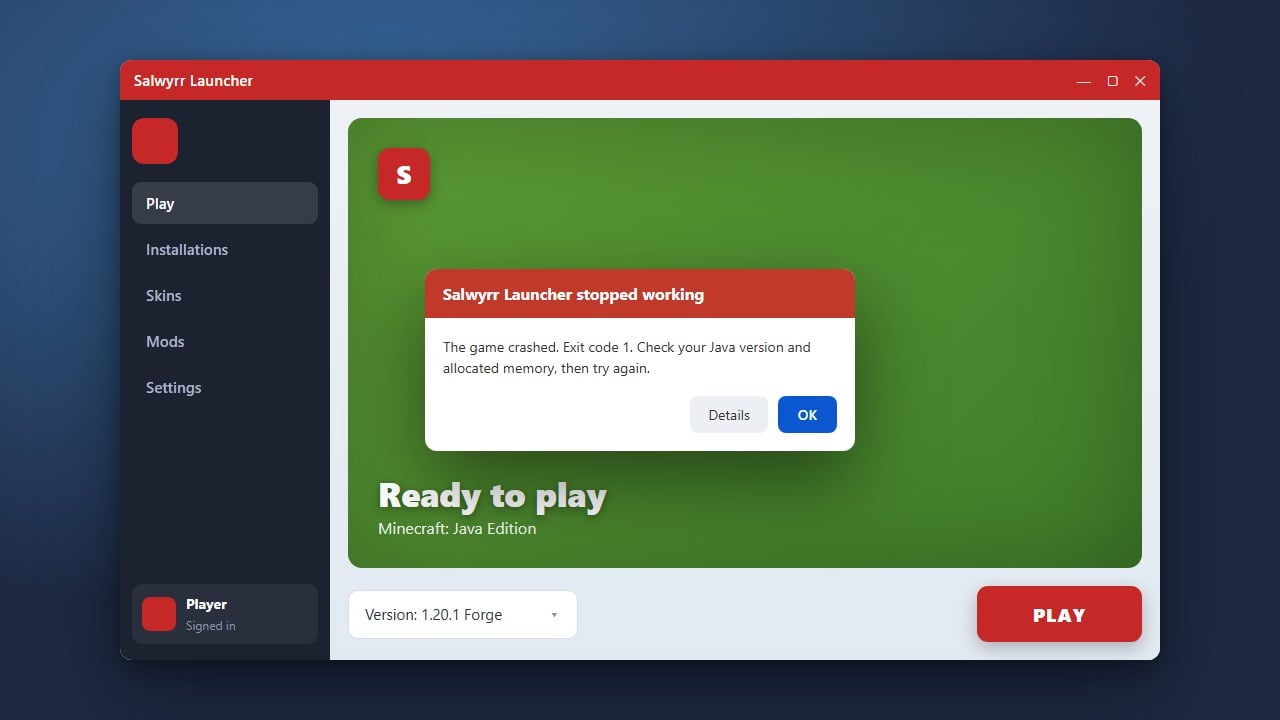
If your Minecraft game is experiencing lag, freezing, or stuttering while using the Salwyrr client, allocating more RAM can significantly boost your performance. Follow this easy guide to adjust your memory settings directly inside the Salwyrr Launcher.
Never allocate all of your computer's total RAM to Minecraft, as your operating system needs memory to run properly. Doing so can cause crashes and system instability.
Open Salwyrr Launcher
Start by launching the Salwyrr Launcher on your computer. Make sure you are logged into your account and that the application is fully updated before changing any system configurations.
Navigate to Settings
Look for the Settings or gear icon located on the launcher interface. Clicking this will open up the configuration menu where you can manage game files, versions, and performance preferences.
Locate the Memory Allocation Option
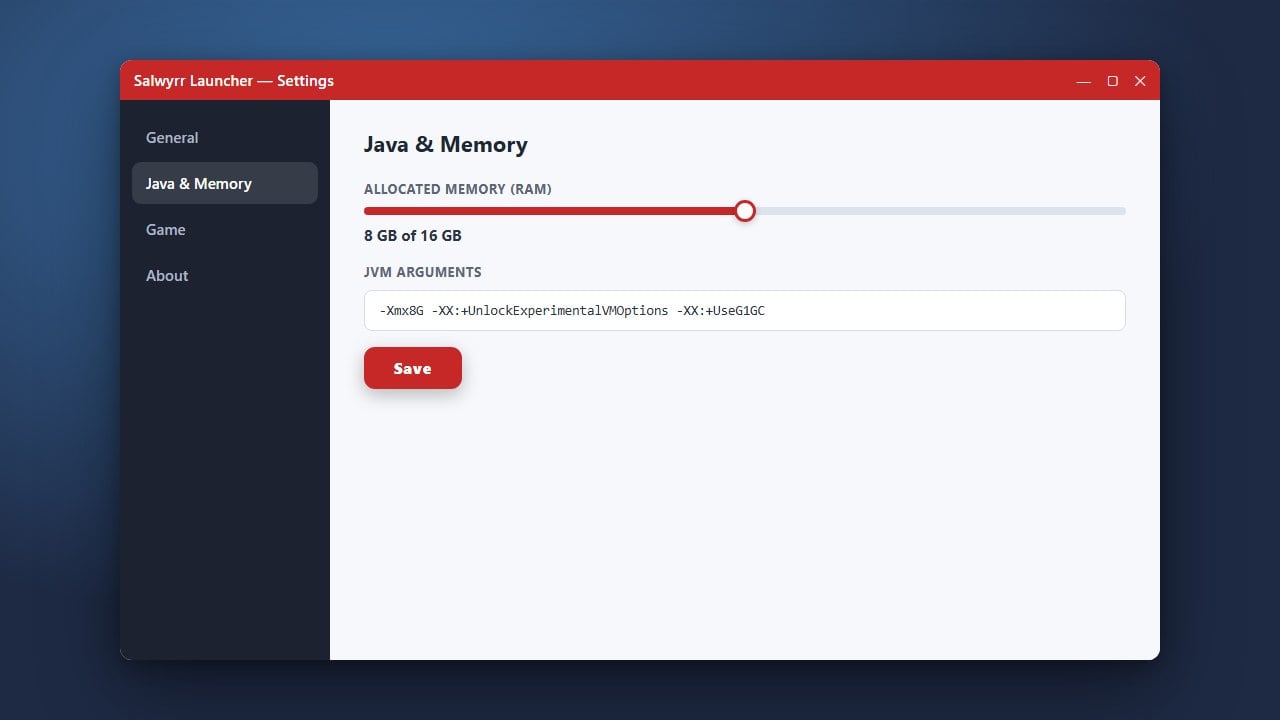
Inside the settings menu, find the RAM or memory allocation slider. This option controls how much of your computer's system memory is dedicated to running Minecraft Java Edition.
Adjust Your RAM Slider
Drag the slider to your desired amount of RAM. Ensure you leave enough memory for your operating system and background applications. For standard vanilla or optimized gameplay, allocating 2 GB to 4 GB is usually ideal.
Save and Launch Minecraft
Save your new settings, return to the main dashboard, and start your game. You can check your memory usage by pressing F3 while inside a Minecraft world to verify that the new RAM amount has been successfully applied.
Frequently Asked Questions
How much RAM should I allocate to Salwyrr Launcher?
For most players, allocating 2GB to 4GB of RAM is more than enough. If you are playing heavy modpacks, you may need to increase it further depending on your total system memory.
Why is my RAM slider grayed out or limited?
If you cannot increase your RAM beyond a certain point, you likely have a 32-bit version of Java installed. Make sure you have a modern 64-bit Java version installed on your PC.